.png?width=180&height=32&name=NW%20Logo%20(2).png)
Tags: Documentation
 (CONFIGURE) > More > Response Actions) allows you to integrate the supported third-party tools or connectors with the NetWitness platform and perform the following actions.
-
Create and manage Response Actions for metas displayed in Respond, Investigate, Hosts, and Users views that support context highlights.
-
Perform Quick Actions on the applicable meta and post the meta with additional information to the connector for taking further actions.
Workflow
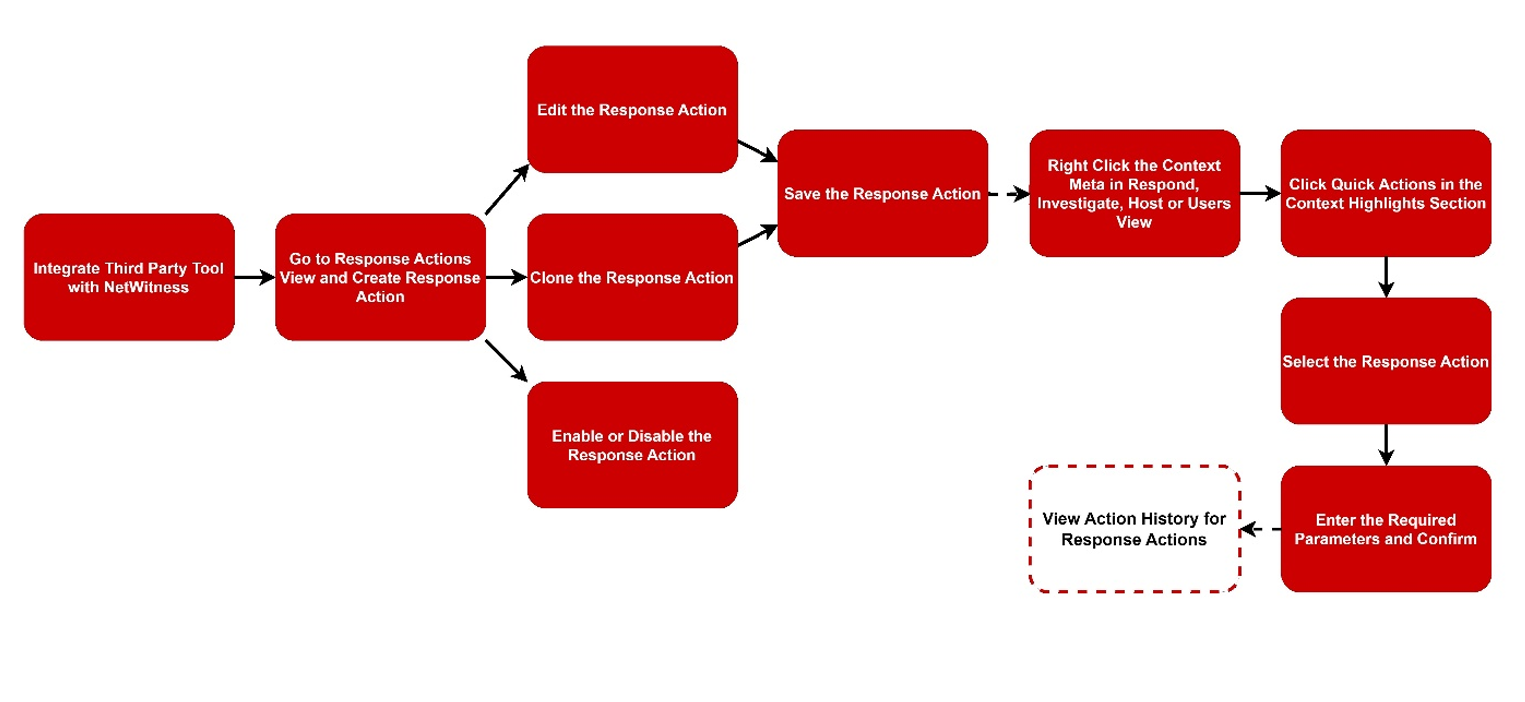
The following figure is a high-level workflow illustrating the tasks you can do in the NetWitness Response Actions view.
What do you want to do?
Related Topics
Quick Look
To access the Response Actions view, go to the ( (CONFIGURE) > More > Response Actions view.
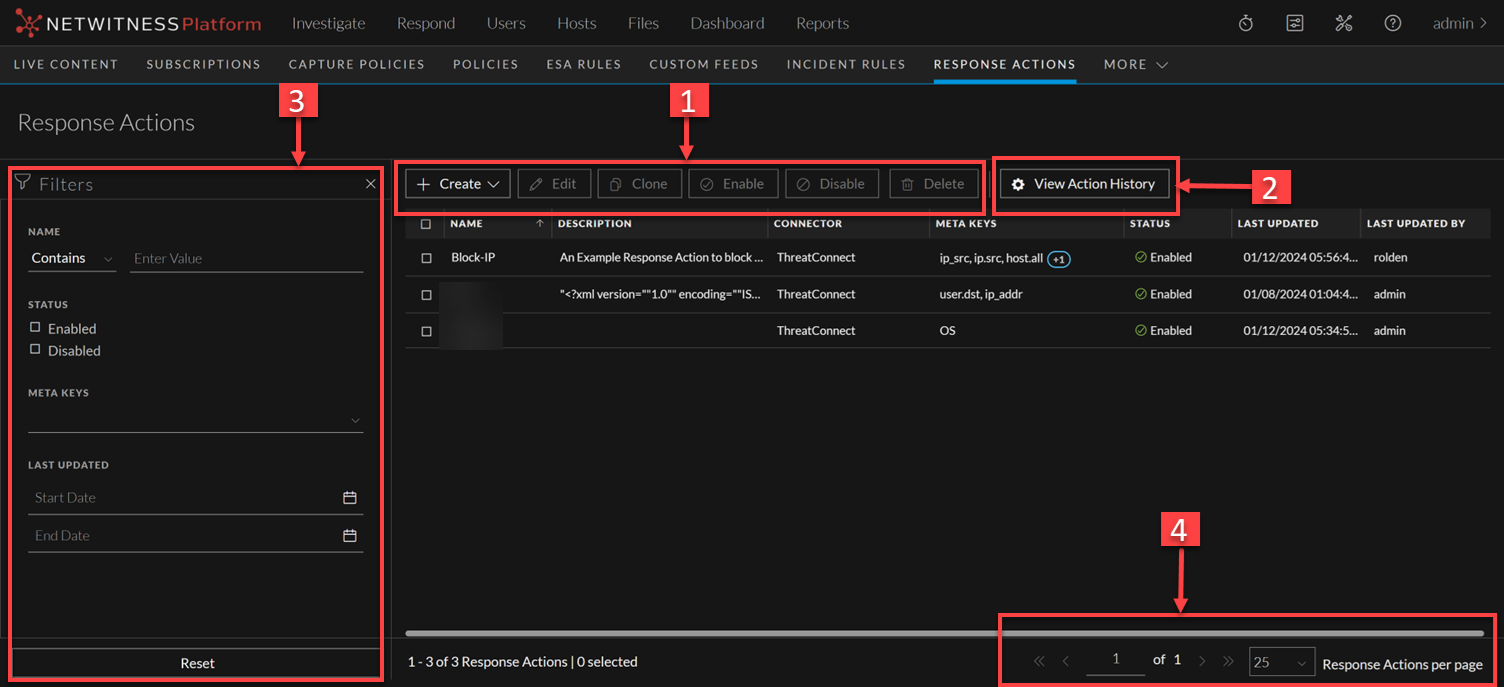
Response Actions List View
The Response Actions List displays all the Response Actions configured in the NetWitness Platform. You can filter this list to view only the Response Actions of interest.
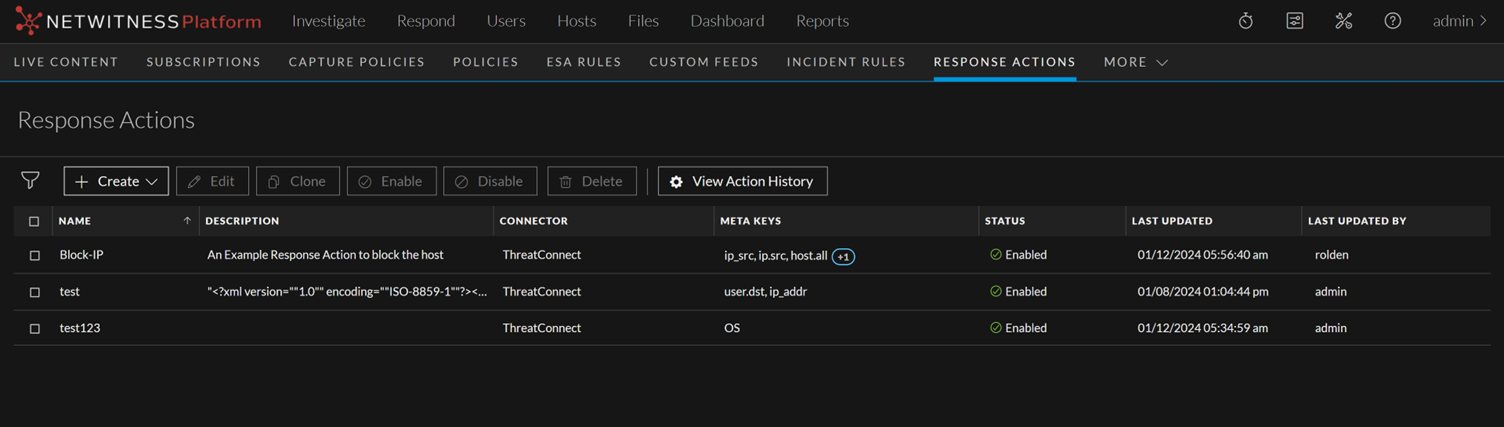
The following table describes the columns in the Response Actions List.
Response Actions Filters Panel
The following figure shows the filters available in the Response Actions Filters panel.
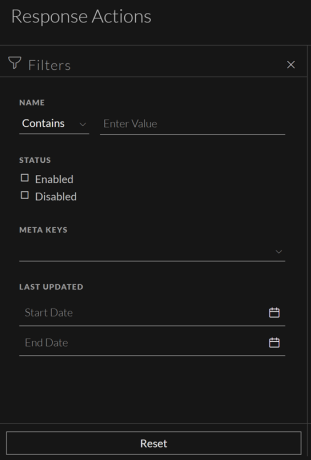
You can filter the Response Actions based on the following parameters.
-
Response Action Name
-
Status of the Response Action
-
Supported Meta Keys
-
Last updated Date and Time
The following table lists all the fields displayed in the Response Actions List view Filters panel.
Response Actions Overview panel
When you click any row in the Response Actions List, the Overview panel is displayed on the right side of the Response Actions List view, which shows the basic summary information about the particular Response Action.
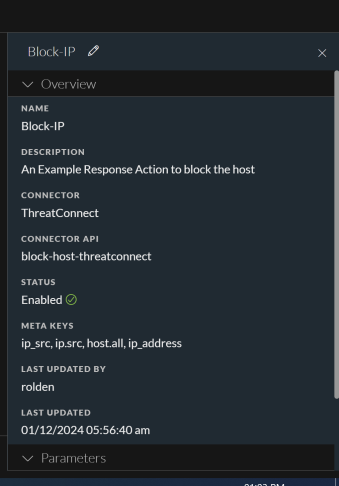
The following table displays the fields and parameters associated with the Overview panel.
Response Actions History List view
When you execute Response Actions in the Quick Actions, the actions performed are recorded and the associated data is displayed in the Response Actions History view ( (CONFIGURE) > More > Response Actions > View Action History > Response Actions History). This is a global view of all actions performed across all Response actions.
The Response Actions History List displays the history of all the Response Actions executed in the NetWitness Platform.
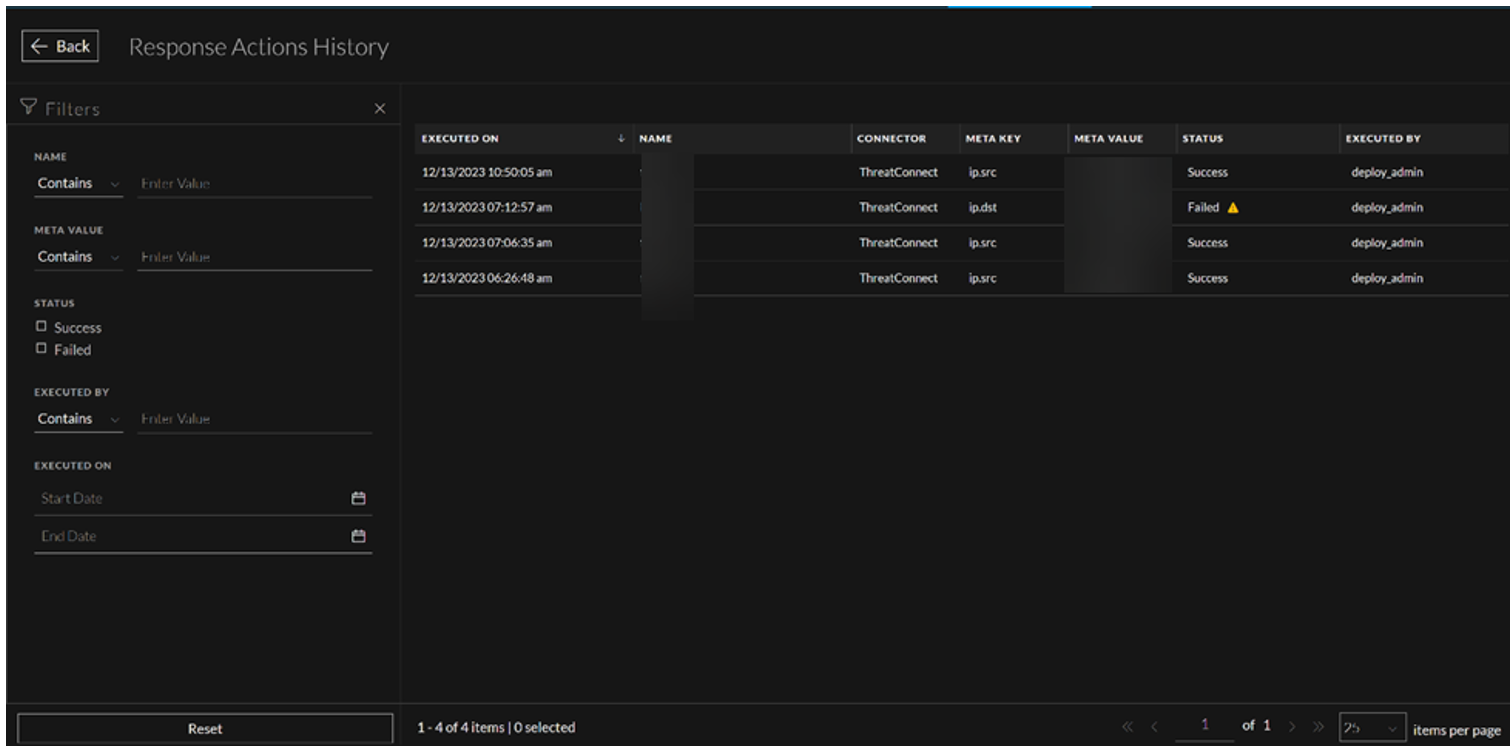
The following table describes the columns in the Response Actions History List view.
Response Actions History Filters Panel
The following figure shows the filters available in the Response Actions History Filters panel.
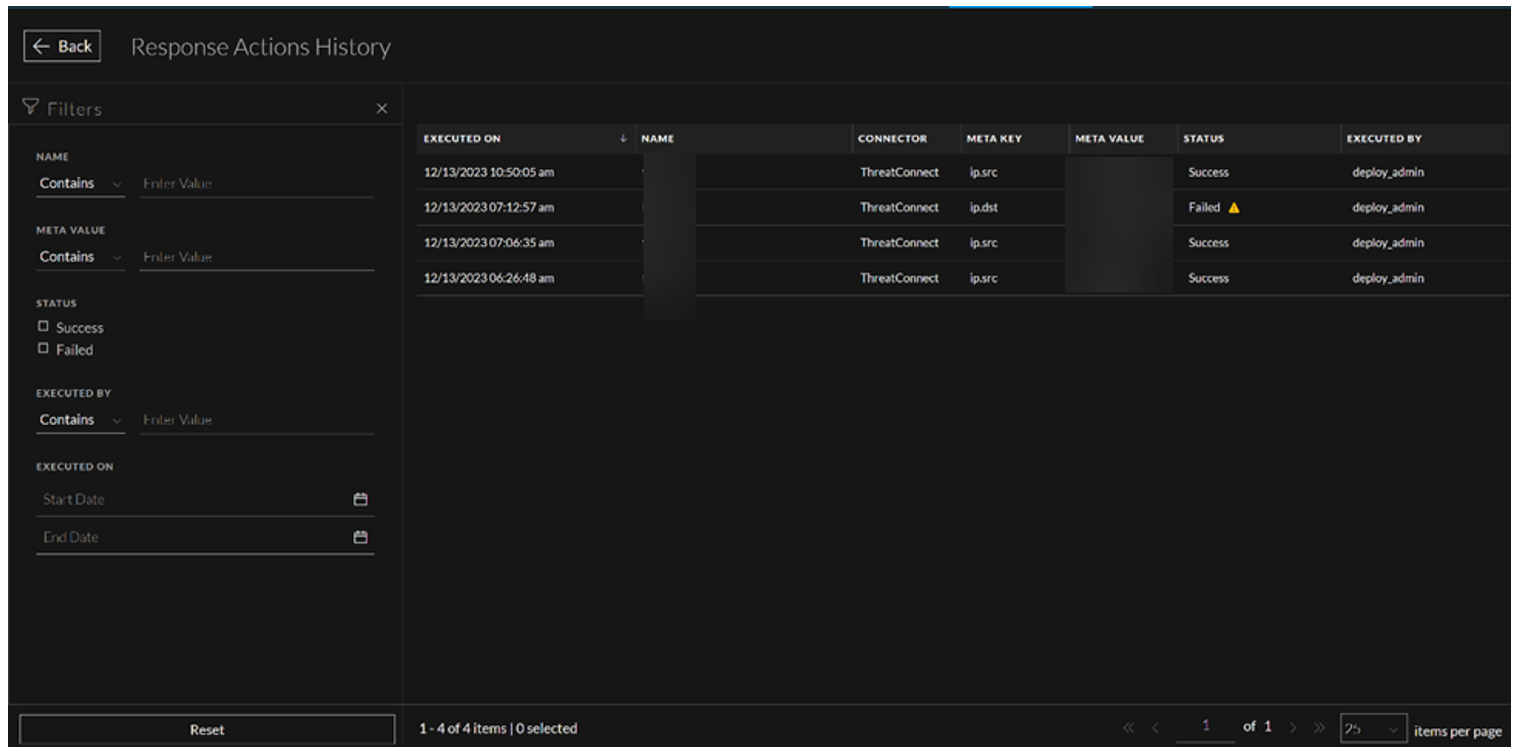
You can filter the Response Actions based on the following parameters.
-
Response Action Name
-
Status of the Response Action
-
Supported Meta Keys
-
Last updated Date and Time
The following table lists all the fields displayed in the Response Actions List view Filters panel.
Response Actions History Overview panel
When you click any row in the Response Actions History List, the Overview panel is displayed on the right side of the Response Actions History view, which shows the basic summary information about the particular Response Action executed. The following fields and parameters are displayed in the Overview panel.
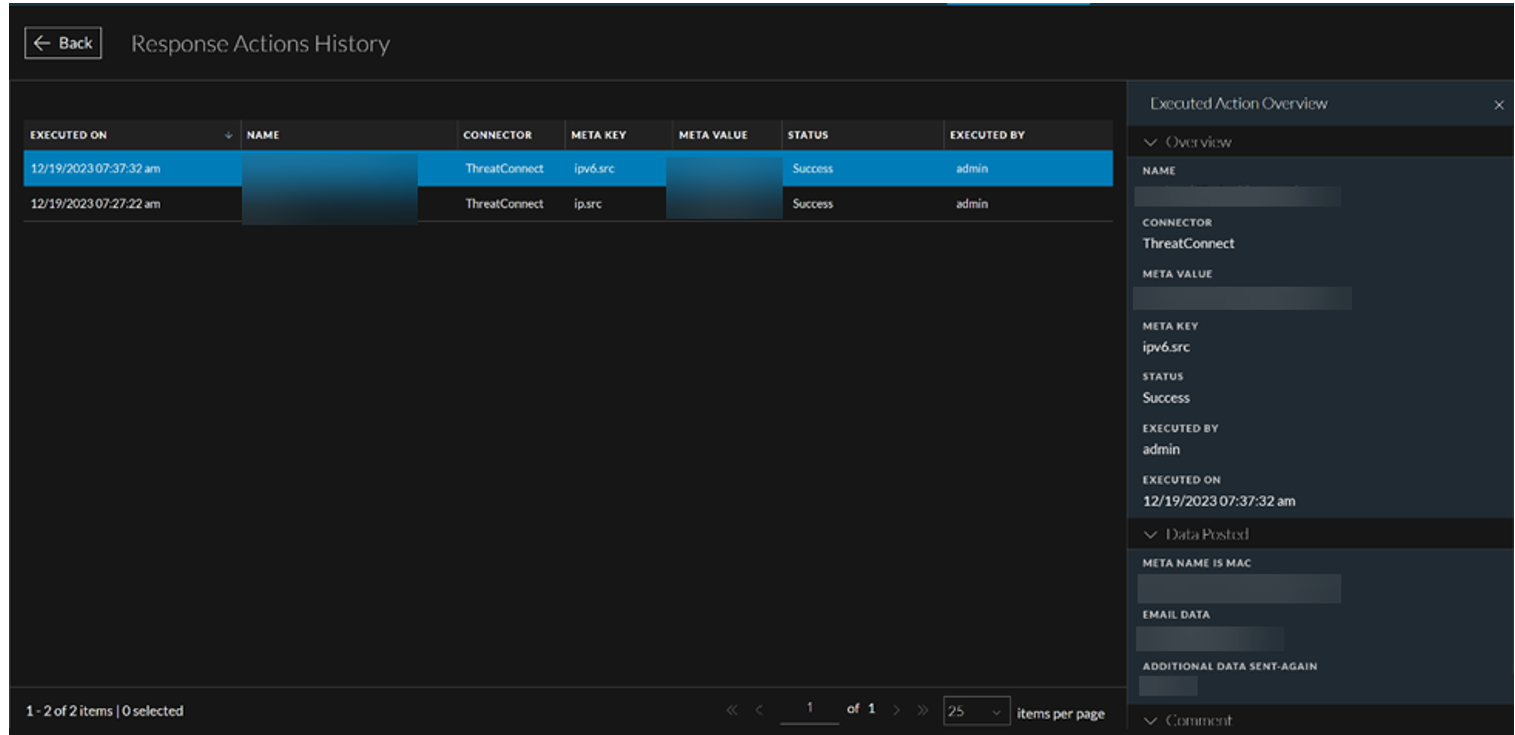
The following table lists all the fields displayed in the Response Actions History Overview view panel details.