.png?width=180&height=32&name=NW%20Logo%20(2).png)
Tags: Documentation
NetWitness provides backup/restore of SASE node(s) in GCP that follows the same process as on-prem node(s). GCP provides a snapshot feature to backup GCP instances periodically and restore them in case of node destruction or failure.
SASE Node-X backup and restore uses Google snapshots.
Refer to Snapshots overview | Filestore | Google Cloud for more details on snapshots.
Note: Snapshots are taken only for VM boot disk instances and not configured for storage disks (For example, disks defined in host-models.yml configured for NW databases such as packetdb/index).
Perform the following tasks to backup/restore the SASE node(s):
-
Task 2. Create Snapshot Schedule for Orchestrated SASE Node-X
-
Task 3. Restore SASE Node-X (For example, concentrator or decoder) from Snapshot
Task 1. Create Snapshot of Orchestrated SASE Node-X
During the orchestration of SASE Node-X, if the storage is set to true under the Storage section of /opt/rsa/saTools/cloud/sase-deployment-models.yml, additional disks are created with the specifications defined under the Storage section. These disks are configured as storage devices for the orchestrated Node-X service. Currently, both the Decoder and Concentrator are supported. The snippet below describes the creation of two disks, concentrator0 and index0, with disk type and size.
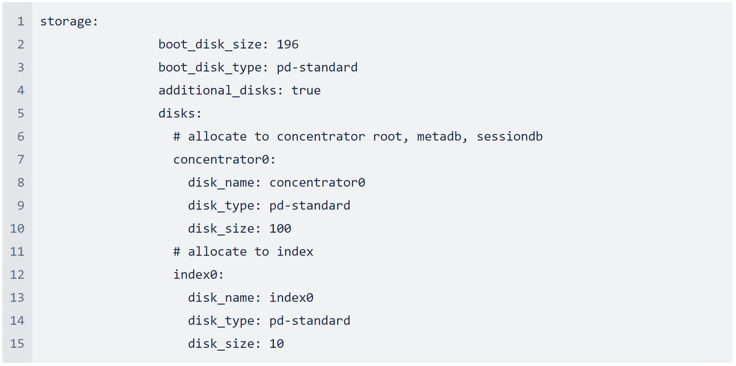
Follow the below steps to create snapshot of orchestrated SASE Node-X:
-
Login to the GCP account, select Snapshots > CREATE SNAPSHOT.
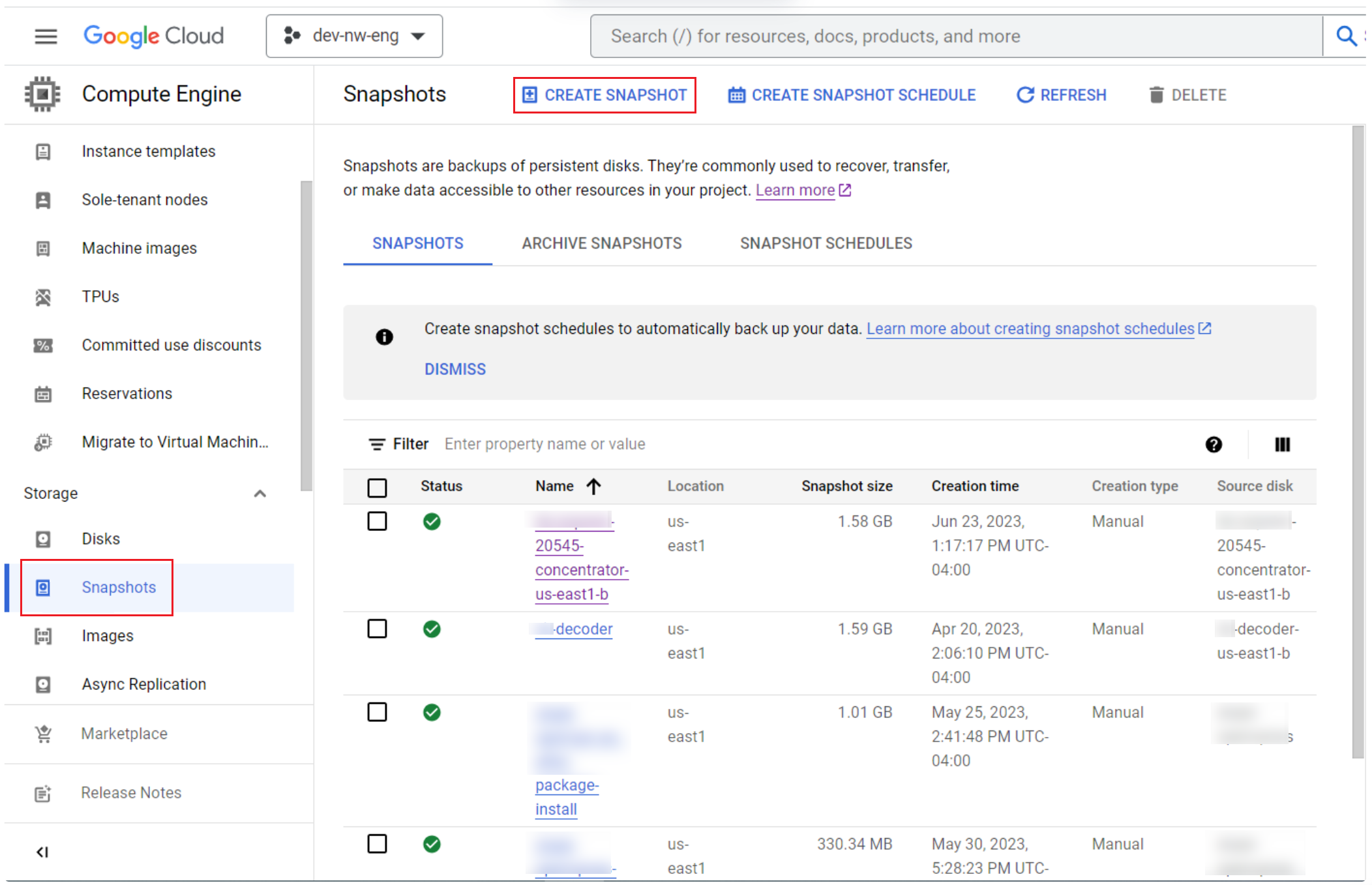
-
Fill in all the mandatory fields such as Name (For example, VM name + snapshot i.e., 20545-concentrator-us-east1-b-snapshot, Type (Snapshot), Location - Regional (Same as the VM instance location. In this case: us-east-1), select Enable application consistent snapshot checkbox and click Create to create the snapshot.
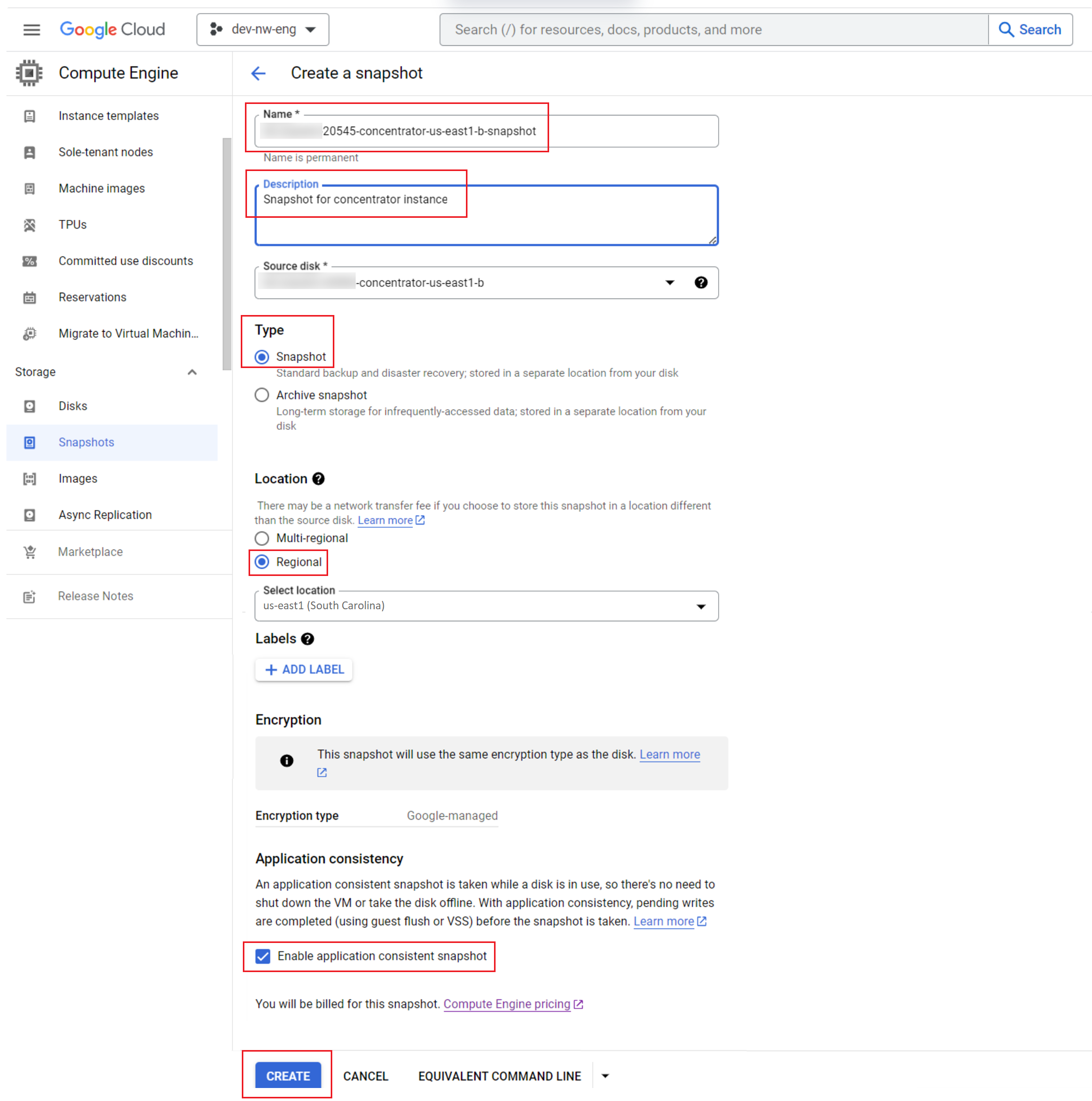
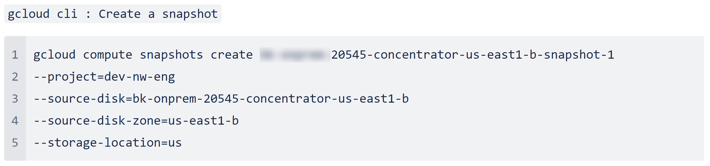
-
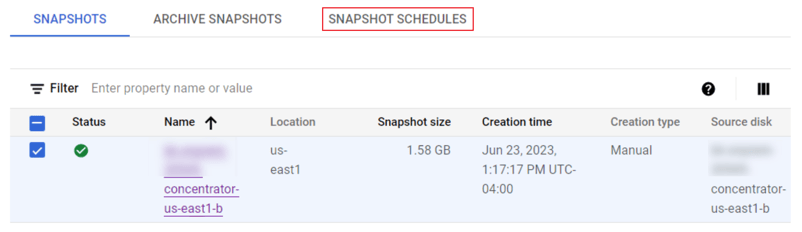
The new snapshot is displayed in the snapshot window.
Task 2. Create Snapshot Schedule for Orchestrated SASE Node-X
Refer to Create schedules for disk snapshots | Compute Engine Documentation | Google Cloud for more details.
Follow the below steps to create snapshot schedule for orchestrated SASE Node-X:
-
Select the SNAPSHOT SCHEDULES tab to create snapshot schedules for this instance.
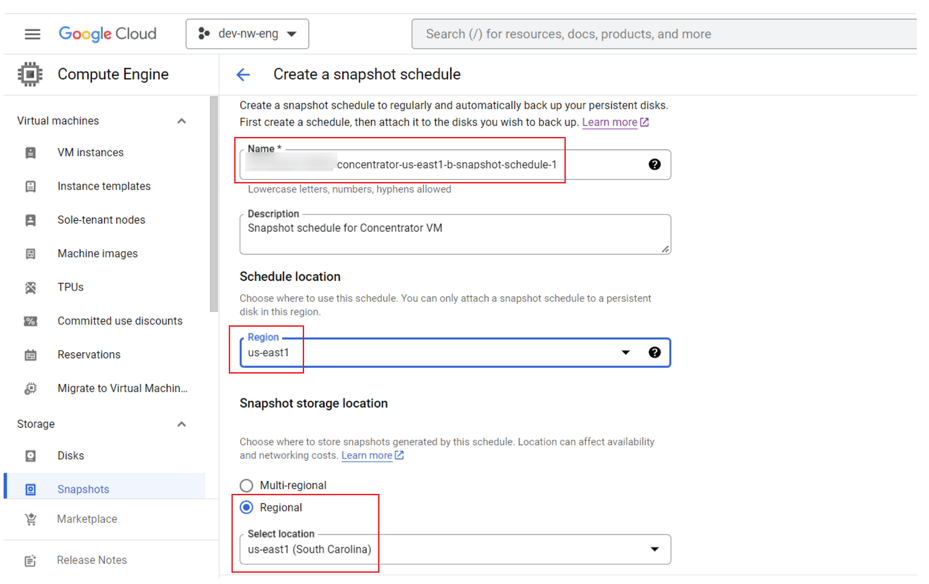
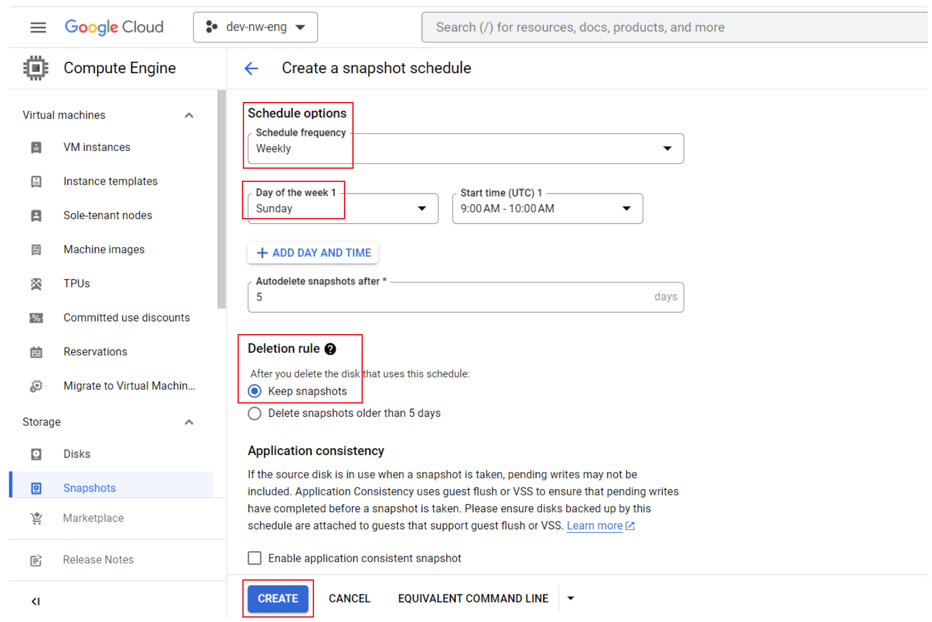
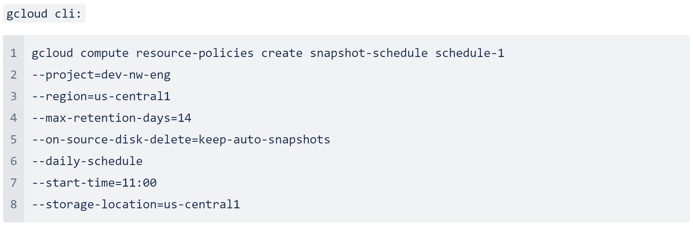
-
Refer to the link Create schedules for disk snapshots | Compute Engine Documentation | Google Cloud.
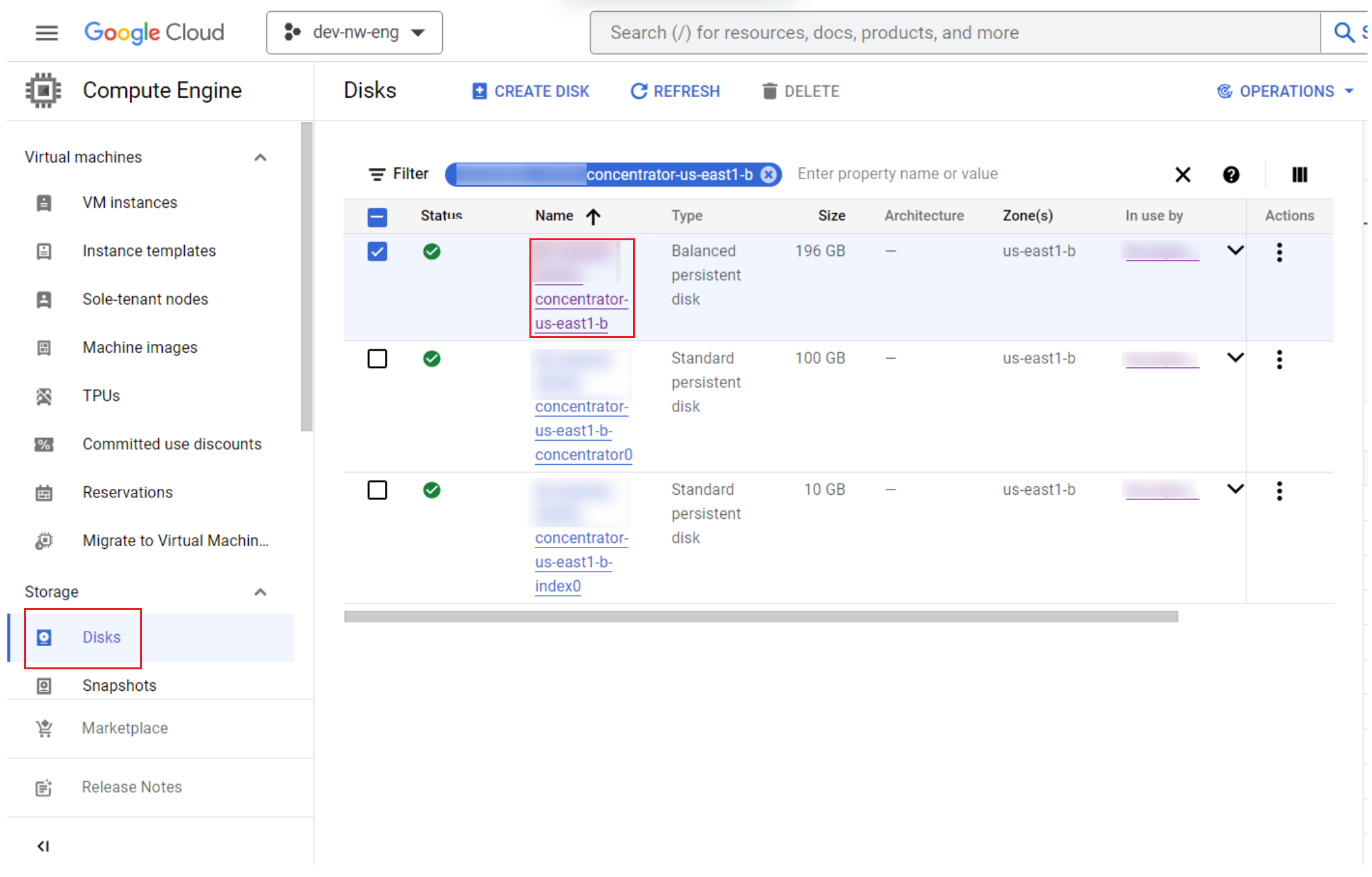
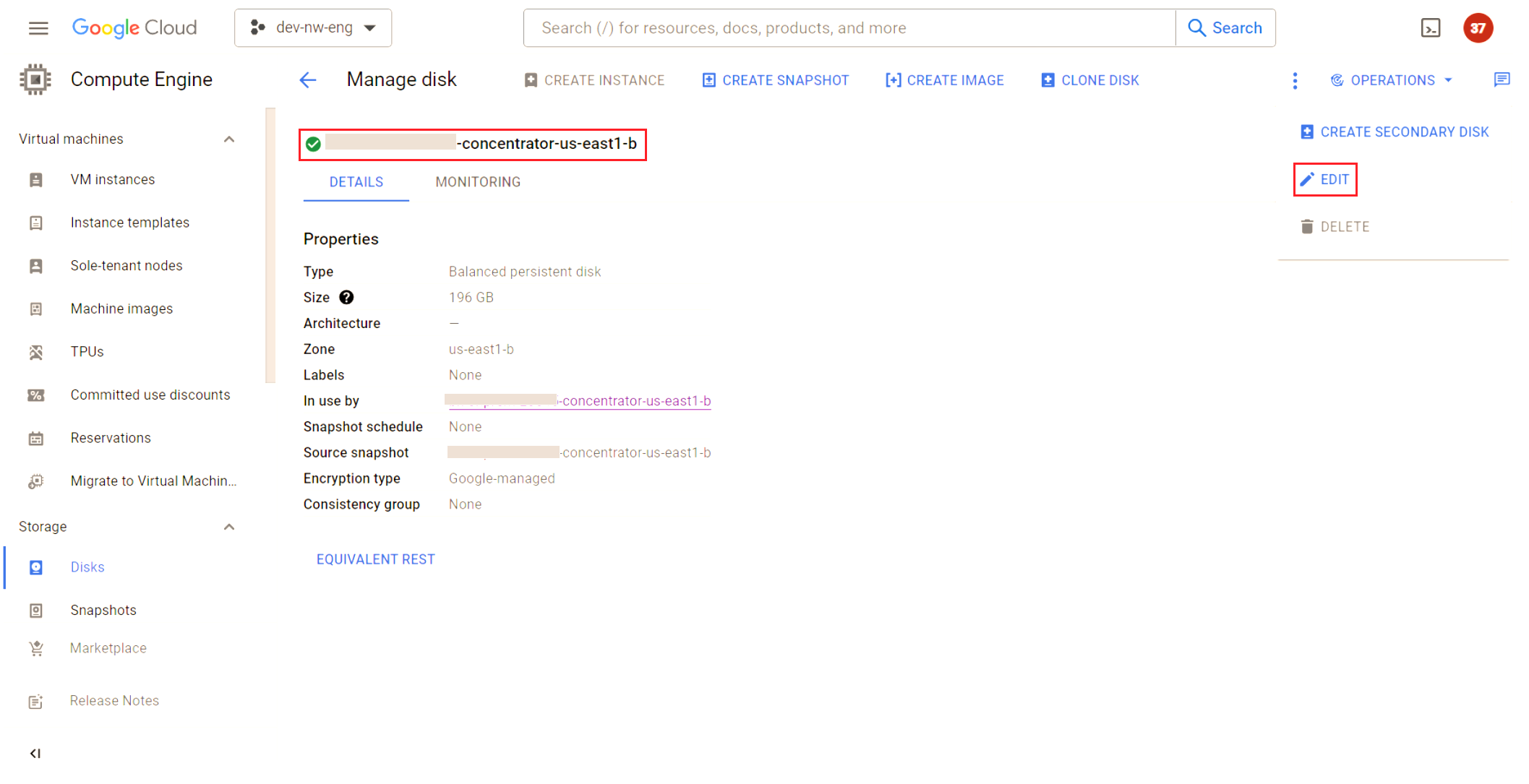
Click on the Name to select the disk. Click Edit to change the properties.
-
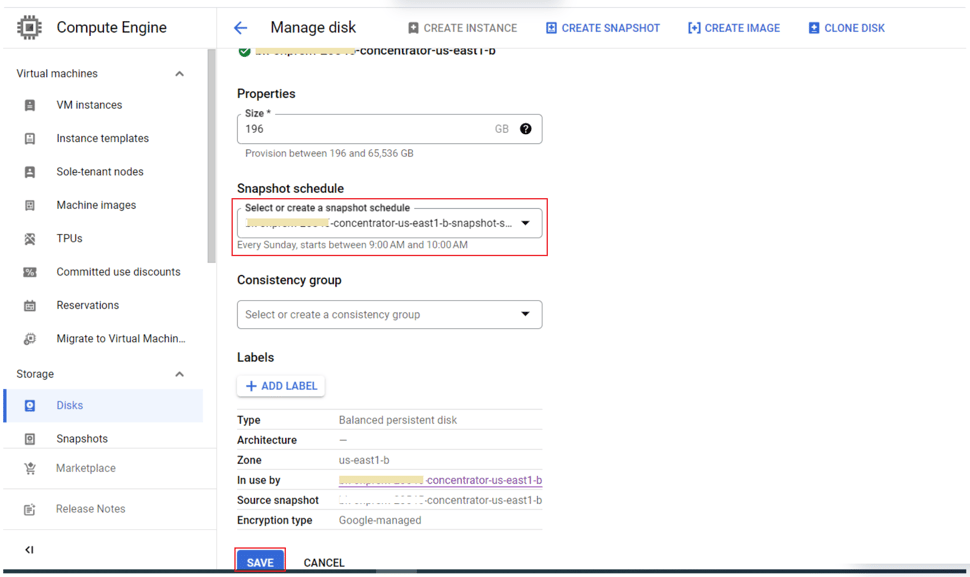
Select the Snapshot schedule from the drop-down. This is the schedule created in the previous step. The selected schedule details are described below the snapshot drop-down. Click Save.

Task 3. Restore SASE Node-X (For example, concentrator or decoder) from Snapshot
-
Identify the snapshot corresponding to the image that needs restoration.
-
Note the failed Node-X Name and Network settings (gcp - IP, Subnet, and gateway). The new image MUST have the same name and IP settings as the failed node. The name/ip address are added to /etc/hosts of all the nodes in the NW environment. Fixed static IP assignment is an option.
-
Attach the Storage disks of the failed instance to the new instance restored from a snapshot. When restoring an image from a snapshot, the /etc/fstab is restored and contains the mounts for the Storage disks. These disks MUST be attached before the NW server (For example, concentrator or decoder) is booted.
-
SSH to the new instance and confirm that the service is running. Next, log in to the Admin server UI and confirm that the service on the new instance is online.
Original Settings
[root@20545-concentrator-us-east1-b ~]# ip a
1: lo:
link/loopback 00:00:00:00:00:00 brd 00:00:00:00:00:00
inet 127.0.0.1/8 scope host lo
valid_lft forever preferred_lft forever
inet6 ::1/128 scope host
valid_lft forever preferred_lft forever
2: eth0:
link/ether 42:01:0a:0a:14:08 brd ff:ff:ff:ff:ff:ff
inet 10.10.20.8/32 brd 10.10.20.8 scope global dynamic eth0
valid_lft 2686sec preferred_lft 2686sec
inet6 fe80::4001:aff:fe0a:1408/64 scope link
valid_lft forever preferred_lft forever
3: nebula1:
link/none
inet 172.30.30.4/24 scope global nebula1
valid_lft forever preferred_lft forever
inet6 fe80::e337:8b00:d411:132a/64 scope link flags 800
valid_lft forever preferred_lft forever
[root@20545-concentrator-us-east1-b ~]# cat /etc/fstab
#
# /etc/fstab
# Created by anaconda on Tue May 23 18:49:10 2023
#
# Accessible filesystems, by reference, are maintained under '/dev/disk'
# See man pages fstab(5), findfs(8), mount(8) and/or blkid(8) for more info
#
/dev/mapper/netwitness_vg00-root / xfs defaults 0 0
UUID=7e02d023-b265-4f18-9f4f-3aecf28681bf /boot xfs defaults 0 0
/dev/mapper/netwitness_vg00-usrhome /home xfs nosuid 0 0
/dev/mapper/netwitness_vg00-varlog /var/log xfs defaults 0 0
/dev/mapper/netwitness_vg00-nwhome /var/netwitness xfs nosuid,noatime 0 0
/dev/mapper/netwitness_vg00-swap swap swap defaults 0 0
/dev/concentrator/root /var/netwitness/concentrator xfs noatime,nosuid 1 2
/dev/concentrator/sessiondb /var/netwitness/concentrator/sessiondb xfs noatime,nosuid 1 2
/dev/concentrator/metadb /var/netwitness/concentrator/metadb xfs noatime,nosuid 1 2
/dev/index/index /var/netwitness/concentrator/index xfs noatime,nosuid 1 2
[root@20545-concentrator-us-east1-b ~]#
Detailed Steps
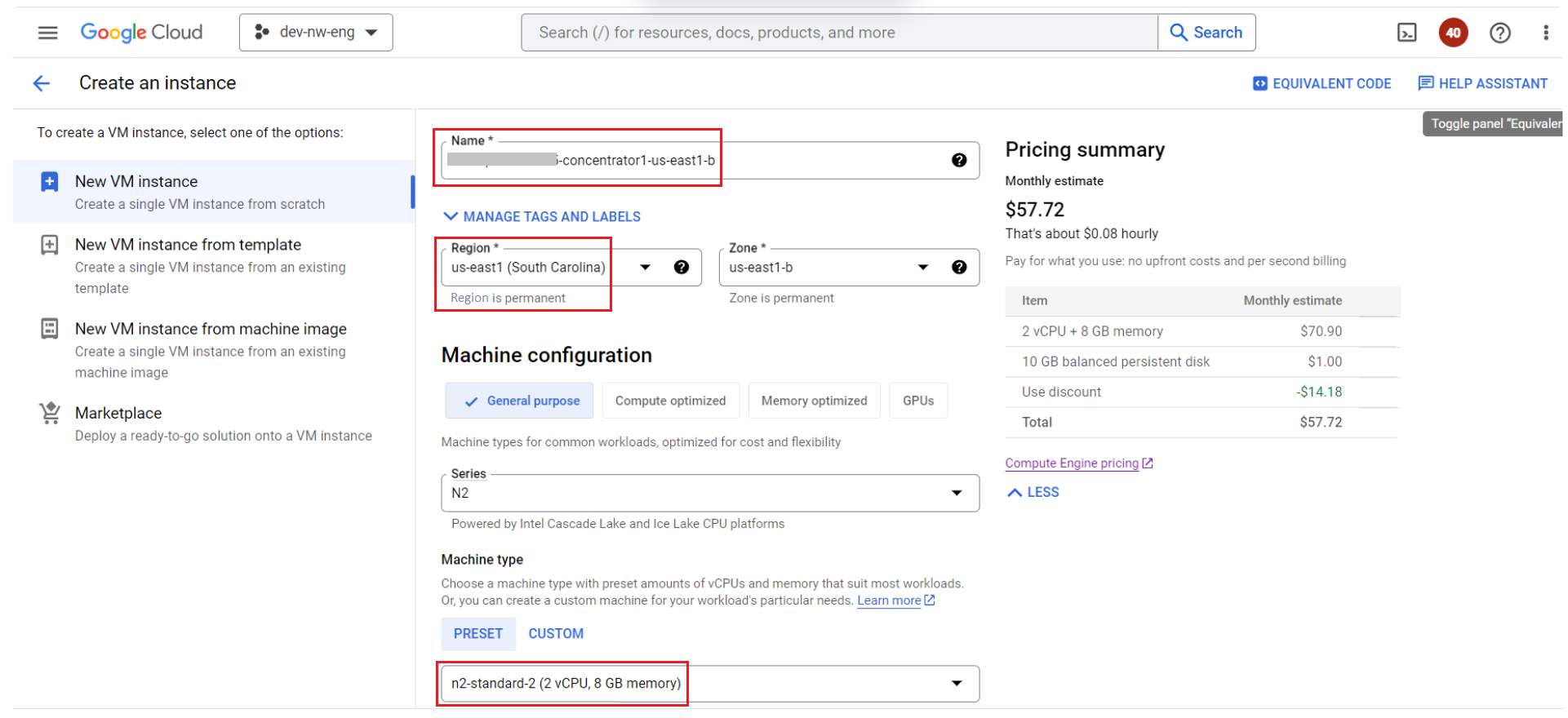
Step 1. Create a GCP VM instance from the snapshot with the same name and specifications
gcloud compute instances create 20545-concentrator1-us-east1-b
--project=dev-nw-eng
--zone=us-east1-b
--machine-type=n2-standard-4
--network-interface=network-tier=PREMIUM,stack-type=IPV4_ONLY,subnet=20545-ppn-node-subnetwork-us-east1
--maintenance-policy=MIGRATE
--provisioning-model=STANDARD
--service-account=97611879986-compute@developer.gserviceaccount.com
--create-disk=auto-delete=yes,boot=yes,device-name=20545-concentrator1-us-east1-b,disk-resource-policy=projects/dev-nw-eng/regions/us-east1/resourcePolicies/20545-concentrator-us-east1-b-snapshot-schedule-1,mode=rw,size=196,source-snapshot=projects/dev-nw-eng/global/snapshots/20545-concentrator-us-east1-b,type=projects/dev-nw-eng/zones/us-east1-b/diskTypes/pd-balanced
--labels=goog-ec-src=vm_add-gcloud
--reservation-affinity=any
Step 2. Create a VM instance from the snapshot
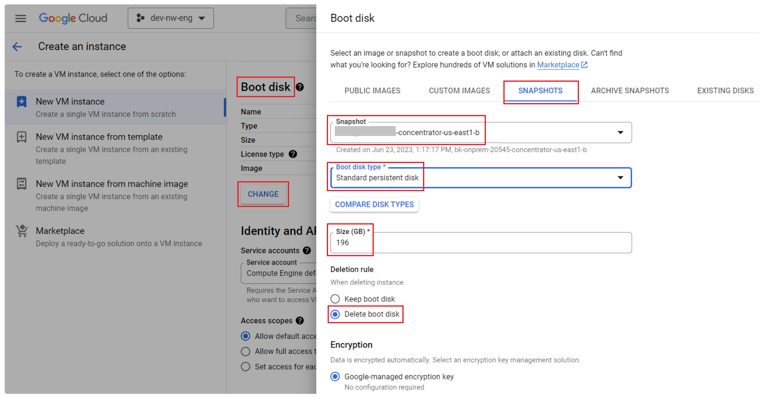
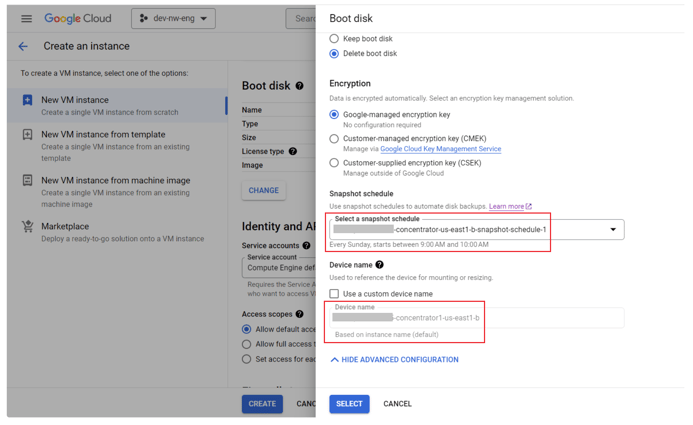
Step 3. Configure Networking
-
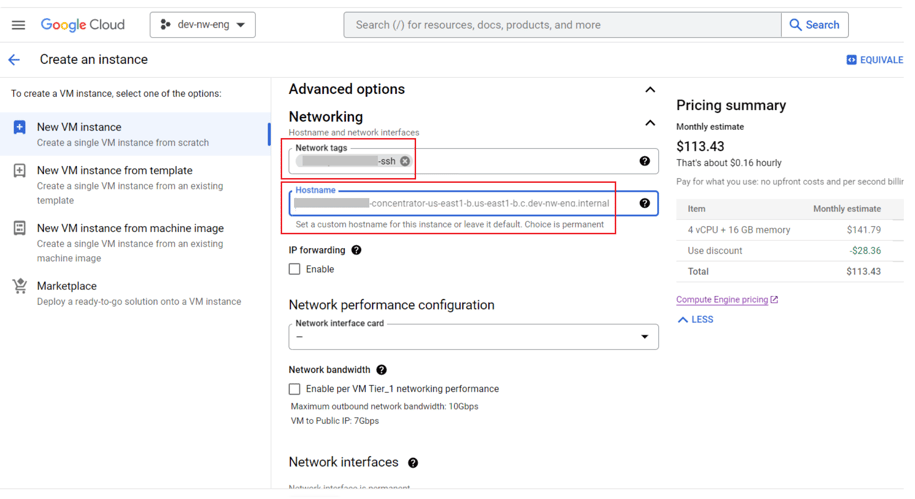
Select Advanced Options > Networking > Select the required Network Tags. Retain the default value for HostName.
-
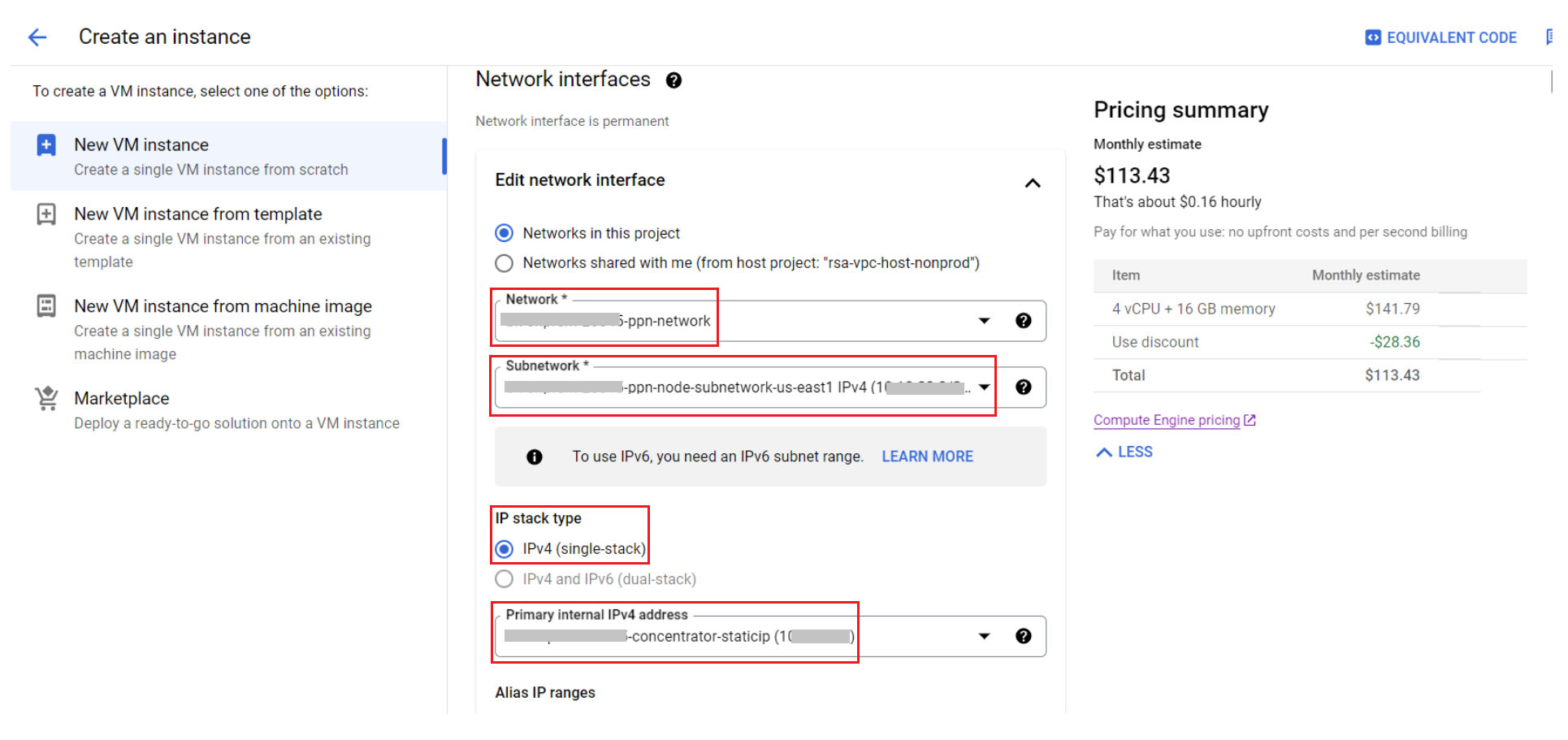
Select Network Interfaces > Edit network interface > Networks in this project.
-
Select the appropriate Network and Subnetwork from the drop-down.
-
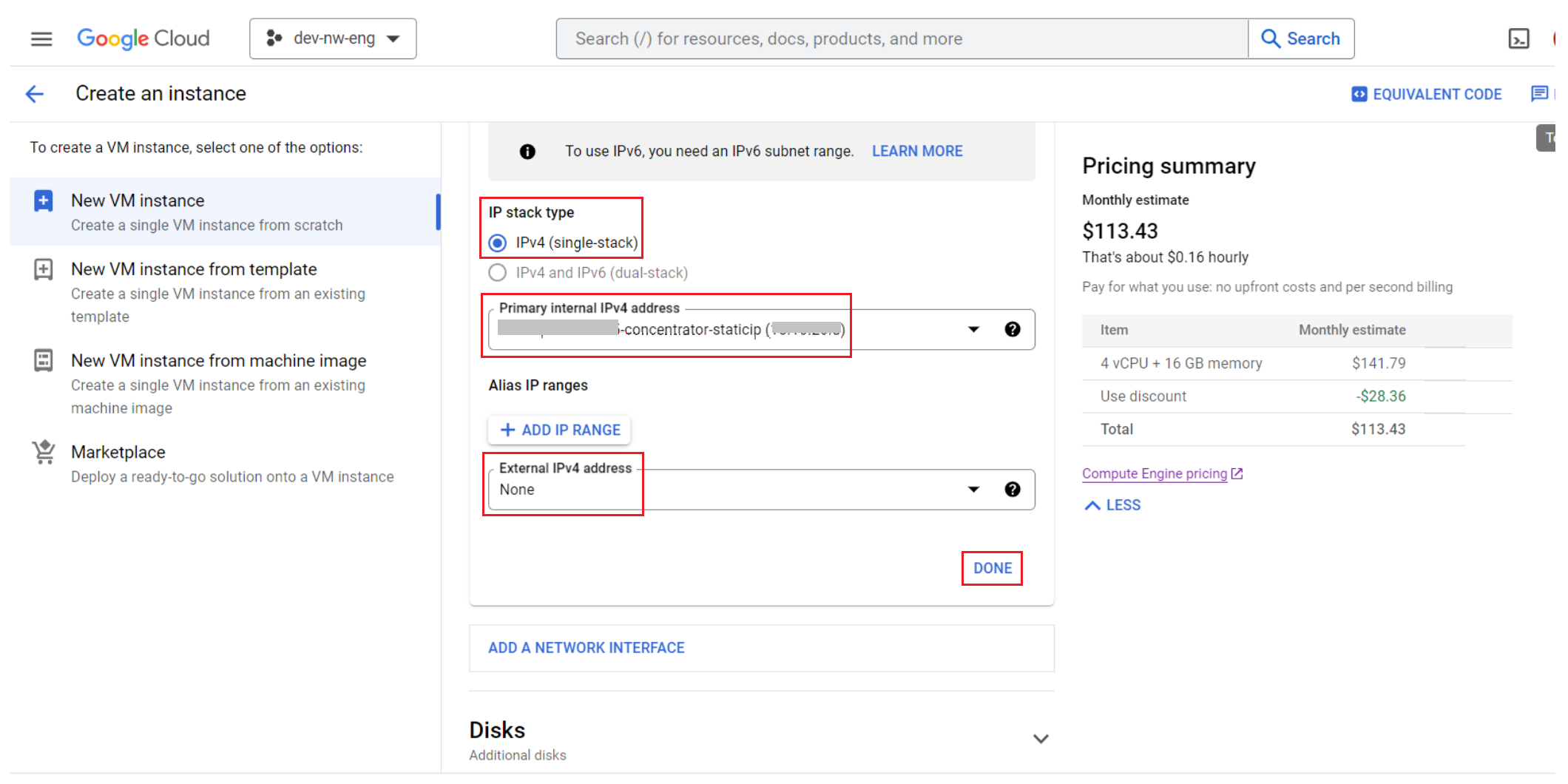
Select IPv4 (single-stack) and Primary Internal IPv4 Address from the drop-down.
Note: This address MUST match the IPv4 address of the failed node being replaced.
Reserving Static Internal IPv4 Address
Select the Primary internal IPv4 address drop-down and select RESERVE STATIC INTERNAL IPV4 ADDRESS.
Configure static internal IP addresses | Compute Engine Documentation | Google Cloud
terra form: Configure static internal IP addresses | Compute Engine Documentation | Google Cloud
gcloud cli:

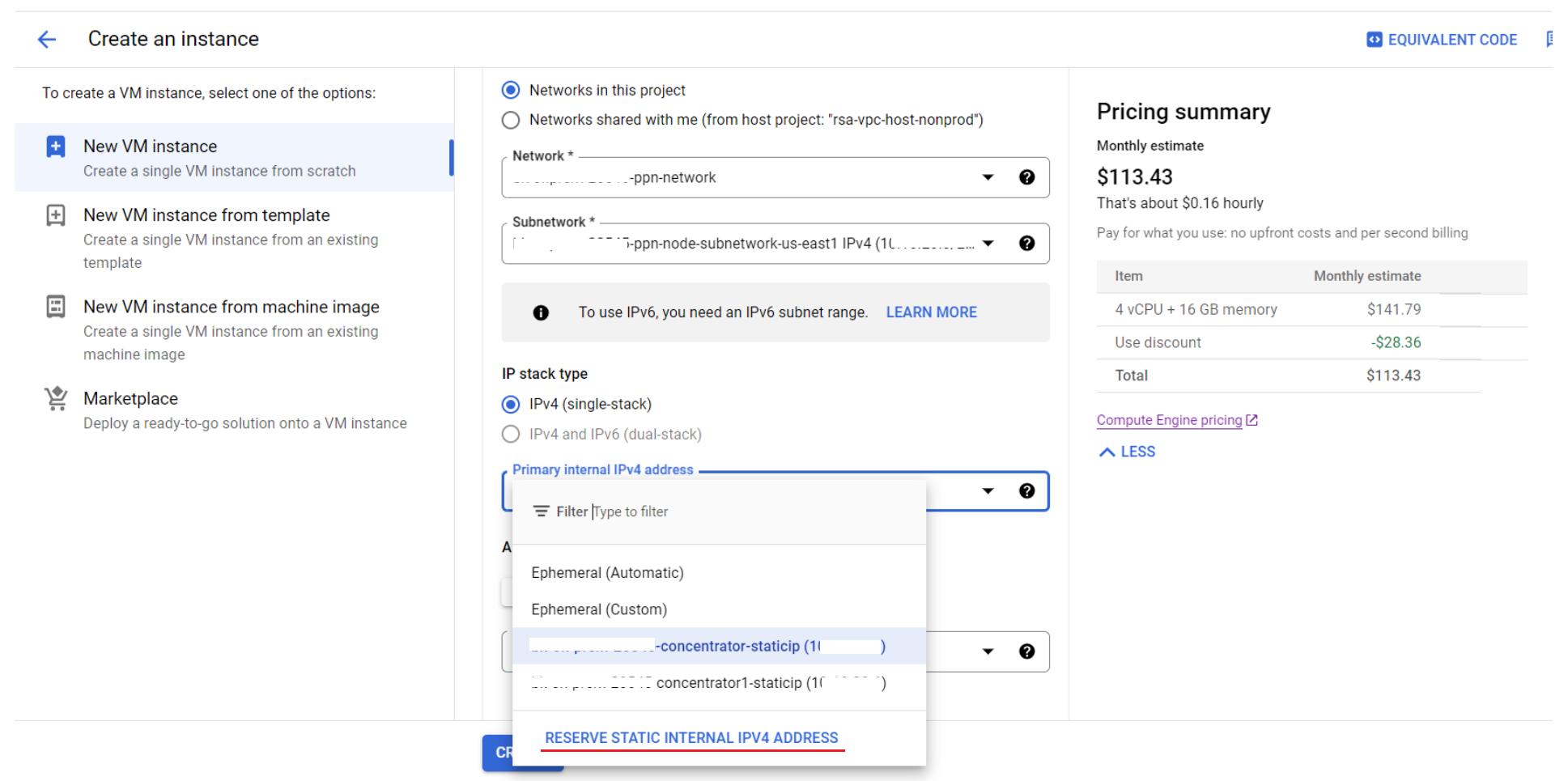
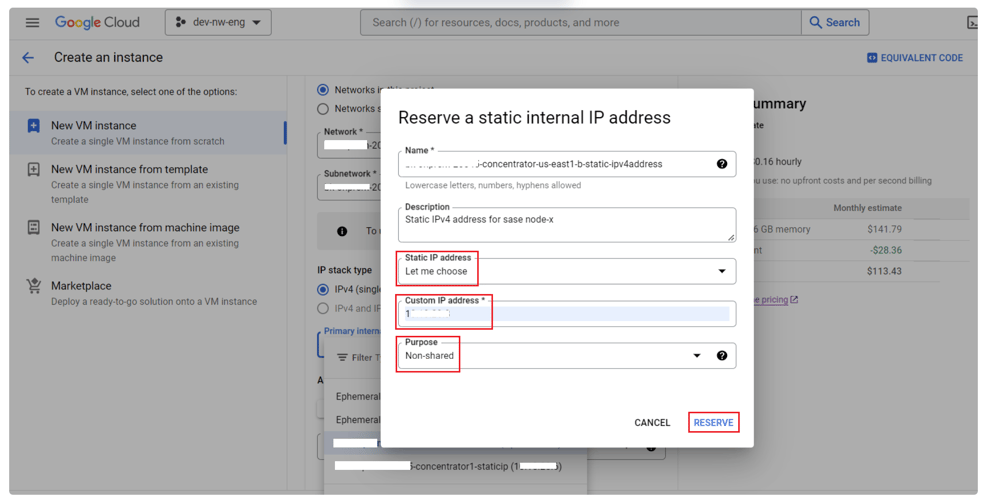
Enter the below details and click Reserve:
Name - lower case text to reflect the VM instance Name IPv4 address. For example: 20545-concentrator-us-east1-b-ipv4address
Static IP address - Let me choose
Custom IP address - IPv4 address in the cloud_node_subnet defined in /opt/rsa/saTools/cloud/sase-deployment-models.yml.
Purpose - Non Shared
Under Alias IP ranges, select None for the External IPv4 address and click Done.
Step 4. Configure Storage Disks
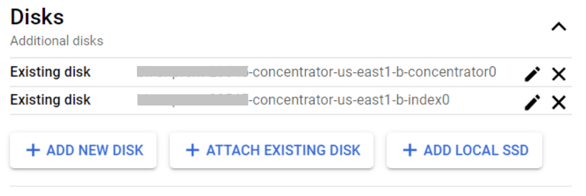
Select Disks > ATTACH EXISTING DISK. Select the appropriate storage disk from the Disk drop-down. Select the Read/Write Mode and Keep disk Deletion Rule and Save. Repeat this (adding Disks) for all the remaining Storage disks for this instance.
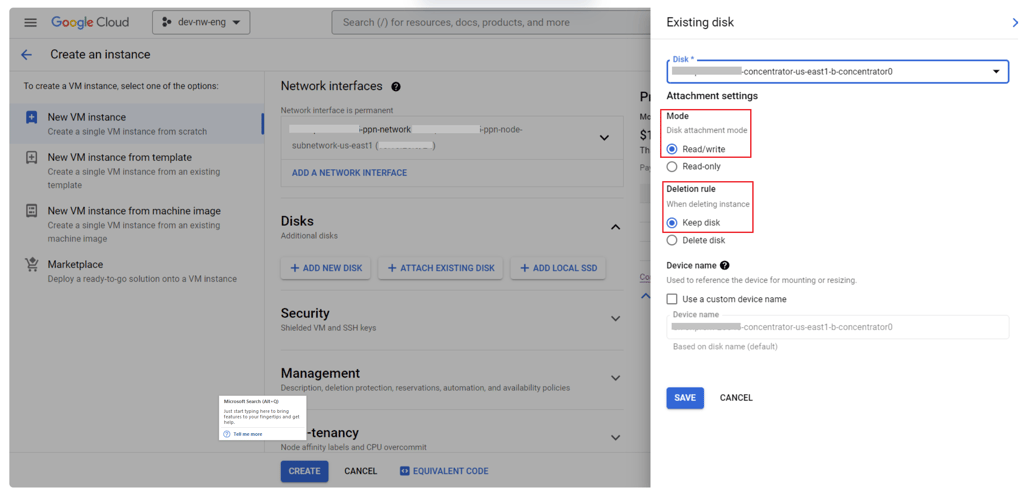
Example: For concentrator service, at least two Storage disks are attached.
gcloud commands
Click CREATE to complete the VM instance creation from the snapshot.
Equivalent gcloud code to create a new VM instance with Storage disks attached from snapshot:
gcloud compute instances create 20545-concentrator-us-east1-b \
--project=dev-nw-eng \
--zone=us-east1-b \
--machine-type=n2-standard-4 \
--network-interface=private-network-ip=10.10.20.8,stack-type=IPV4_ONLY,subnet=20545-ppn-node-subnetwork-us-east1,no-address \
--maintenance-policy=MIGRATE \
--provisioning-model=STANDARD \
--service-account=97611879986-compute@developer.gserviceaccount.com \
--
--tags=20545-ssh \
--create-disk=auto-delete=yes,boot=yes,device-name=20545-concentrator-us-east1-b,mode=rw,size=196,source-snapshot=projects/dev-nw-eng/global/snapshots/20545-concentrator-us-east1-b,type=projects/dev-nw-eng/zones/us-east1-b/diskTypes/pd-standard \
--disk=boot=no,device-name=20545-concentrator-us-east1-b-concentrator0,mode=rw,name=20545-concentrator-us-east1-b-concentrator0 \
--disk=boot=no,device-name=20545-concentrator-us-east1-b-index0,mode=rw,name=20545-concentrator-us-east1-b-index0 \
--labels=goog-ec-src=vm_add-gcloud \
--reservation-affinity=any
Terraform
# This code is compatible with Terraform 4.25.0 and versions that are backwards compatible to 4.25.0.
# For information about validating this Terraform code, see https://developer.hashicorp.com/terraform/tutorials/gcp-get-started/google-cloud-platform-build#format-and-validate-the-configuration
resource "google_compute_instance" "20545-concentrator-us-east1-b" {
attached_disk {
device_name = "20545-concentrator-us-east1-b-concentrator0"
mode = "READ_WRITE"
source = "projects/dev-nw-eng/zones/us-east1-b/disks/20545-concentrator-us-east1-b-concentrator0"
}
attached_disk {
device_name = "20545-concentrator-us-east1-b-index0"
mode = "READ_WRITE"
source = "projects/dev-nw-eng/zones/us-east1-b/disks/20545-concentrator-us-east1-b-index0"
}
boot_disk {
auto_delete = true
device_name = "20545-concentrator-us-east1-b"
initialize_params {
size = 196
type = "pd-standard"
}
mode = "READ_WRITE"
}
can_ip_forward = false
deletion_protection = false
enable_display = false
labels = {
goog-ec-src="vm_add-tf"
}
machine_type = "n2-standard-4"
name = "20545-concentrator-us-east1-b"
network_ip = "10.10.20.8"
,,,,,,, courier>subnetwork = "projects/dev-nw-eng/regions/us-east1/subnetworks/20545-ppn-node-subnetwork-us-east1",,,,,,, ,,,,,,, courier>},,,,,,, courier>scheduling {,,,,,,, ,,,,,,, courier>automatic_restart = true,,,,,,, courier>on_host_maintenance = "MIGRATE",,,,,,, courier>preemptible = false,,,,,,, courier>provisioning_model = "STANDARD",,,,,,, ,,,,,,, courier>},,,,,,, courier>service_account {,,,,,,, ,,,,,,, courier>email = "97611879986-compute@developer.gserviceaccount.com",,,,,,, courier>scopes = [" https://www.googleapis.com/auth/devstorage.read_only", " https://www.googleapis.com/auth/logging.write", " https://www.googleapis.com/auth/monitoring.write", " https://www.googleapis.com/auth/service.management.readonly", " https://www.googleapis.com/auth/servicecontrol", " https://www.googleapis.com/auth/trace.append"],, ,,,,,,, courier>},,,,,,, courier>tags = ["20545-ssh"],,,,,,, courier>zone = "us-east1-b",,,,,,, ,,,,,,, courier>},,,,,,, ,,,,,,, ,,,,,,,