.png?width=180&height=32&name=NW%20Logo%20(2).png)
Saved Queries Dialogs
Saved Queries offer a quick and easy way to define a meta group, column group, and a limiting filter (pre-query condition) that you can apply in the Navigate view, the Events view, and the Legacy Events view (see Use Saved Queries to Encapsulate Common Areas for Investigation). The same saved queries are shared between all views, and they are available in the Springboard (Version 11.5) for use in panels. Private saved queries created in the Events view are only available in the Events view for the analyst who created them.
Each query profile specifies a meta group, column group, and sometimes includes a pre-query condition appropriate for the type of investigation.
In a saved query:
- The meta group defines the meta keys that are queried (see Use Meta Groups to Focus on Relevant Meta Keys).
- The column group defines which meta keys from the meta group are displayed as columns in the Events list. (see Use Columns and Column Groups in the Events List).
- When the query profile is in effect, the optional pre-query conditions add a limiting filter in the query bar. You can edit or delete the limiting filter and then create additional filters for your query (see Filter Results in the Events View)
You can manage profiles in the Manage Profiles dialog, the Create Saved Query dialog and the Saved Query Details dialog.
- The Manage Profiles dialog is for the Navigate view, the Legacy Events view (Version 11.4 and later) , and the Events view (Version 11.3 and earlier). To access this dialog, select Profile > Manage Profiles in the Navigate or Legacy Events view toolbar.
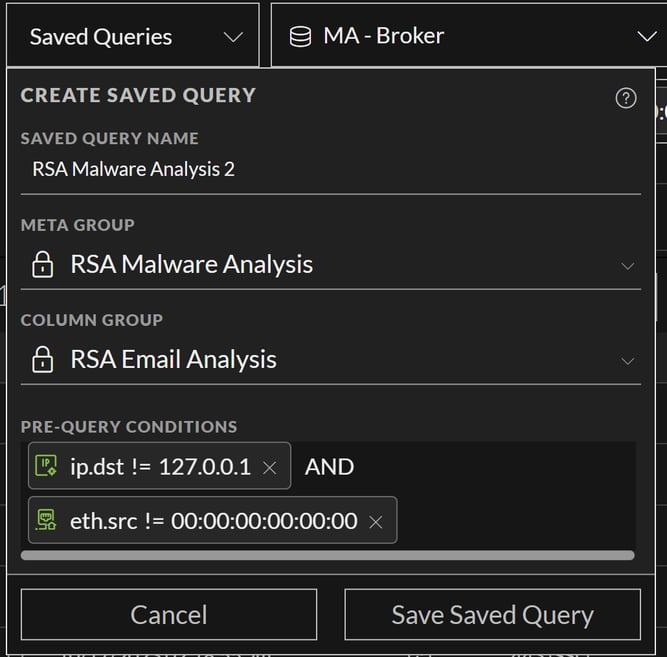
- The Create Saved Query dialog is for the Events view. To access this dialog, select Saved Queries > New Saved Query in the Events view query bar.
- The Saved Query Details dialog is for the Events view. To access this dialog, select Saved Queries in the Events view query bar, then click the edit icon (
 ) next to a custom profile name.
Related Topics
- How NetWitness Investigate Works
- Use Saved Queries to Encapsulate Common Areas for Investigation
- Navigate View
- Events View
- Legacy Events View
Quick Look - Saved Queries Menu, Create Saved Query Dialog, and Saved Query Details Dialog
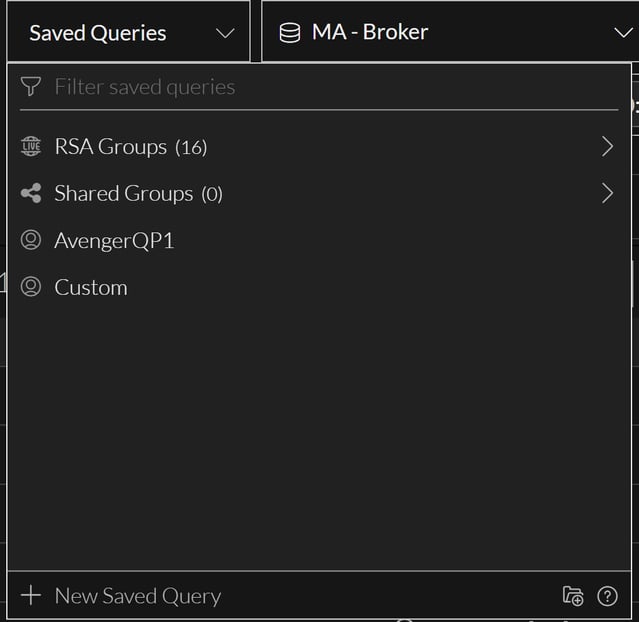
This section introduces the Saved Queries menu, Create Saved Query dialog, and the Saved Query Details dialog. The following figure is an example of the Saved Queries menu and the table describes the options. The example on the left has built-in saved query highlighted so that the information icon is visible.
The Create Saved Query dialog, shown in the figure on the left, allows you to define a custom saved query. The figure illustrates the Saved Query Details dialog, in which you can edit a custom saved query. The table describes the fields and options in the dialogs
Quick Look - Manage Profiles Dialog
This is an example of the Manage Profiles dialog showing several profile groups.
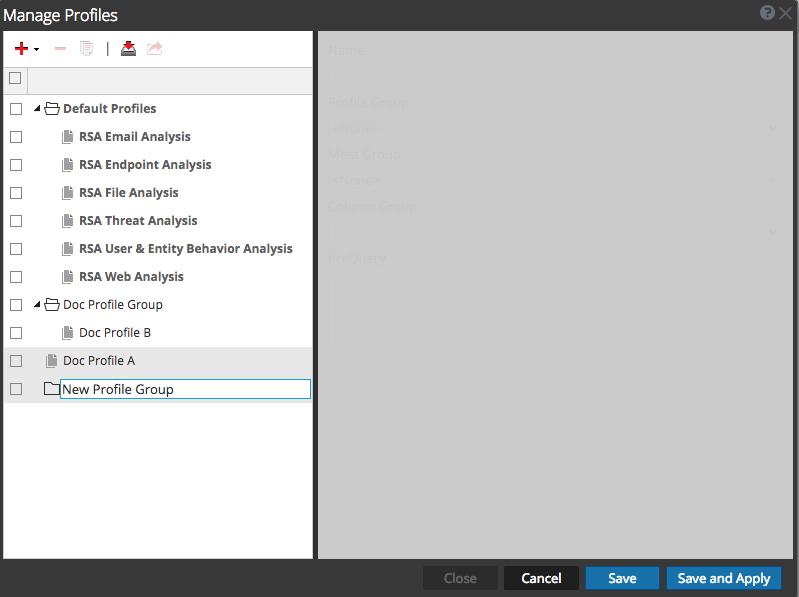
The Profile panel on the left side of the dialog displays available profiles and allows you to add, delete, import, and export profiles. The following table describes the fields in the Profile panel.
The Settings panel on the right side of the dialog offers options to configure profiles. It can only be used when one profile is selected. The following table describes the fields in the Settings panel.
The following table describes the buttons.