Select a Malware Analysis Service Dialog
Select a Malware Analysis Service DialogSelect a Malware Analysis Service Dialog
The Select a Malware Analysis Service dialog is accessible in the Malware Analysis view. In this dialog, Malware Analysis analysts can select a service to investigate, choose a scan on that service to investigate, upload a file to scan, and begin a continuous scan of the service.
WorkflowWorkflow
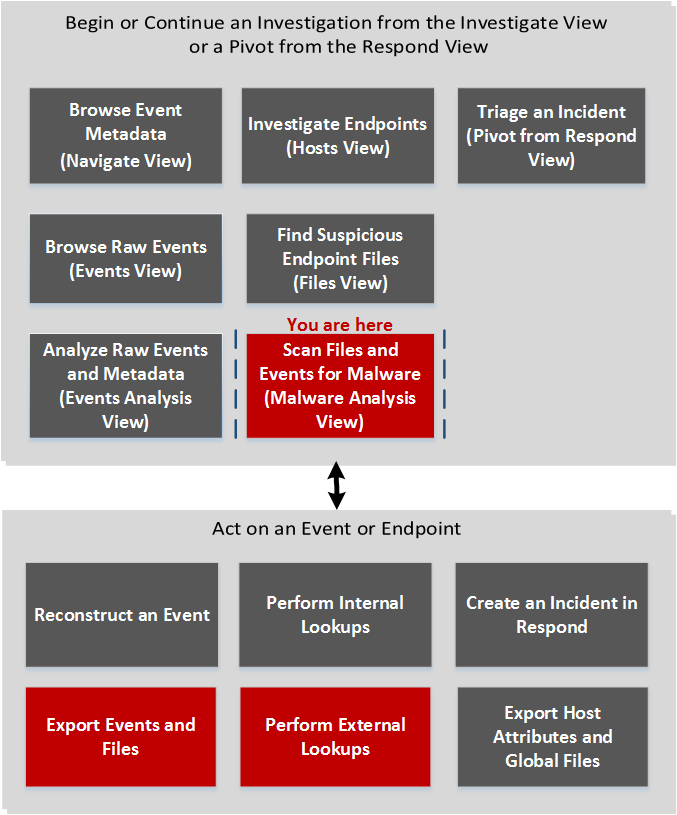
What do you want to do?What do you want to do?
- User Role: Threat Hunter
- I want to ...:
browse event metadata
- Show me how:
NetWitness Investigate User Guide
- User Role: Threat Hunter
- I want to ...:
browse raw events
- Show me how:
NetWitness Investigate User Guide
- User Role: Threat Hunter
- I want to ...:
analyze raw events and metadata
- Show me how:
NetWitness Investigate User Guide
- User Role: Threat Hunter
- I want to ...:
investigate endpoints (Version 11.1)
- Show me how:
NetWitness Endpoint User Guide
- User Role:
Threat Hunter
- I want to ...:
find suspicious endpoint files (Version 11.1)
- Show me how:
NetWitness Endpoint User Guide
- User Role: Threat Hunter
- I want to ...: scan files and events for malware*
- Show me how: Conducting Malware Analysis
- User Role:
Incident Responder
- I want to ...:
triage an incident in Investigate
- Show me how:
NetWitness Respond User Guide
*You can perform this task in the current view.
Related TopicsRelated Topics
- "How NetWitness Investigate Works" in the NetWitness Investigate User Guide
- Begin a Malware Analysis Investigation
- "Launch a Malware Analysis Scan from the Navigate View" in the NetWitness Investigate User Guide
Quick LookQuick Look
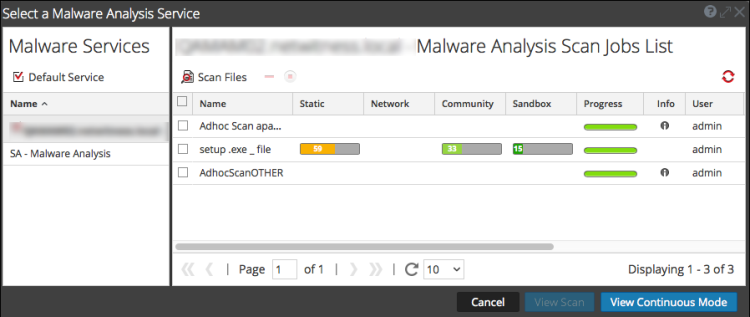
The Select a Malware Analysis Service dialog has a Malware Services panel on the left and a Scan Jobs List on the right. The Scan Jobs List panel has a toolbar, list, and buttons to view scans.
The Malware Services panel is a list of services available for malware analysis. In this panel, you can select the service to investigate and you set a default service using the Default Service icon. When you select a service, the available scan jobs for that service are listed in the Scan Jobs list.
These are the features in the Scan Jobs List toolbar.
- Feature:

- Description: Displays the Scan for Malware dialog, in which you can upload a file to the service for scanning.
- Feature: Delete scan job (
) - Description: Deletes one or more selected scan jobs, NetWitness displays a confirmation dialog before deleting scan jobs.
These are the columns in the Scan Jobs list. This list is also available in the Malware Scan Jobs dashlet.
- Feature: Name
- Description: Displays the name of the job.
- Feature: Static, Network, Community, Sandbox
- Description:
Filters the results based on the scores for each scoring module.
- Feature: Progress
- Description:
Displays the current progress made on the job.
- Green: The job is finished.
- Black: The job is in progress.
- Red: An error occurred.
- Feature: Info
- Description:
Provides additional information. Displays the query for the job. If the job is not complete, it also displays more detailed description of the status.
- Feature: User
- Description:
Displays the name of the user who created the job.
- Feature: Events
- Description:
Counts the number of events for the job.
- Feature: Dropped
- Description:
Counts the number of files or events in the job that were dropped because the scores are below their configured threshold.
- Feature: Event Type
- Description:
Displays the type of job: Manual Upload, On Demand, or Resubmit.
- Feature: Scheduled
- Description:
Displays the date and time when the job was executed.
These are the available actions in the dialog.
- Feature: Cancel button
- Description: Cancels the selected scan job.
- Feature: View Scan button
- Description: Displays the Summary of Events for the selected scan with the default dashlets displayed.
- Feature: View Continuous Mode button
- Description: Displays the Summary of Events for the selected scan with the default dashlets displayed.

