Skip to content
  • There are no suggestions because the search field is empty.

Services Config View - Hash Tab

Services Config View - Hash TabServices Config View - Hash Tab

This topic introduces the features and functions available in the Service Config view > Hash tab for Malware Analysis.

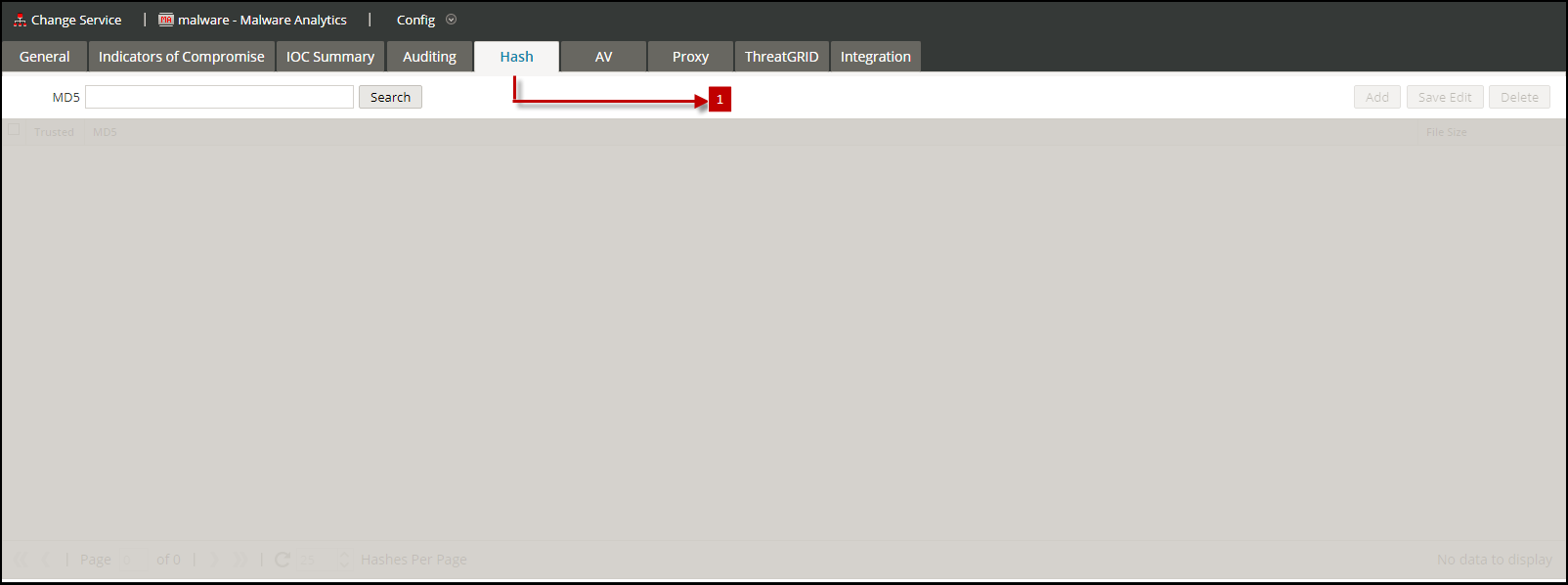
In this tab, you can manage hash filtering in Malware Analysis. The hash grid is initially empty; the grid lists filters that have been added to Malware Analysis. In this view, you can add a hash filter, delete a hash filter, mark a hash filter as trusted or untrusted, and save changes.

Workflow Workflow
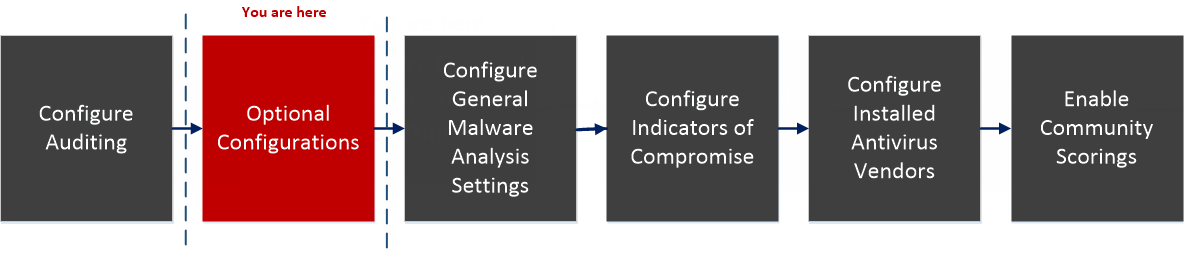
netwitness_113_malware_configworkflow_step2.png

What do you want to do?What do you want to do?


*You can perform this task in the current view

Related TopicRelated Topic

Basic Setup

Quick LookQuick Look

This is an example of the Hash tab.
netwitness_hashtab.png

  • Column 1: 1
  • Column 2: Displays the Hash Tab.

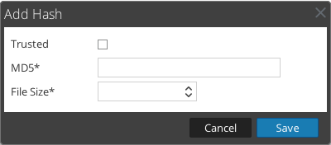
This is an example of the Add Hash dialog.
netwitness_addhashdg_331x145.png

Features

The Hash tab consists of a toolbar and a pageable hash grid.

This table describes the Hash tab toolbar.

  • Feature: MD5 Search
  • Description: Enter an MD5 hash for which you want to search the results in the grid. The search function is case-insensitive.

  • Feature: Add
  • Description: Displays the Add Hash dialog in which you can add a new hash to the hash grid, specify whether the hash is trusted or not, and provide the hash file size.

  • Feature: Save Edit
  • Description: Saves any additions or edits to hashes in the grid.

  • Feature: Delete
  • Description: Deletes selected hashes from the grid.

This table describes the Hash grid columns.

  • Feature: Select Checkbox
  • Description: Click to select a row. Click in the column header to select a header.

  • Feature: Trusted
  • Description: Marks a hash as trusted or untrusted.

  • Feature: MD5
  • Description: Identifies the MD5 hash.

  • Feature: File Size
  • Description: Identifies the hash file size in kilobytes.