Services Config View - IOC Summary Tab
This topic introduces the features and functions available in the Service Config view > IOC Summary tab. This tab provides a way to view summary information for any IOC. A grid for each scoring module lists the configured IOCs along with statistics associated with that IOC of a specific range of time. The statistics include:
- The number of events for a network session or the number of files for a static, community, or sandbox event that were flagged with the IOC.
- The current score configured for the IOC in the Indicators of Compromise tab.
- The scores returned by each of the scoring modules.
When you select an event, you can show the Malware Events view or Malware Files view for the IOC. You can also open the selected IOC in the Indicators of Compromise tab to edit the Current Score.
Workflow
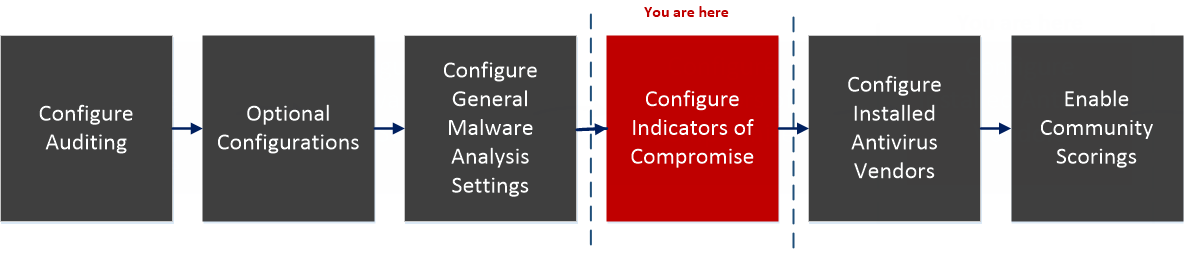
What do you want to do?
- Role: Administrator
- I Want to...: Configure General Malware Analysis Settings
- Show me how: Configure General Malware Analysis Settings
- Role: Administrator
- I Want to...: Configure Indicators of Compromise*
- Show me how: Configure Indicators of Compromise
- Role:
Administrator
- I Want to...:
Configure Auditing on Malware Analysis Host
- Show me how:
- Role: Administrator
- I Want to...: Configure Hash Filter
- Show me how: (Optional) Configure Hash Filter
- Role:
Administrator
- I Want to...:
Configure Installed Anti virus Vendor
- Show me how:
- Role: Administrator
- I Want to...: Configure Malware Analysis Proxy Settings
- Show me how: (Optional) Configure Malware Analysis Proxy Settings
- Role:
Administrator
- I Want to...:
Register a TreadGRID API Key
- Show me how:
- Role: Administrator
- I Want to...: Enable Community Analysis
- Show me how: Enable Community Analysis
*You can perform this task in the current view
Related Topic
Quick Look
This is an example of the IOC Summary tab for the Network scoring module.
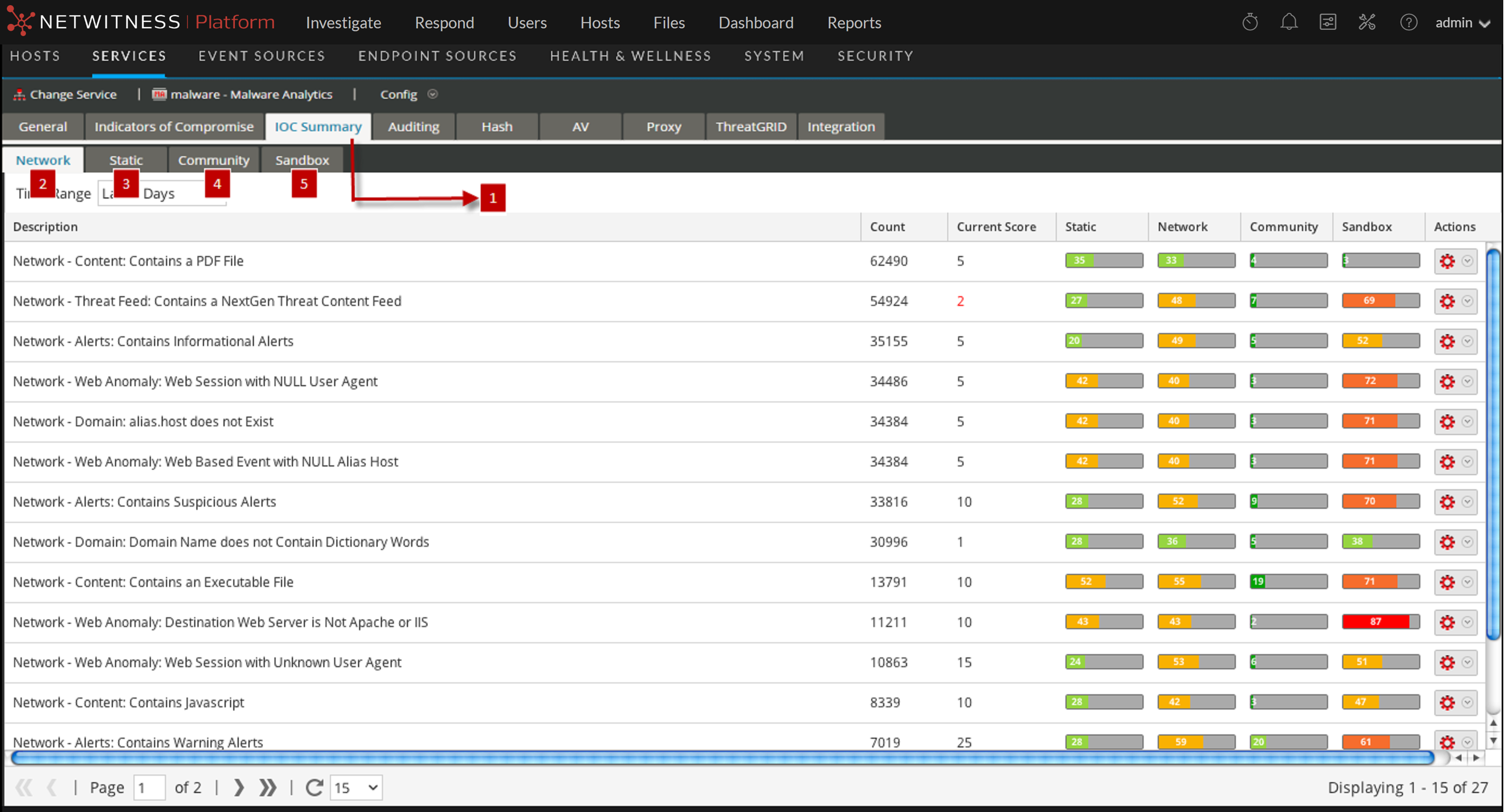
- Column 1: 1
- Column 2: Displays the IOC Summary Tab.
- Column 1: 2
- Column 2: Displays the Network View.
- Column 1: 3
- Column 2: Displays the Static View.
- Column 1: 4
- Column 2: Displays the Community View.
- Column 1: 5
- Column 2: Displays the Sandbox View.
Features
The IOC Summary consists of four tabs, one for each scoring module: Network, Static, Community, and Sandbox. Each tab has the same form and same information with a toolbar and page-able grid.
This table describes the features of each tab.
- Feature: Time Range
- Description:
Selects the time range for the IOC Summary. Possible values are: Last 5 Minutes, Last 15 Minutes, Last 30 Minutes, Last Hour, Last 3 Hours, Last 6 Hours, Last 12 Hours, Last 24 Hours, Last 2 Days, Last 5 Days, Early Morning, Morning, Afternoon, Evening, All Day, Yesterday, This Week, Last Week, or Custom.
- Feature: Description column
- Description:
Lists the descriptions for the IOCs.
- Feature: Count column
- Description:
Lists the number of occurrences of the IOCs. In the Network tab, the count is the number of events in which the IOC was found. In the other tabs, the count is the number of files in which the IOC was found.
- Feature: Current Score column
- Description:
Lists the current score for the IOCs as configured in the Indicators of Compromise tab.
- Feature: Static, Network, Community, and Sandbox columns
- Description:
List the scores that each of the scoring modules gave the IOCs.
- Feature: Actions drop-down
- Description:
The Actions drop-down menu has two options:
- Show Events/Files: opens the IOC in the Investigation Events view or Files view. This view can also be opened by double-clicking on the IOC.
- Edit: opens the IOC in the Indicators of Compromise tab to edit the Current Score.