Skip to content
  • There are no suggestions because the search field is empty.

Services View

Services View

You set up and maintain the NetWitness services in the Services view. In the Services view, you can:

  • Quickly search for and locate a specific service or type of service, such as Log Decoder or Warehouse Connector.
  • Use shortcuts to get to administration tasks.
  • Add, edit, and remove services.
  • Sort services by name and host.
  • Filter services by type, name, and host.
  • Start, stop, and restart services.

A service performs a unique function, such as collecting logs or archiving data. Each service runs on a dedicated port and is modeled as a plug-in to enable or disable, according to the function of the host. You must configure the following Core services first.

  • Services:

    NW Server


  • Services:

    Admin
    Config
    Content
    Integration
    Investigate
    License
    Orchestration
    Reporting Engine
    Respond
    Security

    Response Actions

  • Notes:

    Resides within the NW Server
    Resides within the NW Server
    Resides within the NW Server
    Resides within the NW Server
    Resides within the NW Server
    Resides within the NW Server
    Resides within the NW Server

    Resides within the NW Server
    Resides within the NW Server

    Resides within the NW Server


  • Services:

    Analyst UI

  • Notes:

  • Services:

    Broker
    Investigate Server
    NetWitness UI
    Reporting Engine
    Respond Server

  • Notes:

    Implemented with the Analyst UI
    Implemented with the Analyst UI
    Implemented with the Analyst UI
    Implemented with the Analyst UI
    Implemented with the Analyst UI


  • Services:

    Archiver


  • Services:

    Archiver
    Workbench

  • Notes:

    Core Service


  • Services:

    Broker


  • Services:

    Broker

  • Notes:

    Core Service


  • Services:

    Concentrator


  • Services:

    Concentrator

  • Notes:

    Core Service


  • Services:

    Endpoint

  • Notes:

  • Services:

    Endpoint Server

  • Notes:

  • Services:

    Endpoint Broker


  • Services:

    Endpoint Broker Server

  • Notes:

  • Services:

    Endpoint Log Hybrid


  • Services:

    Log Collector
    Log Decoder
    Endpoint Server
    Concentrator

  • Notes: Core Service
    Core Service

    Core Service

  • Services:

    ESA Primary


  • Services:

    Contexthub
    ESA Correlation

  • Notes:

  • Services:

    ESA Secondary


  • Services:

    ESA Correlation

  • Notes:

  • Services:

    Log Collector


  • Services:

    Log Collector

  • Notes: Core Service

  • Services:

    Log Decoder


  • Services:

    Log Collector
    Log Decoder

  • Notes:


    Core Service


  • Services:

    Log Hybrid


  • Services:

    Log Collector
    Log Decoder
    Concentrator

  • Notes:
    Core Service
    Core Service

  • Services:

    Log Hybrid - Retention

  • Notes:

    Deployed on Series 6 Hybrid hardware with Log Hybrid-Retention Optimization.


  • Services: Log Collector
    Log Decoder
  • Notes:
    Core Service

  • Services:

    Malware Analysis


  • Services:

    Malware Analysis
    Broker

  • Notes:


    Core Service


  • Services:

    Network Decoder


  • Services:

    Decoder (Packets)

  • Notes: Core Service

  • Services:

    Network Hybrid


  • Services:

    Concentrator
    Network Decoder

  • Notes:

    Core Service
    Core Service


  • Services:

    New Health and Wellness

  • Notes:

  • Services: Metrics Server
  • Notes:

  • Services:

    UEBA


  • Services:

    UEBA

  • Notes:

  • Services:

    Warehouse Connector


  • Services:

    Warehouse Connector

  • Notes:

    Command line installation


You must configure hosts and services to communicate with the network and each other so they can perform their functions such as storing or capturing data. For information about ports and a comprehensive list of ports for all services, see "Network Architecture and Ports" in the Deployment Guide for NetWitness Platform. Go to the NetWitness All Versions Documents page and find NetWitness Platform guides to troubleshoot issues.

Workflow

This workflow shows the procedures you complete to set up and maintain a service. Adding a service to a host is the first task in this workflow. The hosts with Core services are set up out-of-the-box. After that, you can set up additional services on hosts to enhance your NetWitness deployment.
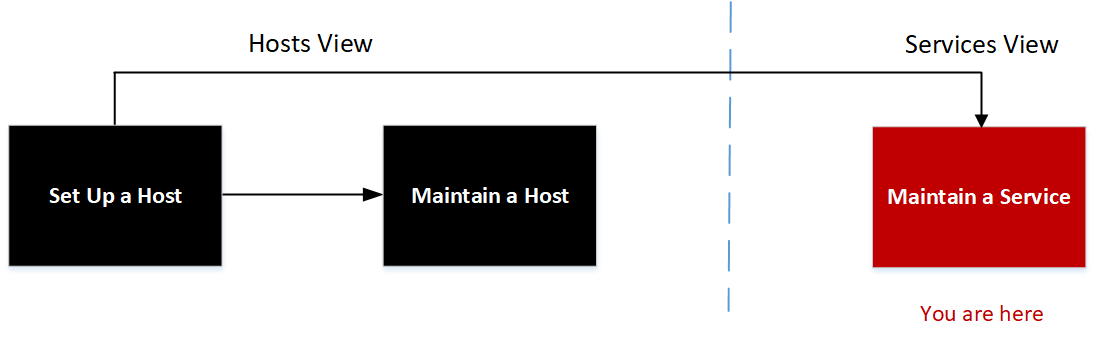
netwitness_hstsrvconfigwf-basic2.png

What do you want to do?

  • User Role: Administrator
  • I want to...: set up a host.
  • Documentation:

    Setting Up a Host


  • User Role: Administrator
  • I want to...: maintain a host.
  • Documentation: Maintaining Hosts


* You can perform these tasks in the current view.

Related Topics

See the following NetWitness guides for detailed information on individual services. Go to the NetWitness All Versions Documents page and find NetWitness Platform guides to troubleshoot issues.

Archiver Configuration Guide

Broker and Concentrator Configuration Guide

Context Hub Configuration Guide

Decoder Configuration Guide

Endpoint Configuration Guide

Event Stream Analysis (ESA) Configuration Guide

Malware Analysis Configuration Guide

Log Collection Configuration Guide

Malware Analysis Configuration Guide

Reporting Engine User Guide

NetWitness Respond Configuration Guide

NetWitness UEBA User Guide

Workbench Configuration Guide

Warehouse Connector Configuration Guide

Response Actions Configuration Guide

Quick Look

This is an example of the Services view.
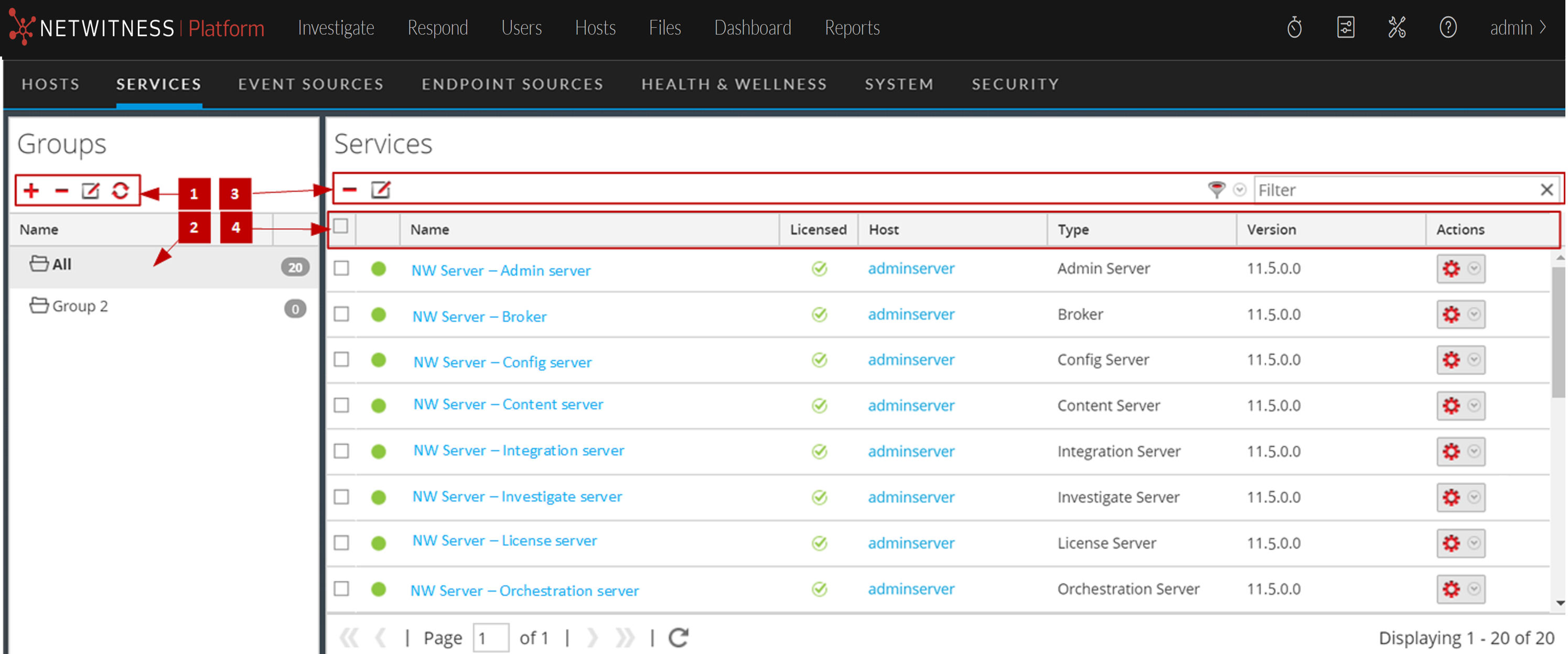
122_ServicesViewCallouts1_1222.png

  • Column 1: 1
  • Column 2: Groups Panel Toolbar - Provides options to work with service groups in the list.

  • Column 1: 2
  • Column 2: Groups Panel - Lists all service groups currently in your deployment.

  • Column 1: 3
  • Column 2: Services List Toolbar - Provides options to work with the Services list.

  • Column 1: 4
  • Column 2: Services List - Lists all services currently in your deployment.

Groups Panel Toolbar

  • Feature: netwitness_add.png
  • Description: Displays a new row in the Groups panel in which you enter the name of a new group.

  • Feature: netwitness_delete.png
  • Description:

    Asks for confirmation that you want to delete the group. You can confirm or cancel the deletion.


  • Feature: netwitness_edit.png
  • Description: Opens the field for renaming the selected preexisting group. You can also double click on the group name in the Groups panel to rename the group. Changes take effect immediately.

  • Feature: netwitness_ic-refresh.png
  • Description: Refreshes the Groups panel to reflect the changes and goes back to the All group view. Changes take effect immediately.

Groups Panel

The Groups panel provides a logical way to manage groups of services, such as by function, geography, or project. After you create a group, you can drag individual services from the Services panel into the group. A service may belong to more than one group.

  • Column Title: Name
  • Description: The service groups are displayed in the Groups panel. The number next to each group name displays the number of hosts that added to the group.

Services List Toolbar

This topic introduces the options in Services list toolbar to add, remove, edit, and get a license for services. You can also filter the services listed in the Services list.

To access the Admin Services view, in NetWitness, go to netwitness_adminicon_25x22.png (Admin) > Services. The Services list toolbar is at the top of the Services list in the Services view.


  • Feature: netwitness_edit.png
  • Description: Edits service identification and basic communication settings.

  • Feature: netwitness_servfilter.png

  • Description: Filters the services listed in Services view.
    In the Filter drop-down list, you can filter the services by one or more selected service types. In the Filter field, you can filter the services by Name and Host. You can use the Filter drop-down list and the Filter field at the same time to filter the services listed in the Services view.

Services List

  • Column: netwitness_checkboxicongray.png
  • Description: Select the service by clicking the corresponding checkbox in this column. To select all of the services, select the checkbox in the header.

  • Column: Online/Offline Indicator
  • Description:

    Displays netwitness_green_dot.png if the service is online.

    Displays netwitness_reddot.png if the service is offline.


  • Column: Name
  • Description: Displays the name of the service that was given when the service was installed. This column is organized in alphabetical order by default. Click the Name column title to view in reverse alphabetical order.

  • Column: Licensed
  • Description:

    Displays netwitness_licensed_green_check.png if the service is licensed.

    Displays netwitness_reddot.png if the service is not licensed. If one or more services are not licensed, a red banner will appear at the top of the screen that will prompt you to fix this.

    netwitness_notlicensedbanner.png


  • Column: Host
  • Description: