Skip to content
  • There are no suggestions because the search field is empty.

Set Up and Verify Default Incident Rules

Set Up and Verify Default Incident RulesSet Up and Verify Default Incident Rules

The User Entity Behavior Analytics default incident rule is available in NetWitness 11.3 and later. It captures user entity behavior grouped by Classifier ID to create incidents from alerts.

The Detect AI default incident rule is available in NetWitness 11.6 and later. It captures the anomalies generated by Detect AI.

The User Behavior incident rule, which captures network user behavior, is available in NetWitness 11.1 and later. This rule uses deployed RSA Live ESA Rules to create incidents from alerts. You can select and deploy the RSA Live ESA Rules that you want to monitor.

The following default incident rules changed slightly for 11.1 and later and now have Source IP Address as the Group By value:

  • High Risk Alerts: Reporting Engine
  • High Risk Alerts: Malware Analysis
  • High Risk Alerts: ESA

The following default incident rule changed slightly for 11.3 and later and now has the Host Name as the Group By value:

  • High Risk Alerts: NetWitness Endpoint*

*If you have NetWitness Endpoint, the High Risk Alerts: NetWitness Endpoint default incident rule captures alerts generated by NetWitness Endpoint with a risk score of High or Critical. To aggregate NetWitness Endpoint alerts based on the File Hash instead of Host Name, create another NetWitness Endpoint Rule using the File Hash as the Group By value. See Create a NetWitness Endpoint Incident Rule using File Hash for step-by-step instructions.

To verify your existing default incident rules with the 11.5 default incident rules, look at the default incident rule tables following these procedures. If you are missing a default incident rule, you can create it manually. Review the default incident rules and adjust them to your environment as required.

Set Up the User Behavior Incident RuleSet Up the User Behavior Incident Rule

In order to use the default User Behavior incident rule, you need to deploy the RSA Live ESA Rules that you want to monitor from those listed in the User Behavior incident rule conditions. Complete the following procedures to start aggregating alerts for the User Behavior default incident rule:

  • Deploy the RSA Live ESA Rules
  • Adjust and enable the User Behavior default rule (or create it if you do not have it)

Deploy the RSA Live ESA RulesDeploy the RSA Live ESA Rules

  1. Go to netwitness_configureicon_24x21.png (Configure) > Live Content.
  2. In the Resource Types field, select Event Steam Analysis Rule and click Search.
  3. In the Matching Resources list, select the ESA Rules from the following User Behavior table that you are interested in monitoring and deploy them (click Deploy).
  4. Go to netwitness_configureicon_24x21.png (Configure) > ESA Rules > Rules tab, and in the Rule Library Filter drop-down list, select RSA Live ESA Rule.
  5. To add a new ESA rule deployment, in the drop-down list near Deployments, click Add.
    1. In the ESA Services section, add and then select your ESA service.
    2. In the Data Sources section, click netwitness_ic-add.png and add a data source to use for the ESA rule deployment.
    3. In the ESA Rules section, click netwitness_ic-add.png and in the Deploy ESA Rules dialog, select the ESA Rules that you selected from the User Behavior table, and then click Save.
      The selected ESA rules are listed with a status of Added.
  6. Select the ESA rules that you added from the previous step, and click Deploy Now.
    The status of the selected ESA rules changes to Deployed.
  7. Go to netwitness_configureicon_24x21.png (Configure) > ESA Rules > Services tab.
    In the Deployed Rule Stats for your ESA service, the rules that you added should have a status of enabled, which is indicated by a green circle in the Enable column.

Adjust and Enable the User Behavior Default Rule (or Create It If You Do Not Have It)Adjust and Enable the User Behavior Default Rule (or Create It If You Do Not Have It)

If you have the User Behavior default rule, you can adjust it for your environment and enable it. If you do not have the User Behavior default rule, you can create it manually.

(Optional) To create the User Behavior default rule:

  1. Go to netwitness_configureicon_24x21.png (Configure) > Incident Rules.
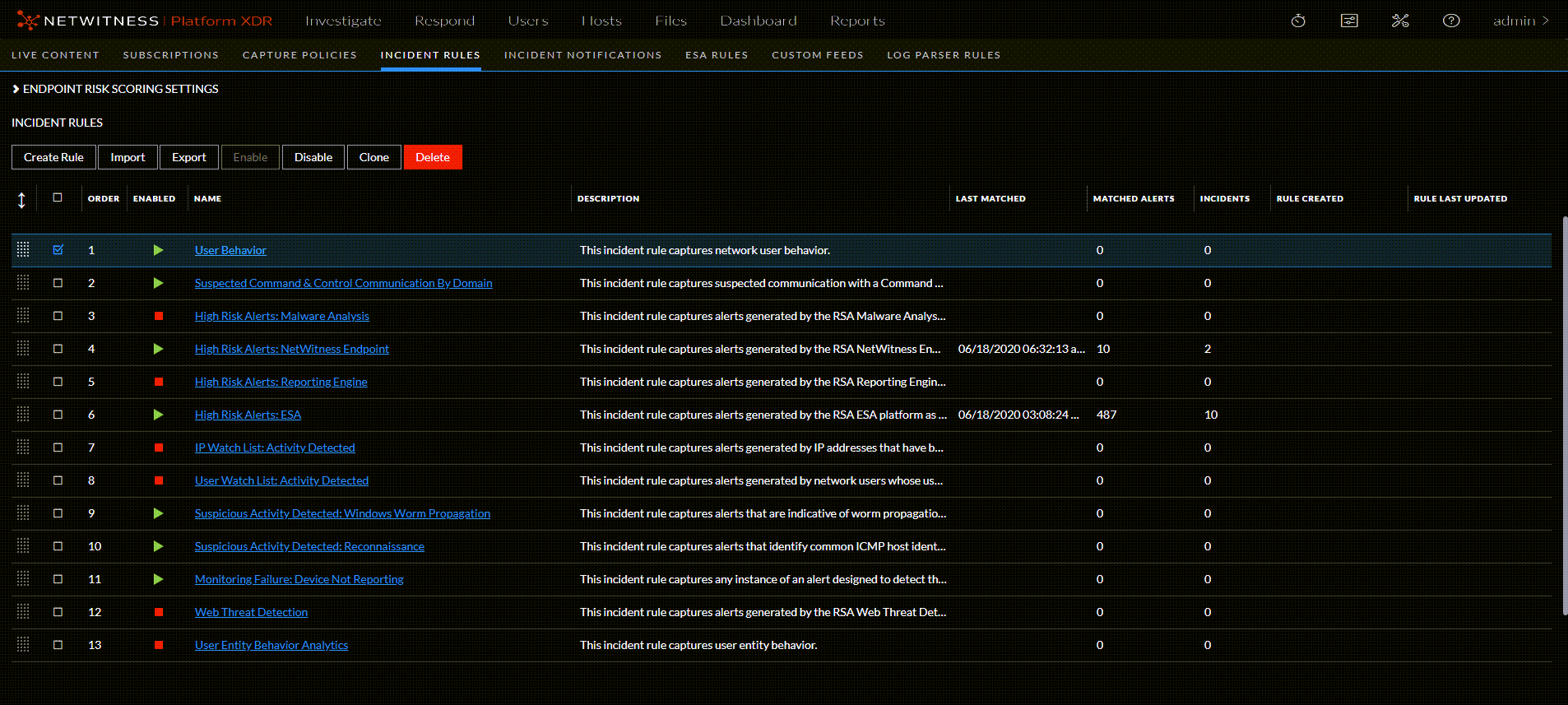
    The Incident Rules view is displayed. (The following figure shows what the User Behavior rule looks like if it was there.)
    netwitness_12.1_confincrules_1122.png
  2. Click Create Rule and in the Incident Rule Details view, create the User Behavior default incident rule using the values in the User Behavior table following this procedure. The conditions as well as the values not listed in the table should be set for your business requirements. For details about various parameters that can be set as criteria for an incident rule, see Incident Rule Details View.

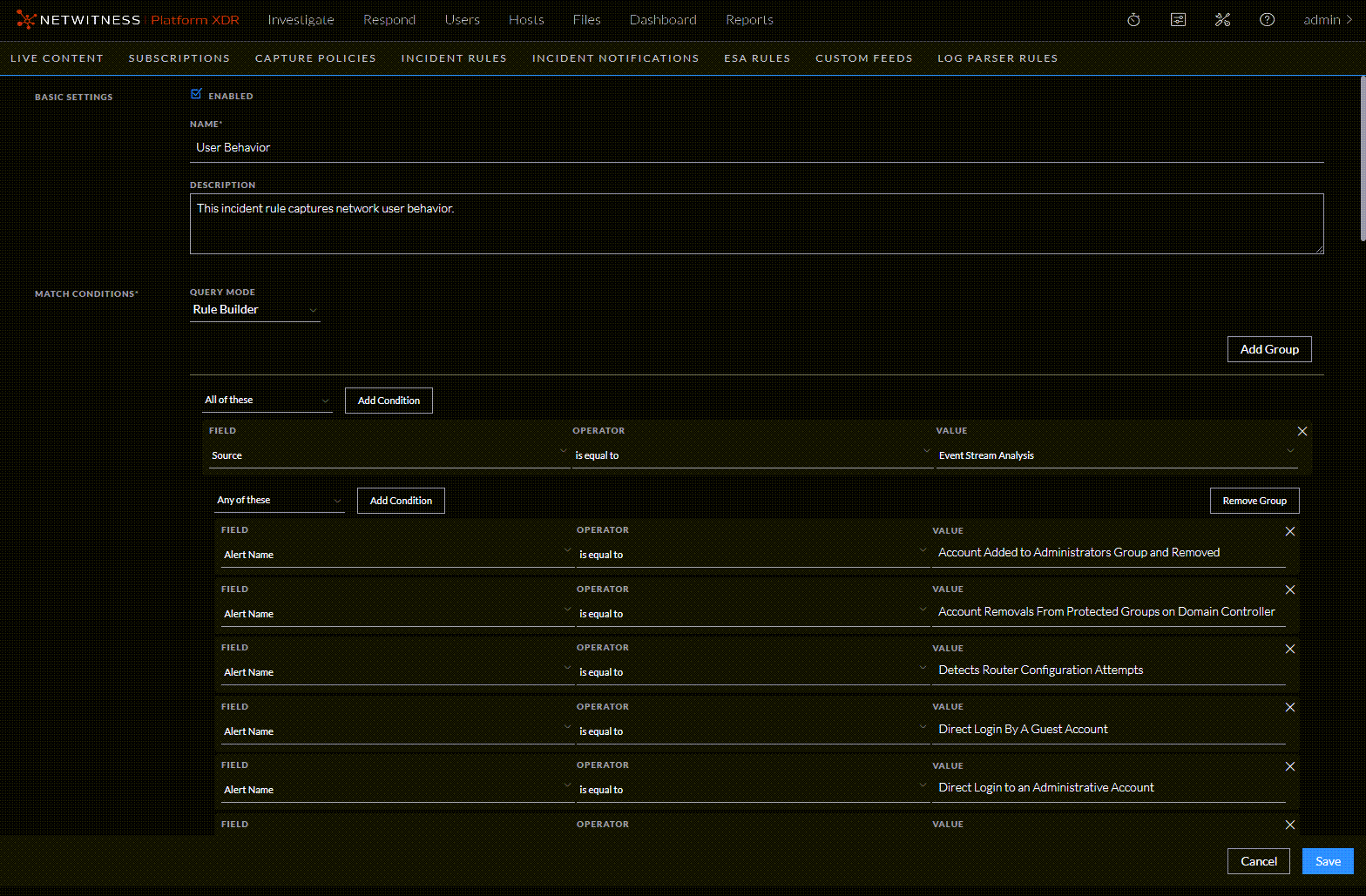
    The following figure shows a portion of the User Behavior default rule details. Notice that there are two groups in this rule.
    netwitness_12.1_usrbehaviorrule1_1122.png
  3. If you are ready to enable your rule, in the Basic Settings section, select Enabled.
  4. Click Save.
    The rule appears in the Incidents Rules list. If you selected Enabled, the rule is enabled and it starts creating incidents depending on the incoming alerts that are matched as per the rule criteria.
  5. Verify the order of your incident rules. For more information, see Verify the Order of Your Incident Rules.

The following table shows the values for the User Behavior default incident rule.

  • Field: Name
  • Condition Field:
  • Condition Operator:
  • Value: User Behavior

  • Field: Description
  • Condition Field:
  • Condition Operator:
  • Value: This incident rule captures network user behavior.

  • Field: Query Mode:
  • Condition Field:
  • Condition Operator:
  • Value:

    Rule Builder

    Note: For information about advanced query mode, see Incident Rule Details View


  • Field: 1st Group:
  • Condition Field:
  • Condition Operator:
  • Value: All of these

  • Field: Condition:
  • Condition Field: Source
  • Condition Operator: is equal to
  • Value: Event Stream Analysis

  • Field: 2nd Group:
  • Condition Field:
  • Condition Operator:
  • Value: Any of these

  • Field: Conditions:
  • Condition Field: Alert Name
  • Condition Operator: is equal to
  • Value: Account Added to Administrators Group and Removed

  • Field:
  • Condition Field: Alert Name
  • Condition Operator: is equal to
  • Value: Account Removals From Protected Groups on Domain Controller

  • Field:
  • Condition Field: Alert Name
  • Condition Operator: is equal to
  • Value: Detects Router Configuration Attempts

  • Field:
  • Condition Field: Alert Name
  • Condition Operator: is equal to
  • Value: Direct Login By A Guest Account

  • Field:
  • Condition Field: Alert Name
  • Condition Operator: is equal to
  • Value: Direct Login to an Administrative Account

  • Field:
  • Condition Field: Alert Name
  • Condition Operator: is equal to
  • Value: Failed Logins Followed By Successful Login Password Change

  • Field:
  • Condition Field: Alert Name
  • Condition Operator: is equal to
  • Value: Insider Threat Mass Audit Clearing

  • Field:
  • Condition Field: Alert Name
  • Condition Operator: is equal to
  • Value: Internal Data Posting to 3rd Party Sites

  • Field:
  • Condition Field: Alert Name
  • Condition Operator: is equal to
  • Value: kbrtgt Account Modified on Domain controller

  • Field:
  • Condition Field: Alert Name
  • Condition Operator: is equal to
  • Value: Lateral Movement Suspected Windows

  • Field:
  • Condition Field: Alert Name
  • Condition Operator: is equal to
  • Value: Logins across Multiple Servers

  • Field:
  • Condition Field: Alert Name
  • Condition Operator: is equal to
  • Value: Logins by Same User to Multiple Servers

  • Field:
  • Condition Field: Alert Name
  • Condition Operator: is equal to
  • Value: Malicious Account Creation Followed by Failed Authorization

  • Field:
  • Condition Field: Alert Name
  • Condition Operator: is equal to
  • Value: Multiple Account Lockouts From Same or Different Users

  • Field:
  • Condition Field: Alert Name
  • Condition Operator: is equal to
  • Value: Multiple Failed Logins Followed By a Successful Login

  • Field:
  • Condition Field: Alert Name
  • Condition Operator: is equal to
  • Value: Multiple Failed Logins from Same User Originating from Different Countries

  • Field:
  • Condition Field: Alert Name
  • Condition Operator: is equal to
  • Value: Multiple Failed Privilege Escalations by Same User

  • Field:
  • Condition Field: Alert Name
  • Condition Operator: is equal to
  • Value: Multiple Intrusion Scan Events from Same User to Unique Destinations

  • Field:
  • Condition Field: Alert Name
  • Condition Operator: is equal to
  • Value: Multiple Login Failures by Administrators to Domain Controller

  • Field:
  • Condition Field: Alert Name
  • Condition Operator: is equal to
  • Value: Multiple Login Failures by Guest to Domain Controller

  • Field:
  • Condition Field: Alert Name
  • Condition Operator: is equal to
  • Value: Multiple Failed Logons from Same Source IP with Unique Usernames

  • Field:
  • Condition Field: Alert Name
  • Condition Operator: is equal to
  • Value: Multiple Successful Logins from Multiple Diff Src to Diff Dest

  • Field:
  • Condition Field: Alert Name
  • Condition Operator: is equal to
  • Value: Multiple Successful Logins from Multiple Diff Src to Same Dest

  • Field:
  • Condition Field: Alert Name
  • Condition Operator: is equal to
  • Value: Privilege Escalation Detected

  • Field:
  • Condition Field: Alert Name
  • Condition Operator: is equal to
  • Value: Privilege Escalation Detected in Unix

  • Field:
  • Condition Field: Alert Name
  • Condition Operator: is equal to
  • Value: Privilege User Account Password Change

  • Field:
  • Condition Field: Alert Name
  • Condition Operator: is equal to
  • Value: Failed Logins Outside Business Hours

  • Field:
  • Condition Field: Alert Name
  • Condition Operator: is equal to
  • Value: DNS Tunneling

  • Field:
  • Condition Field: Alert Name
  • Condition Operator: is equal to
  • Value: User Login Baseline

  • Field: Group By
  • Condition Field:
  • Condition Operator:
  • Value: Destination User Account

  • Field: Time Window
  • Condition Field:
  • Condition Operator:
  • Value: 1 Hour

  • Field: Title
  • Condition Field:
  • Condition Operator:
  • Value: ${ruleName} for ${groupByValue1}

Set up or Verify a Default Incident RuleSet up or Verify a Default Incident Rule

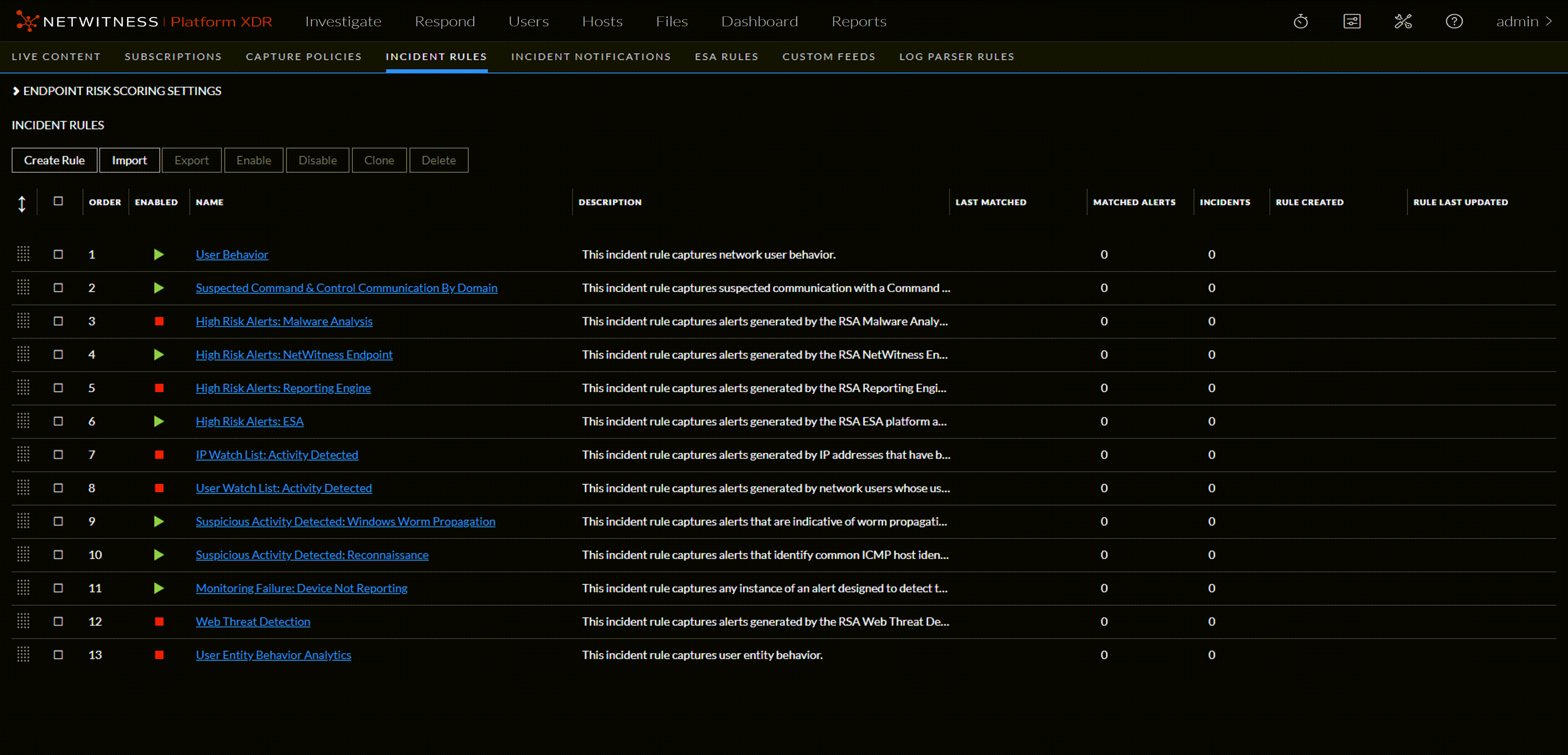
  1. Go to netwitness_configureicon_24x21.png (Configure) > Incident Rules.
    The Incident Rules view is displayed.
    netwitness_12.1_defaultincrules_1122.png
  2. Click the link in the Name field of a default incident rule to view the Incident Rule Details view. Set up or verify the default incident rule using the values in the default incident rules tables in this topic. Values not listed in the tables should be set for your business requirements. For details about various parameters that can be set as criteria for an incident rule, see Incident Rule Details View.
  3. When you are ready to enable your rule, in the Basic Settings section, select Enabled.
  4. Click Save.
  5. Verify the order of your incident rules. For more information, see Verify the Order of Your Incident Rules.

Suspected Command & Control Communication By DomainSuspected Command & Control Communication By Domain

The following table shows the values for the Suspected Command & Control Communication By Domain default incident rule.

  • Field: Name
  • Condition Field:
  • Condition Operator:
  • Value: Suspected Command & Control Communication By Domain

  • Field: Description
  • Condition Field:
  • Condition Operator:
  • Value: This incident rule captures suspected communication with a Command & Control server and groups results by domain.

  • Field: Group:
  • Condition Field:
  • Condition Operator:
  • Value: All of these

  • Field: Conditions:
  • Condition Field: Source
  • Condition Operator: is equal to
  • Value: Event Stream Analysis

  • Field:
  • Condition Field: Alert Rule Id
  • Condition Operator: is equal to
  • Value: Suspected C&C

  • Field: Group By
  • Condition Field:
  • Condition Operator:

,,,,,,, ,,,,,,, ,,,,,,, ,,,,,,, ,,,,,,, ,,,,,,, ,,,,,,, ,,,,,,, ,,,,,,, ,,,,,,, ,,,,,,, ,,,,,,, ,,,,,,, ,,,,,,, ,,,,,,, ,,,,,,, ,,,,,,, ,,,,,,, ,,,,,,, ,,,,,,, ,,,,,,, ,,,,,,, ,,,,,,, ,,,,,,, ,,,,,,, ,,,,,,, ,,,,,,, ,,,,,,, ,,,,,,, ,,,,,,, ,,,,,,, ,,,,,,, ,,,,,,, ,,,,,,, ,,,,,,, ,,,,,,, create another NetWitness Endpoint Rule using the File Hash as the Group By value. See Create a NetWitness Endpoint Incident Rule using File Hash for step-by-step instructions.,,,,,,, ,,,,,,, ,,,,,,, ,,,,,,, ,,,,,,, ,,,,,,, ,,,,,,, ,,,,,,, ,,,,,,, ,,,,,,, ,,,,,,, ,,,,,,, ,,,,,,, ,,,,,,, ,,,,,,, ,,,,,,, ,,,,,,, ,,,,,,, ,,,,,,, ,,,,,,, ,,,,,,, ,,,,,,, ,,,,,,, ,,,,,,, ,,,,,,, ,,,,,,, ,,,,,,, ,,,,,,, ,,,,,,, ,,,,,,, ,,,,,,, ,,,,,,, ,,,,,,, ,,,,,,, ,,,,,,, ,,,,,,, ,,,,,,, ,,,,,,, ,,,,,,, ,,,,,,, ,,,,,,, ,,,,,,, ,,,,,,, ,,,,,,, ,,,,,,, ,,,,,,, ,,,,,,, simply add a new Source and Destination IP Address conditional pair.Group: ,,,,,,, ,,,,,,, ,,,,,,, ,,,,,,, ,,,,,,, ,,,,,,, ,,,,,,, ,,,,,,, ,,,,,,, ,,,,,,, ,,,,,,, ,,,,,,, ,,,,,,, ,,,,,,, ,,,,,,, ,,,,,,, ,,,,,,, ,,,,,,, ,,,,,,, ,,,,,,, ,,,,,,, ,,,,,,, ,,,,,,, ,,,,,,, ,,,,,,, ,,,,,,, simply add an additional Source Username condition.Group: ,,,,,,, ,,,,,,, ,,,,,,, ,,,,,,, ,,,,,,, ,,,,,,, ,,,,,,, ,,,,,,, ,,,,,,, ,,,,,,, ,,,,,,, ,,,,,,, ,,,,,,, ,,,,,,, ,,,,,,, ,,,,,,, ,,,,,,, ,,,,,,, ,,,,,,, ,,,,,,, ,,,,,,, ,,,,,,, ,,,,,,, ,,,,,,, ,,,,,,, ,,,,,,, ,,,,,,, ,,,,,,, ,,,,,,, ,,,,,,, ,,,,,,, ,,,,,,, ,,,,,,, ,,,,,,, ,,,,,,, ,,,,,,, ,,,,,,, ,,,,,,, ,,,,,,, ,,,,,,, ,,,,,,, ,,,,,,, ,,,,,,, ,,,,,,, ,,,,,,, ,,,,,,, ,,,,,,, ,,,,,,, ,,,,,,, ,,,,,,, ,,,,,,, ,,,,,,, ,,,,,,, ,,,,,,, ,,,,,,, ,,,,,,, ,,,,,,, ,,,,,,, ,,,,,,, ,,,,,,, ,,,,,,, ,,,,,,, ,,,,,,, ,,,,,,, ,,,,,,, ,,,,,,, ,,,,,,, ,,,,,,, ,,,,,,, ,,,,,,, ,,,,,,, ,,,,,,, ,,,,,,, ,,,,,,, ,,,,,,, ,,,,,,, ,,,,,,, ,,,,,,, ,,,,,,, ,,,,,,, ,,,,,,, ,,,,,,, ,,,,,,, ,,,,,,, ,,,,,,, ,,,,,,, ,,,,,,, ,,,,,,, ,,,,,,, ,,,,,,, ,,,,,,, ,,,,,,, ,,,,,,, ,,,,,,, ,,,,,,, ,,,,,,, ,,,,,,, ,,,,,,, ,,,,,,, ,,,,,,, ,,,,,,, ,,,,,,, ,,,,,,, ,,,,,,, ,,,,,,, ,,,,,,, ,,,,,,, ,,,,,,, ,,,,,,, ,,,,,,, ,,,,,,, ,,,,,,, ,,,,,,, ,,,,,,, ,,,,,,, ,,,,,,, ,,,,,,, ,,,,,,, ,,,,,,, ,,,,,,, ,,,,,,, ,,,,,,, ,,,,,,, ,,,,,,, ,,,,,,, ,,,,,,, ,,,,,,, ,,,,,,, ,,,,,,, ,,,,,,, ,,,,,,, ,,,,,,, ,,,,,,, ,,,,,,, ,,,,,,, ,,,,,,, ,,,,,,, ,,,,,,, ,,,,,,, ,,,,,,, ,,,,,,, ,,,,,,, ,,,,,,, ,,,,,,, ,,,,,,, ,,,,,,, ,,,,,,, UEBA Entity NameTime Window ,,,,,,, ,,,,,,, ,,,,,,, ,,,,,,, ,,,,,,, ,,,,,,, create another NetWitness Endpoint Rule using the File Hash as the Group By value. To do this, clone the default NetWitness Endpoint incident rule and change the Group By value.,,,,,, such as High Risk Alerts: NetWitness Endpoint File Hash.
  • In the Group By field, remove the previous Group By value and add File MD5 Hash.
    It is important that File MD5 Hash is the only Group By value listed.
    netwitness_12.1_cloneeprule4_1122.png
  • If you are ready to enable your rule, in the Basic Settings section, select Enabled.
  • Click Save to create the rule.
    The Incident Rules view shows your new rule.
    netwitness_cloneeprule6.png
  • Verify the order of your incident rules. For more information, see Verify the Order of Your Incident Rules.
  • ,,, ,,,,,,, ,,,,,,, ,,,,,,, ,,,,,,, ,,,,,,, ,,,,,,, ,,,,,,, ,,,,,,, ,,,,,,, ,,,,,,, ,,,,,,, ,,,,,,, ,,,,,,,