.png?width=180&height=32&name=NW%20Logo%20(2).png)
Issue
Some customers may receive certificate verification errors, even after following the instructions mentioned in Decoder: Configure Syslog Forwarding to Destination to configure a forwarding destination for TLS and Adding the Certificate of the Forwarding Destination to the Log Collector truststore as per Log Collection: Configure Certificates.They may see an error such as below in /var/log/messages of the Log Decoder host -
Feb 13 15:14:32 Log Decoder NwLogDecoder[130039]: [Decoder] [failure] Failed to do TLS handshake with syslog relay destination x.x.x.x port 6514 due to error certificate verify failed
Cause
One main reason for this issue is that the Certificate added through the UI is not in the correct format or due to the certificate not being added properly to the CA Trust-store of the Log Decoder/LogCollector.
Resolution
- Check the format of the Forwarding Destination certificate available in /etc/netwitness/ng/truststore/.
- It should be in ".pem" extension with Base64 Encoding.
- Ensure that if you have copied the certificate from another machine/terminal (specifically a Windows machine) that the file format is UNIX and not DOS. If the file format is DOS then there could be issues reading the certificate.
To check that the current file format opens the certificate file in vi (or vim);
For example, if your certificate file in /etc/netwitness/ng/truststore/ is named as {CERTNAME}.pem# vi /etc/netwitness/ng/truststore/{CERTNAME}.pemOpen your file in Vi (or vim) and, in normal mode, type the syntax below to see what the file format is being used.:set ff?
If it is DOS, then change it to UNIX using the below syntax.:set ff=unix
Then save the certificate in #vi.
- To remove any end-of-line spaces or translate a file between ASCII CR+LF (DOS/Windows) and LF (UNIX) newlines in the Certificates, you can use a command such as below;
# sed -e "s/\r//g" /root/{CERTNAME}.pem > /etc/netwitness/ng/truststore/{CERTNAME-new}.pem
Note: The POSIX-compliant command would be;# sed -e 's/[[:space:]]*$//' /root/{CERTNAME}.pem > /etc/netwitness/ng/truststore/{CERTNAME-new}.pem
- Check if the connection to the Syslog Forwarding Destination is successful with the Certificates.
You can use the below command to check the SSL Connectivity using the added Syslog destination certificate.
# openssl s_client -connect {REMOTE_SYSLOG_HOST}:6514 -CAfile /etc/netwitness/ng/truststore/{CERTNAME}.pem
Replace the {REMOTE_SYSLOG_HOST} with the IP or the Hostname of the Syslog forwarding destination and {CERTNAME} with the name of the Forwarding destination certificate available in /etc/netwitness/ng/truststore/.
If you are using a hostname, then that should be resolved using DNS, if not you can make a static DNS entry to the /etc/hosts of the Log Decoder.
- Check if the Certificate and the fingerprint are available on the Log Decoder’s CA Certificate List. If it is not present, add it using the REST API.
For that go to the explorer view of the Log Decoder -
Open SA UI > ADMIN > Services > Log Decoder > view > explore > right-click “sys” tree > Properties > “caCert” message > send “op=list”
- If the Certificate and fingerprint are not listed there, you can add them using the REST API.
- Open the certificate file, and copy the entry to the clipboard.
# cat /etc/netwitness/ng/truststore/{CERTNAME}.pem
- Open the REST API of the Log Decoder – using a web browser open;
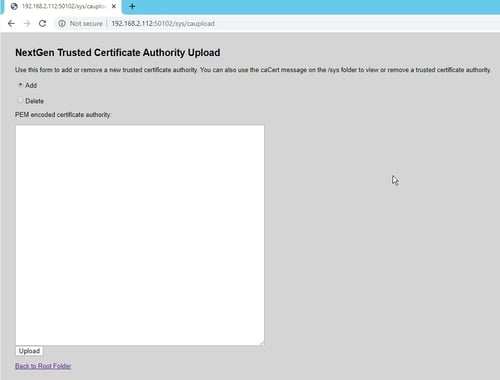
http://{IP_OF_THE_LogDecoder}:50102/sys/caupload
- Select the “Add” option radio button.
Paste the certificate entry in the Clipboard and click on Upload.
- Verify if you can view the Certificate and fingerprint using going to the REST API of the Log Decoder.
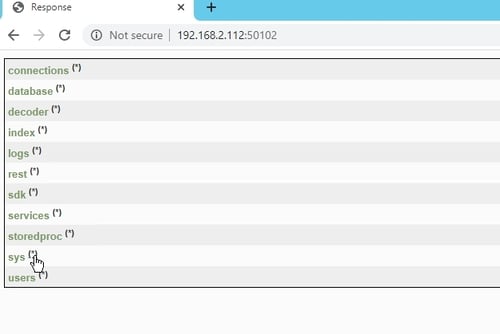
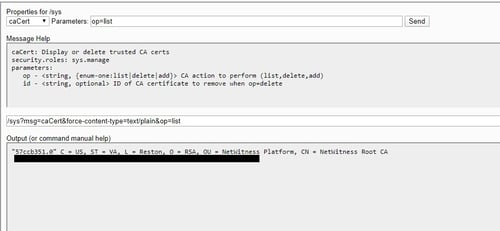
Open the REST API > Click the '(*)' in the 'sys' tree which opens the properties of this node > Properties for /sys > “caCert” message > send “op=list”
You should now see the Forwarding Destination's Certificate fingerprint that is listed there.
- Open the certificate file, and copy the entry to the clipboard.
- Verify the Log Forward entry in ADMIN > Services > Log Decoder > explore > decoder > config >logs.forwarding.destination parameter, Should be 'receiver1=tls:{HOSTNAME}:6514'
/decoder/config/logs.forwarding.enabled parameter, Should be set to 'true'
- After this restart the Log Decoder and Log Collector services.
# systemctl restart nwlogdecoder
# systemctl restart nwlogcollector
Notes
To check the communication between the Log Decoder and the Syslog Forwarding Destination you can run a packet capture on the Log Decoder host using 'tcpdump'
# tcpdump -i {INTERFACE} host {IP_ADDR_OF_SYSLOG_DEST}
Replace the
{INTERFACE} with the main interface name that is used for communication and
{IP_ADDR_OF_SYSLOG_DEST} with the hostname/IP of the Syslog Destination.
Product Details
RSA Product Set: RSA NetWitness PlatformRSA Product/Service Type: Log Decoder
RSA Version/Condition: 11.x
Summary
Some customers may receive the error Failed to do TLS handshake with syslog relay destination; error certificate verify failed on the Log Decoder after configuring the syslog relay forwarding.
Approval Reviewer Queue
RSA NetWitness Suite Approval Queue