.png?width=180&height=32&name=NW%20Logo%20(2).png)
System Logging - Settings ViewSystem Logging - Settings View
The NetWitness Settings view in the System Logging panel configures the size of the log files, the number of backup log files maintained, as well as the default logging levels for the packages within NetWitness. The "Configure Log File Settings" topic in the System Configuration Guide provides detailed procedures.
To access the Settings tab:
- Go to
 (Admin) > System.
 -
In the options panel, select System Logging.
The System Logging panel opens to the Realtime tab by default.
- Click the Settings tab.
What do you want to do?What do you want to do?
- Role: Administrator
- I want to ...: Configure the size of the Log files
- Show me how: See the "Configure Log File Settings" topic in the System Configuration Guide
Related TopicsRelated Topics
System Logging - Historical Tab
Quick LookQuick Look
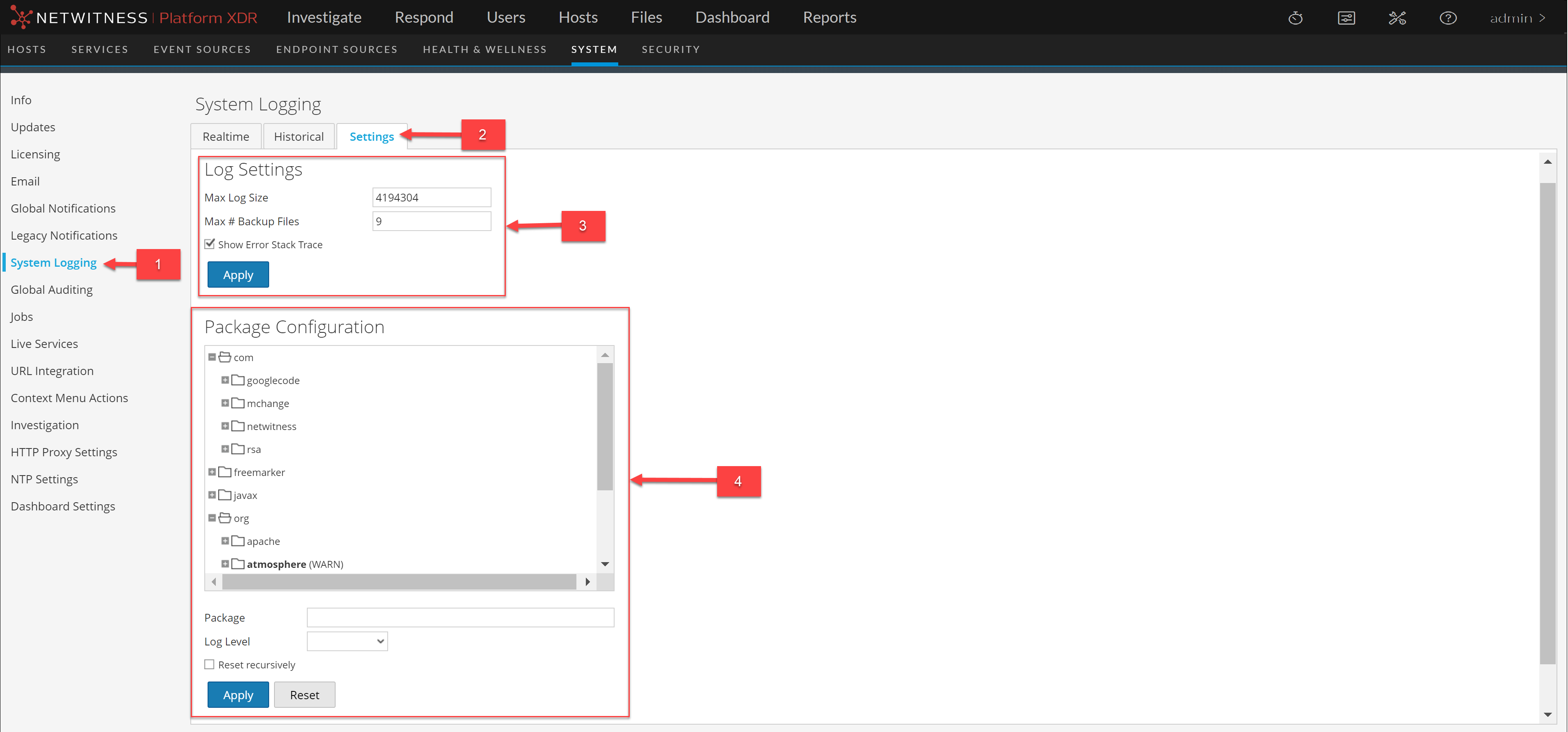
- Column 1: 1
- Column 2: Displays System Logging Panel
- Column 1: 2
- Column 2: Displays Settings Tab
- Column 1: 3
- Column 2: Configure Log Settings
- Column 1: 4
- Column 2: Configure Packages
FeaturesFeatures
The Settings tab has two sections: Log Settings and Package Configuration.
Log SettingsLog Settings
The Log Settings section configures the size of the NetWitness log files and the number of backup logs that NetWitness maintains.
- Feature: Max Log Size
- Description: Configures the maximum size in bytes of each log file. The minimum value for this setting is 4096.
- Feature: Max # Backup Files
- Description: Specifies how many backup log files are maintained. The minimum value for this setting is 0. When the maximum number of log files is attained, and a new backup file is made, the oldest backup is discarded.
- Feature:
 Show Error Stack Trace
 - Description: Displays ERROR, STACK, and TRACE log messages.
- Feature: Apply
- Description: Puts the settings into effect immediately for all future logs.
Package ConfigurationPackage Configuration
The Package Configuration section shows the NetWitness packages in a tree structure.
- Feature: Package tree
- Description:
Contains all the packages used within NetWitness. You can drill down into the tree to view the log levels of each package.
The root logging level represents the default log level for all packages that are not explicitly set. The root level is set to INFO
- Feature: Package field
- Description: The name of the selected package when you select a package in the Package tree.
- Feature: Log Level
- Description: If the selected package has a log level explicitly set, the value is displayed in the Log Level field.
- Feature:
 Reset recursively
 - Description: Resets the log recursively.
- Feature: Apply
- Description: Puts settings into effect immediately for all future logs.
- Feature: Reset
- Description: Resets the selected package to the log level of root.