.png?width=180&height=32&name=NW%20Logo%20(2).png)
Tags: Documentation, Installation & Upgrade, Version 12.3
This section describes the error messages displayed in the Hosts view when it encounters problems updating host versions and installing services on hosts in the Hosts view. If you cannot resolve an update or installation issue using the following troubleshooting solutions, contact Customer Support.
Troubleshooting instructions for the following errors that may occur during the upgrade are described in this section.
- deploy_admin Password Expired Error
- Downloading Error
- Error Deploying Version
Missing Update Packages - Upgrade Failed Error
- External Repo Update Error
- Host Update Failed Error
- Missing Update Packages Error
- Patch Update to Non-NW Server Error
- Reboot Host After Update from Command Line Error
- Reporting Engine Restarts After Upgrade
Troubleshooting instructions are also provided for errors for the following hosts and services that may occur during or after an upgrade.
- Log Collector Service
- NW Server
- Orchestration
- Reporting Engine
- Event Stream Analysis
- Legacy Windows Log Collector
- Column 1: Problem
- Column 2: Unable to boot the appliance after upgrading
- Column 1: Wokaround
- Column 2:
-
Manually modify the GRUB boot line to FIPS=0 to get it to boot.
-
From here, disable FIPS using the following command:
manage-stig-controls --disable-control-groups 3 --host-all
-
Verify the line FIPS=1 is removed from /boot/grub2/grub.cfg
-
If not, run the following command:
grub2-mkconfig -o /boot/grub2/grub.cfg
-
Reboot.
-
Run the following command to enable FIPS:
manage-stig-controls --enable-control-groups 3 --host-all
-
Reboot again.
-
deploy_admin User Password Has Expired Error
- Column 1: Error Message
- Column 2:
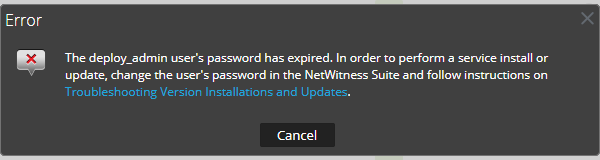
- Column 1: Cause
- Column 2: The deploy_admin user password has expired.
- Column 1: Solution
- Column 2:
Reset your deploy_admin password password.
- On the NW Server host only, run the following command.
nw-manage --update-deploy-admin-pw
Please enter the new deploy_admin account password:
Please confirm the new deploy_admin account password: - Review the output of the nw-manage --update-deploy-admin-pw command to verify the deploy_admin password was successfully updated on all hosts. If an NW host is down or fails for any reason as displayed by the output of the nw-manage --update-deploy-admin-pw command, run nw-manage --sync-deploy-admin-pw --host-key
to synchronize the password between the NW Server and the host that failed once the communication failure is resolved. - On the host that failed installation or orchestration, run the nwsetup-tui command and use the new deploy_admin password in response to the Deployment Password prompt.
- On the NW Server host only, run the following command.
Downloading Error
- Column 1: Error Message
- Column 2:
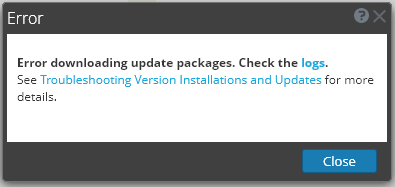
- Column 1: Problem
- Column 2: When you select an update version and click Update >Update Host, the download starts but fails to complete.
- Column 1: Cause
- Column 2: Version download files can be large and take a long time to download. If there are communication issues during the download it will fail.
- Column 1: Solution
- Column 2:
- Try to update again.
-
If it fails again with the same error, try to update using the offline methods as described in "Offline Method from Hosts View" or "Offline Method Using Command Line Interface" in the Upgrade Guide for NetWitness Platform. Go to the NetWitness All Versions Documents page and find NetWitness Platform guides to troubleshoot issues.
-
If you are still not able to update, contact Customer Support.
- Column 1: Error Message
- Column 2:
If you are upgrading from NetWitness Platform 11.x.x.x to 11.6.x.x or later, offline UI upgrade fails with the Download error message.
- Column 1: Solution
- Column 2:
-
In the Command Line Interface (CLI):
-
SSH to NW Server.
- Run the following command:
upgrade-cli-client --upgrade --host-key
For example:
upgrade-cli-client --upgrade --host-key
-
- After the NW Server is successfully updated, log in to the NW Server user interface and go to
 (Admin) > Hosts, where you are prompted to reboot the host.
 -
Click Reboot Host from the toolbar.
You can upgrade all the other hosts directly from the user interface:
- Click Begin Update from the Update Available dialog.
After the host is upgraded, it prompts you to reboot the host. - Click Reboot Host from the toolbar.
- Click Begin Update from the Update Available dialog.
-
Error Deploying Version
Missing Update Packages
- Column 1: Error Message
- Column 2:
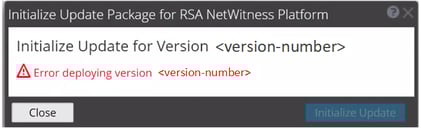
- Column 1: Problem
- Column 2:
Error deploying version
is displayed in the Initialize Update Package for NetWitness Platform dialog after you click on Initialize Update if the update package is corrupted.
- Column 1: Solution
- Column 2:
-
Click Close to close the dialog.
-
Remove the version folder from staging folder.
-
Make sure that the salt-master service is running.
- Recopy the update package zip file to the staging folder.
-
In the Hosts view toolbar, select Check for Updates again.
- Click Initialize Update.
- Click Update > Update Hosts from the toolbar.
- Click Begin Update from the Update Available dialog.
After the host is updated, it prompts you to reboot the host. - Click Reboot from the toolbar.
-
Upgrade Failed Error
- Column 1: Error Message
- Column 2:
Received an error in the error log similar to the following when trying to update to version 11.6 or later:

- Column 1: Cause
- Column 2: Custom builds/rpms installed for certain components installed on hosts, such as in the case of installing Hotfixes.
- Column 1: Solution
- Column 2:
To resolve the issue, follow the below steps.
- SSH to Admin Server.
- Locate the component descriptor file by running the following command.
cd /etc/netwitness/component-descriptor/ - Open the component descriptor file by running the following command.
vi nw-component-descriptor. json - Search for “packages” section for the component you have custom build/rpm. For example, below shown is the package details for “concentrator” host that has custom build/rpm.
“concentrator”: {
“cookbook_name”: “rsa-concentrator”,
“service_names”: [“rsa-nw-concentrator”],
“family”: “launch”,
“default_port”: xxxx, “description”: “Concentrator”,
“packages”:[{ “name”: “rsa-nw-concentrator”,
“version” : “11.6.0.0-2003001075220.5.cecf24b.e.17.centos”
}, - Delete the complete version details including (,) character in the packages section. For example, it should look like as shown below after you delete the version details.
“packages”: [{
“name”: “rsa-nw-concentrator”
},
Note: You must delete the version details for all the host that has custom builds/rpms in the component descriptor of the admin server.
- Run the upgrade process again.
External Repo Update Error
- Column 1: Error Message
- Column 2:
Received an error similar to the following error when trying to update to a new version from the :
.Repository 'nw-rsa-base': Error parsing config: Error parsing "baseurl = 'https://nw-node-zero/nwrpmrepo //RSA'": URL must be http, ftp, file or https not ""
- Column 1: Cause
- Column 2: There is an error the path you specified.
- Column 1: Solution
- Column 2:
Make sure that:
- the URL does exist on the NW Server host.
- you used the correct path and remove any spaces from it.
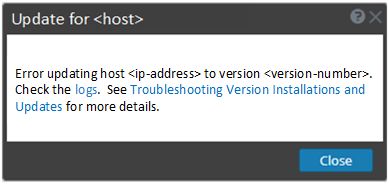
Host Update Failed Error
- Column 1: Error Message
- Column 2:
- Column 1: Problem
- Column 2: When you select an update version and click Update > Update Host, the download process is successful, but the update process fails.
- Column 1: Solution
- Column 2:
- Try to apply the version update to the host again.
Often this is all you need to do. - If you still cannot apply the new version update:
Monitor the following logs on NW Server as it progresses (for example, run the tail -f command from the command line):
/var/netwitness/uax/logs/sa.log
/var/log/netwitness/orchestration-server/orchestration-server.log
/var/log/netwitness/deployment-upgrade/chef-solo.log
/var/log/netwitness/config-management/chef-solo.log
/var/lib/netwitness/config-management/cache/chef-stacktrace.out
The error appears in one or more of these logs. - If you still cannot apply the update, gather the logs from step 2 and contact Customer Support.
- Try to apply the version update to the host again.
Missing Update Packages Error
- Column 1: Error Message
- Column 2:
Initialize Update for Version xx.x.x.x
Missing the following update package(s)Download Packages from NetWitness Link
- Column 1: Problem
- Column 2: Missing the following update package(s) is displayed in the Initialize Update Package for NetWitness Platform dialog when you are updating a host from the Hosts view offline and there are packages missing in the staging folder.
- Column 1: Solution
- Column 2:
-
Click Download Packages from NetWitness Community in the Initialize Update Package for NetWitness Platform dialog.
The NetWitness Community page that contains the update files for the selected version is displayed. -
Select the missing packages from the staging folder.
The Initialize Update Package for NetWitness Platform dialog is displayed telling you that it is ready to initialize the update packages.
-
OpenSSL 1.1.x
- Column 1: Error Message
- Column 2:
The following example illustrates an ssh error that can occur when the ssh client is run from a host with OpenSSL 1.1.x installed:
$ ssh root@10.1.2.3
ssh_dispatch_run_fatal: Connection to 10.1.2.3 port 22: message authentication code incorrect
- Column 1: Problem
- Column 2:
Advanced users who want to ssh to a NetWitness Platform host from a client that is using OpenSSL 1.1.x encounter this error because of incompatibility between CENTOS 7.x and OpenSSL 1.1.x. For example:
$ rpm -q openssl
openssl-1.1.1-8.el8.x86_64
- Column 1: Solution
- Column 2:
Specify the compatible cipher list on the command line. For example:
$ ssh -oCiphers=aes128-ctr,aes192-ctr,aes256-ctr root@10.1.2.3
I've read & consent to terms in IS user agreement.
root@10.1.2.3's password:
Last login: Mon Oct 21 19:03:23 2019
Patch Update to Non-NW Server Error
- Column 1: Error Message
- Column 2:
The /var/log/netwitness/orchestration-server/orchestration-server.log has an error similar to the following error:
API|Failure /rsa/orchestration/task/update-config-management [counter=10 reason=IllegalArgumentException::Version '11.x.x.n' is not supported
- Column 1: Problem
- Column 2: After you update the NW Server host to a version, you must update all non-NW Server hosts to the same version. For example, if you update the NW Server from 11.4.0.0 to 11.6.0.0 or later, the only update path for the non-NW Server hosts is the same version (that is, 11.6.0.0). If you try to update any non-NW Server host to a different version (for example, from 11.4.0.0 to an 11.4.x.x) you will get this error.
- Column 1: Solution
- Column 2:
You have two options:
- Update the non-NW Server host to 11.6.0.0 or later, or
- Do not update the non-NW Server host (keep it at its current version)
Reboot Host After Update from Command Line Error
- Column 1: Error Message
- Column 2:
You receive a message in the User Interface to reboot the host after you update and reboot the host offline.

- Column 1: Cause
- Column 2: You cannot use CLI to reboot the host. You must use the User Interface.
- Column 1: Solution
- Column 2:
Reboot the host in the Host View in the User Interface.
Reporting Engine Restarts After Upgrade
- Column 1: Problem
- Column 2:
In some cases, after you upgrade to 11.6 or later from versions of 11.x, such as 11.4, the Reporting Engine service attempts to restart continuously without success.
- Column 1: Cause
- Column 2:
The database files for live charts, alert status, or report status may not be loaded successfully as the files may be corrupted.
- Column 1: Solution
- Column 2:
To resolve the issue, do the following:
-
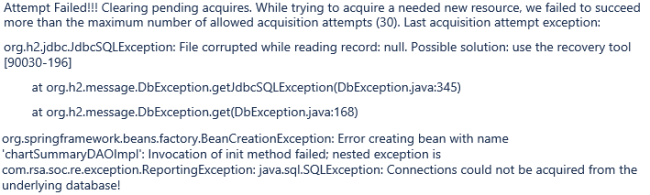
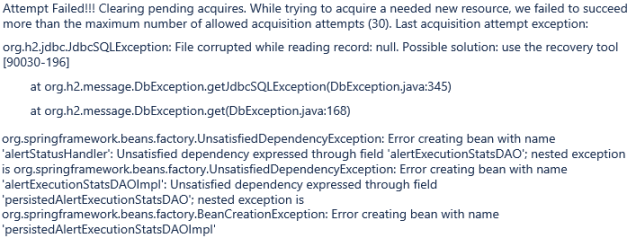
Check which database files are corrupted:
Navigate to the file located at /var/netwitness/reserver/rsa/soc/reporting-engine/logs/reporting-engine.log and check the following blocks:
-
If the live charts db file is corrupted, the following logs are displayed:
-
If the alert status db file is corrupted, the following logs are displayed:
-
If the report status db file is corrupted, the following logs are displayed:
org.h2.jdbc.JdbcSQLException: File corrupted while reading record: null. Possible solution: use the recovery tool [90030-196]
-
-
To resolve the live charts database file corruption, perform the following steps:
-
Stop the Reporting Engine service.
-
Move the livechart.mv.db file from /var/netwitness/reserver/rsa/soc/reporting-engine/livecharts folder to a temporary location.
-
Restart the Reporting Engine service.
Note: Some live charts data may be lost on performing the above steps.
To resolve the alert status or report status database file corruption, perform the following steps:
- Stop the Reporting Engine service.
- Replace the corrupted db file with the latest alertstatusmanager.mv.db or reportstatusmanager.mv.dbReporting Engine restarts After upgrade to NetWitness Platform 11.4.,,,,,,, ,,,,,,, ,,,,,,, ,,,,,,, the Reporting Engine service does not restart.
-
-
- Column 1: Cause
- Column 2: The Reporting Engine service may not start due to any of the following reasons.
- workspace.xml not updated.
- Time is not converted properly in livechart h2 database.
- JCR (Jackrabbit repository) is corrupted with primary key violation.
- Column 1: Solution
- Column 2: ,,,,,,, run the Reporting Engine Migration Recovery tool (rsa-nw-re-migration-recovery.sh) on the Admin Server where the Reporting Engine service is installed.,,,,,,, ,,,,,,, ,,,,,,, run the following command.
tar -xvf rsa-nw-re-recovery-tool-bundle.tar,,,,,,, you can create a directory and untar the RE tool. Run the following commands.,,,,,,, ,,,,,,, run the following command.
.//rsa-nw-re-recovery-tool.sh,,,,,,, see the Knowledge Base article Reporting Engine Migration Recovery Tool.,,,,,,, ,,,,,,, ,,,,,,, ,,,,,,, open the lockbox using the passphrase.
- Column 1: Cause
- Column 2: The Log Collector Lockbox failed to open after the update.
- Column 1: Solution
- Column 2: Log in to NetWitness and reset the system fingerprint by resetting the stable system value password for the Lockbox as described in the "Reset the Stable System Value" topic under "Configure Lockbox Security Settings" topic in the Log Collection Configuration Guide.
In the NetWitness user interface,,,,,,, ,,,,,,, ,,,,,,, ,,,,,,, ,,,,,,, do one of the following:,,,,,,, ,,,,,,, ,,,,,,, ,,,,,,, ,,,,,,, ,,,,,,, ,,,,,,, ,,,,,,, ,,,,,,, ,,,,,,, ,,,,,,, ,,,,,,, ,,,,,,, ,,,,,,, ,,,,,,, ,,,,,,, ,,,,,,, ,,,,,,, ,,,,,,, ,,,,,,, ,,,,,,, and it suggests common solutions to these problems.,,,,,,, ,,,,,,, check the status of the ESA rule deployments.,,,,,,, which shows the status of your ESA services and deployments.