.png?width=180&height=32&name=NW%20Logo%20(2).png)
Tags: Documentation
Troubleshoot Upgrade Issues
This section describes the error messages displayed in the Hosts view when it encounters problems updating host versions and installing services on hosts in the Hosts view. If you cannot resolve an upgrade or installation issue using the following troubleshooting solutions, contact NetWitness Customer Support.
Troubleshooting instructions for the following errors that may occur during the upgrade are described in this section.
- AlmaLinux OS Troubleshooting Information
-
Migration of Lockbox to SecureStore failure on Admin Server, Reporting Engine, and SMS
- deploy_admin Password Expired Error
- Downloading Error
- Error Deploying Version
Missing Update Packages - External Repo Update Error
- Host Update Failed Error
- Missing Update Packages Error
- Patch Update to Non-NW Server Error
- Reboot Host After Update from Command Line Error
Troubleshooting instructions are also provided for errors for the following hosts and services that may occur during or after an upgrade.
- Log Collector Service
- NW Server
- Orchestration
- Reporting Engine
- Event Stream Analysis
- Legacy Windows Log Collector
- Column 1: Problem
- Column 2: Unable to boot the appliance after upgrading
- Column 1: Wokaround
- Column 2:
-
Manually modify the GRUB boot line to FIPS=0 to get it to boot.
-
From here, disable FIPS using the following command:
manage-stig-controls --disable-control-groups 3 --host-all
-
Verify the line FIPS=1 is removed from /boot/grub2/grub.cfg
-
If not, run the following command:
grub2-mkconfig -o /boot/grub2/grub.cfg
-
Reboot.
-
Run the following command to enable FIPS:
manage-stig-controls --enable-control-groups 3 --host-all
-
Reboot again.
-
AlmaLinux OS Troubleshooting Information
For better understanding, AlmaLinux OS Upgrade can be divided into 4 parts:
-
Running the precheck utility to ensure the health of the system and detect any upgrade issues. This can be done any time before the upgrade using the standalone precheck-tool rpm. (required only on NW Server)
Logs are recorded in this path - /var/log/netwitness/precheck-tool/checklist.log
-
Initialization or init phase (happens only on NW Server)
For any issues during init phase, check these logs.
-
salt minion logs - /var/log/salt/minion
-
deployment-upgrade logs - /var/log/netwitness/deployment-upgrade/chef-solo.log
Note: Please perform the init only when you plan to do the actual upgrade. It is not recommended to perform an init without upgrading the system in the same change window.
-
-
OS Upgrade from CentOS to AlmaLinux
As the first step of OS Upgrade, salt gets upgraded. You can execute the below command to see that salt is upgraded to version 3006:
cat /var/log/yum.log | grep salt
You can view similar to the below update where xxx represents the current datetime stamp:
xxx Updated: salt-master-3006.2-0.x86_64
xxx Updated: salt-api-3006.2-0.x86_64
xxx Updated: salt-minion-3006.2-0.x86_64
For any issues, with salt-upgrade, please check:
-
/var/log/netwitness/node-infra-server/node-infra-server.log
-
/var/log/salt/master
-
/var/log/salt/minion
Once salt has been upgraded, the leapp process will begin.
The logs can be viewed in /var/log/salt/minion:
xxx [salt.loaded.ext.module.nw_platform:445 ][INFO ][139407] [1/5] Searching for leapp config for version: 12.5.0.0
xxx [salt.loaded.ext.module.nw_platform:453 ][INFO ][139407] [2/5] Retrieving leapp config for version: 12.5.0.0
xxx [salt.fileclient :1333][INFO ][139407] Fetching file from saltenv 'base', ** done ** 'config/12.5.0.0-pre-upgrade.repo'
xxx [salt.loaded.ext.module.nw_platform:467 ][INFO ][139407] [3/5] Running pre-requisites required to perform leapp upgrade
xxx [salt.fileclient :1333][INFO ][139407] Fetching file from saltenv 'base', ** done ** 'leapp/netwitnessmigrate/actor.py'
xxx [salt.fileclient :1333][INFO ][139407] Fetching file from saltenv 'base', ** done ** 'leapp/netwitnessmigrate/libraries/netwitnessmigrate.py'
xxx [salt.fileclient :1333][INFO ][139407] Fetching file from saltenv 'base', ** done ** 'leapp/netwitnessmigrate.py'
xxx [salt.fileclient :1333][INFO ][139407] Fetching file from saltenv 'base', ** done ** 'leapp/addupgradebootentry.py'
xxx [salt.loaded.ext.module.nw_platform:500 ][INFO ][139407] [4/5] Running leapp pre-upgrade
xxx [salt.loaded.ext.module.nw_platform:503 ][INFO ][139407] [5/5] Running leapp upgrade
For any issues encountered during OS Upgrade, the logs below will be helpful in troubleshooting.
-
/var/log/salt/minion
-
If Preupgrade fails - /var/log/leapp/leapp-preupgrade.log
-
If Leapp upgrade fails - /var/log/leapp/leapp-upgrade.log
If leapp fails, then /var/log/leapp/leapp-report.txt will provide you with details about inhibitors.
A few minutes after this log “Running leapp upgrade” in /var/log/salt/minion, the system will reboot and may take 20 to 30 minutes to return.
Once it is up, you can confirm the OS using the command cat /etc/almalinux-release. If it does not show Alma Linux release, please call Customer Support before taking any action.
Also, if you have triggered the upgrade through UI and see the status "Performing OS Migration" on any NodeX for more than an hour, please check the leapp logs and reach out to Customer Support.
-
-
NW Software upgrade to 12.5.0.0
Once the OS Migration has completed, The NW software upgrade begins and takes up to 30 mins before the UI is functional.
You can see these logs in /var/log/salt/minion when NW software upgrade starts:
xxx [salt.loaded.ext.module.nw_platform:276 ][INFO ][14035] Preparing node for upgrade to 12.5.0.0
xxx [salt.loaded.ext.module.nw_platform:280 ][INFO ][14035] [1/2] Searching for yum config for version: 12.5.0.0
xxx [salt.loaded.ext.module.nw_platform:287 ][INFO ][14035] [2/2] Retrieving yum config for version: 12.5.0.0
xxx [salt.fileclient :1333][INFO ][14035] Fetching file from saltenv 'base', ** done ** 'config/12.5.0.0-pre-upgrade.repo'
xxx [salt.loaded.ext.module.nw_platform:300][INFO ][14035] Upgrading chef package
xxx [salt.loaded.ext.module.nw_platform:300][INFO ][14035] Upgrading rsa-nw-config-management package
You can also refer to config management logs at /var/log/netwitness/config-management/chef-solo.log or UI logs /var/netwitness/uax/logs/sa.log
Migration of Lockbox to SecureStore failure on Admin Server, Reporting Engine, and SMS
For Admin Server or Jetty
- Column 1: Problem
- Column 2:
The migration of LockBox to SecureStore has failed in the Admin Server.
- Column 1: Cause
- Column 2: Due to incomplete migration of SSV values.
- Column 1: Solution
- Column 2:
If you are unable to access the admin server, perform the following steps to resolve the issue:
-
SSH to the Admin Server / Node Zero.
-
Stop the Jetty service using the following command:
systemctl stop jetty
-
Move the lockbox.ss and lockbox.ss.lock files from the following paths to a separate backup folder:
-
/var/netwitness/uax
-
/root/uaxbackup
-
-
Start the Jetty service using the following command:
systemctl start jetty
-
For Reporting Engine
- Column 1: Problem
- Column 2:
The migration of LockBox to SecureStore has failed in the Reporting Engine.
- Column 1: Cause
- Column 2: Due to incomplete SSV values migration.
- Column 1: Solution
- Column 2:
If you are unable to access the reporting engine, perform the following steps to resolve the issue:
-
SSH to the Admin Server / Node Zero.
-
Stop the Reporting Engine service using the following command:
systemctl stop rsasoc_re
-
Move the lockbox.ss and lockbox.ss.lock files from the /var/netwitness/re-server/rsa/soc/reporting-engine path to a backup folder.
-
Start the Reporting Engine service using the following command:
systemctl start rsasoc_re
-
For SMS
- Column 1: Problem
- Column 2:
The migration of LockBox to SecureStore has failed in the SMS.
- Column 1: Cause
- Column 2: Due to incomplete SSV values migration.
- Column 1: Solution
- Column 2:
If you are unable to access the SMS service, perform the following steps to resolve the issue:
-
SSH to the Admin Server / Node Zero.
-
Stop the SMS service using the following command:
systemctl stop rsa-sms
-
Move the lockbox.ss and lockbox.ss.lock files from the /root/rsa/home path to a backup folder.
-
Start the SMS service using the following command:
systemctl start rsa-sms
-
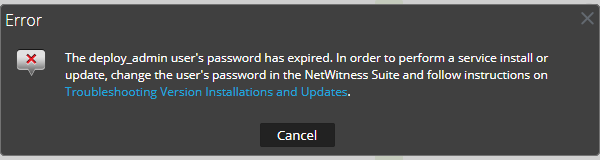
deploy_admin User Password Has Expired Error
- Column 1: Error Message
- Column 2:
- Column 1: Cause
- Column 2: The deploy_admin user password has expired.
- Column 1: Solution
- Column 2:
Reset your deploy_admin password password. Do the following.
- On the NW Server host only, run the following command.
nw-manage --update-deploy-admin-pw
Please enter the new deploy_admin account password:
Please confirm the new deploy_admin account password: - Review the output of the nw-manage --update-deploy-admin-pw command to verify the deploy_admin password was successfully updated on all hosts. If an NW host is down or fails for any reason as displayed by the output of the nw-manage --update-deploy-admin-pw command, run nw-manage --sync-deploy-admin-pw --host-key
to synchronize the password between the NW Server and the host that failed once the communication failure is resolved. - On the host that failed installation or orchestration, run the nwsetup-tui command and use the new deploy_admin password in response to the Deployment Password prompt.
- On the NW Server host only, run the following command.
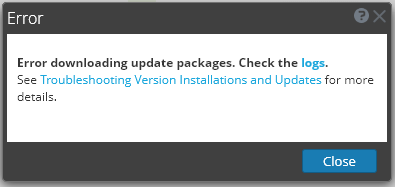
Downloading Error
- Column 1: Error Message
- Column 2:
- Column 1: Problem
- Column 2: When you select an update version and click Update >Update Host, the download starts but fails to complete.
- Column 1: Cause
- Column 2: Version download files can be large and take a long time to download. If there are communication issues during the download it will fail.
- Column 1: Solution
- Column 2:
- Try to update again.
-
If it fails again with the same error, try to update using the offline methods as described in "Offline Method from Hosts View" or "Offline Method Using Command Line Interface" in the Upgrade Guide for NetWitness Platform. Go to the NetWitness All Versions Documents page and find NetWitness Platform guides to troubleshoot issues.
-
If you are still not able to update, contact NetWitness Customer Support.
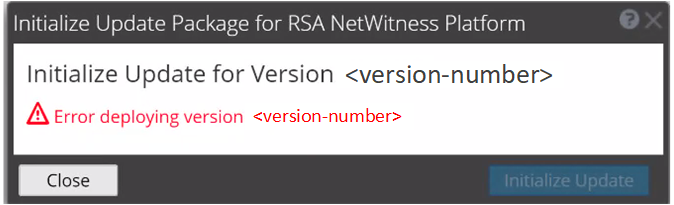
Error Deploying Version
Missing Update Packages
- Column 1: Error Message
- Column 2:
- Column 1: Problem
- Column 2:
Error deploying version
is displayed in the Initialize Update Package for NetWitness Platform dialog after you click on Initialize Update if the update package is corrupted.
- Column 1: Solution
- Column 2:
-
Click Close to close the dialog.
-
Remove the version folder from staging folder.
-
Make sure that the salt-master service is running.
- Recopy the update package zip file to the staging folder.
-
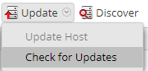
In the Hosts view toolbar, select Check for Updates again.
- Click Initialize Update.
- Click Update > Update Hosts from the toolbar.
- Click Begin Update from the Update Available dialog.
After the host is updated, it prompts you to reboot the host. - Click Reboot from the toolbar.
-
External Repo Update Error
- Column 1: Error Message
- Column 2:
You will receive an error similar to the following error while trying to update to a new version from the :
.Repository 'nw-rsa-base': Error parsing config: Error parsing "baseurl = 'https://nw-node-zero/nwrpmrepo //RSA'": URL must be http, ftp, file or https not ""
- Column 1: Cause
- Column 2: Incorrect path specified.
- Column 1: Solution
- Column 2:
Make sure that:
- the URL does exist on the NW Server host.
- you used the correct path and remove any spaces from it.
Host Update Failed Error
- Column 1: Error Message
- Column 2:
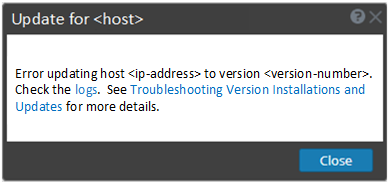
- Column 1: Problem
- Column 2: When you select an update version and click Update > Update Host, the download process is successful, but the update process fails.
- Column 1: Solution
- Column 2:
- Try to apply the version update to the host again.
Often this is all you need to do. - If you still cannot apply the new version update:
Monitor the following logs on NW Server as it progresses (for example, run the tail -f command from the command line):
/var/netwitness/uax/logs/sa.log
/var/log/netwitness/orchestration-server/orchestration-server.log
/var/log/netwitness/deployment-upgrade/chef-solo.log
/var/log/netwitness/config-management/chef-solo.log
/var/lib/netwitness/config-management/cache/chef-stacktrace.out
The error appears in one or more of these logs. - If you still cannot apply the update, gather the logs from step 2 above and contact NetWitness Customer Support.
- Try to apply the version update to the host again.
- Column 1: Error Message
- Column 2:
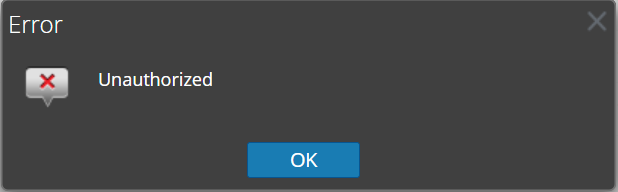
- Column 1: Problem
- Column 2: When you select an update version and click Update > Check for Updates, the Unauthorized error message is displayed. As a result, the connection to the live service fails.
- Column 1: Solution
- Column 2:
-
Make sure the Live test connection passes.
-
Update https://update.netwitness.com/RSA-netwitness in
 (Admin) > System > Updates.
 -
SSH to the Admin Server and backup /etc/default/jetty.
-
Update the following entry at the end of the JAVA_OPTIONS in the /etc/default/jetty.
JAVA_OPTIONS="${JAVA_OPTIONS} -Drsa.nw.legacy.web.server.system.update.repo.url=https://update.netwitness.com/RSA-netwitness/ -Drsa.nw.legacy.system.update.auth.url=https://update.netwitness.com/authenticate "
-
Restart the jetty service by running the following command:
service jetty restart
-
Missing Update Packages Error
- Column 1: Error Message
- Column 2:
Initialize Update for Version xx.x.x.x
Missing the following update package(s)Download Packages from NetWitness Link
- Column 1: Problem
- Column 2: Missing the following update package(s) is displayed in the Initialize Update Package for NetWitness Platform dialog when you are updating a host from the Hosts view offline and there are packages missing in the staging folder.
- Column 1:
- Column 1: Solution
- Column 2: ,,, ,,,,,,, or
- Do not update the non-NW Server host (keep it at its current version) ,,,,,,, ,,,,,,, ,,,,,,, ,,,,,,, ,,,,,,, ,,,,,,, ,,,,,,, ,,,,,,, ,,,,,,, ,,,,,,, open the lockbox using the passphrase.
- Column 1: Cause
- Column 2: The Log Collector Lockbox failed to open after the update.
- Column 1: Solution
- Column 2: Log in to NetWitness and reset the system fingerprint by resetting the stable system value password for the Lockbox as described in the Reset the Stable System Value topic under Configure Lockbox Security Settings topic in the Log Collection Configuration Guide.