.png?width=180&height=32&name=NW%20Logo%20(2).png)
Troubleshoot System Configuration
The topics in this section provide troubleshooting information for administrators who are configuring settings that apply across the system in NetWitness.
- Troubleshoot Global Audit Logging
- Troubleshoot Issues identified in the NTP Settings Panel or Log Files Messages
- Troubleshoot Global Notifications
Troubleshoot Global Audit LoggingTroubleshoot Global Audit Logging
This topic provides information about possible issues that NetWitness users may encounter when implementing Global Audit Logging in NetWitness. Look for explanations and solutions in this topic.
After you configure Global Audit Logging, you should test your audit logs to ensure that they show the audit events as defined in your audit logging template. If you cannot view the audit logs on your third-party syslog server or Log Decoder, or the audit logs do not appear as expected, look at the basic troubleshooting suggestions below. If you are still having issues, you can look at the advanced troubleshooting suggestions.
Basic Troubleshooting
If you cannot view audit logs on a third-party syslog server or Log Decoder:
- Verify that RabbitMQ is up and running.
- Verify the syslog notification server configuration and make sure it is enabled.
(This configuration is located at (Admin) > System > Global Notifications. Do not select Legacy Notifications.)
 - Check the Global Audit Logging configuration.
Configure Global Audit Logging and Verify Global Audit Logs provide instructions. If you are sending audit logs to a Log Decoder:
- Ensure that the Log Decoder is aggregating on the Concentrator on the same host: (Admin) > Services > (Select Concentrator) >
 > View > Config.
 - Verify that the latest CEF parser is deployed and enabled.
- Check the audit logging notification template. You must use a CEF template and all logs feeding into the Log Decoder must use a CEF template.
If you are sending audit logs to a third-party syslog server, Ensure that the destination port configured for the third-party syslog server is not blocked by a firewall.
Advanced Troubleshooting
In order to use Global Audit Logging on your network, RabbitMQ must be functioning.
For centralized audit logging, each of the NetWitness services writes audit logs to rsyslog listening on port 50514 using UDP on the local host. The rsyslog plugin provided in the audit logging package adds additional information and uploads these logs to RabbitMQ. Logstash running on the NetWitness Server host aggregates audit logs from all of the NetWitness services, coverts them to the required format, and sends them to a third-party syslog server or Log Decoder for investigation. You configure the format of the global audit logs and the destination used by Logstash through the NetWitness user interface.
Define a Global Audit Logging Configuration provides instructions.
Verify the Packages and Services on the Hosts
The following packages or services must be present on the NetWitness Server host:
- rsyslog-8.4.1
- rsa-audit-rt
- logstash-5.6.4
- rsa-audit-plugins
- rabbitmq server
Services on a Host other than the NetWitness Host
The following packages or services must be present on each of the NetWitness hosts other than the NetWitness Server host:
- rsyslog-8.4.1
- rsa-audit-rt
- rabbitmq server
Log Decoder
If you forward global audit logs to a Log Decoder, the following parser should be present and enabled:
- CEF
Possible Issues
What if I perform an action on a service but audit logs do not reach the configured third-party syslog server or Log Decoder?
The possible causes could be one or all of the following:
- A service is not logging to the local syslog server.
- Audit logs are not getting uploaded to RabbitMQ from the local syslog.
- Audit logs are not aggregated on the NetWitness Server host.
- Aggregated logs on the NetWitness Server host are not being forwarded to the configured third-party syslog server or Log Decoder.
- The Log Decoder is not configured to receive global audit logs in CEF format:
- Log Decoder capture is not turned on
- CEF Parser is not present
- CEF Parser is not enabled
Possible Solutions
The following table provides possible solutions for the issues.
- Issue:
A service is not logging to the local syslog server.
- Possible Solutions:
-
Ensure that rsyslog is up and running.
You could use the following command:service rsyslog status
-
Ensure that rsyslog is listening on port 50514 using UDP.
You could use the following command:
netstat -tulnp|grep rsyslog
-
Ensure the application or component is sending audit logs to port 50514. Run the tcpdump utility on the local interface for port 50514.
You could use the following command:
sudo tcpdump -i lo -A udp and port 50514
See "Solution Examples" below to view the command outputs.
-
- Issue:
Audit logs are not getting uploaded to RabbitMQ from the local syslog.
- Possible Solutions:
-
Ensure that the rsyslog plugin is up and running.
You could use the following command:ps -ef|grep rsa_audit_onramp
-
Ensure the RabbitMQ server is up and running.
You could use the following command:
service rabbitmq-server status
See "Solution Examples" to view the command outputs.
-
- Issue:
Audit logs are not aggregated on the NetWitness Server host.
- Possible Solutions:
-
Ensure Logstash is up and running.
You could use the following commands:ps -ef|grep logstash
service logstash status -
Ensure the RabbitMQ server is up and running.
You could use the following command:
service rabbitmq-server status
-
Ensure the RabbitMQ server is listening on port 5672.
You could use the following command:
netstat -tulnp|grep 5672
-
Check for any errors generated at the Logstash level.
You could use the following command for the location of the log files:
ls -l /var/log/logstash/logstash.*
See "Solution Examples" to view the command outputs.
-
- Issue:
Aggregated logs on the NetWitness Server host are not being forwarded to the configured third-party syslog server or Log Decoder.
- Possible Solutions:
-
Ensure Logstash is up and running.
You could use the following commands:ps -ef|grep logstash
service logstash status -
Check for any errors generated at the Logstash level.
You could type the following command for the location of the log files:ls -l /var/log/logstash/logstash*
See "Solution Examples" below to view the command outputs.
- Ensure that the destination service is up and running.
- Ensure that the destination service is listening on the correct port using the correct protocol.
- Ensure that the configured port on the destination host is not blocked.
-
- Issue:
Audit logs forwarded from the Logstash lead to parse failure at the Log Decoder.
- Possible Solutions:
-
Ensure that you are using an appropriate notification template.
Audit Logs parsed by a Log Decoder must be in CEF format. The destination from which audit logs directly or indirectly make their way to the Log Decoder must also use a CEF Template.
-
The Notification Template must follow the CEF standard.
Follow the steps in this guide to either use the default CEF template or create a custom CEF template following strict guidelines. Define a Template for Global Audit Logging provides additional information.
-
Verify the Logstash configuration.
-
Why can't we see the custom metadata in Investigation?
Usually, if a meta key is not visible in Investigation, it is not being indexed. If you need to use custom meta keys for Investigations and Reporting, ensure that the meta keys that you select are indexed in the table-map-custom.xml file on the Log Decoder. Follow the "Maintain the Table Map Files" procedure to modify the table-map-custom.xml file on the Log Decoder.
Ensure that the custom meta keys are also indexed in the index-concentrator-custom.xml on the Concentrator. "Edit a Service Index File" provides additional information.
The following figure shows an example table-map-custom.xml file in NetWitness Server ( (Admin) > Services > (select the Log Decoder) > >View > Config) with a custom meta url example highlighted.
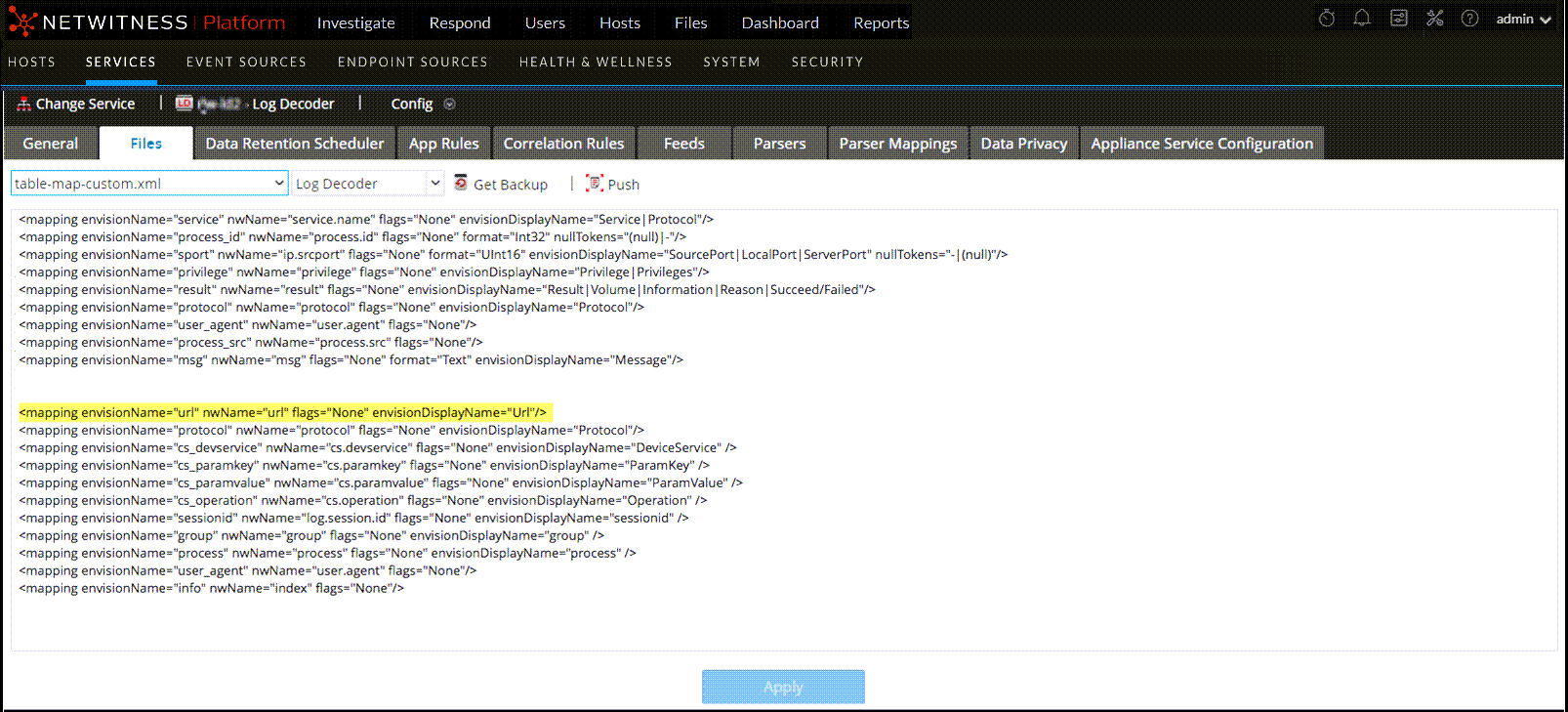
The url custom meta example is highlighted in the following code sample from the table-map-custom.xml file above:
The following figure shows an example index-concentrator-custom.xml file in NetWitness Server ( (Admin) > Services > (select the Concentrator) > > View > Config) with a custom meta url example highlighted.
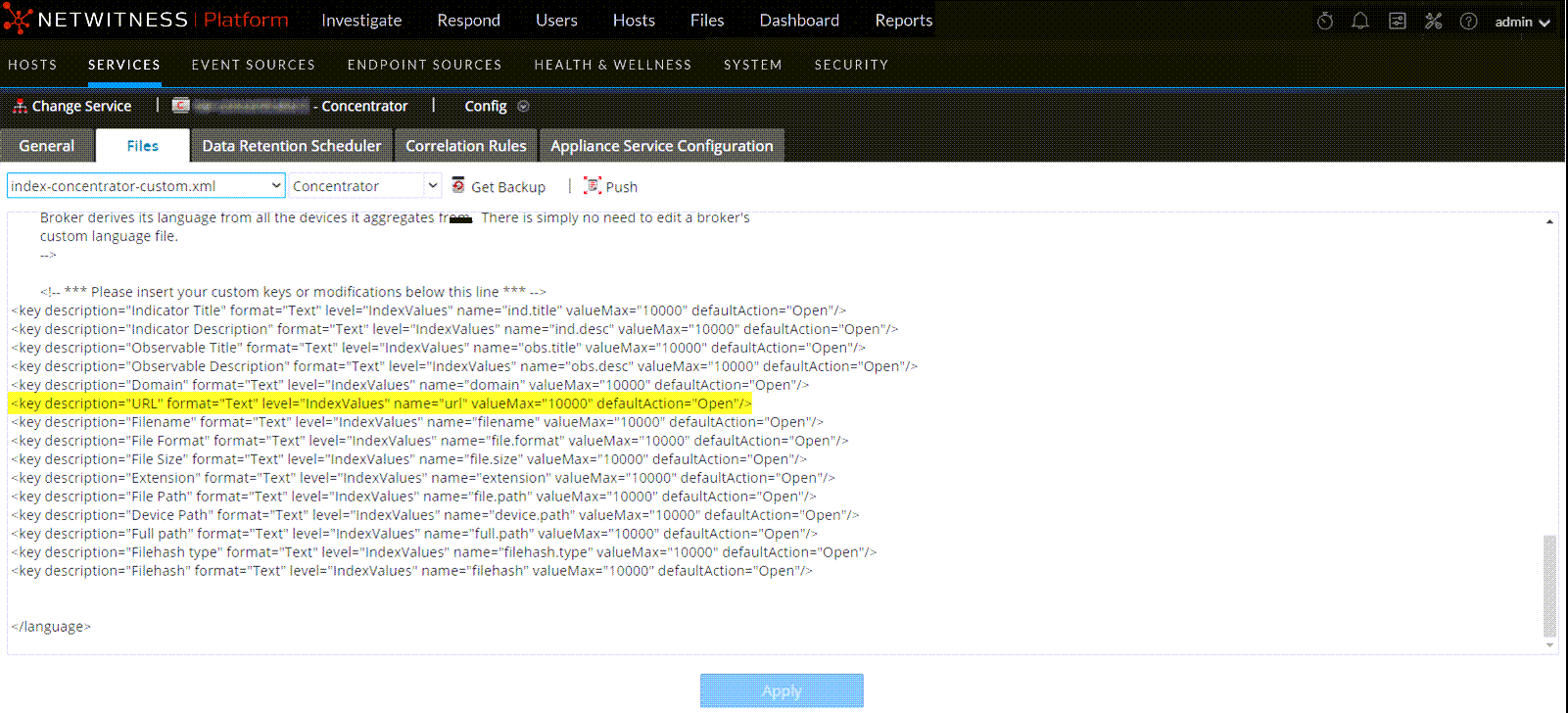
The url custom meta example is highlighted in the following code sample from the index-concentrator-custom.xml file above:
Solution ExamplesSolution Examples
The following possible solution examples show the outputs of the example commands. See the above table for the complete listing of possible solutions.
Ensure that rsyslog is up and running
You can use the following command:
service rsyslog status

Ensure that rsyslog is listening on port 50514 using UDP
You can use the following command:
netstat -tulnp|grep rsyslog

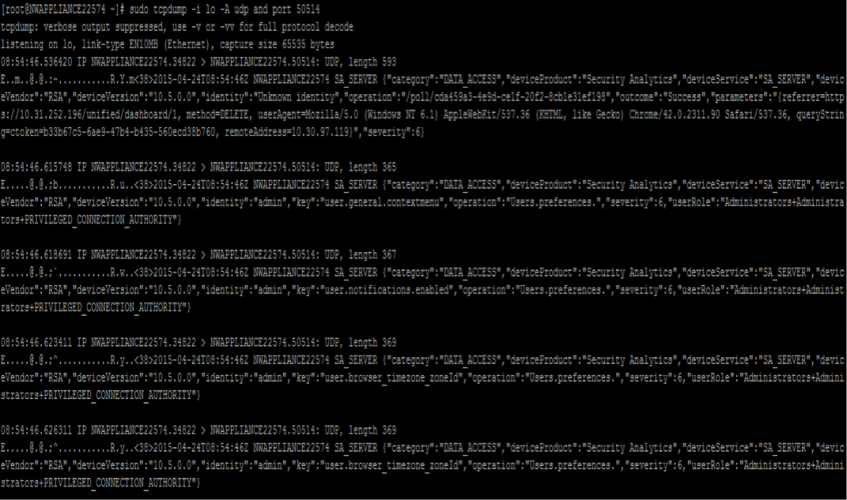
Ensure that the application or component is sending audit logs to port 50514
The following figure shows the output of running the tcpdump utility on the local interface for port 50514.
You can use the following command:
sudo tcpdump -i lo -A udp and port 50514
Ensure that the rsyslog plugin is up and running
You can use the following command:
ps -ef|grep rsa_audit_onramp

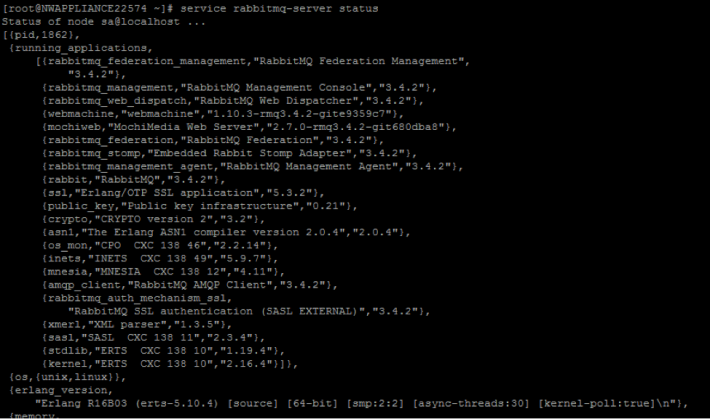
Ensure the RabbitMQ server is up and running
You can use the following command:
service rabbitmq-server status
Ensure logstash is up and running
You can use the following commands:
ps -ef | grep logstash
service logstash status

Ensure the RabbitMQ server is listening on port 5672
For example, type the following command:
netstat -tulnp | grep 5672

Check for any errors generated at the Logstash level
You can type the following command for the location of the log files:
ls -l /var/log/logstash/logstash.*

See the Possible Solutions table above for the complete listing of issues and possible solutions.
Troubleshoot Issues identified in the NTP Settings Panel or Log Files MessagesTroubleshoot Issues identified in the NTP Settings Panel or Log Files Messages
This section provides troubleshooting information for issues identified by messages NetWitness displays in the NTP Settings panel and log files.
- Issue:
User Interface: Unexpected error occurred. First check the logs then contact Customer Care to resolve error.
System Log:Timestamp Level Message
yyyy-dd-mmThh:mm:ss:ms ERROR com.rsa.smc.sa.adm.exception.MCOAgent
Exception: No request sent, we did
not discover any nodes
- Issue:
Low level NetWitness configuration is in error or supporting service is not running.
- Issue:
Contact Customer Care.
- Issue:
User Interface: Specified an invalid Hostname syntax.
- Issue: Tried to enter NTP server hostname that does not confirm to IP address or FQDN syntax.
- Issue:
Reenter hostname in using correct syntax.
- Issue:
User Interface: Specified NTP server that already exists.
- Issue: Tried to enter NTP server hostname that is already defined in NetWitness.
- Issue:
Enter hostname for an NTP server not configured in NetWitness.
- Issue:
User Interface: Cannot reach NTP server hostname. Please verify the server address and your firewall settings.
- Issue: The server address or firewall settings may be in error.
- Issue:
Verify the server address and your firewall settings and correct them if required.
Troubleshoot Global NotificationsTroubleshoot Global Notifications
This topic provides information about possible issues that NetWitness users may encounter when implementing Global Notifications in NetWitness.
- Issue: We are not receiving notifications that were configured for a service, but the service log file does not show any errors.
- Possible Solution: