.png?width=180&height=32&name=NW%20Logo%20(2).png)
Troubleshooting UEBA Configurations
This section provides information about possible issues when using NetWitness UEBA.
Task Failure Issues in Airflow
- Column 1: Problem
- Column 2:
The userId_output_entities task fails when the username contains a backslash.
- Column 1: Cause
- Column 2:
When events with usernames containing a backslash character is passed through UEBA, then the userId_output_entities task fails.
- Column 1: Solution
- Column 2:
To resolve these issue contact the customer success to obtain the relevant files and execute the following steps:
- Stop airflow-scheduler service.
- Remove all MongoDB documents in the "aggr", "accm" and "input" collections that contains context.userId with hashtag. These documents can be located using the FindCollecionsContainsBackslash.js script.
- Replace the /var/netwitness/presidio/flume/conf/adapter/transformers/authentication.json file with the updated authentication .json.
- Restart the airflow-scheduler service.
- Validate that the next run of the userId_output_entities task is completed successfully.
- Column 1: Problem
- Column 2:
The AUTHENTICATION_userId_build_feature_historical_data task fails when the username contains a hashtag.
- Column 1: Cause
- Column 2:
When events with usernames containing a hashtag character is passed through UEBA, then the AUTHENTICATION_userId_build_feature_historical_data task fails.
- Column 1: Solution
- Column 2:
To resolve these issue contact the customer success to obtain the relevant files and execute the following steps:
- Stop airflow-scheduler service.
- Remove all MongoDB documents in the "aggr", "accm" and "input" collections that contains context.userId with hashtag. These documents can be located using the FindCollecionsContainsHashtagContextUserId.js script.
- Replace the /var/netwitness/presidio/flume/conf/adapter/transformers/authentication.json file with the updated authentication .json.
- Restart the airflow-scheduler service.
- Validate that the next run of AUTHENTICATION_userId_build_feature_historical_data task is completed successfully.
- Column 1: Problem
- Column 2:
The task output_forwarding_task fails in Airflow UI for userId_hourly_ueba_flow DAG due to Elasticsearch 'too many clauses' exception.
- Column 1: Cause
- Column 2:
The output_forwarding_task task in the userId_hourly_ueba_flow DAG fails in the Airflow UI. The failure is caused by an Elasticsearch exception with the following message: "caused_by":{"type":"too_many_clauses","reason":"maxClauseCount is set to 1024"}. The too_many_clauses error occurs when the number of clauses in an Elasticsearch query exceeds the maximum limit set by the system. In this case, the maximum number of clauses was set to 1024. The output_forwarding_task exceeded this limit, which caused the failure.
- Column 1: Solution
- Column 2:
To increase the max clause count value, execute the following steps:
-
SSH to UEBA server.
-
Open the /etc/elasticsearch/elasticsearch.yml file.
-
Update the max clause count parameter value:
indices.query.bool.max_clause_count: 1500
-
Restart the elasticsearch service using the following command:
systemctl restart elasticsearch
Note: After restarting, the task may fail and will be automatically retried.
-
- Column 1: Problem
- Column 2:
The TLS model is taking too long to complete tasks.
- Column 1: Cause
- Column 2:
If the TLS_raw_model_task and TLS_aggr_model tasks take more than 20 hours to process the data.
- Column 1: Solution
- Column 2:
You need to enable the configuration in application.properties file to improve the processing time by executing the following steps.
-
SSH to UEBA server.
-
Navigate to the following path:
/etc/netwitness/presidio/configserver/configurations/application.properties
-
Add or update the following configuration:
presidio.ade.enable.short.time.range=true
Note: This is only applicable to the 12.3 version.
-
- Column 1: Problem
- Column 2:
Out of Memory exception in Model DAG.
- Column 1: Cause
- Column 2:
When you encounter an out of memory exception in any model DAG, it may be because of I/O operations with the database in a single thread. It could also be due to insufficient memory allocated for the respective operator of the task.
- Column 1: Solution
- Column 2:
To prevent out of memory exceptions on any of the model DAG, add or modify the configuration in the application.properties file. Follow these steps to make the required changes:
-
SSH to UEBA server.
-
Navigate to the following path:
/etc/netwitness/presidio/configserver/configurations/application.properties
-
Do one of the following based on your requirement:
-
Add the parameter presidio.model.store.size=5000.
-
Change the size of parameter presidio.model.store.size to 5000.
-
Note: This is only applicable to the 12.3.1 version.
-
- Column 1: Problem
- Column 2:
Invalid username and password are displayed in Adapter dags after upgrading UEBA to the 12.3.1 version.
- Column 1: Cause
- Column 2:
After upgrading UEBA to version 12.3.1, UEBA is unable to retrieve data from the Broker because the Broker password contains special characters such as (@/! ), which prevent it from being parsed.
- Column 1: Solution
- Column 2:
Complete the following steps to reset the password of the Broker service.
Note: NetWitness recommends you use only alpha-numeric characters and no special characters for the Broker service.
-
Log in to the NetWitness Platform.
-
Go to the
 (Admin) > Services page.
 -
In the Services list, select the Broker service and click
 > View > Explore.
 -
On the Explore page of Broker service, in the left panel, click users > accounts > uebauser > config and set the new password in the Password (password) field.
-
Go to the Broker > Security > select the uebauser, enter the new password in the Password and Confirm Password fields.
-
Restart the Broker service.
-
Run the ueba-server-config script with a new username and password:
sh /opt/rsa/saTools/bin/ueba-server-config -u uebauser -p
-h -t -s ' ' -o broker -e -v For example, sh /opt/rsa/saTools/bin/ueba-server-config -u uebauser -p Netwitness12 -h 10.0.0.0 -t 2023-11-20T00:00:00Z -s 'AUTHENTICATION FILE ACTIVE_DIRECTORY PROCESS REGISTRY TLS' -o broker -e -v
-
- Column 1: Problem
- Column 2:
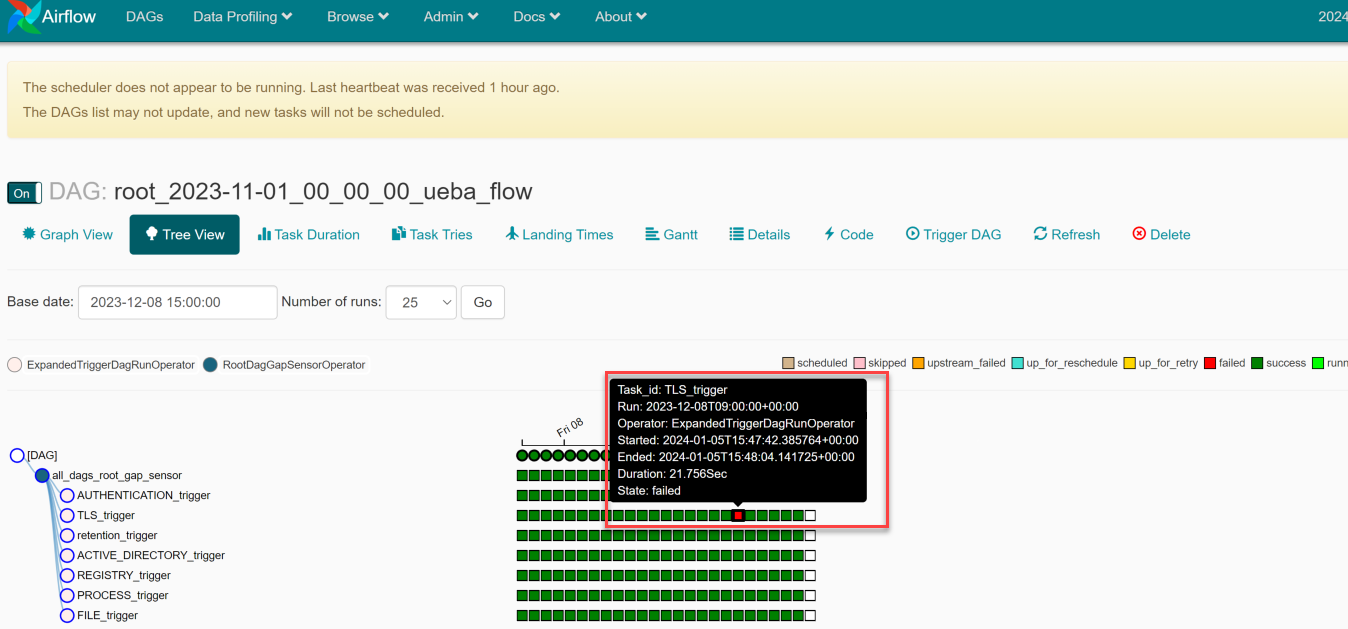
Task failure in root DAG due to Airflow issue.
- Column 1: Cause
- Column 2:
In the root DAG, one of the tasks failed unexpectedly due to an existing issue with the airflow system.
- Column 1: Solution
- Column 2:
Whenever this issue occurs, you must examine the logs related to the specific failed task and verify whether the following log entry is present: dagrun.py:465} INFO - (psycopg2.errors.UniqueViolation) duplicate key value violates unique constraint "task_instance_pkey". In such situations, you can safely ignore this issue as it does not require further action.
This issue does not impact the functionality of UEBA.
MongoDB I/O Operations Slowness Issue
- Column 1: Problem
- Column 2:
Increased execution time for DAGs with Mongo I/O Operations.
- Column 1: Cause
- Column 2:
Some of the DAGs in the system experienced increased execution time due to slow MongoDB Input/Output (I/O) operations.
- Column 1: Solution
- Column 2:
To increase the MongoDB cache size in the MongoDB config file, execute the following steps:
-
SSH to UEBA server.
-
Open the /etc/mongod.conf file.
-
Update the internalQueryMaxBlockingSortMemoryUsageBytes value to 1GB (1053554432 bytes).
internalQueryMaxBlockingSortMemoryUsageBytes: 1053554432
-
Restart the Mongod service using the following command:
systemctl restart mongod
Note: After restarting, the task may fail and will be automatically retried.
-
User Interface Inaccessible
- Column 1: Problem
- Column 2:
The User Interface is not accessible.
- Column 1: Cause
- Column 2: You have more than one NetWitness UEBA service existing in your NetWitness deployment and you can only have NetWitness UEBA service in your deployment.
- Column 1: Solution
- Column 2:
Complete the following steps to remove the extra NetWitness UEBA service.
- SSH to NW Server and run the following commands to query the list of installed NetWitness UEBA services.
# orchestration-cli-client --list-services|grep presidio-airflow
... Service: ID=7e682892-b913-4dee-ac84-ca2438e522bf, NAME=presidio-airflow, HOST=xxx.xxx.xxx.xxx:null, TLS=true
... Service: ID=3ba35fbe-7220-4e26-a2ad-9e14ab5e9e15, NAME=presidio-airflow, HOST=xxx.xxx.xxx.xxx:null, TLS=true -
From the list of services, determine which instance of the presidio-airflow service should be removed (by looking at the host addresses).
- Run the following command to remove the extra service from Orchestration (use the matching service ID from the list of services):
# orchestration-cli-client --remove-service --id
Note: Run the following command to update NW Server to restore NGINX:
# orchestration-cli-client --update-admin-node- Log in to NetWitness, go to
 (Admin) > Hosts, and remove the extra NetWitness UEBA host.
- SSH to NW Server and run the following commands to query the list of installed NetWitness UEBA services.
Get UEBA Configuration Parameters
- Column 1: Issue
- Column 2:
How to get UEBA configuration parameters?
- Column 1: Explanation
- Column 2:
In order to get the UEBA configuration main parameters, run the curl http://localhost:8888/application-default.properties command from the UEBA machine.
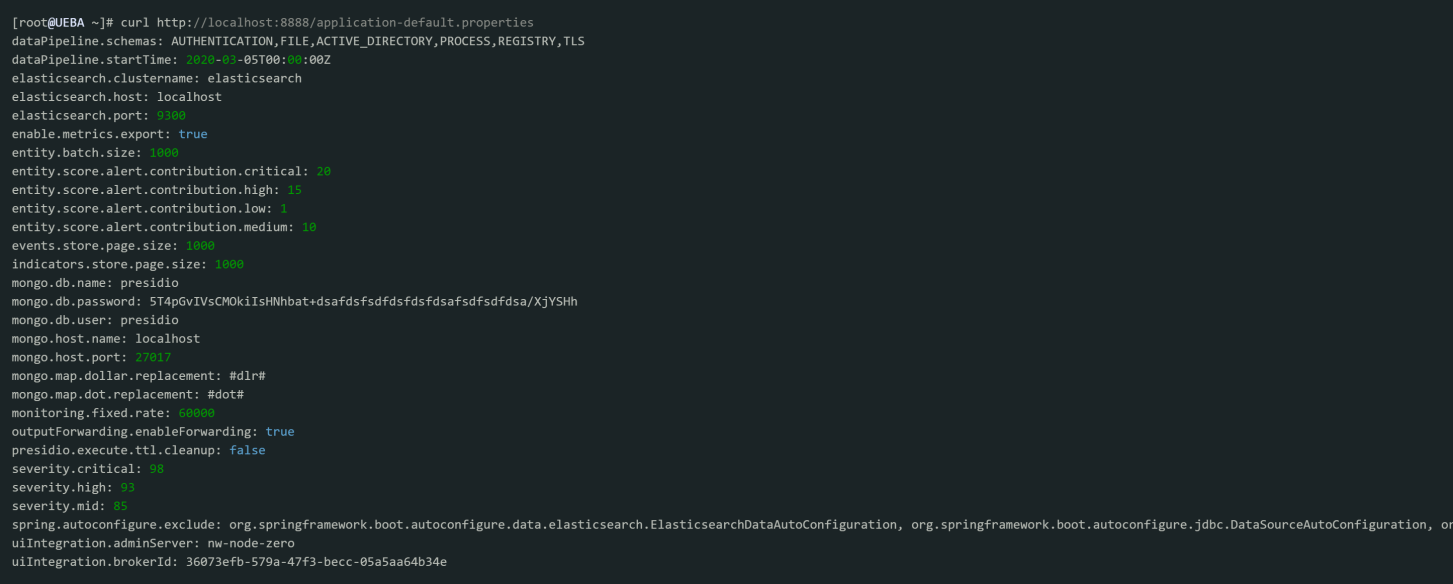
The main parameters which will be returned are the following:- uiIntegration.brokerId: The Service ID of the NW data source (Broker / Concentrator)
- dataPipeline.schemas: List of schemas processed by the UEBA
- dataPipeline.startTime: The date the UEBA started consuming data from the NW data source
- outputForwarding.enableForwarding: The UEBA Forwarder status
- Column 1: Resolution
- Column 2:
See the resolution for these statistics in the Troubleshooting UEBA Configurations section.
Check UEBA Progress Status using Airflow:
- Column 1: Issue
- Column 2:
How to check UEBA progress status using Airflow?
- Column 1:
- Column 2:
Note: To access the Airflow UI, you must use the deploy_admin credentials.
- Navigate to- https://
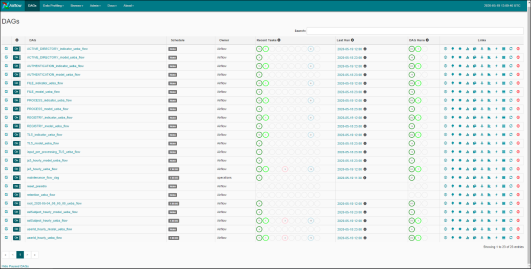
/admin. Enter the admin username and the deploy-admin password. The following image is of the Airflow home page that shows the system is working as expected.
-
Make sure that no red or yellow circles appear in the main page:
- red circle indicates that a task has failed.
- yellow circle indicates that a task has failed and is “awaiting” for a retry.
-
Make sure the system continues to run.
-
Tap the Browse button and select Task Instance.
-
Add the following filters: State = running and Pool = spring_boot_jar_pool.
The Task Instance page is displayed.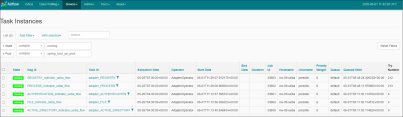
The Execution Date column shows the current time window for each running task. Make sure the execution date is greater than the UEBA start-date and that new tasks have an updated date are added to the table.
- Navigate to- https://
- Column 1: Resolution
- Column 1:
Check if data is received on the UEBA by Kibana:
- Column 1: Issue
- Column 2: How to check if data is received on the UEBA by Kibana:
- Column 1: Explanation
- Column 2:
Note: To access the Kibana UI, you must use the deploy_admin credentials.
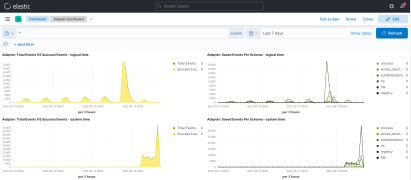
Navigate to- https:///kibana. Enter the admin username and deploy-admin password: To check that the data is flowing to the UEBA go to the Adapter Dashboard: Tap the Dashboard tab in the left menu Tap Adapter Dashboard at the right menu Select the relevant time range at the top bar The charts on this dashboard will present you the data that already fetched by the UEBA.
Scaling Limitation Issue
When installed on a Virtual Machine, you can determine the number of network events to be processed by referring to the latest version of the Learning Period Per Scale topic.
Note: If the scaling limits are exceeded, NetWitness recommends provisioning the UEBA on a physical appliance.
- Column 1: Issue
- Column 2:
How to determine the scale of network events currently available, to know if it exceeds the UEBA limitation.
- Column 1: Solution
- Column 2:
To know the network data limit, perform the following :
- Run the query on the Broker or Concentrator that connects to UEBA using NetWitness UI:
servic ,,,,,,, ,,,,,,, ,,,,,,, ,,,,,,, always refer to the latest version of the Learning Period for Scale topic.
,,,,,,, ,,,,,,, ,,,,,,, ,,,,,,, ,,,,,,, ,,,,,,, ,,,,,,, perform the following :,,,,,,, ,,,,,,, ,,,,,,, ,,,,,,, ,,,,,,, endpoint and network (packets). UEBA packets models are based on the whole environment. Hence, make sure that the data parsed from the subset of Concentrators is consistent.,,,,,, ,,,,,,, duplicate values are displayed in the Statistics drop-down.
- Column 1: Solution
- Column 2: ,,,,,,, perform the following:,,,,,,, ,,,,,,, ,,,,,,, ,,,,,,, ,,,,,,, the connection between the NetWitness and NetWitness UEBA is successful but there are very few or no events in the Users > OVERVIEW tab.,,,,,,, ,,,,,,, ,,,,,,, see the number of successful events per schema per hour.
- In the Total Events vs. Success Events graph, see the total number of events and number of successful events. The number of successful events should be more every hour. ,,,,,, in an environment with 1000 users or more, there should be thousands of authentication and file access events and more than 10 Active Directory events. If there are very few events, there is likely an issue with Windows auditing.,,,,, ,,,,,,, ,,,,,,, ,,,,,,, ,,,,,,, see NetWitness UEBA Windows Audit Policy topic.,,,,,,, ,,,,,,, ,,,,,,, ,,,,,,, ,,,,,,, ,,,,,,, and see if the events are scored.,,,,,,, ,,,,,,, ,,,,,,, ,,,,,,, ,,,,,,, ,,,,,,, ,,,,,,, ,,,,,,, and see how many users are analyzed and if any anomalies are found.,,,,,,, ,,,,,,, ,,,,,,, ,,,,,,, ,,,,,,, ,,,,,,, ,,,,,,, ,,,,,,, ,,,,,,, click execute.
- Unzip the file and open the log file to view and resolve the error.
- In the DAGs > reset_presidio, click Trigger Dag.
This deletes all the data and compute all the alert from the beginning. ,,,,,, if the hours are processed successfully but there are no events, you must click reset_presidio after fixing the data in the Broker. Do not reset if there are alerts.,,,,,, ,,,,,,, ,,,,,,, ,,,,,,, ,,,,,,, ,,,,,,, ,,,,,,, ,,,,,,, ,,,,,,, ,,,,,,,
A zip file is downloaded.