.png?width=180&height=32&name=NW%20Logo%20(2).png)
Use Columns and Column Groups in the Events List
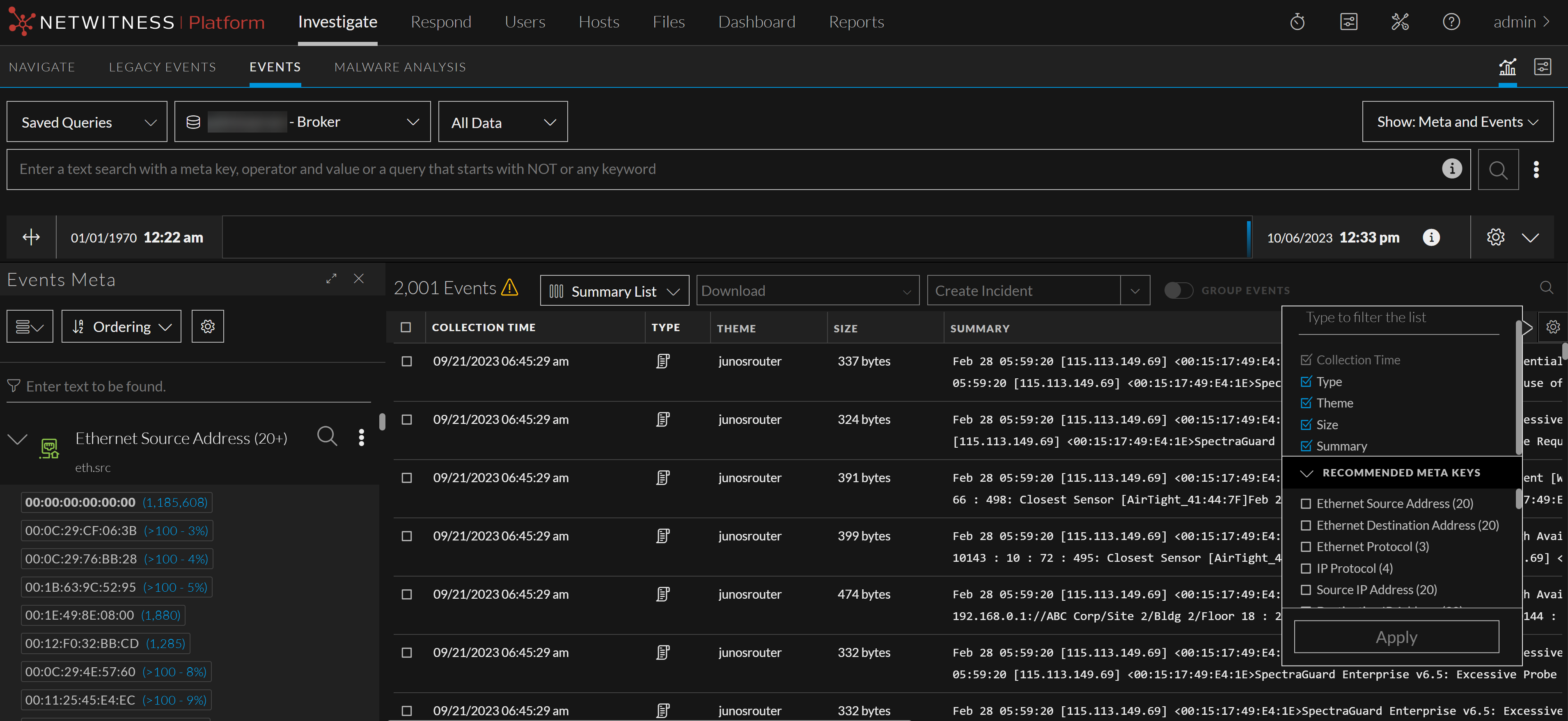
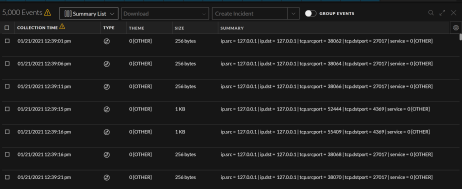
When the events list in Investigate is populated with events, each column lists the values returned for a meta key. Changing the meta keys displayed in the events list is a useful method of narrowing the focus of your investigation. For example, compare these two figures showing the same set of events with different columns. The first figure has five columns, Collection Time, Type, Theme, Size, and Summary. These are just the basic information, not specialized in any way. The second figure has many more columns that contain information useful when investigating email; you can scroll to the right to see the additional columns.


You can adjust the events list as you work, selecting different columns to be displayed, rearranging the order of the columns, changing the width of the columns, and choosing a column by which the list is sorted. Manual adjustments are easy to make if you know which meta keys are relevant. Manual adjustments apply only to the current session in Version 11.5; in Version 11.5.1, the column width is an exception. When you adjust the column width, it is preserved as a personal preference and is applied every time the column is used in the Events list, overriding any default column width.
In version 11.6, you can select additional columns with data for the meta keys that you are viewing. This will enable you to obtain all the relevant meta key information from the Filter Events panel however the recommendations can change based on the selected meta groups. The following figure displays the additional meta key information under the Recommended Meta Keys section.
To improve your ability to see relevant meta keys quickly when looking at events in the Legacy Events view and the Events view, you can change the set of meta keys displayed by applying a column group. A column group defines the meta keys or meta entities that are displayed as columns, the position of the column in the Events list, and the default width of the column. A column group must have at least one column. Column groups are useful in themselves, and they become even more useful when you combine them with meta groups and preQueries to define query profiles (see Use Query Profiles to Encapsulate Common Areas for Investigation).
The same column groups are shared between the Legacy Events view and the Events view. When importing a column group, the imported group is limited to the available meta keys for the service being investigated. Private column groups created in the Events view are not available in the Legacy Events view or for use in Query Profiles in the Navigate view.
Note: In the Navigate view and Legacy Events view, you can manually add non-indexed meta keys (or keys that are not in the index at all) to a meta group or column group. The non-indexed meta keys are fully available (manageable and displayable) in the Navigate view and Legacy Events view, but only partially (displayable in the Filter Events panel) in the Events view. The Events view Filter Events panel can display data for non-indexed meta keys that are already included in a meta group, but you cannot add non-indexed meta keys while you are editing a meta group. The non-indexed meta keys in a column group do not display data in a column and new non-indexed meta keys cannot be added to a column group in Events view.
Large column groups can have a performance impact when loading data because the values for each meta key are loaded in the events list. To minimize impact on performance, the Events view has a fixed limit on the number of meta keys in a column group. The maximum number of meta keys in a column group is 40. (Because several default meta keys are included you may see a few more than 40 displayed on the screen.) Meta keys that are not in the selected column group are not loaded in the events list. By default we load all columns in the group, but only 15 are displayed by default.
The Legacy Events view does not have a limit on the number of meta keys in a column group, and may have more than 40 meta keys in a column group. If you apply a column group with more than 40 meta keys that was created in the Legacy Events view, all columns are loaded in the Events view. If you copy a group with more than 40 columns, you must remove the excess columns when you edit the column group.
Note: All existing column groups, both built-in and custom, are available in the 11.4 Events view. The complete column group management functionality is available in the Legacy Events view, and all functionality except cloning, importing, and exporting column groups is available in the 11.4 Events view. In Version 11.5, cloning is also available in the Events view, but importing and exporting are not.
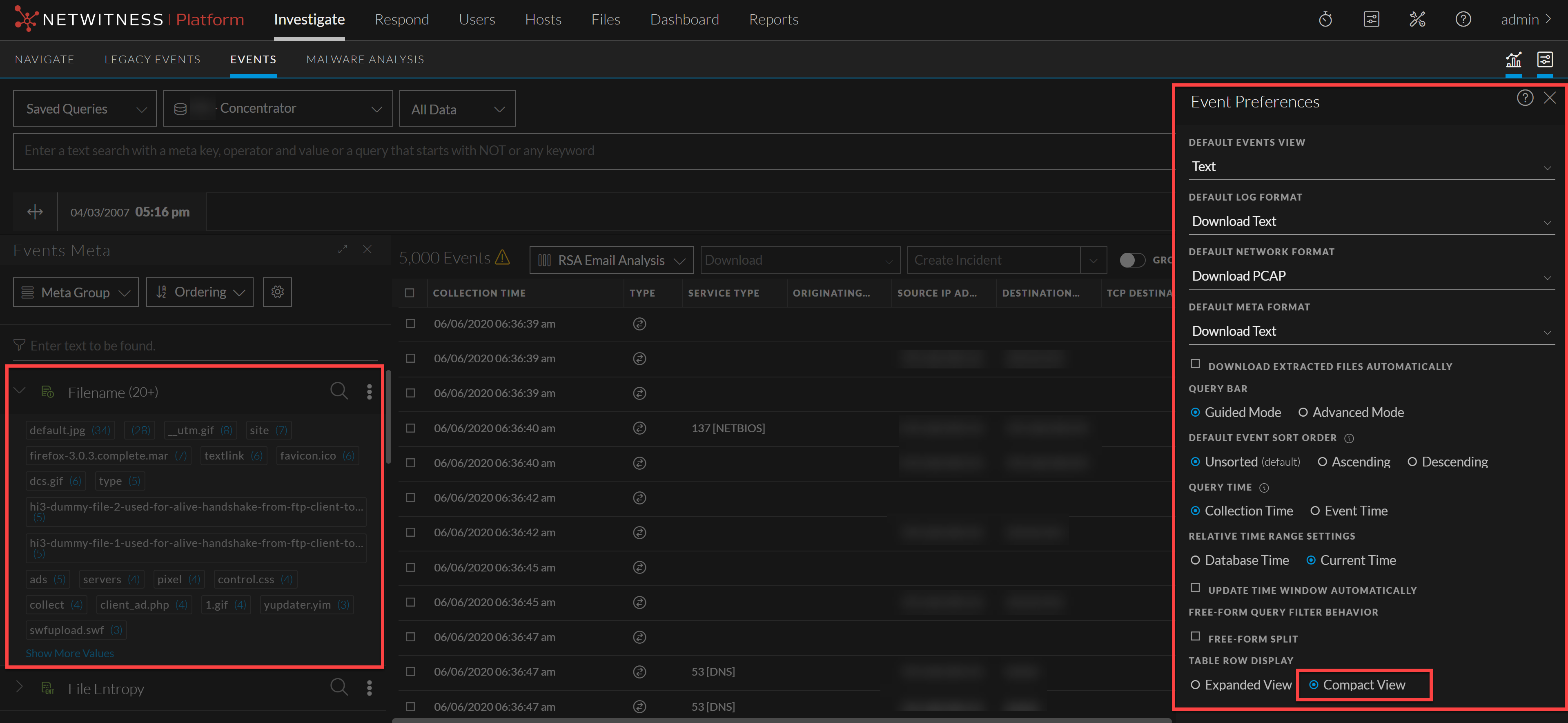
In 11.6.1, the Investigate > Events Preferences view has been added to make optimum use of the space to enable analysts to view maximum details related to the events they are analyzing.
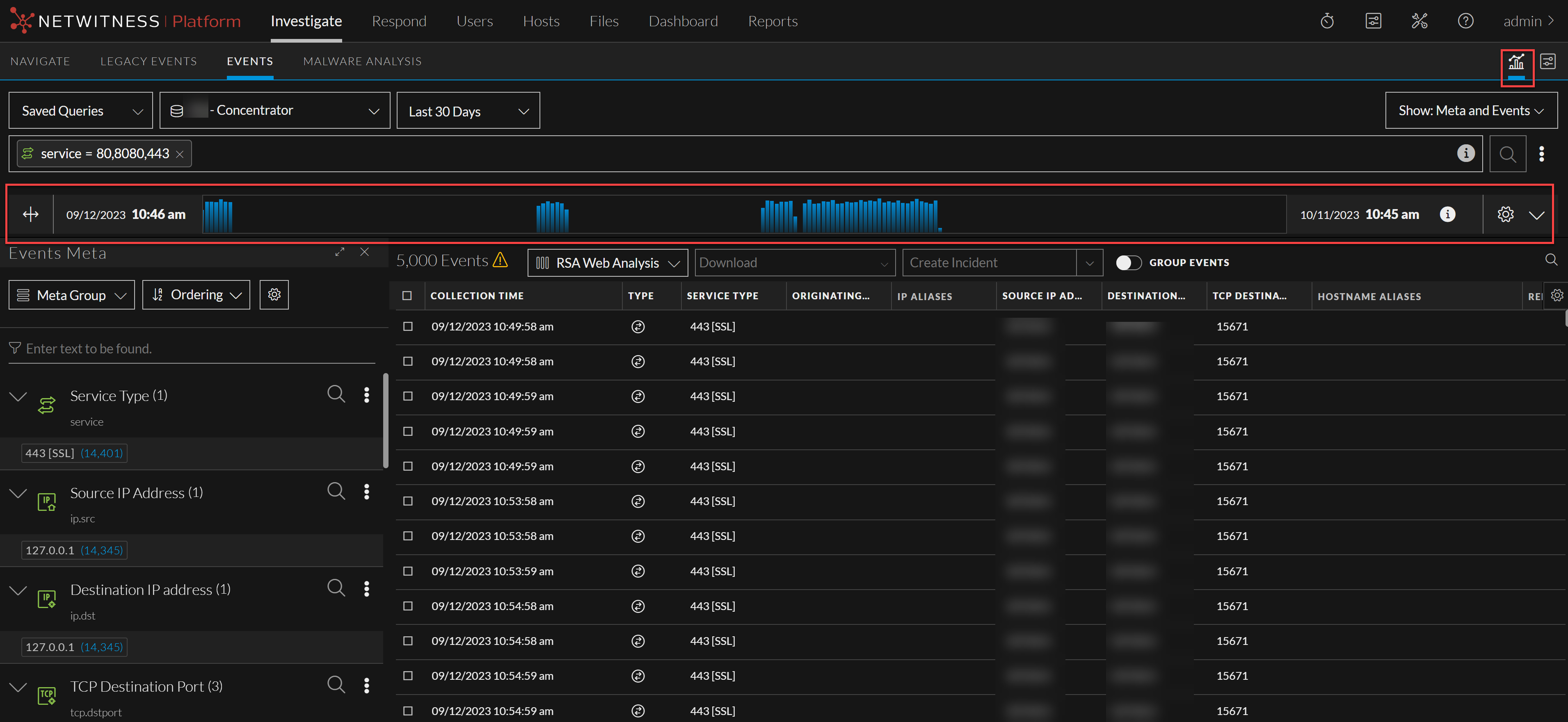
Additionally, an analyst can now view the time line details of an event by clicking the  icon. When clicked the time line that displays the date and time range s displayed as shown in the image.
The Investigate > Events reconstruction panel has been modified to display an overlay that will contain an Overview tab and a Meta panel tab that can be expanded or collapsed. This will enable the analyst to view the headers and meta panel of the events optimally. The analysts can also toggle Hide Duplicate Events option and view only the relevant details of a selected event.
When an analyst navigates to this page the following view will be displayed.
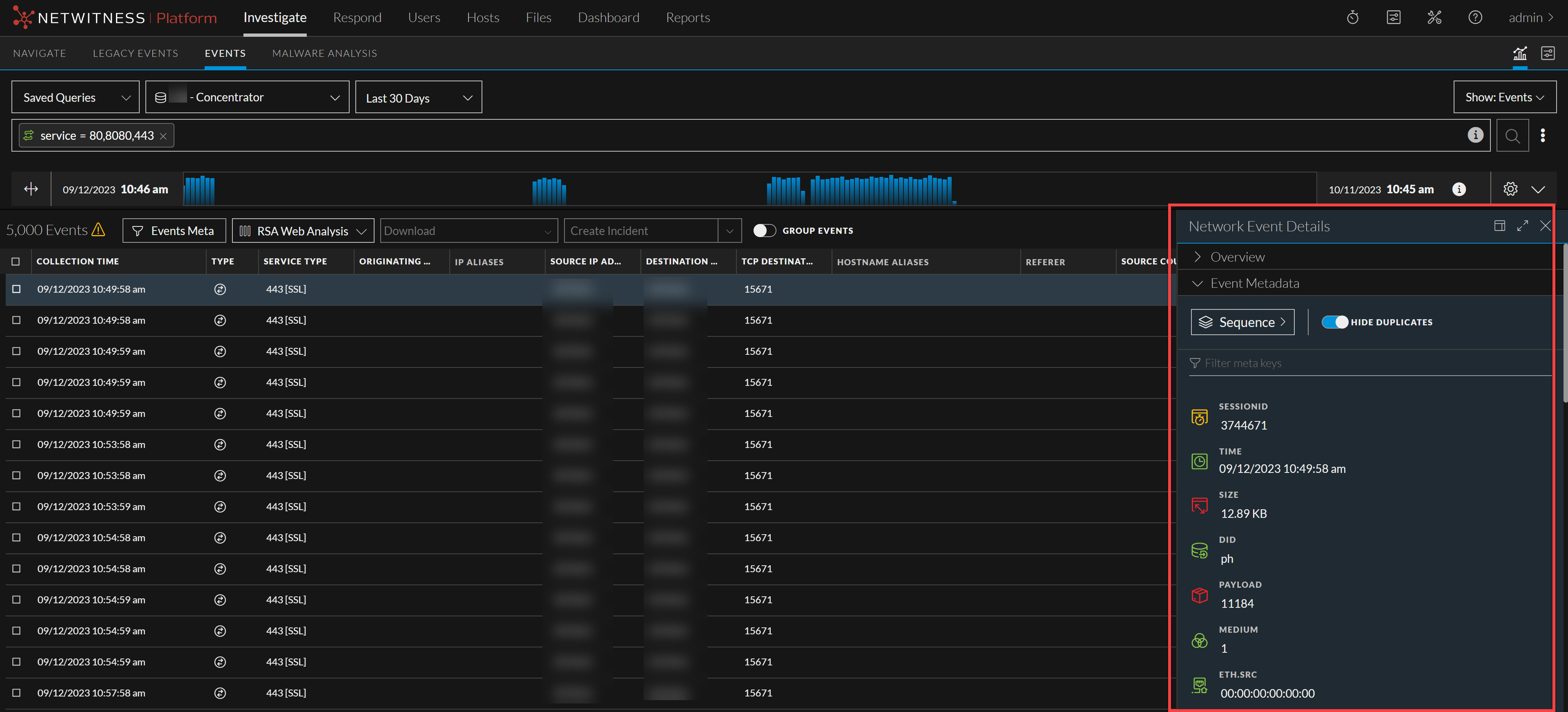
The analyst can use the toggle button ( ) to view the details related to the selected event.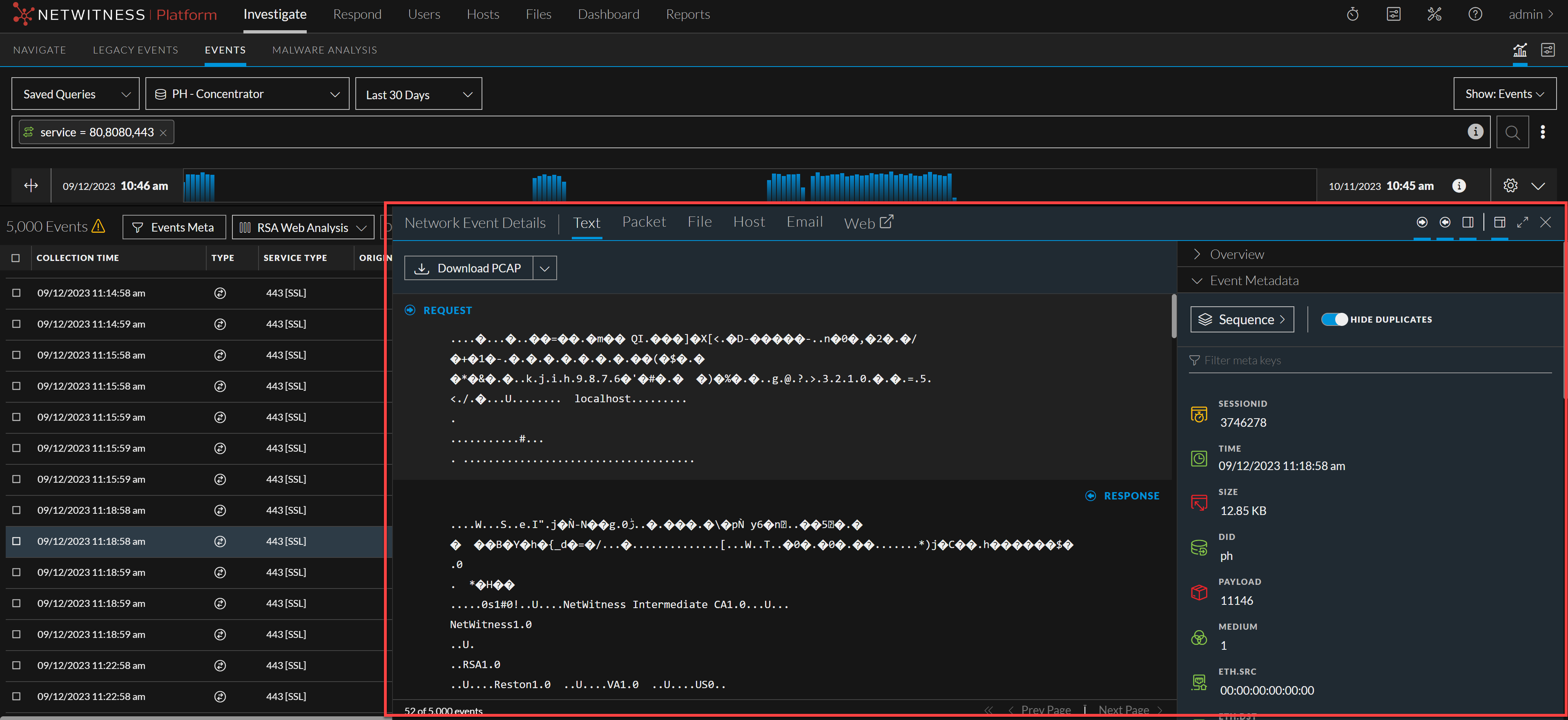
The binocular icon is enabled only if an event payload is open for a search related to a selected event.
The Overview Tab displays all the headers related to a specific event and the Event Metadata Panel displays all the metadata related to the selected event.
In 11.7, when you open the meta panel to view the selected event details, all the available headers will be displayed. The meta panel contains Expand buttons (  ). When you click on an event, the meta panel is displayed. In case, there are no additional headers to display, an error related to the header error is displayed.
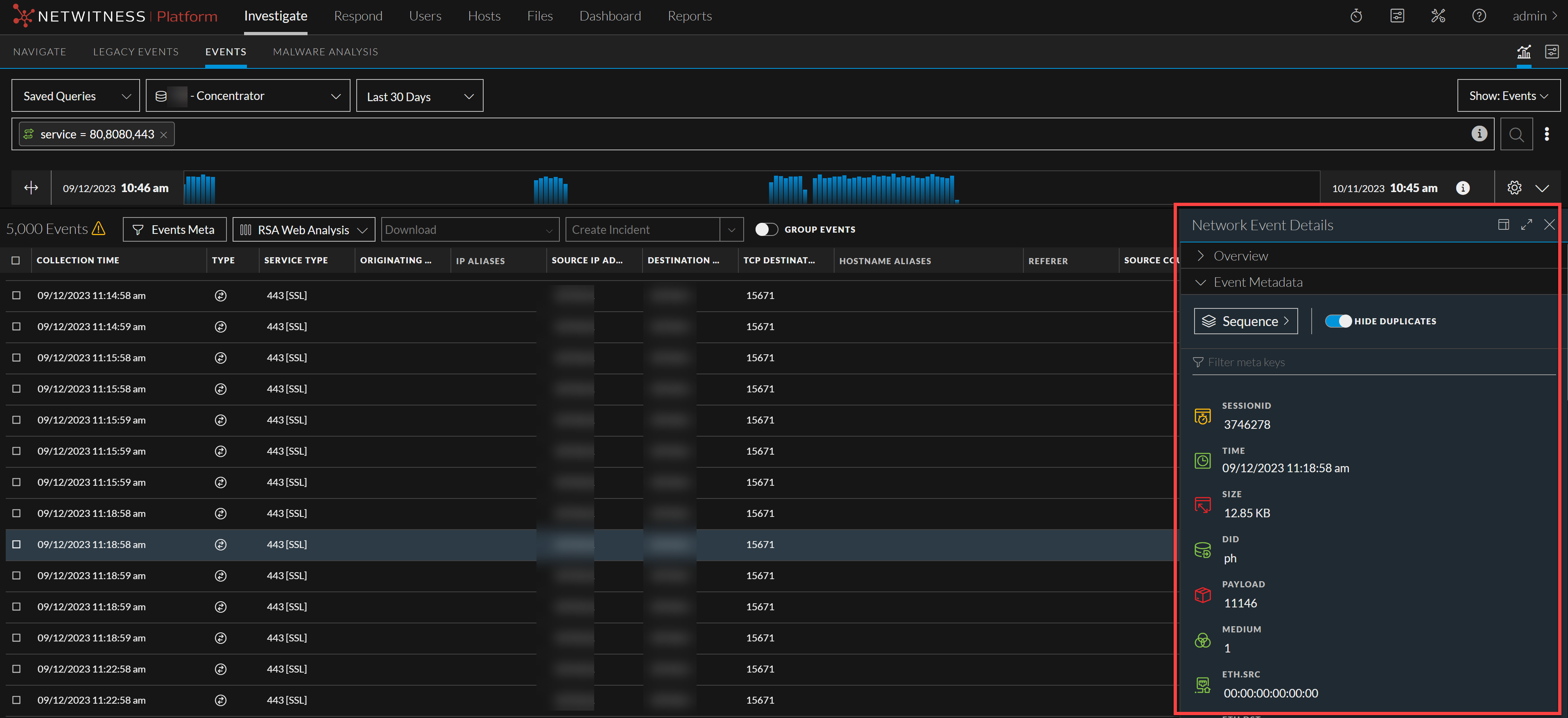
The analyst can use the expand option to broaden the meta panels in three different views. When the outward facing arrow is clicked, it expands all the details displayed under the Overview and Event Metadata panel are displayed.
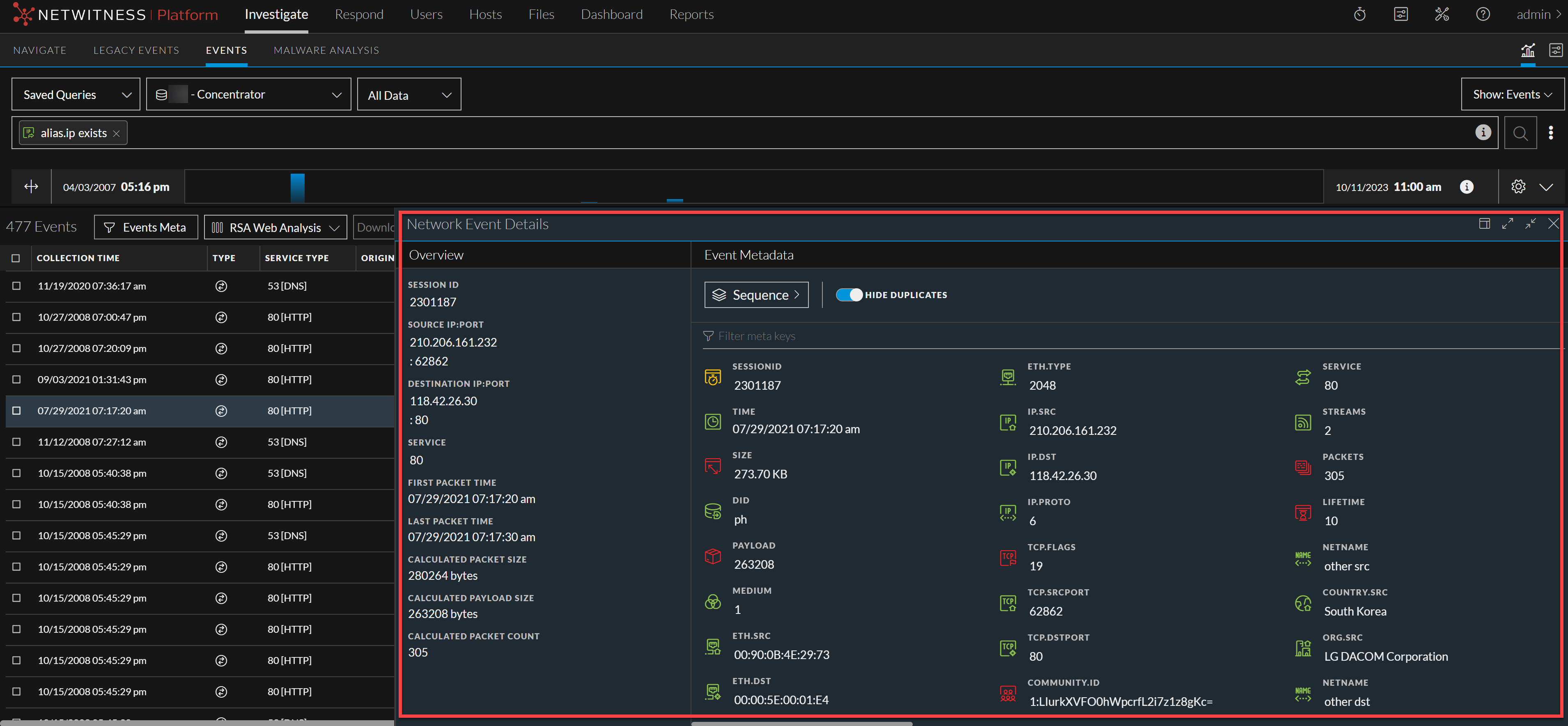
When clicked one more time, you can get an expanded view.
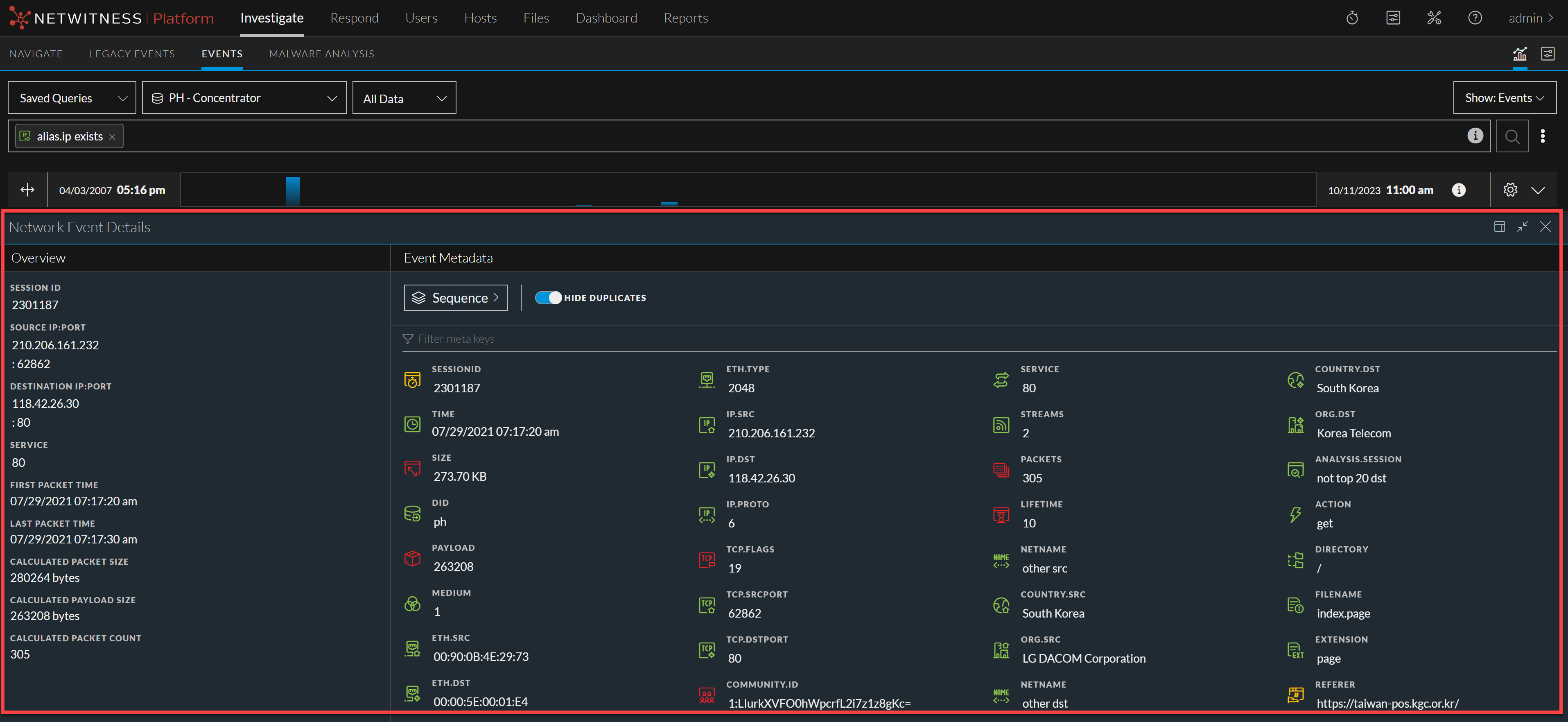
The analyst can revert the screen display by clicking the icon with the inward facing arrow  , so that the window reverts to the earlier position. This helps the analyst to view the details of each event in an optimum manner.
The analysts can search for related sessions for a specific event as part of an investigation. The search for related sessions can be performed by navigating to the Investigate > Events page. You can click the  icon and select either Find Related Sessions or Find Related Sessions in New Tab option from the drop-down.

When you select the Find Related Sessions option, all the events that are matched by selected event's query will be displayed in the current window. And if you select the Find Related Sessions in New Tab option the results are displayed in a new tab. The analyst can further investigate on each of the related session.
The query is based on the information displayed in the hover over text of an event. For example, in the below image the event has two split sessions where one event is split into one another session.
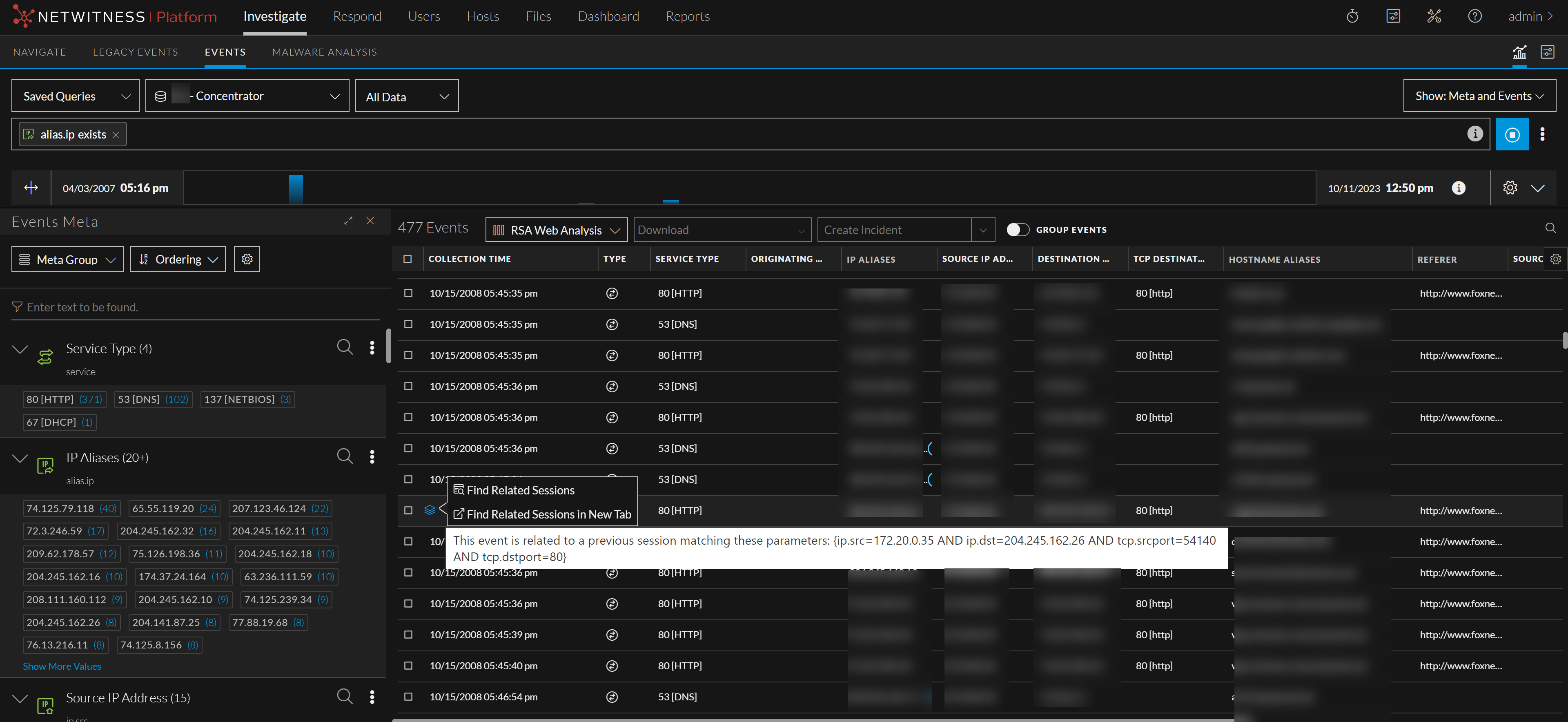
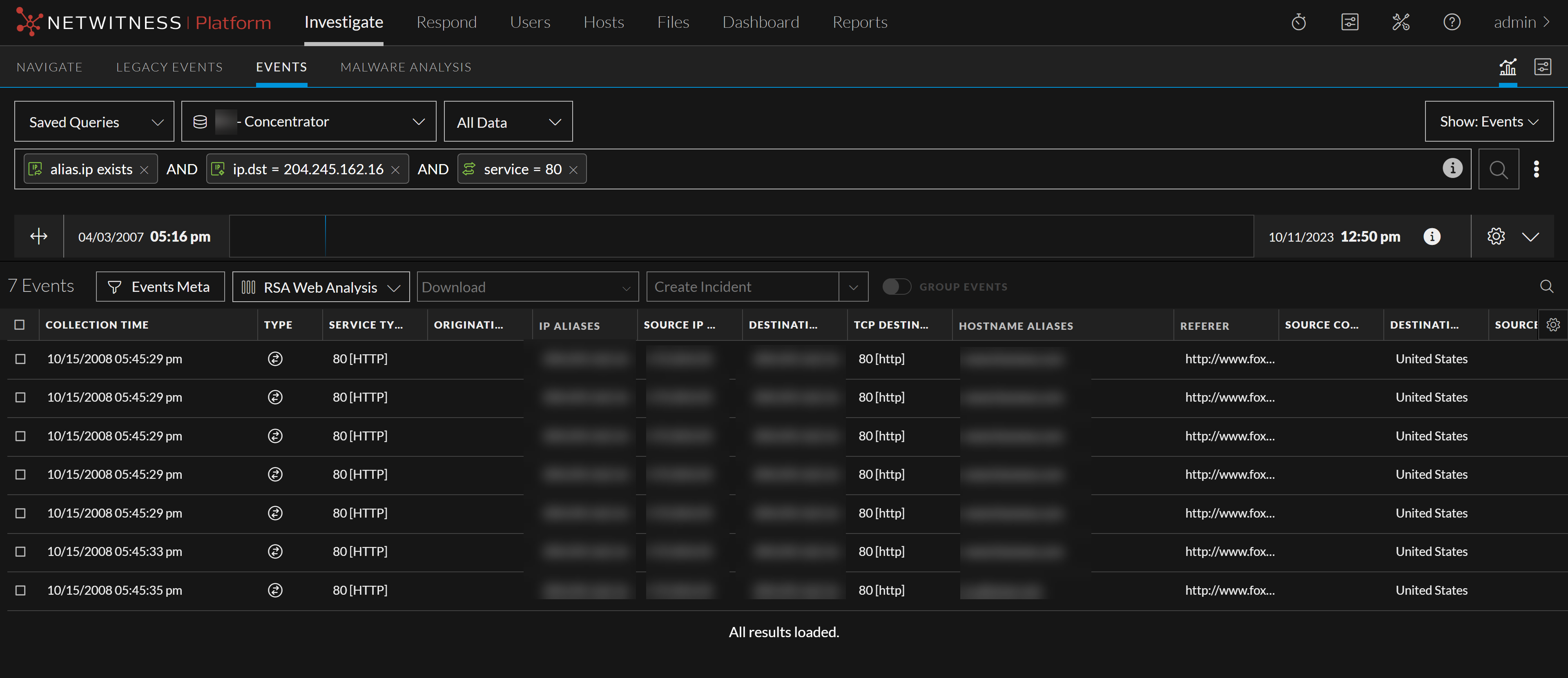
So, in this case when a search is done on these parameters, the related session for the following query is displayed.

The results are displayed in the following format:
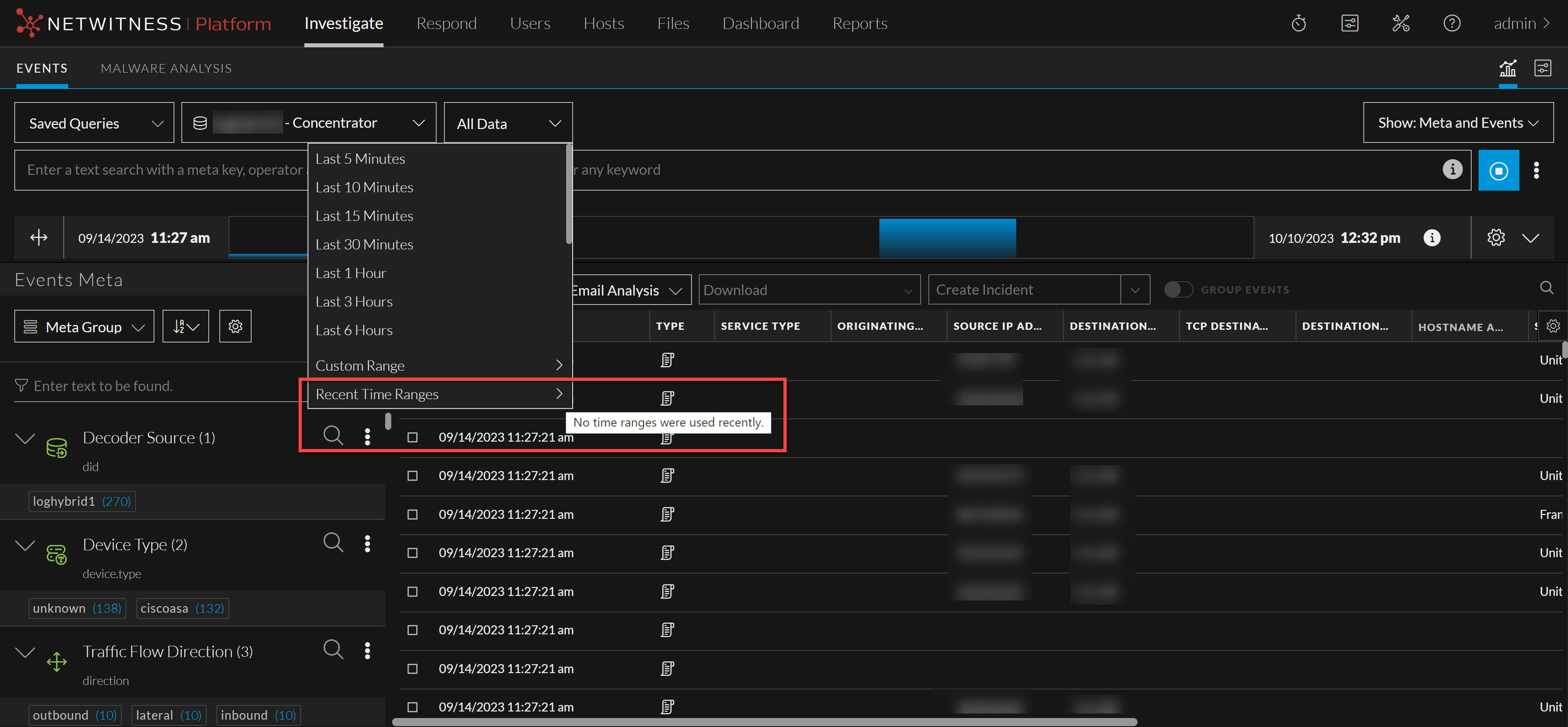
An analyst can view the last five time-ranges that were used recently, as the selection will be saved and displayed under the Recent Time Ranges section. The selection is saved separately for a user per service. For example, for Concentrator service, if you select Last 30 Days as the time-range, this will create an entry under the Recent Time Ranges section for Concentrator and when you select the same service in the next session, then the time range will be shown as below:
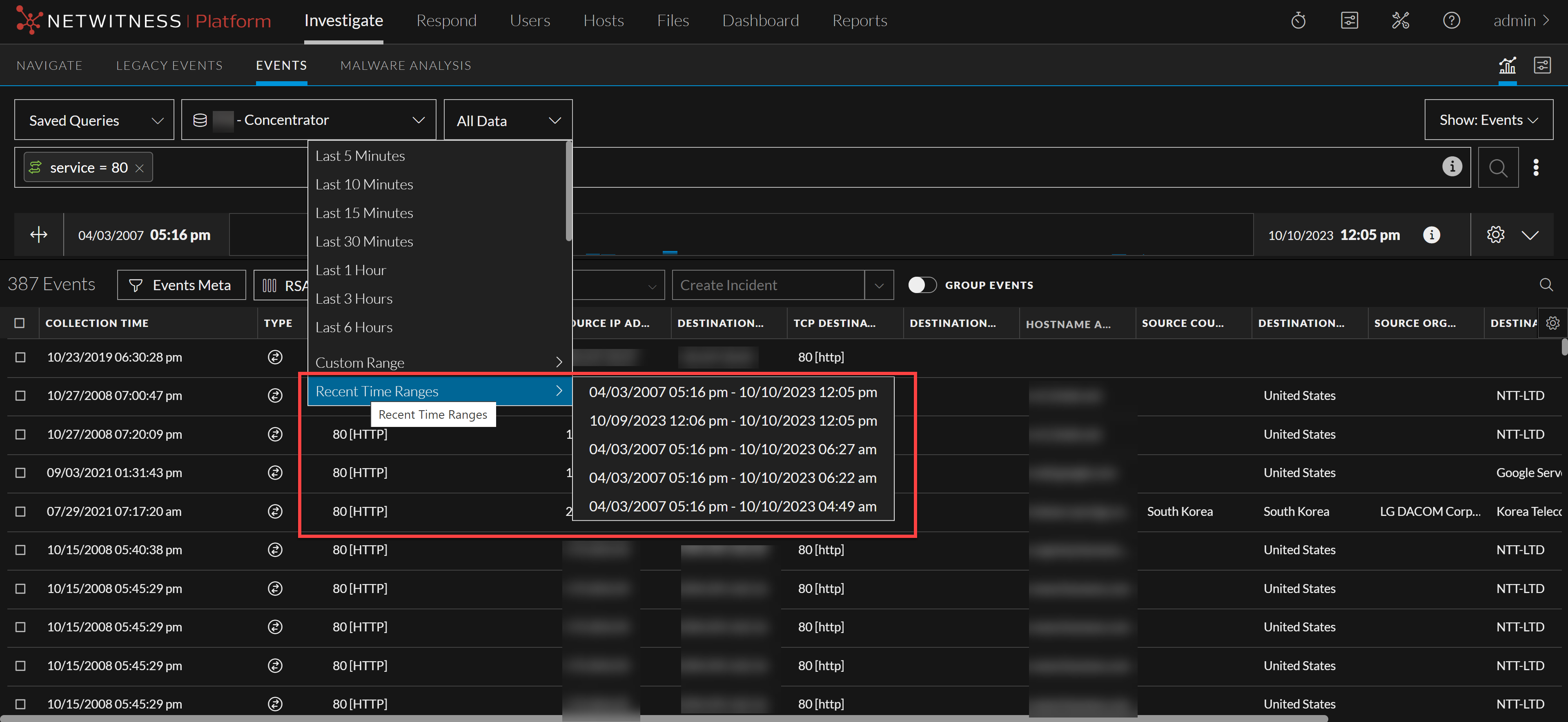
Now, if you select Concentrator service and if you have not viewed the details of the Concentrator recently, then the time range drop-down will not display any details as shown below:
Built-In Column Groups
The NetWitness Platform has built-in column groups that include useful meta keys for specific types of investigation. The built-in groups cannot be edited or deleted, but you can create a copy of the group and edit the copy. The column groups are listed in alphabetical order in the Column Group menu in a way that makes built-in groups distinguishable from custom groups that you imported or created.
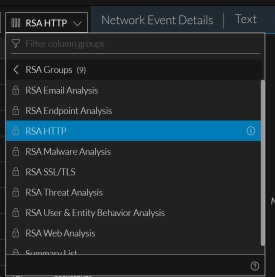
In the Legacy Events view, "RSA" precedes the name of built-in column groups. In the Events view (Version 11.4 and later), RSA precedes the name and the group is marked by the lock symbol ( ). This is an example of a selected built-in column group in the Column Groups menu. The information icon is displayed at the end of the row.

Live Column Groups
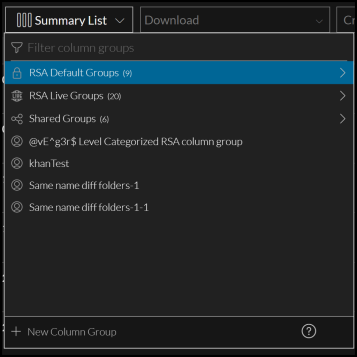
In 11.6 and later, NetWitness Platform supports deploying the investigate content from live and are marked by the live symbol ( ) . The column groups are categorized as RSA Groups (RSA Live content and RSA OOTB Groups), and Shared Groups. The groups are displayed as non-editable folders and sub-folders except for Shared Groups that can be edited. All private content is displayed outside these groups. For example, the below image shows private content below the Shared Groups folder. The number inside () depicts the number of contents inside a folder and > symbol helps you to drill down inside the folder.
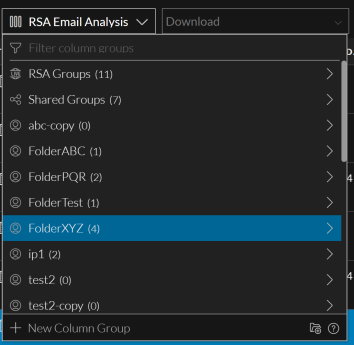
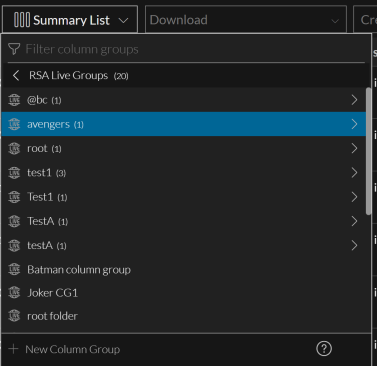
The column group can be copied by clicking the copy icon ( ). After copying, the copied column group is displayed under the selected location (Private folders or Shared groups). You can hover over on the cloned item to view a tool tip that displays the path from which the column group is cloned. In case you need to search for a specific column group, you can type the name of the column group in the filter field (
 ) at the folder level.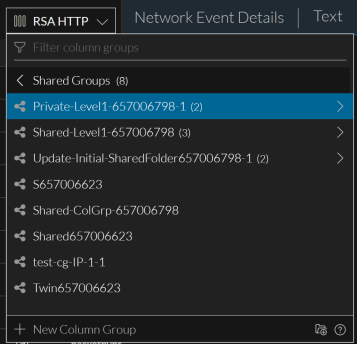
These are the built-in column groups.
- RSA Email Analysis: Includes meta keys that are useful when investigating email-related metadata.
- RSA Endpoint Analysis: Includes meta keys that are useful when investigating endpoint-related metadata.
- RSA Malware Analysis: Includes meta keys that are useful when investigation potential malware.
- RSA HTTP: Includes meta keys that are useful when investigating HTTP related metadata.
- RSA SSL/TLS: Includes meta keys that are useful when investigating SSL/TTS analysis related metadata.
- RSA Threat Analysis: Includes meta keys that mark potential threats in the data set.
- RSA User and Entity Behavior Analysis: Includes meta keys that are useful when investigating UEBA data.
- RSA Web Analysis: Includes meta keys that mark anomalies in web traffic.
- Summary List: Includes meta keys that are useful in a general investigation. This is the default column group.
Custom Column Groups
You can create custom column groups to support scenarios that you use frequently while working in Investigate. When an administrator adds custom meta groups manually by editing the custom index file for a service, the new meta groups become available to use in column groups after the service is restarted.
Custom column groups are shared globally within your organization in Version 11.4. If you edit a shared custom column group, your changes are applied globally. If you delete a shared custom column group, the group is deleted and no longer available for all analysts. In Version 11.5 and later, you can create shared column groups as before, and can also create private column groups. When you create a group in Version 11.5, you can choose to share it or you can keep it private (default); you cannot change a shared group to private or a private group to shared.
Note: Private column groups created in the Events view are not visible or usable in the Legacy Events view.
Icons identify the group type in the Column Group menu. These are examples of each type of custom column group with the edit icon displayed at the end of the row.


Filtering Folders
In case there are many folders, you can type the folder name and filter for a specific folder. The filtering is applicable to the current level folders and will not display folders available within a sub-folder. To search content within a sub-folder you need to navigate to the specific folder and filter.
Also, when you select a specific folder, the content of the selected folder is displayed and the filter field becomes empty and when you navigate back the last selected folder is displayed. In the following example, the folder selected is RSA Groups with the its content and the column group drop-down displays the filtered Summary List folder.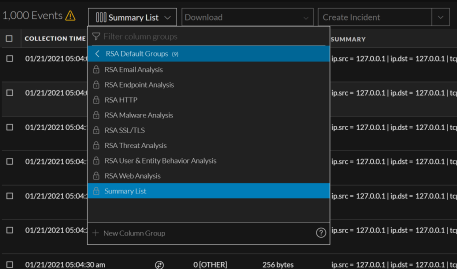
Dialogs for Managing Column Groups
While the functionality of column groups is similar in the Legacy Events view and the Events view, the user interface and some of the procedures are different. The following figures illustrate the (Events view) Create Column Group dialog and the (Legacy Events view) Manage Column Groups dialog. The Version 11.5 and later dialog includes a Sharing option.
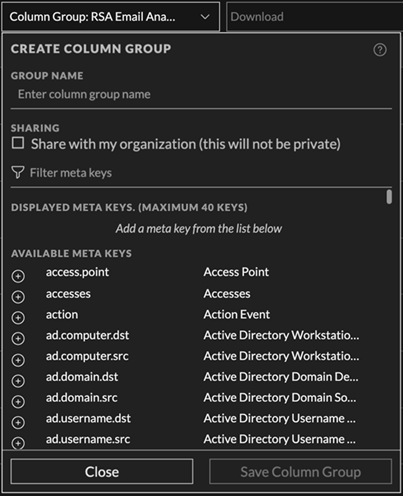
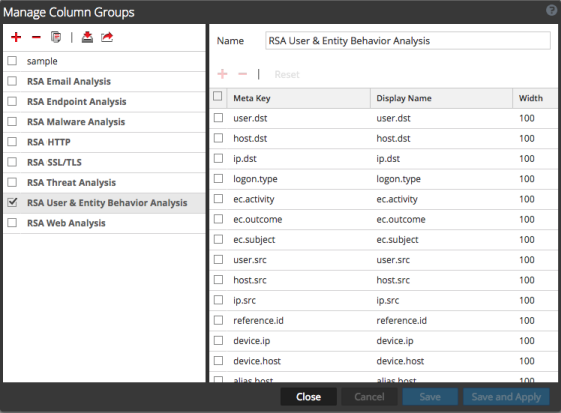
Using options in the Create Column Group dialog and the Column Group Details dialog, you can:
- See the details of a column group.
- Create, edit, and delete custom column groups.
Using options In the Manage Column Groups dialog, you can do all of above and these additional functions:
- Clone and edit the clone of a built-in or custom column group.
- Import and export a column group.
The rest of this topic provides instructions for working with column groups in the Version 11.4 and later Events view, the 11.3 and earlier Event Analysis view, and the Legacy Events view.
Work with Columns and Column Groups in the Events View
After the upgrade to Version 11.4, all of the existing column groups -- both built-in and custom -- are available for management in the Events view. Unless noted, the procedures in this section are for the Events view.
Manually Select Columns to Display and Adjust Column Order and Width
Note: The Column Selector was also available in the 11.3 Event Analysis view. If a column group includes a column for a meta key that your administrator has blacklisted (hidden), the data for that column cannot be displayed. The column is not available in the Column Selector and is not displayed in the Events panel.
- With the Events list open and a column group applied, click
 to display the column selector.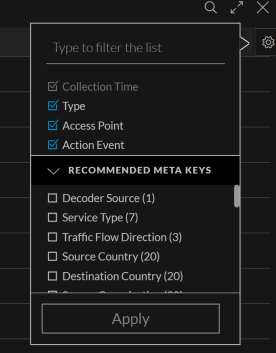
- Select the meta keys or enter the name of a meta key that you want to display in additional columns.
- Deselect the meta keys that you do not want to display in a column.
The data is redisplayed using the selected columns. - To change the width of the columns in the events list, hover the cursor over the column title and drag the column divider to the right or the left.
- To rearrange the order of the columns across the top of the events list, hover the cursor over the column title and drag the column to the right or the left.
The changes that you make in the events list are in effect during the current session and are not retained as part of the column group. The next time the column group is applied, the original composition and order of columns is applied.
Select a Column for Sorting Events in the Events Panel (Version 11.4)Select a Column for Sorting Events in the Events Panel (Version 11.4)
Note: You can sort events in the Events panel after results have finished loading if all connected services are updated to 11.4. or later. Sorting by column is disabled when any connected service is running an earlier version of NetWitness Platform. Version 11.4.1 has more visible sorting toggles in the column heads and the ability to view results without sorting, but otherwise it functions the same as in Version 11.4.
You can change the order of the events list in the Events panel based on the value for a meta key in the event. Each column title represents a meta key, and the column is populated by the values found for the meta key in the displayed events. In Version 11.4, the events in the Events panel are sorted using the method selected in the Event Preferences dialog: Ascending or Descending. If no sort method is selected, the default order is ascending (see Configure the Events View). In Version 11.4.1, the events in the Events panel are sorted only when the sort preference in the Event Preferences dialog is selected and is either Ascending or Descending. The events are not sorted if you do not have a sort preference selected under Events Preferences or if you selected Unsorted.
Sortability of a column is based on the definition of the meta key in the Broker and Concentrator index files. Columns for meta keys that are indexed by value
which cannot be sorted: filename
and only the oldest 2001 are displayed. Clicking the amber warning triangle displays an explanation. Refer to Configure the Events View for more information about the sorting preference.
and progress is visible in the Query console.
use any combination of the visibility options (blue = selected
and the menu title includes the selected group name. Your selection persists when you navigate away from the Events view. The order of the columns in the Events list reflects the order of the meta keys in the column group. A column group may contain more columns that are only visible when you scroll to the right. For optimal viewing
and a second copy of the same group is named RSA HTTP-2. After you create the copy
and click in the empty Meta Key field to display the Meta Key drop-down list. Select a meta key field from the list
and type a new column width.
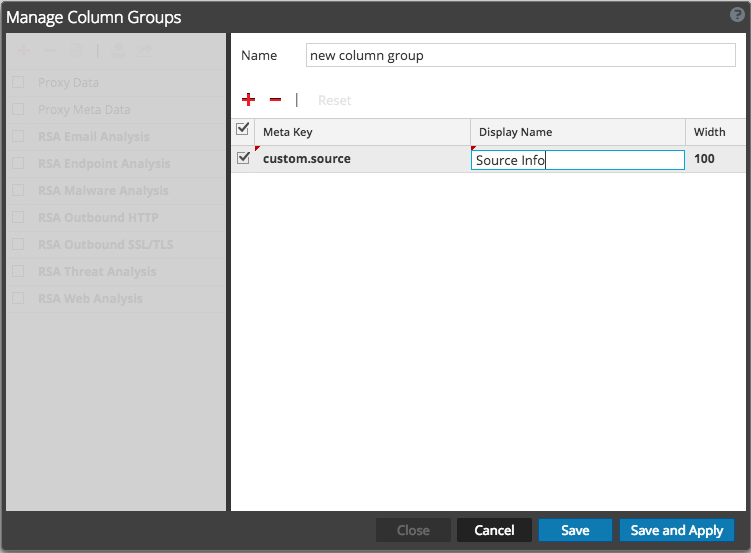
for example