.png?width=180&height=32&name=NW%20Logo%20(2).png)
Use Meta Groups to Focus on Relevant Meta Keys
A meta group combines selected meta keys and meta entities into a group to show only data in which the meta keys and meta entities were found. In the Navigate view and the Version 11.5 and later Events view, you can use meta groups to filter data displayed in the Navigate view (Values panel) and the Events view (Filter Events panel). The same shared meta groups are available for use in both views. Private meta groups created in the Events view are not available for use in the Navigate view or in query profiles in the Legacy Events view.
Note: In the Navigate view and Legacy Events view, you can manually add non-indexed meta keys (or keys that are not in the index at all) to a meta group or column group. The non-indexed meta keys are fully available (manageable and displayable) in the Navigate view and Legacy Events view, but only partially (displayable in the Filter Events panel) in the Events view. The Events view (Filter Events panel) can display data for non-indexed meta keys that are already included in a meta group, but you cannot add non-indexed meta keys while you are editing a meta group. The non-indexed meta keys in a column group do not display data in a column and new non-indexed meta keys cannot be added to a column group in Events view.
With a meta group in effect during an investigation, the information in the Values panel or the Filter Events panel shows only the meta keys in the selected group. When you open a Parallel Coordinates visualization in the Navigate view, the meta keys and meta entities in a group appear as axes from left to right. It may be useful to create two versions of each custom meta group; one for analysis of meta values and one for creating a parallel coordinates chart focusing on a smaller subset of the same use case.
A fresh installation of NetWitness includes built-in meta groups to help you find interesting data sets in Investigate. The built-in meta groups can be duplicated but cannot be edited or deleted. You can also create your own groups and edit a copy of a built-in group to create a custom group.
All groups in the Navigate view are shared and visible to all users of a service; you can export a group for import to any service, limited by the available meta keys for that service. In the Version 11.5 Events view Filter Events panel, you can create both shared and private custom meta groups; only the shared groups are visible and usable in the Navigate view.
Live Meta Groups
In 11.6 and later, NetWitness supports deploying the investigate content from live. The meta groups are categorized as RSA Groups (RSA Live content and RSA OOTB Groups), and Shared Groups. The content deployed from Live are marked by the live symbol ( ). The content is displayed in a folder structure. The groups are displayed as non-editable folders and sub-folders. The number inside () depicts the number of contents inside a folder and > symbol helps you to drill down inside the folder.
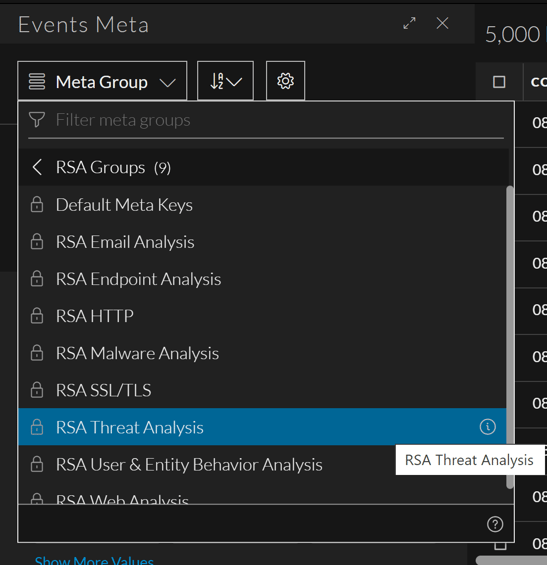
Built-In Meta Groups
NetWitness has built-in meta groups, prefixed with RSA, that are available immediately after installation. The built-in meta groups are useful to focus an investigation on common use cases and to support threat detection using the RSA Hunting Pack. You can copy these groups, give the copy a new name, then edit the copy. These are the built-in meta groups:
- RSA Email Analysis includes meta keys that outline email interactions.
- RSA Endpoint Analysis contains meta keys that provide insight on processes, files, users, and connections from NetWitness Endpoint (NWE) hosts.
- RSA Malware Analysis includes meta keys that mark indicators of compromise in files contained in events.
- RSA HTTP includes meta keys that provide insight into outbound web traffic.
- RSA SSL/TLS includes meta keys that focus on encrypted web traffic.
- RSA Threat Analysis includes meta keys that mark potential threats in the data set.
- RSA User & Entity Behavior Analysis includes meta keys that encompass all the meta keys to analyze user and entity behavior.
- RSA Web Analysis includes meta keys that mark anomalies in web traffic.
Default Meta Keys Group (Version 11.5 Events View)
The Default Meta Keys meta group is a special type of built-in meta group that consists of all the meta keys for the currently selected service, returned in the order of appearance in the index file for the service. Unlike the other built-in meta groups, you cannot copy this group and you cannot see which keys are included when you view information in the Meta Group Details dialog; instead, a message in the Details dialog explains that the group includes all meta keys for the selected service The Default Meta Keys group is always at the top of the list in the Meta Groups menu.
The Default Meta Keys group is used to select meta keys shown in the Filter Events panel when no meta group has been selected and none exists in local storage. You can also select this group as you would any other group. When using the Default Meta Keys group in the Filter Events panel, only the first 30 meta keys with values are open and the remaining are closed.
Custom Meta Groups
You can create custom meta groups to support scenarios that you use frequently while working in Investigate. When an administrator adds custom meta groups manually by editing the custom index file for a service, the new meta groups become available to use in meta groups after the service is restarted. Custom meta groups can be shared or private . Shared meta groups are available globally within your organization in the Navigate view and in the Filter Events panel. If you edit a shared custom meta group, your changes are applied globally. If you delete a shared custom meta group, the group is deleted and no longer available for all analysts. The Navigate view supports only shared groups. When you create custom meta group in the Events view, you can choose to share it or you can keep it private (default); you cannot change a shared group to private or a private group to shared.
Note: Private custom meta groups created in the Events view are not visible or usable in the Navigate view.
Icons identify the group type in the Meta Groups menu. These are examples of each type of custom meta group with the edit icon displayed at the end of the row.


While the functionality of meta groups is similar in the Navigate view and the Events view, the user interface and some of the procedures are different. The following figures illustrate the (Events view) Create Meta Group dialog and the (Navigate view) Manage Meta Groups dialog.
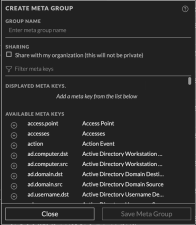
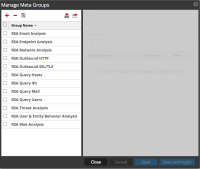
Using options in the Events view Meta Groups menu (Version 11.5 and later) , you can:
- Select a meta group to apply.
- See the details of a meta group.
- Create, edit, and delete custom meta groups.
- Copy and edit the copy of a built-in or custom meta group.
Using options In the Navigate view Manage Meta Groups dialog, you can do all of the above as well as import and export a meta group.
The rest of this topic provides instructions for working with meta groups in the 11.5 Events view and the Navigate view.
Work with Meta Groups in the Events ViewWork with Meta Groups in the Events View
After the upgrade to Version 11.5 or later, all of the existing meta groups -- both built-in and custom -- are available for filtering events in the Filter Events panel. The meta group selection persists between logins unless browser cache is cleared.
View the Meta Keys in a Meta Group
To view details of a meta group:
- Go to Investigate > Events and click
 to load events.
The events for the default service and the default time range are loaded in the Events panel. - To display the Filter Events panel, click
 above the Events panel.
The Filter Events panel opens to the left of the Events panel. - To display the Meta Groups menu, click the Meta Groups menu title. The menu title is either Meta Group: Default Meta Keys or Meta Group:
. If this is your first visit after logging in, the Default Meta Key group is selected; any subsequent visits use the meta group selected in the previous session. If the selected meta group from the previous session is deleted, the Default Meta Keys group is selected when you log in. When opened, the menu displays a list of built-in meta groups (RSA), shared custom meta groups, and your private custom meta groups. Above the list, visibility options and a filter make it easier to find a particular meta group.
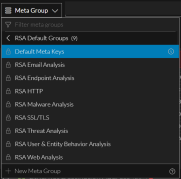
- (Optional) To filter the listed meta groups by name, type some text in the Filter Meta Groups field.
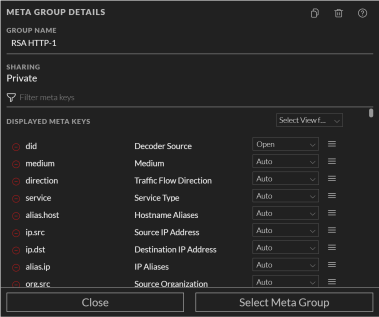
The list is updated to show only the group names that contain the exact text. - Hover over the meta group name and click the information icon (
 ) to see which meta keys are included in the group.
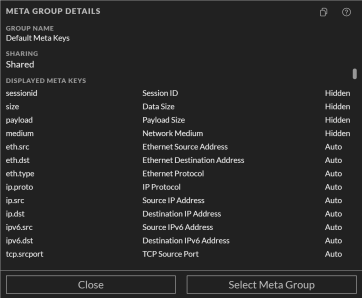
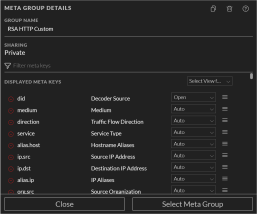
The figure on the left shows the columns for the RSA HTTP meta group. The figure on the right shows the columns for the Default Meta Keys meta group.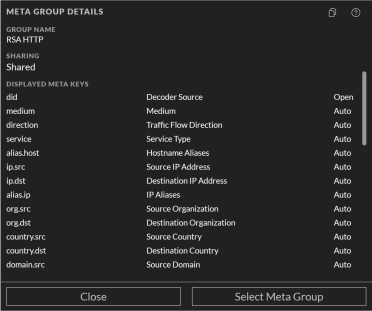
- Do one of the following.
- To close the dialog, click Close.
- If you want to apply the meta group, click Select Meta Group.
The dialog closes and the Filter Events panel is updated to reflect the meta keys in the selected meta group.
Select a Meta Group
- With the Filter Events panel open in the Version 11.5 Events view, click the Meta Groups menu title.
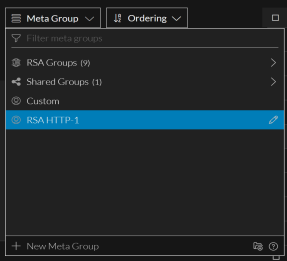
The menu drops down to display a list of meta groups and folders with a filtering option and a New Meta Group option. The list is sorted alphabetically and the name of the selected meta group is displayed in the menu label. This figure shows the menu after RSA HTTP was highlighted, but not selected.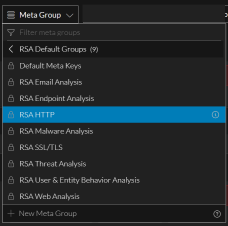
- Do one of the following:
- If the highlighted group is the one you want to apply, press ENTER.
- Begin typing text in the Filter Meta Groups field to search for a meta group name. As you type, the list is filtered to show only the meta group names that contain that string.
When you see the group that you want to apply, click it or use the down or up arrow to highlight it, then press ENTER.
The Filter Events panel is refreshed to include only meta keys in the selected meta group, and the menu title includes the selected group name. Your selection persists when you navigate away from the Events view.
Note: If a meta key in a meta group is not part of the selected service, it does not appear in the Filter Events panel or in the Events panel.
Create a Custom Meta Group
Custom meta groups must have a unique name up to 80 characters in length, and must have at least one meta key. If any other meta group has the name you type, whether shared or private, a message informs you that you need to use a different name. The Save Meta Group button is enabled when these criteria have been met. You can adjust the order of meta keys in a group by dragging keys in the Displayed Meta Keys list.
You can also set the initial view of each meta key: Open, Closed, Hidden, or Auto (the default setting).
Note: You can also set the desired value for all meta keys at once. Make a note that changing the value of all meta keys might impact the performance.
- When set to Auto, the meta key is automatically loaded only if it is indexed, and non-indexed meta keys are Closed until opened manually. If you change the default view for a group of meta keys to Open and some of the meta keys are non-indexed, the non-indexed meta keys revert to Auto.
- Open meta keys are listed in the Filter Events panel, and the values are loaded.
- Closed meta keys are listed in the Filter Events panel, but the meta values are not loaded until you open the meta key.
- Hidden meta keys are not listed in the Filter Events panel at all. This is useful if you are using a single meta group for multiple purposes instead of creating several meta groups; you can turn off certain keys off without removing them from the meta group. You can also use the Hidden view when testing out some new keys or if you want to prepare a meta group with some new meta keys that are not yet available and would error out if in an Auto, Open, or Closed state.
- With the Filter Events panel open in the 11.5 Events view, click the Meta Groups menu title.
The menu drops down to display a list of meta groups and folders with the Filter Meta Groups field at the top and the + New Meta Group and Folder icon option at the bottom.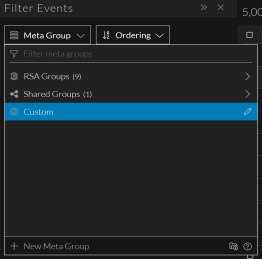
- Select + New Meta Group.
The Create Meta Group dialog is displayed.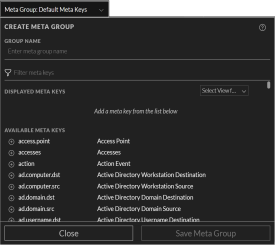
- In the Group Name field, type a unique name (maximum length of 80 characters) for the new meta group, for example, Custom Meta Group A.
- If you want to share the new meta group with your organization, set the Share with my organization option.
- To add a meta key to the meta group, select and add each meta key as follows:
- Type a text string in the Filter meta keys field and look for meta keys that contain that text in the Available Meta Keys list.
- When you see the meta key that you want to add, click the add icon
 that precedes the meta key name.
The meta key is added to the end of the Displayed Meta Keys list. (This list is also filtered using the text you typed.) The maximum number of meta keys in a meta group is 500. If you attempt to add another meta key when 500 are already included in the Displayed Meta Keys list, a message advises you that the group has the maximum number of meta keys.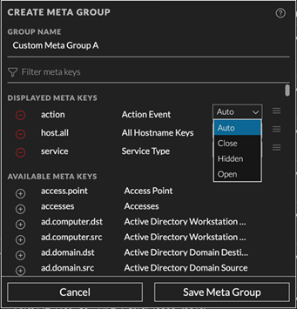
- (Optional) Next to each meta key, choose the initial view for the meta key: Open, Close, Hidden, or Auto.
- (Optional) To find and remove a meta key from the meta group, type a text string in the Filter meta keys field and look for meta keys that contain that text in the Displayed Meta Keys list. When you see the meta key that you want to remove, click the remove icon (
 ) that precedes the meta key name in the Displayed Meta Keys list.
The meta key is moved back to the Available Meta Keys list. - (Optional) To change the order of the displayed meta keys in the Displayed Meta Keys list, place the cursor over the list order icon (
 ). When the cursor changes to the drag and drop icon (
 ), drag the meta key up or down in the list.
 - Do one of the following:
- To close the dialog without creating the custom meta group, click Cancel.
- To create the group, click Save Meta Group.
The new meta group is saved. If the new group is shared, it becomes available for all analysts. If it is private, only you can use the meta group. The buttons change to Done and Select Meta Group.
- Do one of the following:
- To close the dialog, click Done.
- To close the dialog and select the new meta group, click Select Meta Group.
The new group is added to the Meta Groups menu (in alphabetical order), and if you clicked Select Meta Group, the Filter Events panel is updated to show the meta keys and values in the new meta group.
Delete a Custom Meta GroupDelete a Custom Meta Group
You can delete any custom meta group, shared or private, that is not currently applied in the Events list and not used in a query profile. When you click the Delete button, a confirmation message allows you to confirm or cancel the deletion. If a meta group is being used in a query profile, the Delete button is disabled and a message identifies the query profile in which the meta group is used. The built-in meta groups are read only, and cannot be deleted.
Caution: When you delete a shared meta group, the effect is global and the group is no longer available to any analyst.
To delete a custom meta group
- With the Filter Events panel open in the 11.6 Events view, click the Meta Group menu title.
The menu drops down to display a list of meta groups and folders with the Filter Meta Groups field at the top and the + New Meta Group option at the bottom.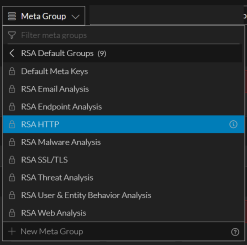
- To delete a meta group, highlight a custom meta group and click the edit icon (
 ) to the right of the name.
 - The Meta Group Details dialog opens with the details for the selected group displayed.
- Click the delete group icon (
 ).
).
If the meta group is currently in effect, the following message is displayed: This meta group cannot be deleted because it is currently active.
In Version 11.5, a confirmation message gives you the opportunity to confirm or cancel the deletion. Click Cancel or Delete Meta Group.
The group is deleted and removed from the Meta Group menu. The meta group no longer appears anywhere for any analyst working in Investigate.
Edit a Custom Meta Group
You can edit a shared custom meta group, your own private meta group, a copy of a built-in meta group or a copy of live meta groups.
- With the Filter Events panel open in the 11.5 Events view, click the Meta Group menu title and highlight the meta group that you want edit. This figure shows private column group RSA HTTP Custom highlighted with the edit icon is displayed to the right.
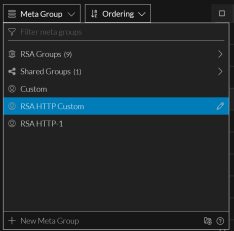
- Click the edit icon ().
The Meta Group Details dialog is displayed so that you can edit the location. You can add or delete meta keys and rearrange the order of the meta keys in the list.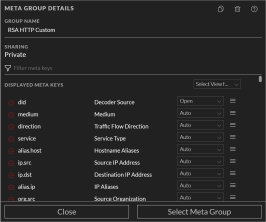
- (Optional) In the Group Name field, edit the name and location of the meta group.
-
(Optional) To add a meta key to the meta group, select and add each meta key as follows:
- Type a text string in the Filter meta keys field and look for meta keys that contain that text in the Available Meta Keys list. Or just scroll through the list to find the meta key. For example, type port in the Filter meta keys field.
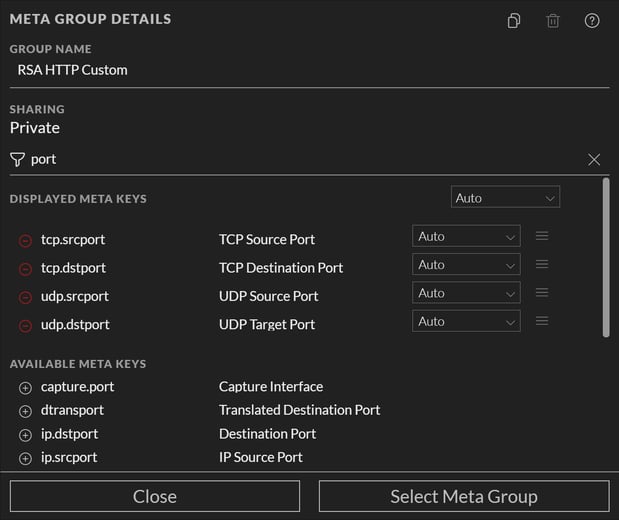
- When you see the meta key that you want to add, click the add icon that precedes the meta key name.
- Type a text string in the Filter meta keys field and look for meta keys that contain that text in the Available Meta Keys list. Or just scroll through the list to find the meta key. For example, type port in the Filter meta keys field.
- (Optional) To find and remove a meta key from the meta group, type a text string in the Filter meta keys field to look for meta keys that contain that text in the Displayed Meta Keys list, or simply scroll through the list. When you see the meta key that you want to remove, click the remove icon ( ). When the cursor changes to the drag and drop icon (), drag the meta key up or down in the list.
- Do one of the following:,,,,,, click Reset.
- To save the edits to the meta group, click Update Meta Group.
The updated meta group is saved, and the dialog is closed.
The menu drops down to display a list of meta groups and folders.
If you highlighted a built-in meta group, the information icon (
) is displayed to the right. If you highlighted a custom meta group, the edit icon ()is displayed to the right. This figure shows RSA HTTP highlighted. 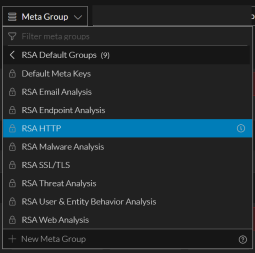
The copy of the meta group is saved, and the Meta Group Details dialog for the copied group is displayed.
The group is added to the Meta Group menu. The figure below has a private copy of the RSA HTTP meta group.
 ). After copying, the meta group folders are displayed selected location (Shared or Private category). You can hover over on the copied item to view a tooltip that indicates the path from which the meta group has been copied. In case you need to search for a specific meta group, you can type the name of the meta group in the filter field (
 ) at the folder level and the meta group will be filtered from the selected folder.,,,, ,,,,,,, ,,,,,,, private to shared, private to private, shared to shared and shared to private groups. When you copy a folder the content inside it gets copied except the sub-folders. When you copy a private folder into a shared folder, the folder and its content no longer remain private.,,,, ,,,,,,, click the Meta Group menu title. The menu drops down to display a list of meta groups and folders.,,,,,,, ,,,,,,, type a unique name for the new meta group folder.,,,,,,, ,,,,,,, ,,,,,,, ,,,,,,, ,,,,,,, click Meta