.png?width=180&height=32&name=NW%20Logo%20(2).png)
Use Saved Queries to Encapsulate Common Areas for Investigation
Saved Queries offer a quick and easy way to define a meta group, column group, and a limiting filter (pre-query condition) that you can apply in the Navigate view, the Events view, and the Legacy Events view. The same query profiles are shared between all views, and they are available in the Springboard (Version 11.5) for use in panels. Private query profiles created in the Events view are only available in the Events view for the analyst who created them.
Each query profile specifies a meta group, column group, and sometimes includes a pre-query condition appropriate for the type of investigation.
In a query profile:
- The meta group defines the meta keys that are queried (see Use Meta Groups to Focus on Relevant Meta Keys).
- The column group defines which meta keys from the meta group are displayed as columns in the Events list. (see Use Columns and Column Groups in the Events List).
- When the query profile is in effect, the optional pre-query conditions add a limiting filter in the query bar. You can edit or delete the limiting filter and then create additional filters for your query (see Filter Results in the Events View).
Built-In Saved Queries
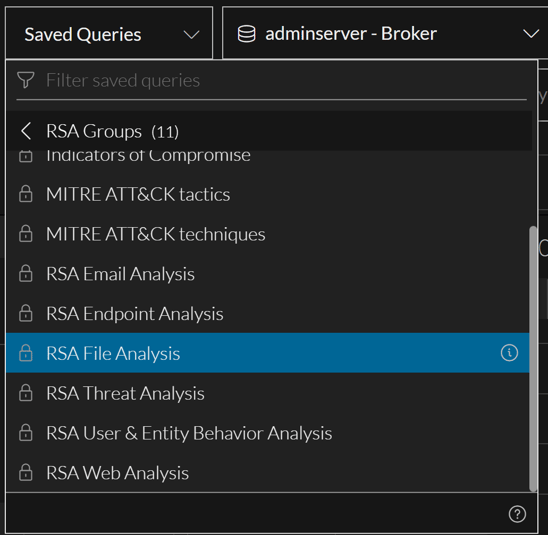
You cannot edit or delete built-in profiles, but you can copy an existing profile and edit the copy in the Navigate view, the Legacy Events view, or the Events view. In the Navigate view, the built-in profile names begin with the RSA prefix and are grouped under Default Profiles. The Events view does not support grouping of query profiles. This figure is an example of a built-in query profile as listed in the Query Profiles menu.

The NetWitness Platform has these built-in profiles:
- RSA Email Analysis
- RSA Endpoint Analysis
- RSA File Analysis
- RSA Threat Analysis
- RSA User & Entity Behavior Analysis
- RSA Web Analysis
- Behaviors of Compromise
- Enablers of Compromise
- Indicators of Compromise
- MITRE ATT&CK tactics
- MITRE ATT&CK techniques
Built-in query profiles make it easy for you to query a specific area of interest; for example, selecting the built-in RSA Email Analysis query profile automatically specifies the meta group, and column group, and pre-query conditions that are most useful for investigating email activity. As you become familiar with the meta keys, you can create your own custom query profiles.
Live Saved Queries
In 11.6 and later, NetWitness supports deploying the investigate content from live and are marked by the live symbol ( ) under the query profiles group drop down. The query profiles are categorized as RSA Groups (RSA Live content and RSA OOTB Groups), and Shared Groups. The groups are displayed as non-editable folders and sub-folders except for Shared Groups that can be edited. All private content is displayed outside these groups. For example, the below image shows private content below the Shared Groups folder. The number inside () depicts the number of contents inside a folder and > symbol helps you to drill down inside the folder.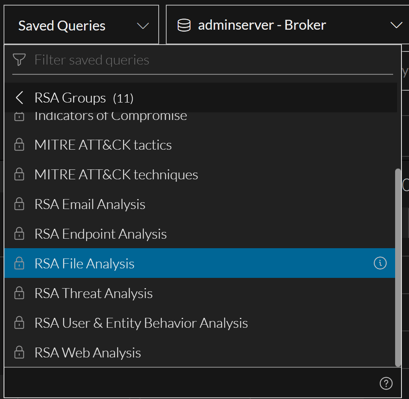
Custom Saved Queries
Custom query profiles are shared globally within your organization in Version 11.4. In Version 11.5 and later, you can create shared query profiles as before, and can also create private query profiles. If you edit a shared custom query profile, your changes are applied globally. If you delete a shared custom query profile, the profile is deleted and no longer available for all analysts.
Note: If a Springboard panel is using a query profile as a filter, the profile can be edited, but cannot be deleted in the Events view. However, nothing prevents deletion of the profile in the Navigate view or the Legacy Events view. In this case, Springboard panels that use the deleted query profile as a filter continue to work, but the filter is removed and unexpected results may be displayed in the panel. Refer to "Managing the Springboard" in the NetWitness Platform Getting Started Guide for details.
When you create a query profile in Version 11.5, you can choose to share it or you can keep it private (default); you cannot change a shared profile to private or a private profile to shared. Private query profiles are not visible or usable in the Navigate view, the Legacy Events view, or the Springboard. Icons identify the profile type in the Query Profile menu. These are examples of a shared and a private custom query profile as listed in the Query Profile menu, with the edit icon displayed at the end of the row.


Dialogs for Managing Saved Queries
The queries are listed in alphabetical order in the Saved Queries menu in a way that makes built-in queries distinguishable from custom queries that you imported or created. While the functionality for managing saved queries is similar in the Navigate view, the Legacy Events view, and the Events view, the dialogs are different. The following figure illustrates the Saved Queries menu in the Version 12.3.1 Events view. This menu lists the same queries that are available in the Navigate view and the Legacy Events view. You can create, copy, edit, delete, and apply queries.
This is an example of the Manage Profiles dialog in the Navigate and Legacy Events views.
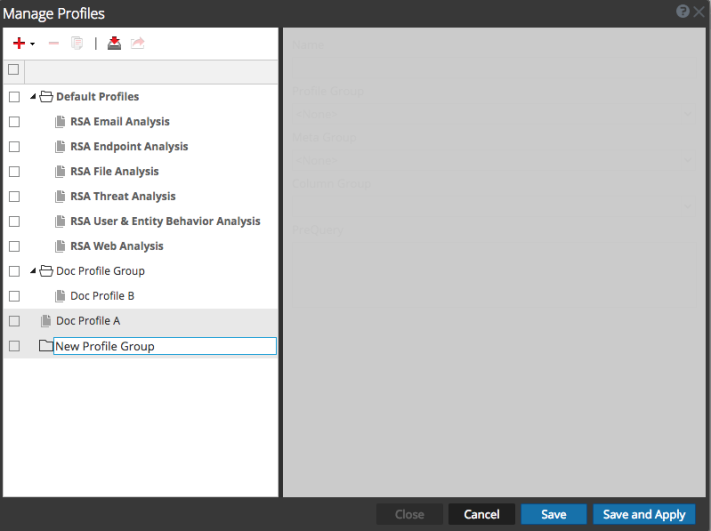
Note: Query profiles are available in the Navigate view, the Legacy Events view, and the Events view; in Version 11.4.1 and earlier, they are shared globally across users. If one user modifies or deletes a custom query profile it has an effect on what is available to the other users. In the Events view, use the Query Profiles menu to work with profiles. In the Navigate or Legacy Events view toolbar, select Profile > Manage Profiles to open the Manage Profiles dialog. In Version 11.5, custom profiles can be shared globally, but private custom profiles created in the Events view are not available in the Navigate view or the Legacy Events view.
From the Query Profiles menu (11.4 and later Events view):
- You can apply a query profile and use options in the menu to create (Create Query Profile dialog), copy, edit, and delete (Query Profile Details dialog) custom query profiles.
- Selecting a profile applies the meta group, column group, and pre-query condition, and these are visible in the Meta Group menu title, Column Group menu title, and the query bar.
- In Version 11.4, the Events view does not use meta groups or profile groups defined in other views. Version 11.5 allows you to use meta groups and to create private custom query profiles, in addition to the previously available shared custom query profiles.
- If a query profile created in the Legacy Events view uses the Log View, Detail View, or List View instead of a column group, the same profile in the Events view uses the Summary List column group.
From the Manage Profiles dialog (Navigate view and Legacy Events view):
- You can configure, add, delete, import, and export profiles and profile groups.
- You can organize your custom query profiles in profile groups (Version 11.2 and later). When upgrading to Version 11.4 from an earlier version, only profile groups that contain profiles are imported. The built-in query profiles are in the Default Profiles group, which cannot be edited. Analysts can create new query profile groups, which anyone can use.
- After creating profiles, you can edit a profile group to add profiles, remove profiles, or move profiles from one group to another. When you create a profile, it is not added to any profile group by default.
- Selecting a profile applies the meta group, column group, and pre-query condition, and the label of the Profile menu is replaced with the query profile name. The following figure illustrates the RSA Email Analysis query profile selected in the Navigate view or Legacy Events view.

View Saved Queries Details (Events View)
If you want to know which meta groups, column groups, and limiting filters (called pre-query conditions) define a saved query, you can view the details of the query.
To view the details:
- Go to Investigate > Events and click Saved Queries.
The Saved Queries menu opens with a list of available profiles. This menu displays a list a list of built-in query profiles (RSA), shared custom profiles, and your private custom profiles with visibility options and a filter field make it easier to find a particular query profile.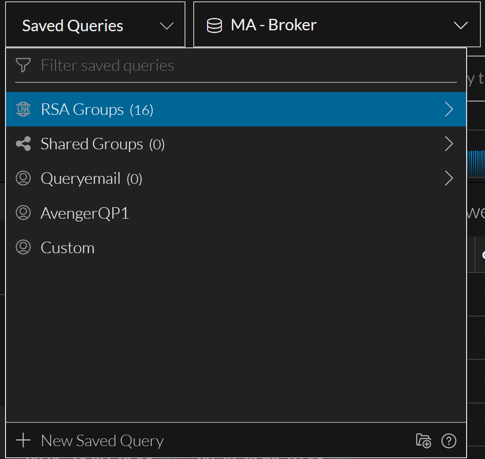
- Hover over a query profile in the list and click the information icon (
 ) to see the meta group, column group, and pre-query conditions configured for the profile.
This figure shows the details for the RSA Email Analysis profile, one of the built-in profiles. In Version 11.5.1, an icon identifies the type of meta group and column group (shared, private, or RSA).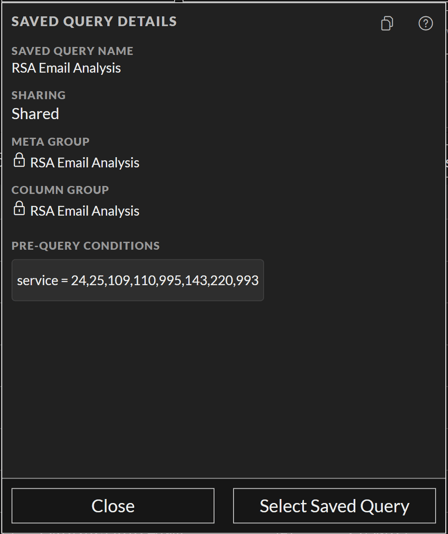
- Do one of the following:
- To close the dialog, click Close.
- If you want to apply the profile, click Select Saved Query.
The dialog closes. The Events list is updated to reflect the selected query profile. If the profile uses a different column group, the query is re-executed with the pre-query conditions and column group for the selected profile. If only the pre-query conditions are different, existing filters in the query bar are removed and the pre-query conditions (for example, this filter: service=24,25,109,110,995,143,220,993) is added in the query bar, but the query is not submitted. The first 15 columns in the associated column group are used in the Events list.- (Optional) Create additional filters in the query bar before executing the query (see Filter Results in the Events View).

- (Optional) If you want to select different columns from the associated column group before executing the query, click
 above the Events list on the right.
The Column Selection list is displayed and you can choose up to 40 columns to display (see Use Columns and Column Groups in the Events List.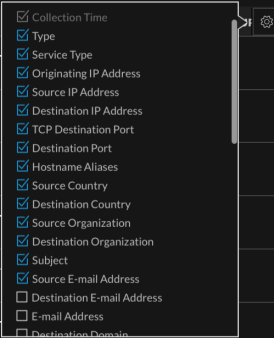
- (Optional) Create additional filters in the query bar before executing the query (see Filter Results in the Events View).
Apply a Saved Queries (Events View)
When a saved query is applied, there is no indication of it in the Saved Queries menu, but you can see if a column group or meta group is in effect. If pre-query conditions are applied, the filters are visible at the beginning of the query bar as shown in this figure:
Note: If you do not see enough results or the right results in the Events view, an applied profile may be limiting results with pre-query conditions.
To apply a query profile:
- Go to Investigate > Events and click Saved Queries in the query bar.
The Saved Queries menu opens with a list of available queries.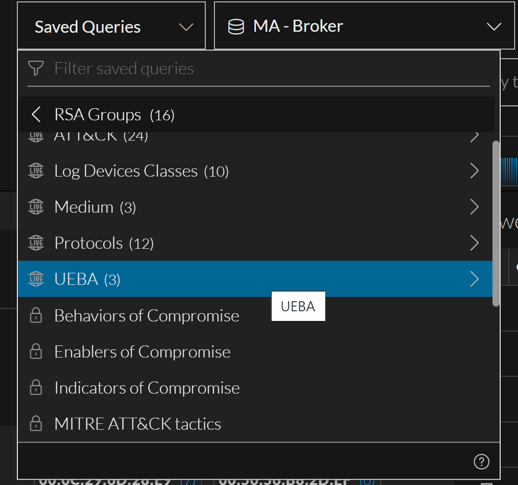
- Use the Down and Up arrow keys or the mouse to highlight a profile.
- Click the highlighted profile.
The query profile settings are applied immediately. The Events list is updated to reflect the selected profile. If the profile uses a different column group the query is re-executed with the pre-query conditions and column group for the selected profile. If only the pre-query conditions are different, existing filters in the query bar are removed and the pre-query conditions are added in the query bar. The button becomes active so that you can resubmit the query with the new pre-query conditions. You can add more filters as usual before or after resubmitting the query.
Create or Edit a Custom Saved Queries (Events View)
To create or edit a custom saved queries
- Go to Investigate > Events and click Saved Queries in the query bar.
The Saved Queries menu opens with a list of available queries.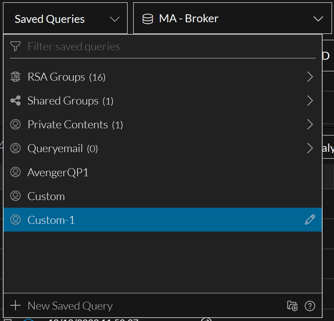
- Do one of the following:
- To create a new saved query, click + New Saved Query.
The Saved Queries dialog is displayed. The Create Saved Query dialog shows a new empty profile that includes the currently selected meta group, column group, and filter that you have currently typed in the Query bar as a pre-query condition.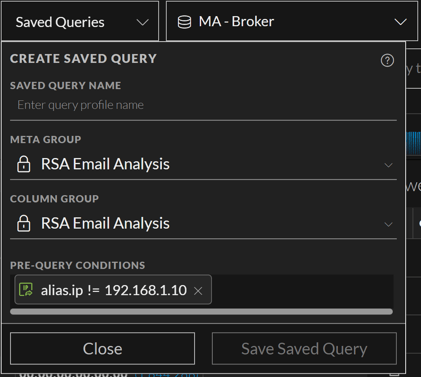
- To edit an existing query profile, highlight a custom query profile in the menu, and click the edit (
 ) icon.
The Query Profile Details dialog is displayed. The Version 11.5.1 dialog (on the right) identifies the type of meta group and column group as shared, private, or RSA.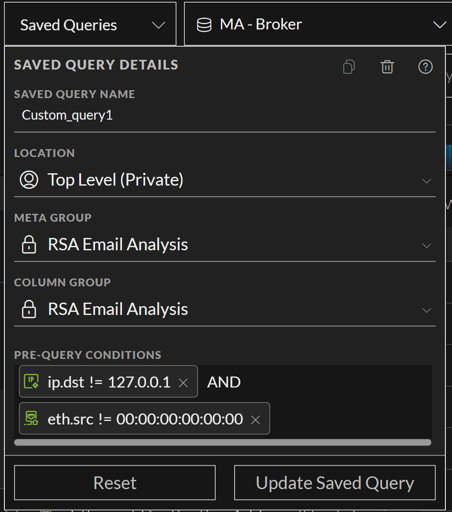
- To create a new saved query, click + New Saved Query.
- In the Profile Name field, type a unique profile name that has no more than 80 characters.
In the Create Query dialog, the Save Query Profile button is activated. In the Query Profile Details dialog, the Select Query Profile button is relabeled as Update Query Profile. - (Version 11.5 and later), do one of the following
- If you want to share the new query profile with your organization, set the Location to Shared Groups from the drop-down menu. You cannot change a query profile from shared to private after it is created.
- If you want to create a private query profile that only you can see and manage, leave the Location to Top Level (Private). You cannot change a query profile from private to shared after it is created.
- (Version 11.5 and later) Select a meta group from the Meta Group drop-down list. If a shared group and a private group have the same name, the private group is listed before the shared group. In Version 11.5.1, an icon before the group name distinguishes private from shared.
- Select a column group from the Column Group drop-down list. In Version 11.5, there can be shared or private groups and they can have the same name. In this case, the private group is listed before the shared group. In Version 11.5.1, an icon in front of the group name distinguishes private from shared.
- In the Pre-Query Conditions field, check the default filters from the query bar and add or remove filters if you wish.
- Click Save Query Profile or Update Query Profile.
The new profile is saved or the edited profile is updated with your changes. - To close the dialog, click Close.
Delete a Custom Query Profile (Events View)
Built-in query profiles are read only, and cannot be deleted, but you can delete any custom query profile. A confirmation message allows you to confirm or cancel the deletion. When you delete a shared query profile, the effect is global and the profile is no longer available to any analyst.
Note: If a Springboard panel is using a query profile as a filter, the profile can be edited, but cannot be deleted in the Events view. However, nothing prevents deletion of the profile in the Navigate view or the Legacy Events view. In this case, Springboard panels that use the deleted query profile as a filter continue to work, but the filter is removed and unexpected results may be displayed in the panel. Refer to "Managing the Springboard" in the NetWitness Platform Getting Started Guide for details.
To delete a custom query profile
- Go to Investigate > Events and click Query Profiles in the query bar.
The Query Profiles menu opens with a list of available profiles.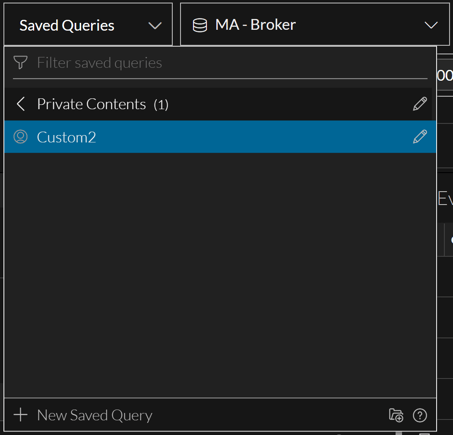
- Highlight a custom query profile that you want to delete, and click the edit ()icon.
The Query Profile Details dialog is displayed.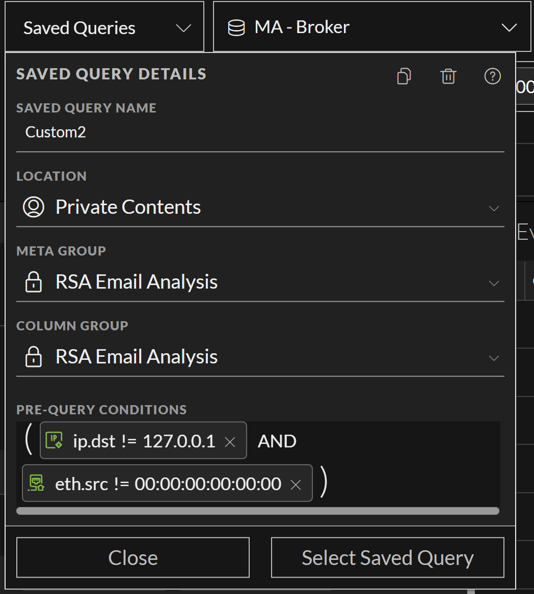
- Click the delete icon (
 ).
).
A confirmation message gives you the opportunity to confirm or cancel the deletion. Click Cancel or Delete Saved Query.
The query is deleted and removed from the Saved Queries menu. The profile no longer appears anywhere for any analyst working in Investigate.
Copy a Saved Query
You can copy any query profile, built-in or custom, shared or private, as long as it does not have unsaved edits in progress. This is useful when you want a customized version of a built-in profile. Also since you cannot change a custom profile from private to shared or from shared to private, creating a copy allows you to select a different Sharing setting. When you copy a profile, the same name is used with a number appended. For example, if you copy RSA Email Analysis, the first copy is named RSA Email Analysis-1, and a second copy of the same profile is named RSA Email Analysis-2. After you create the copy, you can edit the new profile to give it a new name and edit the pre-query conditions, meta group, and column group in the profile.
Note: If you are making a shared copy of a private query profile that uses a private meta group or column group, a message notifies you that a shared copy of the meta group or column group is being created and used in the query profile. It may take a little longer to copy the query profile when a private meta group or column group has to be copied.
To copy a query profile
- Go to Investigate > Events and click Query Profiles in the query bar.
The Query Profiles menu opens with a list of available profiles. - Highlight the query profile that you want copy. This figure shows RSA Email Analysis highlighted. The information icon () is displayed to the right.
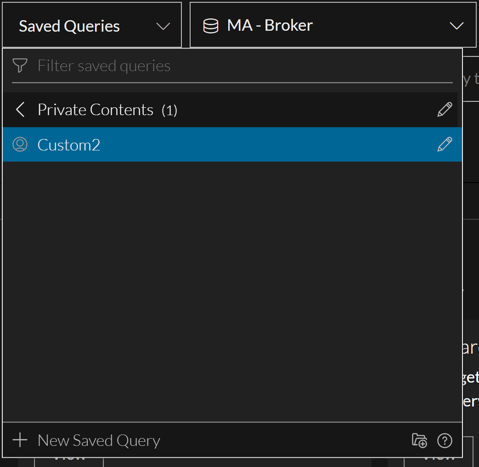
- Do one of the following:
- Click the information icon ().
- For a custom profile, click the edit icon ().
The Query Profile Details dialog is displayed. This figure shows the dialog for a built-in profile.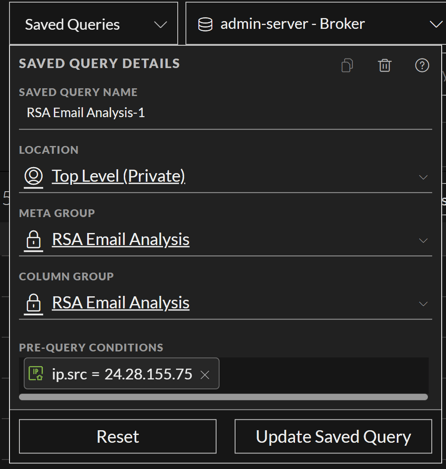
- Click the information icon (
- Click the Copy icon (
 ).
).
The Copy Saved Query dialog is displayed with a number appended to the profile name to create a unique name among all saved queries.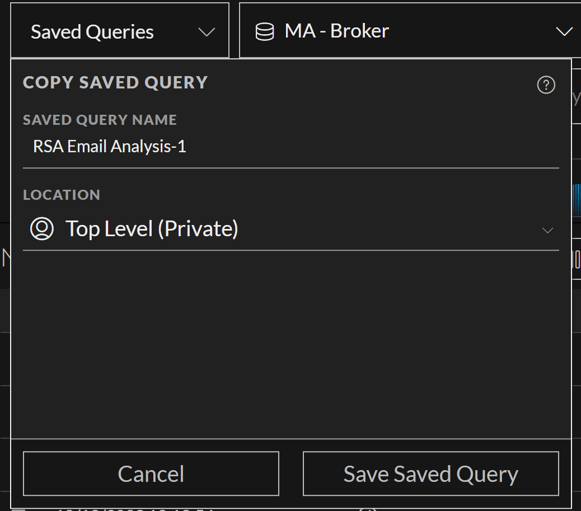
- (Optional) In the Saved Query Name field, edit the name of the saved query.
- If you want to share the new profile with your organization, set the Location to Shared Groups from the drop-down menu. By default the new profile is private. If the profile being copied has a private column group or meta group, a shared copy is created and used in the copy of the profile.
- Do one of the following:
- To close the dialog without copying the profile, click Cancel.
- To save the clone of the query profile, click Save Saved Query.
The clone is saved, and the Query Profile Details dialog for the cloned profile is displayed