Skip to content
  • There are no suggestions because the search field is empty.

User Profile View

User or Network Entity Profile View

The User Network Entity Profile view provides detailed information about all alerts and related indicators of a user or network entity.

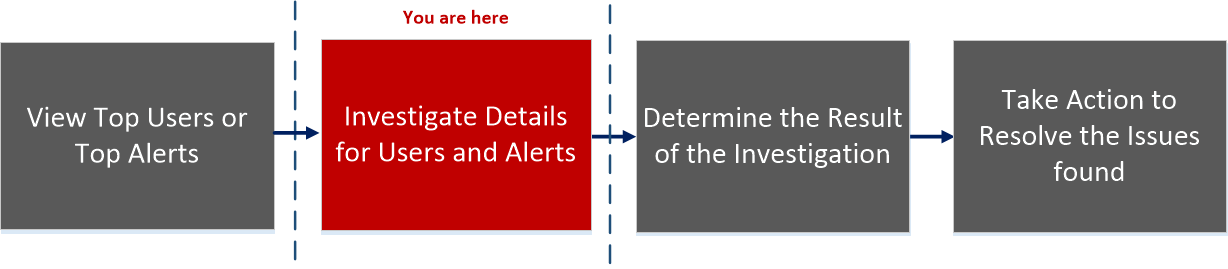
Workflow
netwitness_112_invusralrworkflow.png

What do you want to do?


  • User Role: UEBA Analyst
  • I want to ...:

    Begin an investigation of critical alerts*

  • Documentation: Investigate Top Alerts

  • User Role: UEBA Analyst
  • I want to ...: Investigate threat indicators.
  • Documentation: Investigate Events


*You can complete the tasks here.

Related Topics

Quick Look

125_UserProfile_Reference1_0624_1633x744.png

125_UserProfile_Reference2_0624_1631x740.png

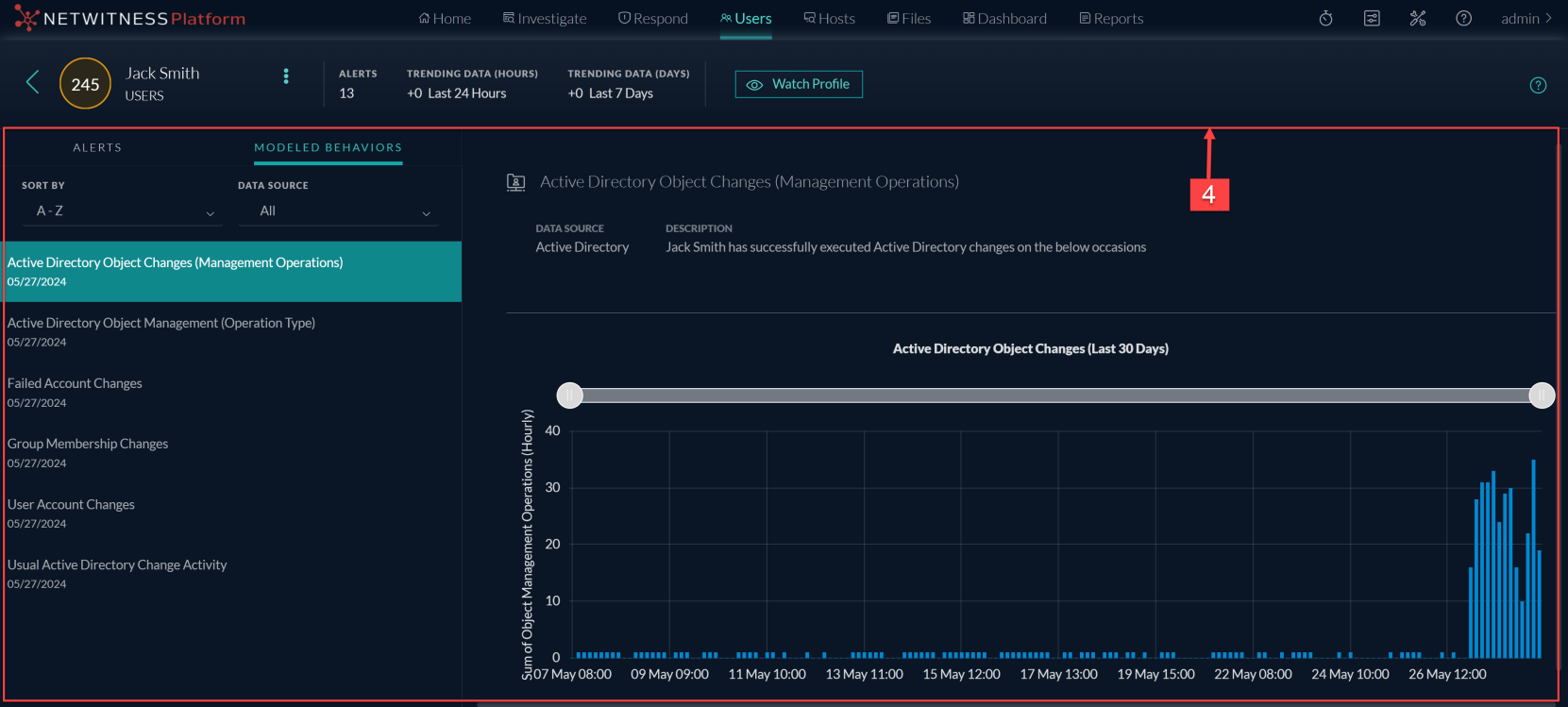
The following figure shows the User Modeled Behaviors view.
125_UserProfile_Reference3_0624_1661x749.png

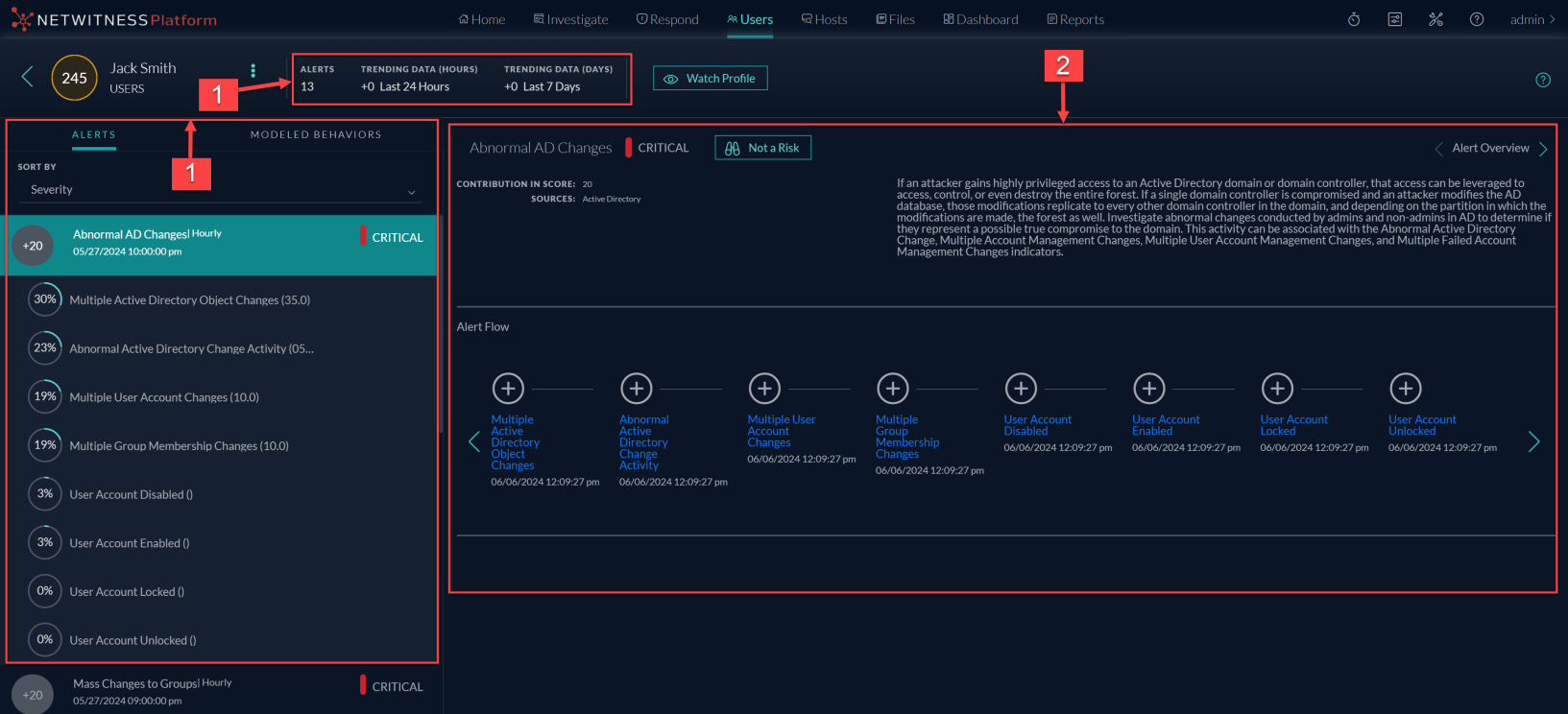
The Users Profile consist of the following panels:

  • Column 1: 1
  • Column 2: User Risk Score panel

  • Column 1: 2
  • Column 2: Alerts Flow panel

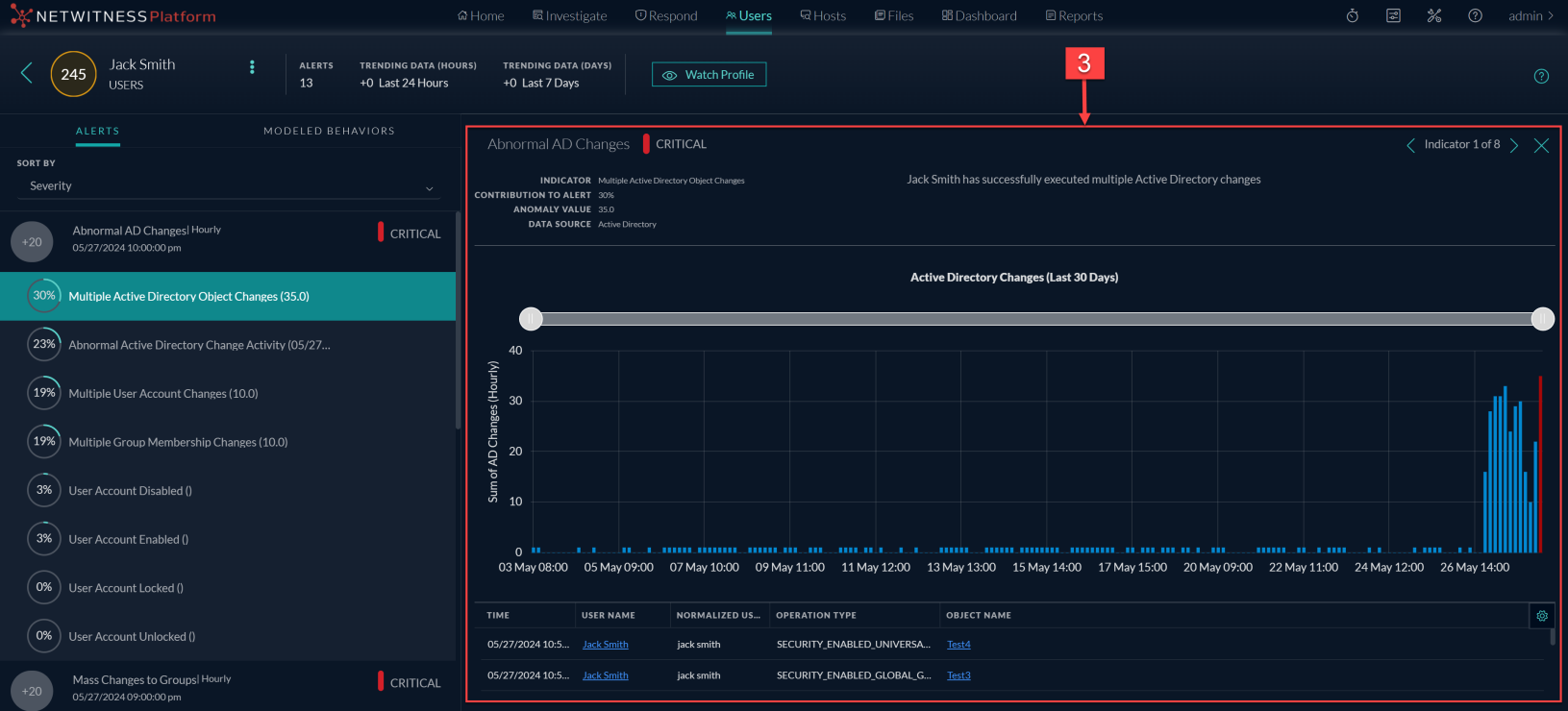
  • Column 1: 3
  • Column 2:

    Indicator panel


  • Column 1: 4
  • Column 2: Modeled Behaviors panel

User or Network Entity Risk Score Panel

The User or Network Entity Risk Score panel contains the following information:

  • Name: User Score
  • Description: The user score of the user highlighted based on the severity.

  • Name: Alerts
  • Description: The total number of alerts generated for the user in the last 90 days.

  • Name:

    Trending Data (Hours)

  • Description:

    The trending data for last 24 hours shows the increase in the user's score in the last 24 hours.


  • Name: Trending Data (Days)
  • Description: The trending data for last 7 days shows the increase in the user's score in the last 7 days.

  • Name: Alerts
  • Description:

    The following information is displayed:

    • alert names
    • severity level icon
    • start date and time for the alert
    • timeframe of the alert (Hourly)
    • risk score of the alert (+20)
    • list of alert indicator names and the number of times the indicator events occurred.


  • Name:

    Sort by

  • Description:

    The alerts are sorted based on Severity and Date. By default, it is sorted by severity.


Alert Flow Panel

The Alert Flow panel displays the following information:

  • Name: Alert name
  • Description: The name of the alert.

  • Name: Time frame
  • Description: The timeframe of the alert (hourly).

  • Name: Severity level
  • Description: The severity of the alert.

  • Name: Contribution in score
  • Description:

    The contribution to the user score value (for example, +20).


  • Name:

    Sources

  • Description:

    The data sources for the alert (for example, Active Directory).


  • Name: Tamerlane graph
  • Description: The timeline of events that are related to the formation of the alert.

Indicator Panel

Click on a graph icon in the Alert Flow panel to open the Indicator panel. The following table describes the indicator panel elements:

  • Name: Indicator
  • Description: The name of the indicator with timeframe of the indicator in parentheses. For example, Multiple Group Membership Changes (Hourly).

  • Name: Contribution to Alert
  • Description: The alert contribution percentage.

  • Name: Anomaly Value
  • Description: The anomaly value.

  • Name: Data source
  • Description: The data source from where the alert is triggered.

In the Indicator panel the events table list events specific to the data sources.
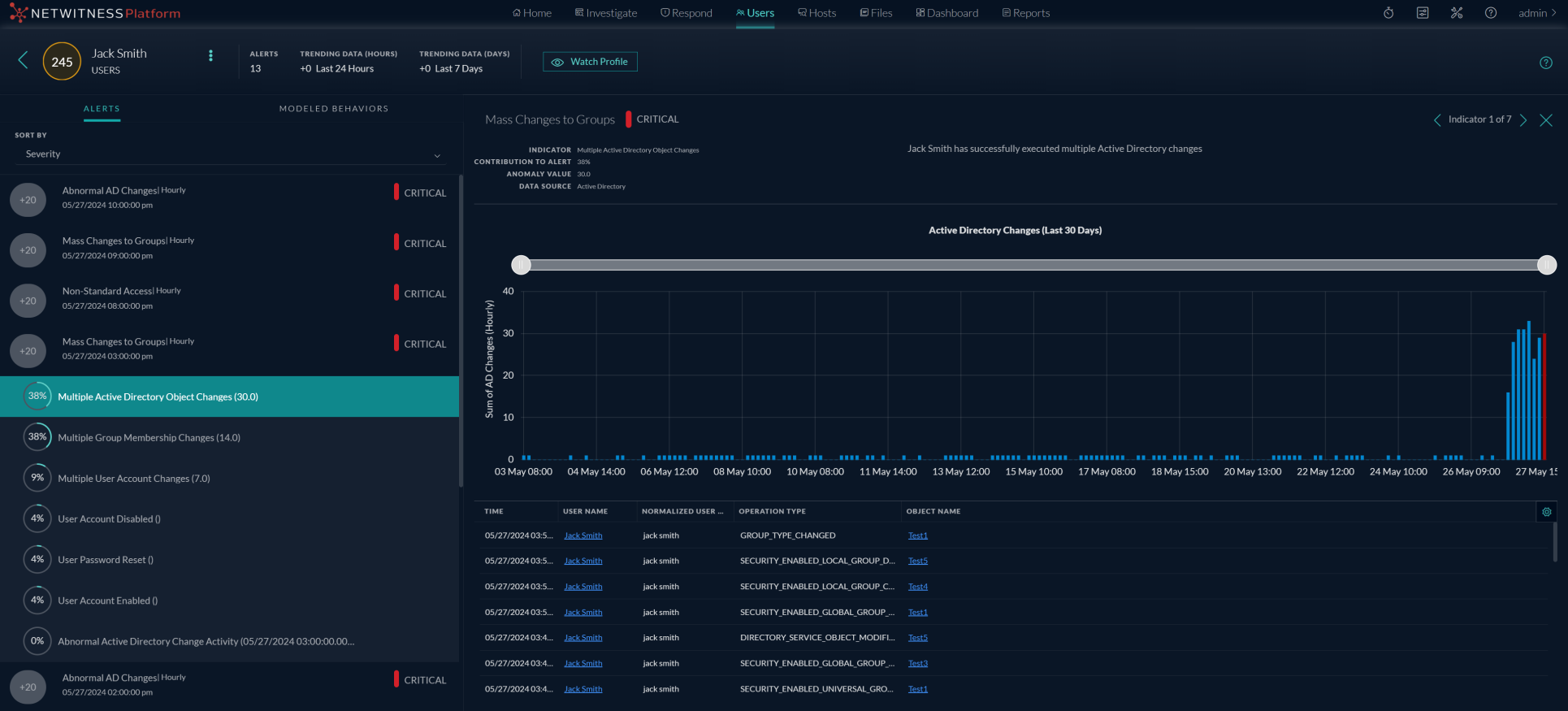
125_UserProfile_Reference4_0624_1930x875.png

  • Common events for User Entity

The following tables list events specific to all the data sources.

  • Event Name:

    Time

  • Description: The date and time when an event is triggered.

  • Event Name:

    Username

  • Description: The name of user for whom an indicator is triggered.

  • Event Name:

    Normalized user name

  • Description: The name of user for whom an indicator is triggered.

  • Event Name:

    Operation Type

  • Description: The action performed by the user. For example, Member Added To Group.

  • Event Name:

    Result

  • Description: The status of the action performed by the user.

  • Windows File Servers

The following tables list events specific to Windows file servers.

  • Event Name:

    Source Folder Path

  • Description: Absolute folder path of a file for which an event is triggered.

  • Event Name:

    Source File Path

  • Description: Absolute file path for which an event is triggered.

  • Active Directory

The following tables list event specific to Active Directory.

  • Event Name:

    Object Name

  • Description: Object name defined in the Active Directory.

  • Logon Activity

The following tables list events specific to Logon Activity.

  • Event Name:

    Computer

  • Description: Host name from where an event is triggered.

  • Event Name:

    Result Code

  • Description:

  • Process

The following tables list events specific to Process.

  • Event Name:

    Machine Name

  • Description: Name of the host from where this event is triggered for the user.

  • Event Name:

    Source Process

  • Description: Process triggered by the event

  • Event Name:

    Destination Process

  • Description: Process triggered by source process.

  • Registry

The following tables list events specific to Registry.

  • Event Name:

    Machine Name

  • Description: Name of the host from where this event is triggered for the user.

  • Event Name:

    Process Directory

  • Description: Absolute directory path of the process for which an event is triggered.

  • Event Name:

    Process File Name

  • Description: Process file name for which an event is triggered.

  • Event Name:

    Registry Key Group

  • Description: Type of registry key.

  • Event Name:

    Registry Key

  • Description: Registry key path.

  • Event Name:

    Registry Value Name

  • Description: Registry value name that is created or modified.

  • Event Name:

    Operation Type

  • Description: The action performed by the user. For example, Member Added To Group.

Network Entities

The following tables list events specific to SSL Subject.

  • Event Name: Source IP
  • Description: The IP address from which network data is sent.

  • Event Name: Destination IP
  • Description: The IP address to which network data is sent.

  • Event Name: Destination Country
  • Description: The country name to which the network data is sent.

  • Event Name: SSL
  • Description: The SSL Subject.

  • Event Name: Destination Organization
  • Description: The organization name where the network data is sent.

  • Event Name: Domain
  • Description: The domain name to which the network data is sent.

  • Event Name: Destination Port
  • Description: The port number to which the network data is sent.

  • Event Name:

    Source Netname

  • Description:

    The name of the source netname.


  • Event Name: Number of Bytes Sent
  • Description: The number of bytes sent.

  • Event Name:

    Destination ASN

  • Description:

  • Event Name: Number of Bytes Received
  • Description: The number of bytes received.

Modeled Behaviors Panel

The Modeled Behaviors panel displays the following information:

  • Name: Modeled Behaviors
  • Description:

    The following information is displayed:

    • The data source names

    • The date of the user's last activity
    • Description of the Modeled Behaviors.


  • Name: Data Source
  • Description: The data source can be selected from the drop-down.

  • Name: Sort by
  • Description: The Modeled Behaviors are sorted based on date and alphabetical order. By default, it is sorted by alphabetical order.