Skip to content
  • There are no suggestions because the search field is empty.

Users View

Entities Tab

The Entities tab is a proactive threat hunting console. You can use behavioral filters to build use-case driven target lists, and to continuously monitor the environment for specific risky behavior patterns.

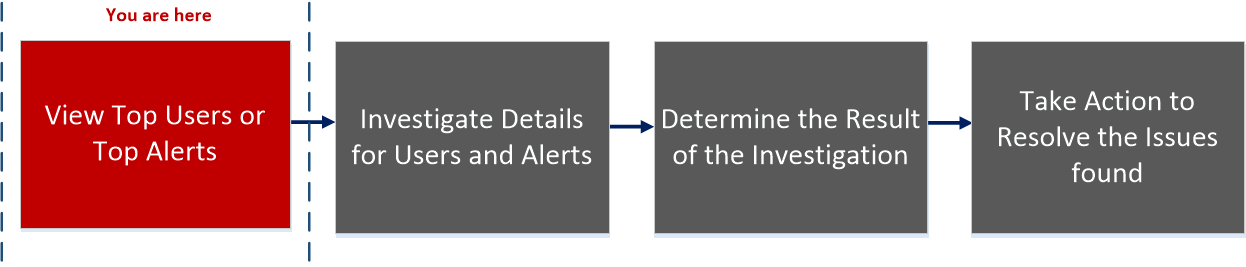
Workflow
netwitness_112_usrtabworkflow.png

What do you want to do?


  • User Role: UEBA Analyst
  • I want to ...: Begin an investigation of critical alerts.
  • Documentation: Investigate Top Alerts

  • User Role: UEBA Analyst
  • I want to ...: Investigate threat indicators.
  • Documentation: Investigate Events

*You can complete the tasks here.

Related Topics

Quick Look

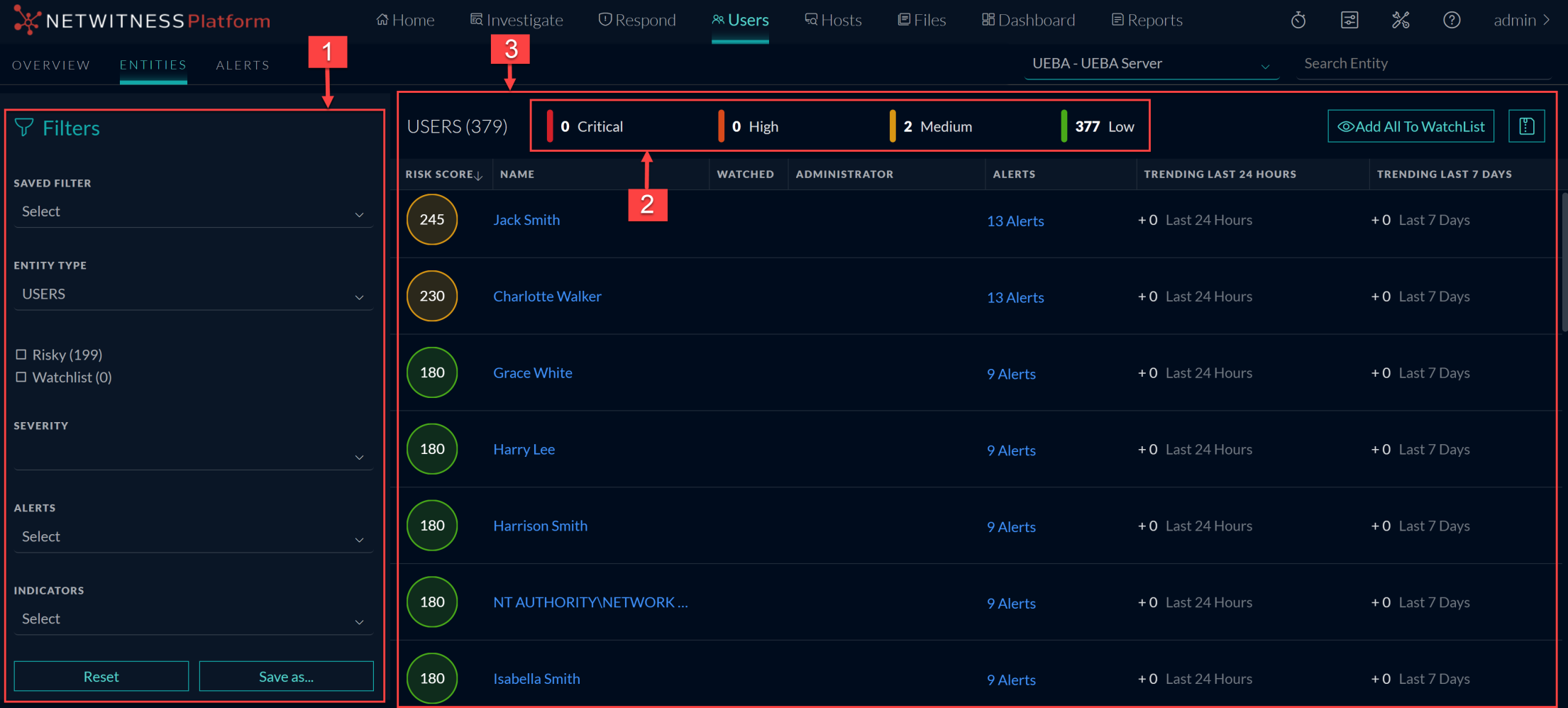
The following figure shows the Entities tab.
125_Entities_Reference_0624_2210x998.png

The Users tab consists of the following panels:

  • Column 1: 1
  • Column 2: Filters panel

  • Column 1: 2
  • Column 2: Risk Indicator Panel

  • Column 1: 3
  • Column 2: User or Entity List panel

Filters Panel

The Filters panel lists two pre-defined filters, with the number of users associated with each in parentheses, and the list of behavioral profiles that are saved as favorites.

  • Filter Type: Saved Filter
  • Description: Previously saved behavioral filters.

  • Filter Type: Entity Type
  • Description: Entity type such as Users, JA4, and SSL.

  • Filter Type: Risky User or Network Entities
  • Description: All user or network entities with a risk score greater than 0.

  • Filter Type: Watchlist User or Network Entities
  • Description: All user or network entities that are currently flagged as Watched.

  • Filter Type: Severity
  • Description: Severity type, such as critical, high, medium and low.

  • Filter Type: Alerts
  • Description: Any of the existing alert types that describe the supported distinct use cases (Brute Force Attempt, Snooping User, Abnormal AD Change, Data Exfiltration).

  • Filter Type: Indicators
  • Description: Any of the existing behavioral features modeled by NetWitness UEBA. This filter can also be used to target only alerts from a specific data source or application.

  • Filter Type: Reset
  • Description: Reset the filter.

  • Filter Type: Save as
  • Description: Save the filters as favorites.

Risk Indicator panel

The Risk indicator provides a severity-based breakdown of the target user or network entities.

netwitness_112_sevind_813x50.png

The following table describes the risk indicator panel elements.

  • Color: Red
  • Severity: Critical

  • Color: Orange
  • Severity: High

  • Color: Yellow
  • Severity: Medium

  • Color: Green
  • Severity: Low

Entities List Panel

The Entities List panel displays the list of all the user or network entities in your environment along with the user or network entity score and number of alerts associated with the user or network entity.

The following table describes the Entities List panel elements.

  • User Data:

    Username or Network entity name

  • Description: The name of the user or network entity.

  • User Data: Score
  • Description: The user or the network entity.

  • User Data: Number of alerts
  • Description: The total number of alerts generated for the user or network entity.

  • User Data: Sort by
  • Description:

    The Sort by drop-down menu allows you to select the sorting method for the list. The options are: Risk Score, Name, Alerts, Trending last 24 hours, and Trending last 7 days.


  • User Data: Export
  • Description:

    Export a list of all user or network entities and their scores in a .csv file format.


  • User Data:

    Add All to Watchlist

  • Description:

    Adds all user or network entities in the filtered view to the watchlist.


  • User Data:

    Search Entity

  • Description:

    Searches for a user name or a network entity that you typed, allows you to select it from the list that is displayed matching your entry.