.png?width=180&height=32&name=NW%20Logo%20(2).png)
View a Chart PanelView a Chart Panel
In the View a Chart panel, you can view and manage charts. There are options for filtering and sorting the information in the chart, as well as options for the type of chart, the number of items to chart, and charting values or totals. When viewing a chart, you can open the charted sessions in the Investigation module and save the chart as a PDF.
Workflow
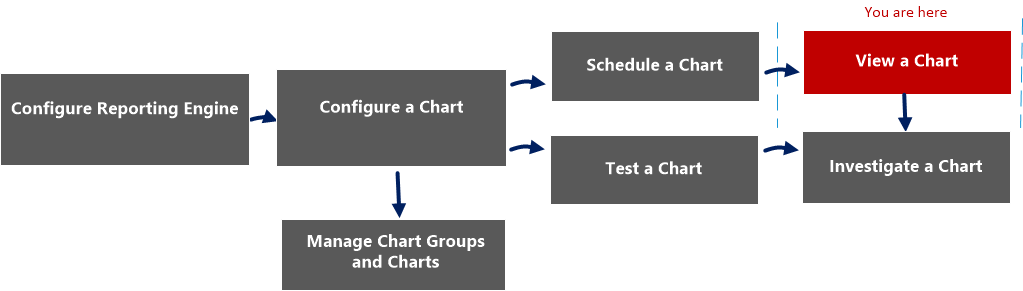
What do you want to do?
*You can complete these tasks here.
Related Topics
Quick View
The following figure is an example with the important features labeled.
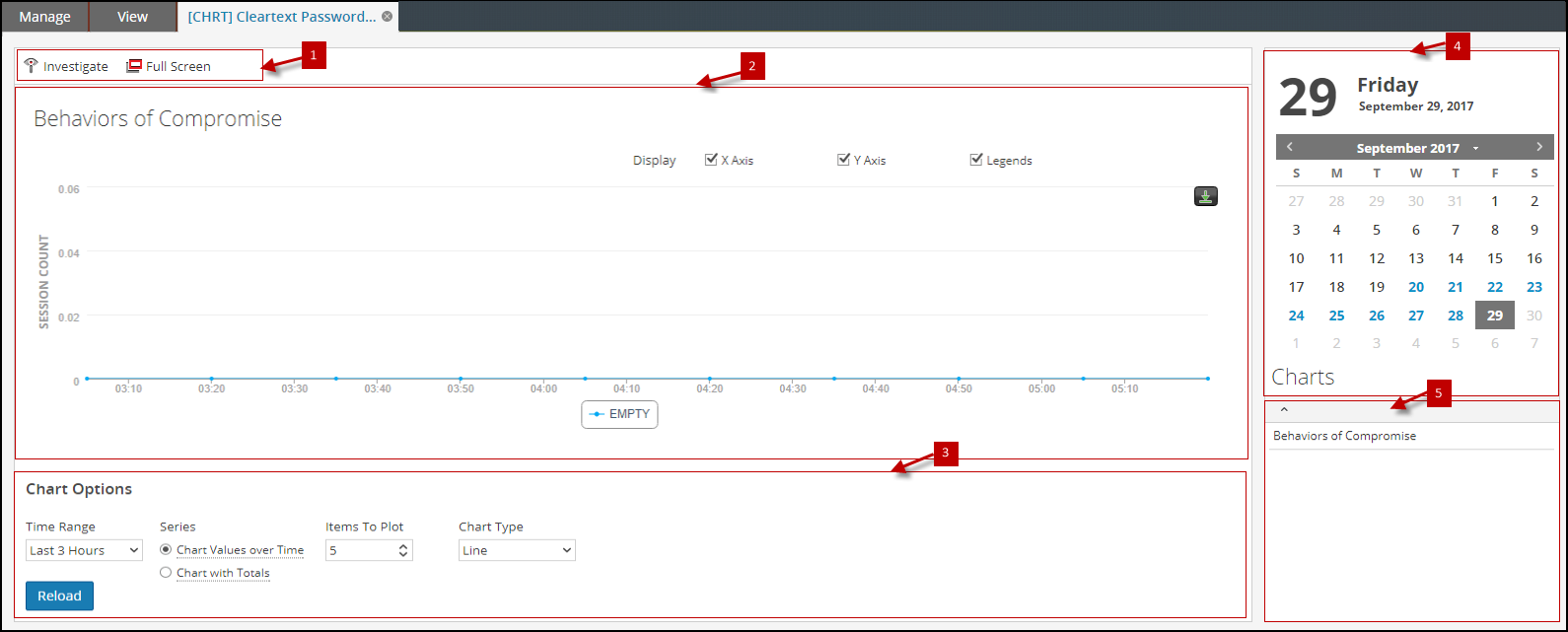
The View a Chart panel includes the following panels:
Chart Toolbar
The Chart toolbar has options that allow you to investigate, and view the chart on another screen.

The following table lists the options in the Chart toolbar.
Chart Output Panel
The Chart Output panel displays the chart with sortBy on the Y-axis, time on the X-axis and legends.
Note: You can save the chart as PDF using the icon on the Chart Output panel.
Chart Calendar Panel
The Chart Calendar panel is the default calendar with which you can filter the list of charts depending on the date you select from the Calendar, as shown in the following figure.
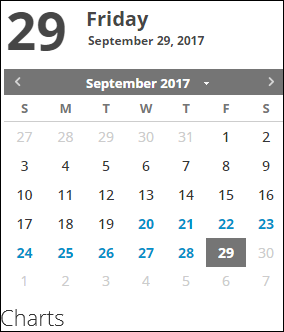
Chart Options Panel
The Chart Options panel displays the time range, series, and chart type fields to configure the chart is displayed.

The following table lists the fields in the Chart Options panel.
Chart Executed List Panel
The Chart Executed List panel displays all the executions for a particular chart for the selected date. Double-clicking on any chart execution loads the chart on the Chart Output panel. By default, the last executed chart is displayed in the Chart Output panel.