.png?width=180&height=32&name=NW%20Logo%20(2).png)
View a Group
This topic describes the steps to view the properties of Group.
To view the properties of the selected Group
- Go to
 (CONFIGURE) > Policies.
 - In the policies panel, click Content.
- Click Groups. The available groups are displayed. By default, 50 groups are displayed per page. To go to the next page, click
 . To go to the last page, click
  .
.
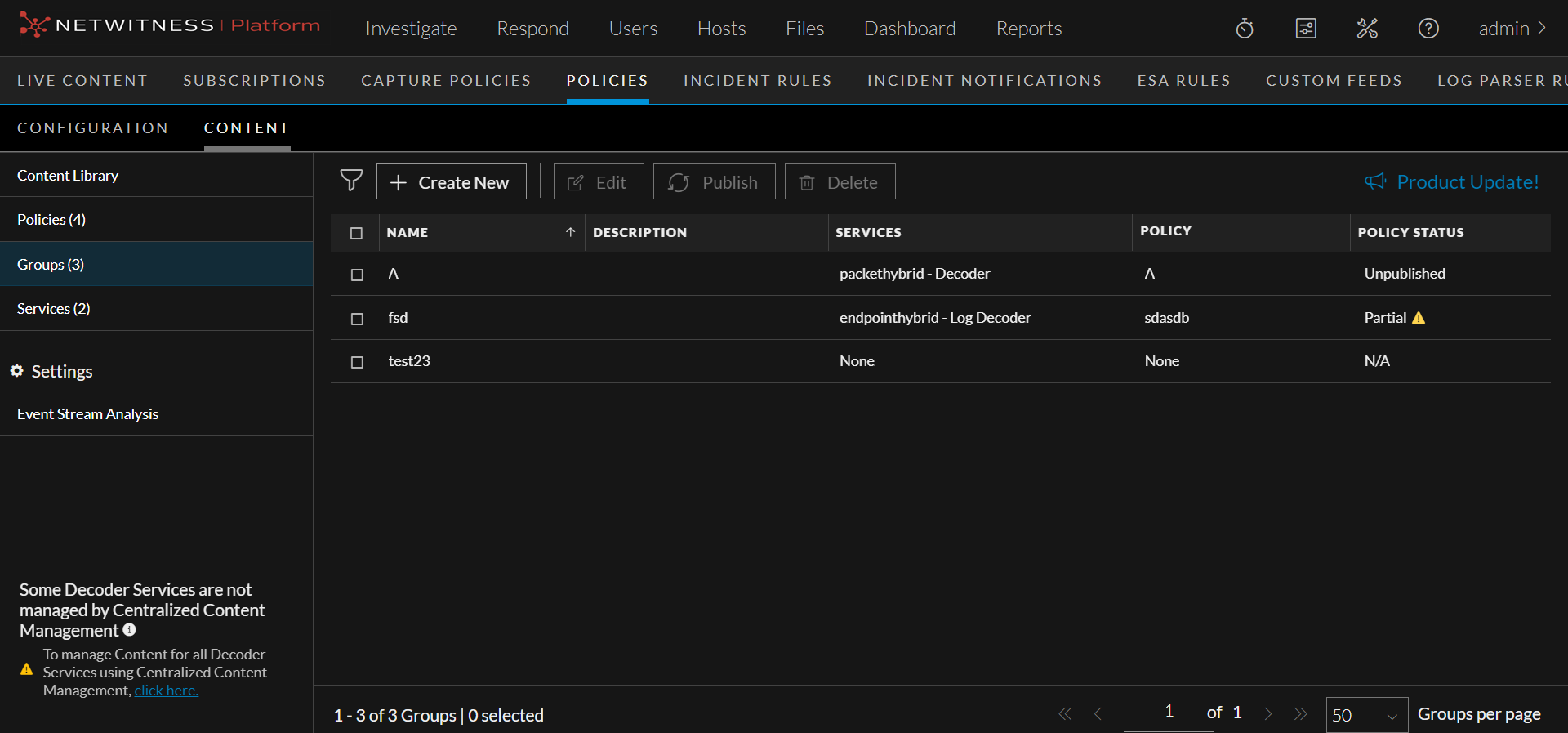
- Click a row to view details about the selected group in the right panel.
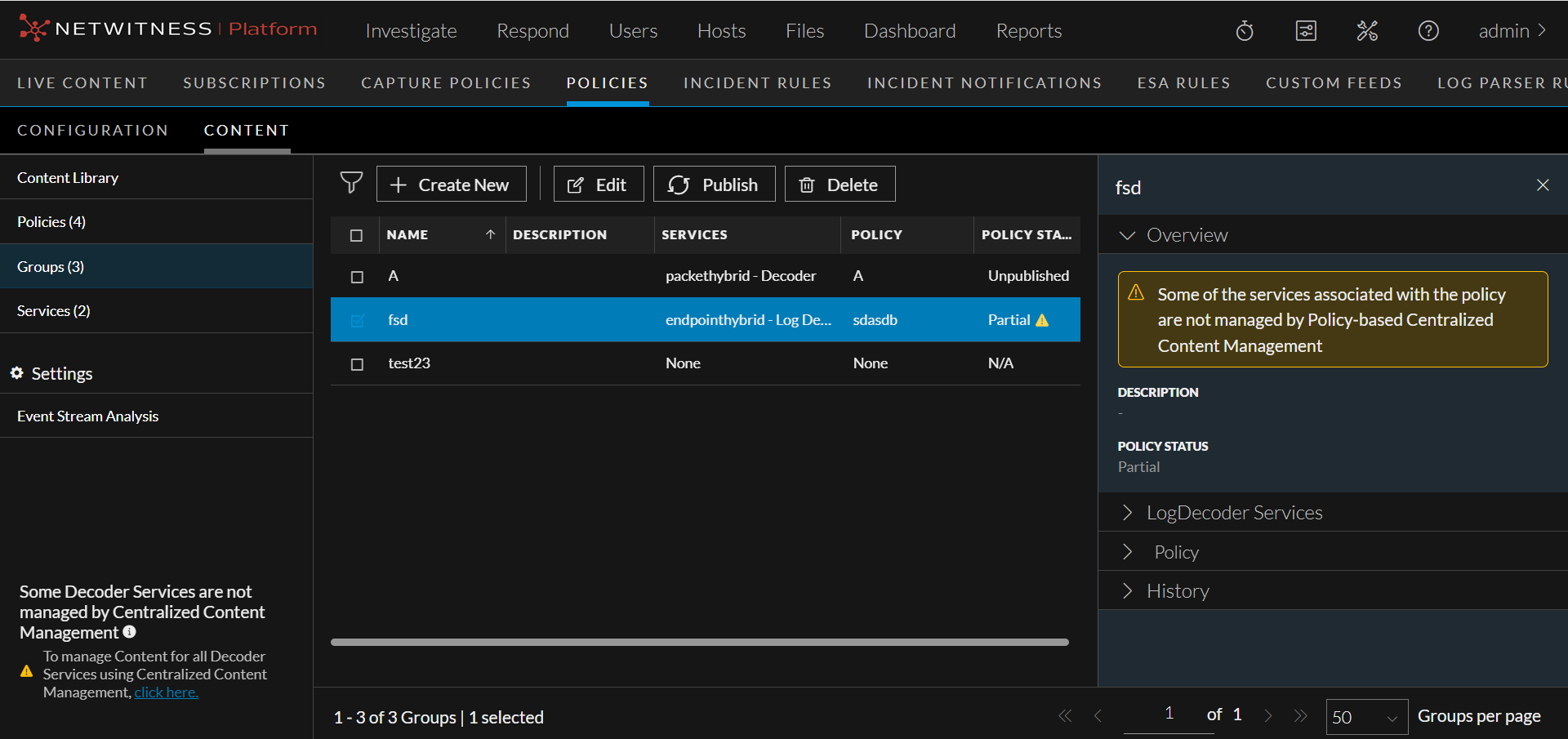
Caution:- An icon  is displayed in the Groups View indicating policy status unpublished, if any services are part of the selected group and do not have any deployment then some of the associated correlation services require ESA deployments.
- An icon  is displayed in the Groups View, indicating that the policy status failed for multiple reasons. Please see the groups overview section in the UI to find the failure reason and the workaround.