Skip to content
  • There are no suggestions because the search field is empty.

View All Charts Panel

View All Charts View

In the View All Charts view, you can display, print, save and email charts.

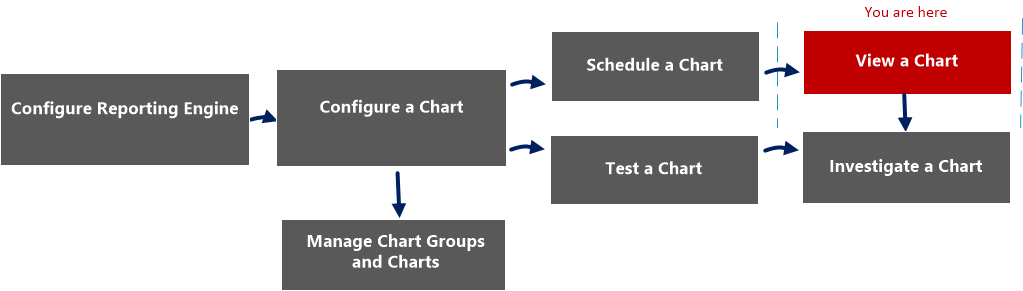
Workflow
netwitness_chart_view_workflow.png

What do you want to do?

  • Role:

    Administrator/ Analyst

  • I want to ...:

    Configure Reporting Engine

  • Documentation:

    For more information, see "Configure Reporting Engine" in the Reporting Engine Configuration Guide.


  • Role: Administrator/ Analyst
  • I want to ...: Configure a chart
  • Documentation: Configure a Chart

  • Role:

    Administrator/ Analyst

  • I want to ...:

    Schedule a chart

  • Documentation:

    Schedule a Chart


  • Role:

    Administrator/ Analyst

  • I want to ...:

    View a chart*

  • Documentation:

    View a Chart


  • Role: Administrator/ Analyst
  • I want to ...: Test a chart
  • Documentation: Test a Chart

  • Role: Administrator/ Analyst
  • I want to ...: Investigate a chart
  • Documentation: Investigate a Chart


*You can complete these tasks here.

Related Topics

Quick View
122_view_all_charts_panel_callout_1222.png

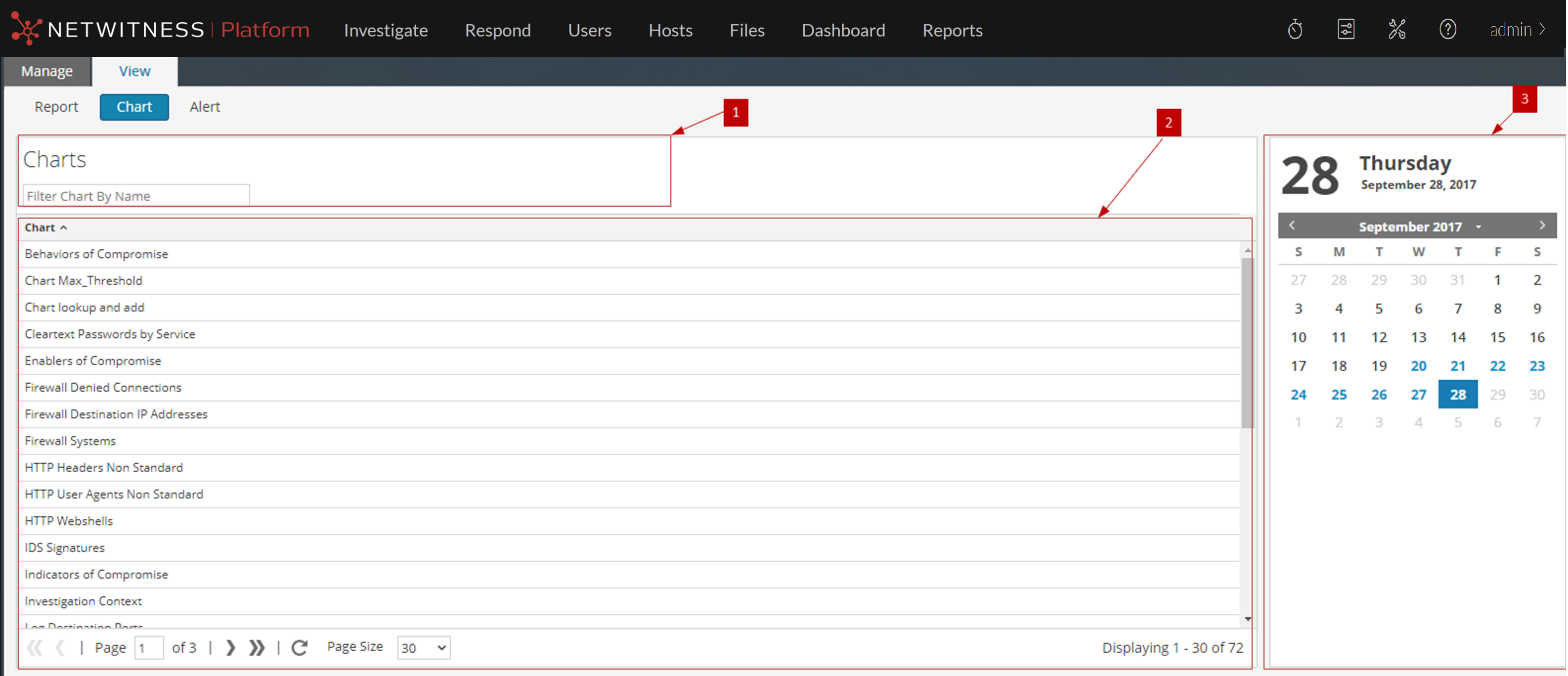
The View All Charts panel includes the following panels.

  • Column 1: 1
  • Column 2: Charts Toolbar

  • Column 1: 2
  • Column 2: Charts Output panel

  • Column 1: 3
  • Column 2:

    Charts Calendar panel


Charts Toolbar

The following table lists the options in the View All Charts toolbar:

  • Operation: netwitness_filter_chart.png
  • Description: Searches schedules based on the chart name for a selected calendar day.

Charts Output Panel

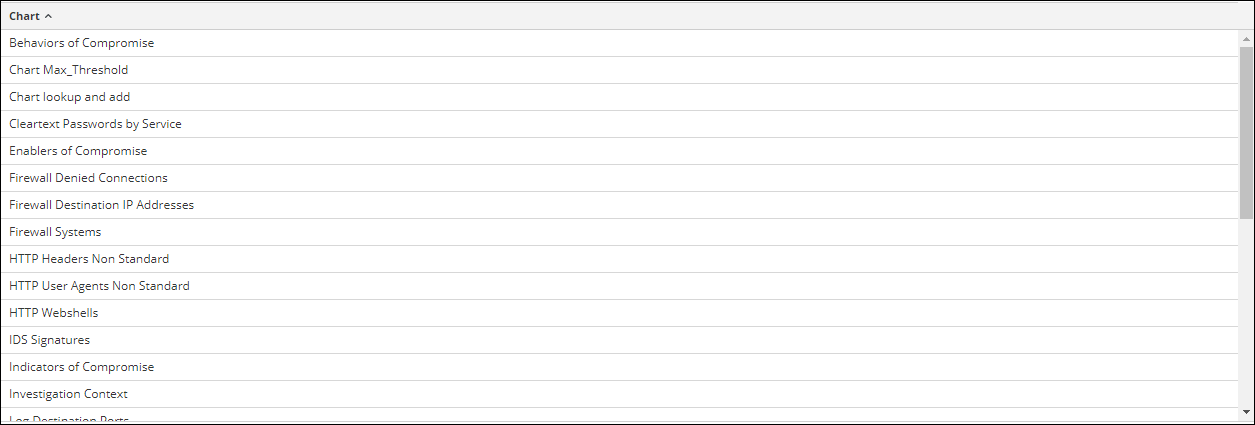
The Charts Output panel displays the chart with the chart schedule name.
netwitness_charts_output_panel.png

  • Feature: Chart
  • Description: This field displays all the successfully executed charts.

Charts Calendar Panel

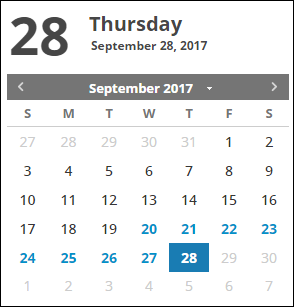
The Charts Calendar panel is used to select a date from the Calendar. Based on the date you select, the list of successfully run charts for the date is displayed.
netwitness_charts_calendar_panel.png