.png?width=180&height=32&name=NW%20Logo%20(2).png)
The NetWitness 12.3.0.0 Release Notes describe new features, enhancements, security fixes, upgrade paths, fixed issues, known issues, end-of-life functionality, build numbers, and self-help resources.
Enhancements
The following sections are a complete list and description of enhancements to specific capabilities:
- Policy-based Centralized Content Management (CCM)
- Investigate
- Context Hub
- Insight
- SASE Capability
- Springboard
- Respond
- Endpoint Enhancements
- Concentrator, Decoder, and Log Decoder Services
- Log Integrations
- Security
- Platform
To locate the documents that are referred to in this section, see https://community.netwitness.com/t5/netwitness-platform-online/netwitness-platform-all-documents/ta-p/676246.
The Product Documentation section has links to the documentation for this release.
Policy-based Centralized Content Management (CCM)
The following enhancements are made for Policy-based Centralized Content Management in 12.3.0.0 version:
Addition of Services Tab in Content Panel
NetWitness has introduced the Services tab to view and manage the 12.3 and above services. The dedicated Services List page lists all Decoder and Log Decoder services available in the 12.3+ version. From this page, you can initiate migration, view the content of each service after migration, and conveniently enable or disable CCM for individual services.
-
To go to Services tab, click
 (CONFIGURE) > Policies > Content > Services.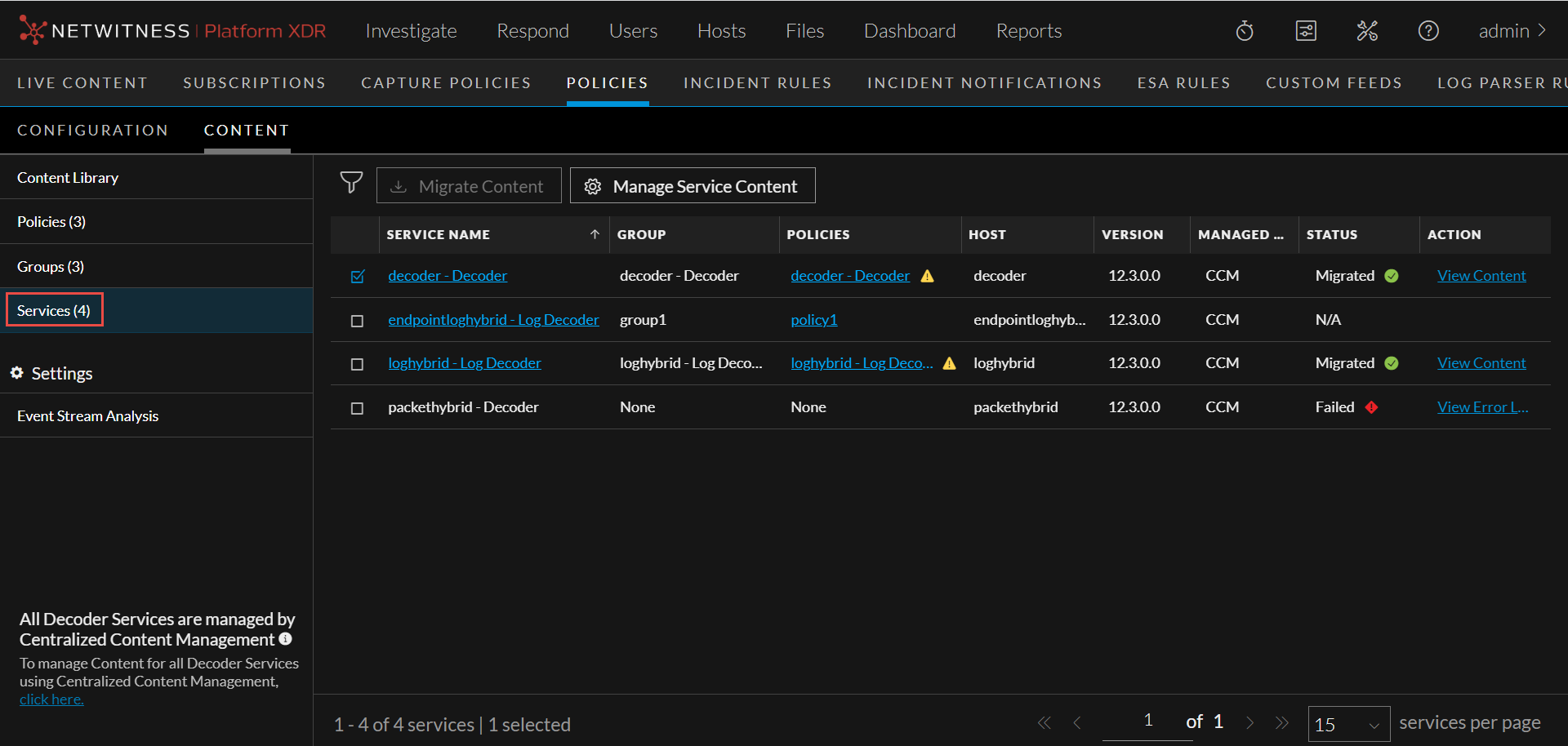
-
Once you click the Services tab:
-
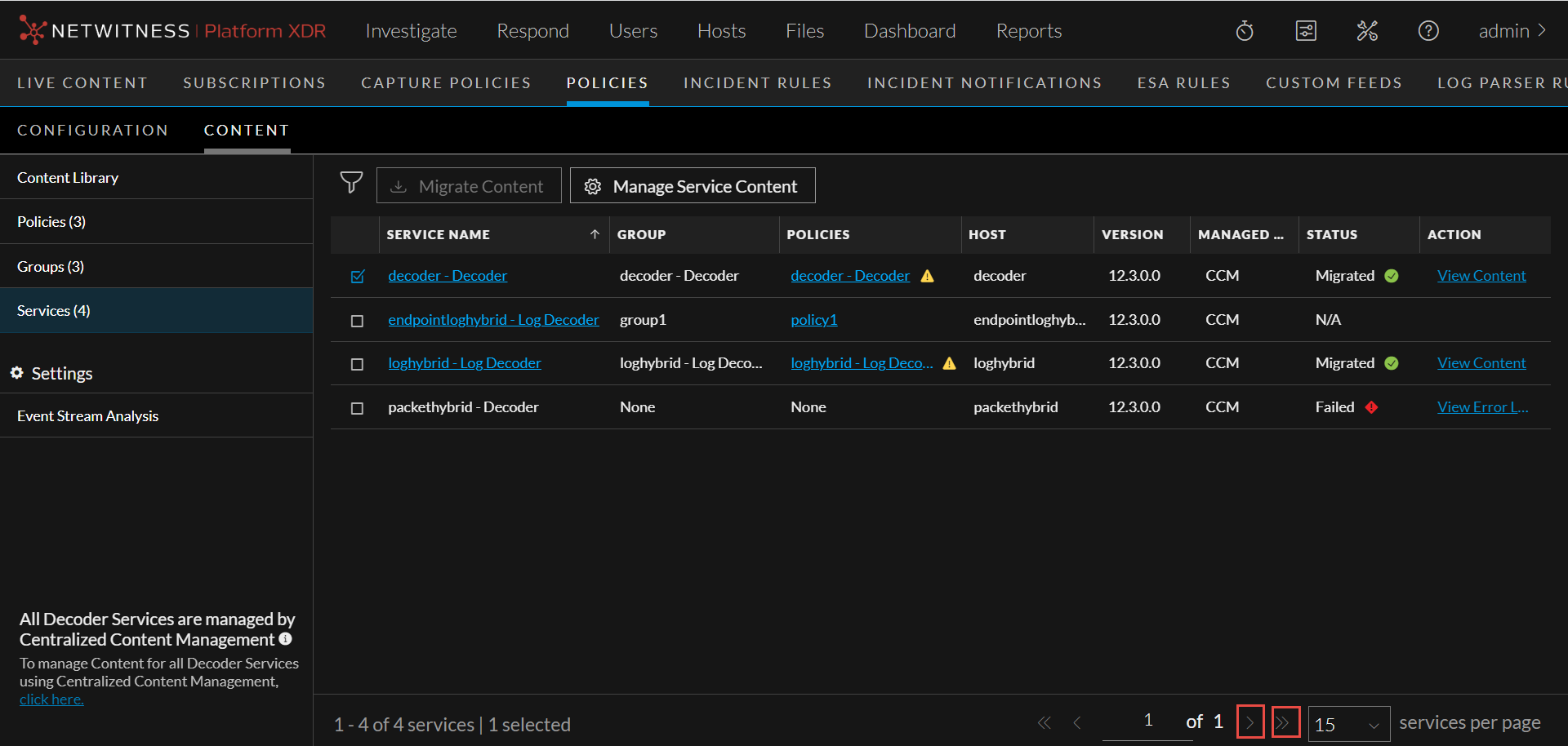
You can view the list of services. By default, 15 services are displayed per page. you can go to the next page by clicking
 . You can also directly go to the last page by clicking
  .
.
-
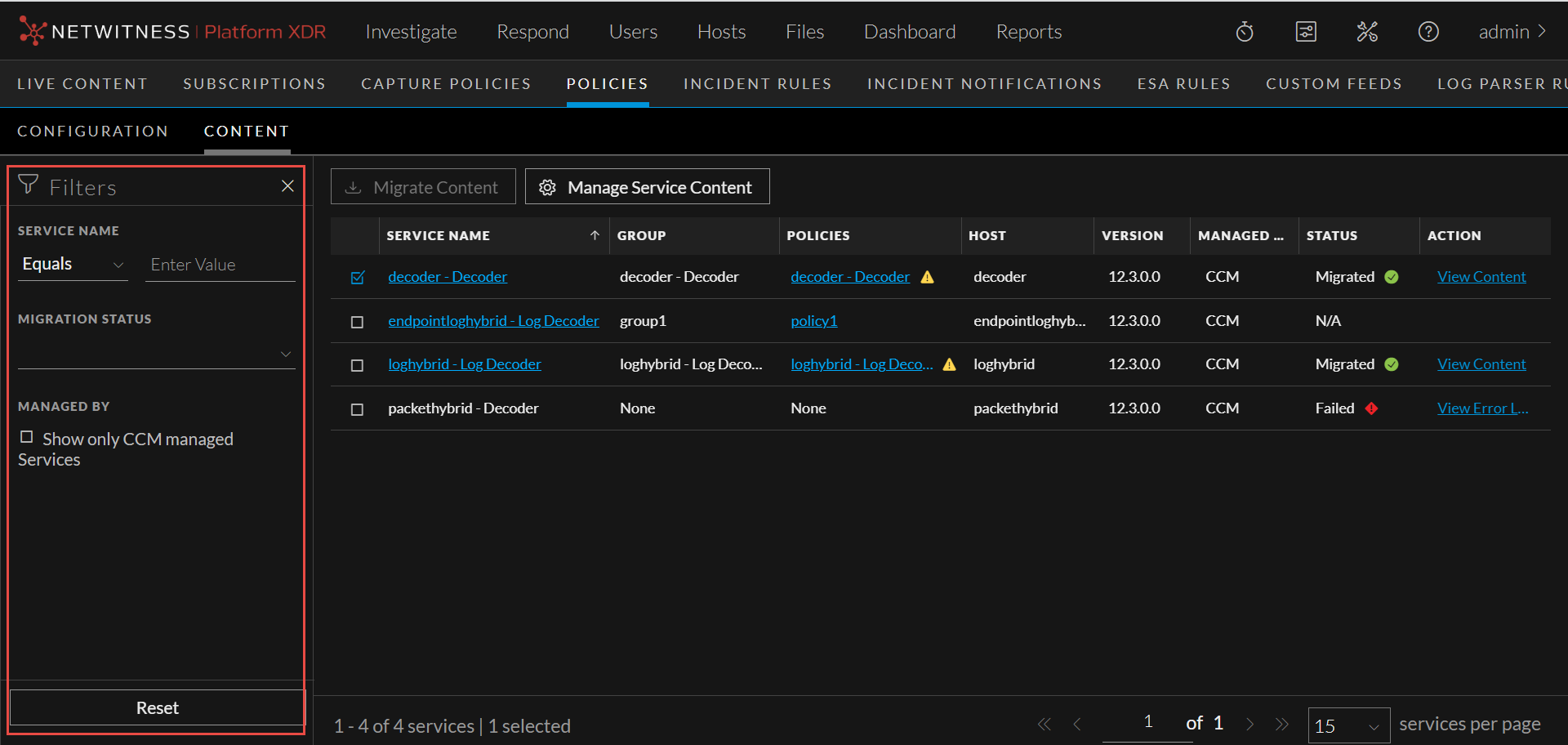
You can filter the services based on various parameters by clicking
 .
.
-
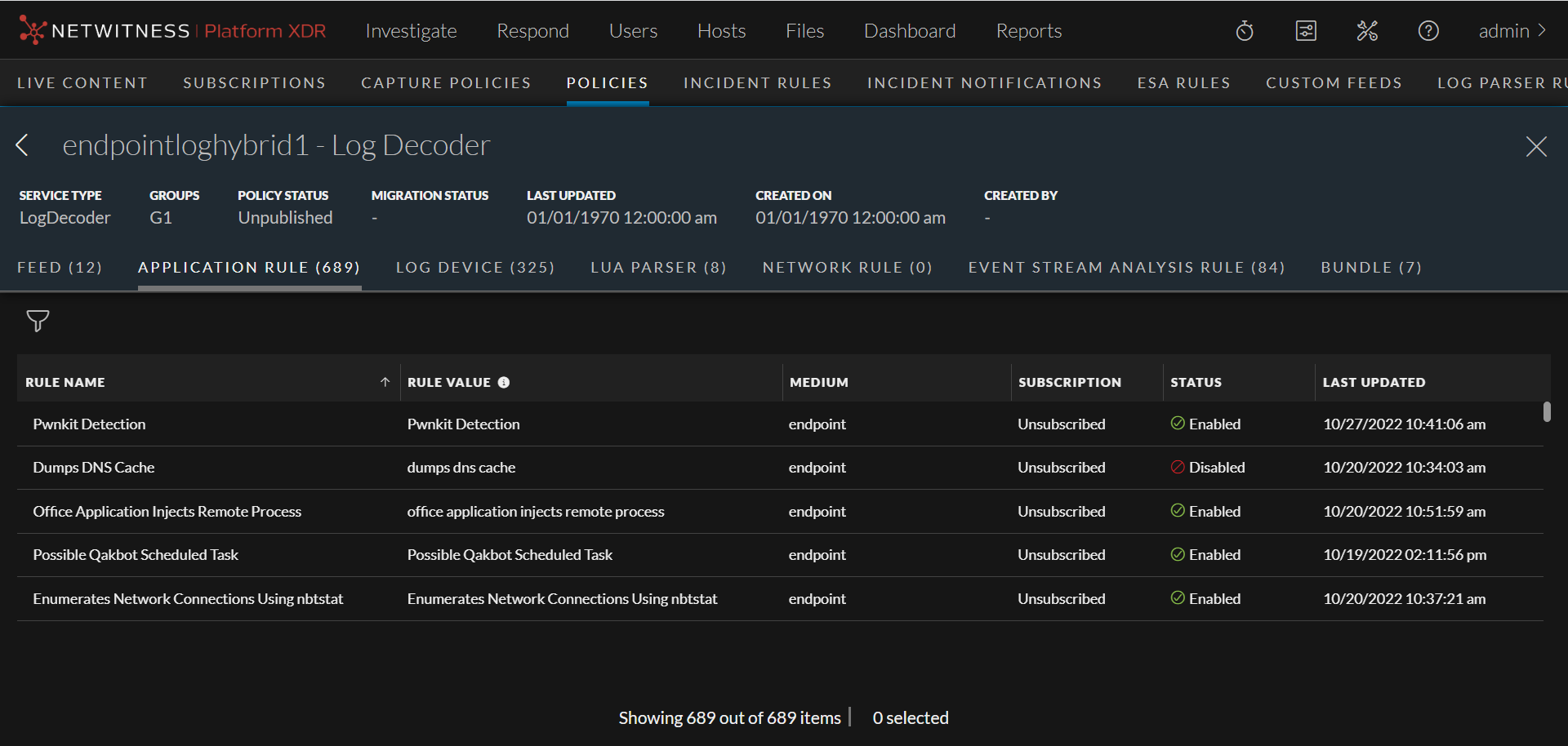
You can click a service to view the details of the service.
-
You can automatically migrate content from selected services to CCM Content Library. This feature simplifies the process and saves time by eliminating the need for manual content migration. To migrated content, select the service(s) and click Migrate Content.
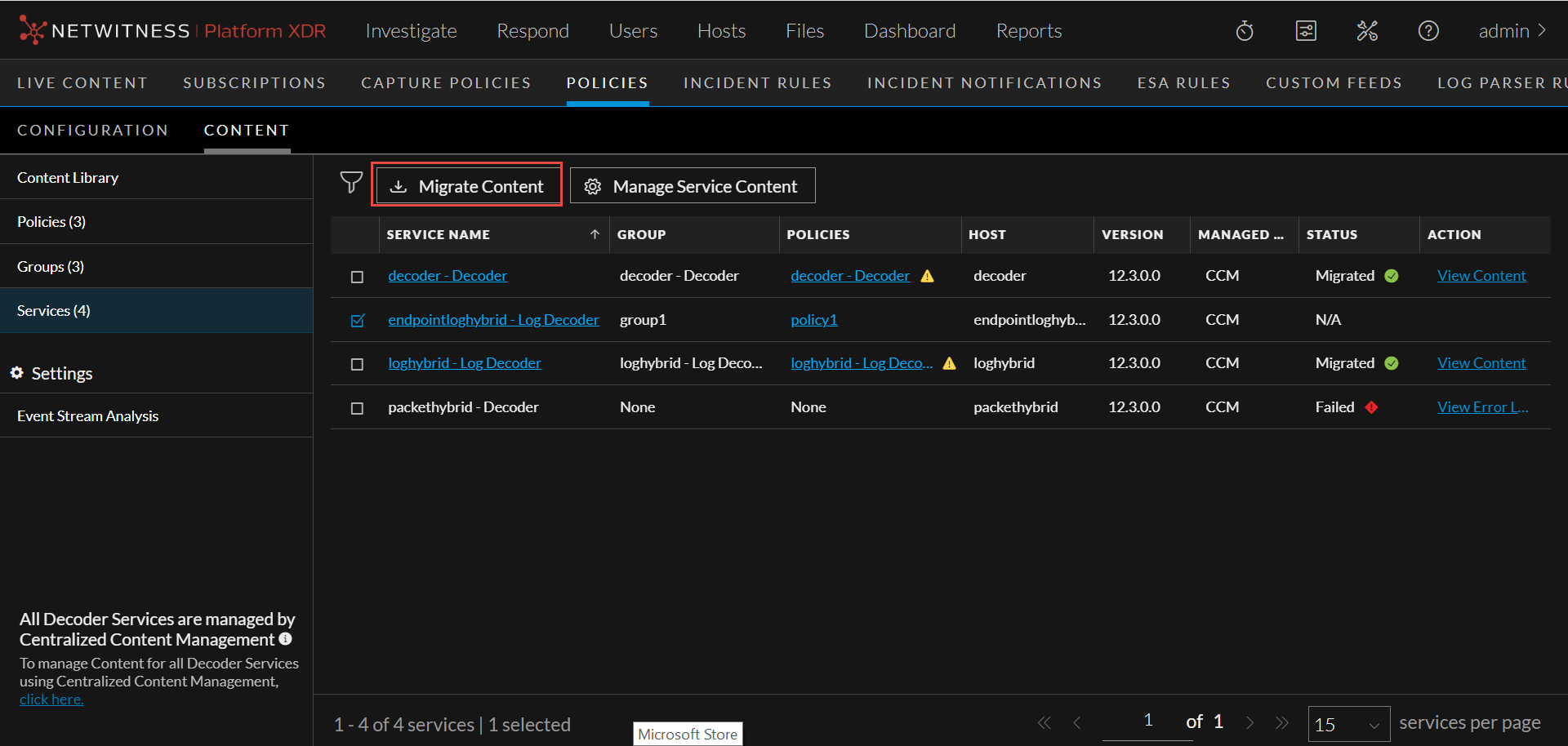
In this UI, you can migrate Application Rules, Network Rules, LUA Parser, Live Feeds and Live Log Devices. You can continue to manage Custom Feeds and Log Parser Rules from Legacy Custom Feeds UI and Log Parser Rules UI.
-
During the migration process, you can create default policy and group for each service selected for migration. Once the migration process is complete, the policy and group will be listed under Policy Listing page and Group Listing page.
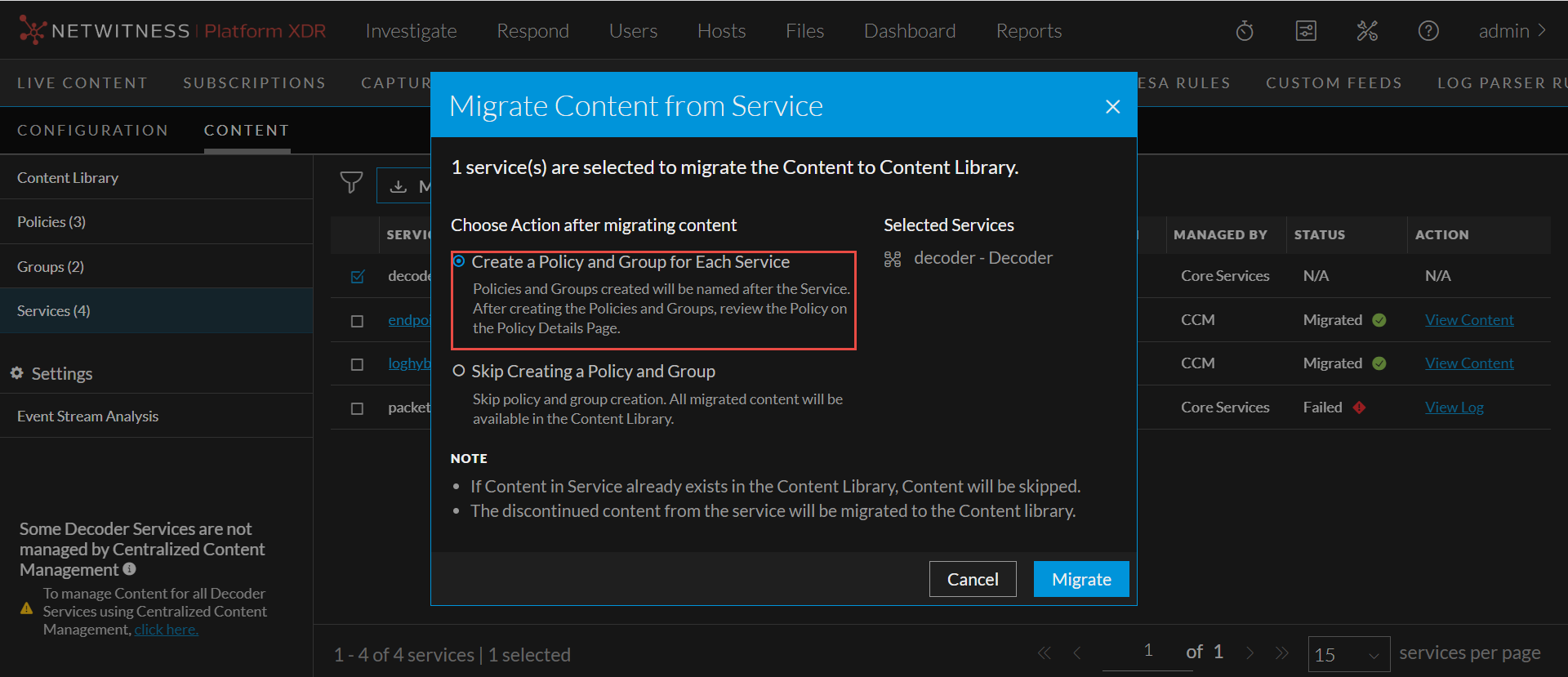
The policy and group which is created for the service will be in 'Unpublished' state and it can be published only after it is reviewed. In the Policy Listing page, the Publish button for such a policy will be disabled. The policy can be published only after reviewing it either from Policy Details page or Edit Policy Page.
While publishing a policy, the content deployed from the policy is merged with the content present in the service. This ensures that duplicate content is overwritten, and unique content present in the service is retained, avoiding unnecessary redundancy and data loss.
-
If the migration process is successful and the policy is created successfully for the selected service, you can view the details of the policy. To view the policy details, click policy name under the Policies column in Services List page.
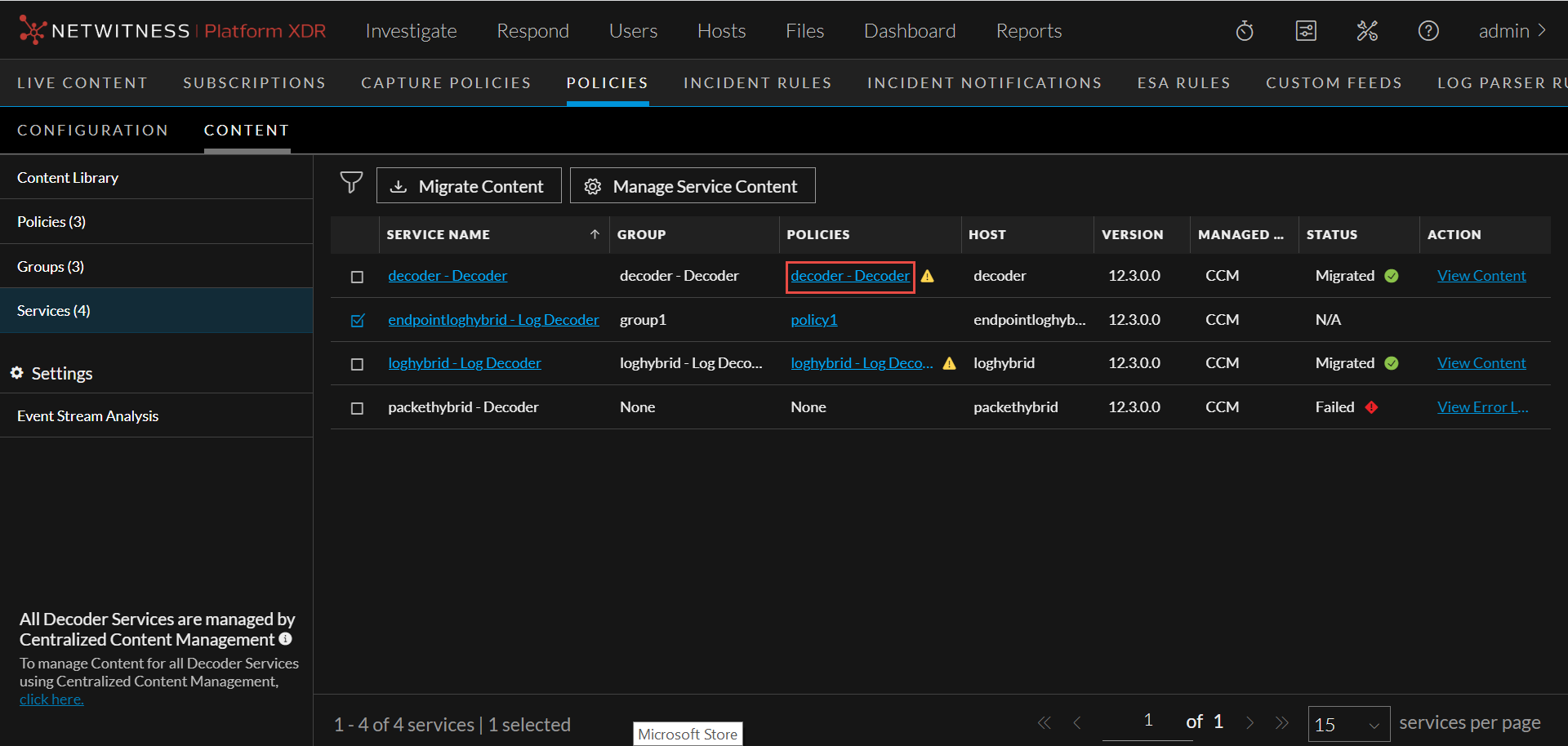
-
If the migration process is successful, you can view the details of the migrated content. To view the migrated content details, click View Content hyperlink under the Action column in Services List page.
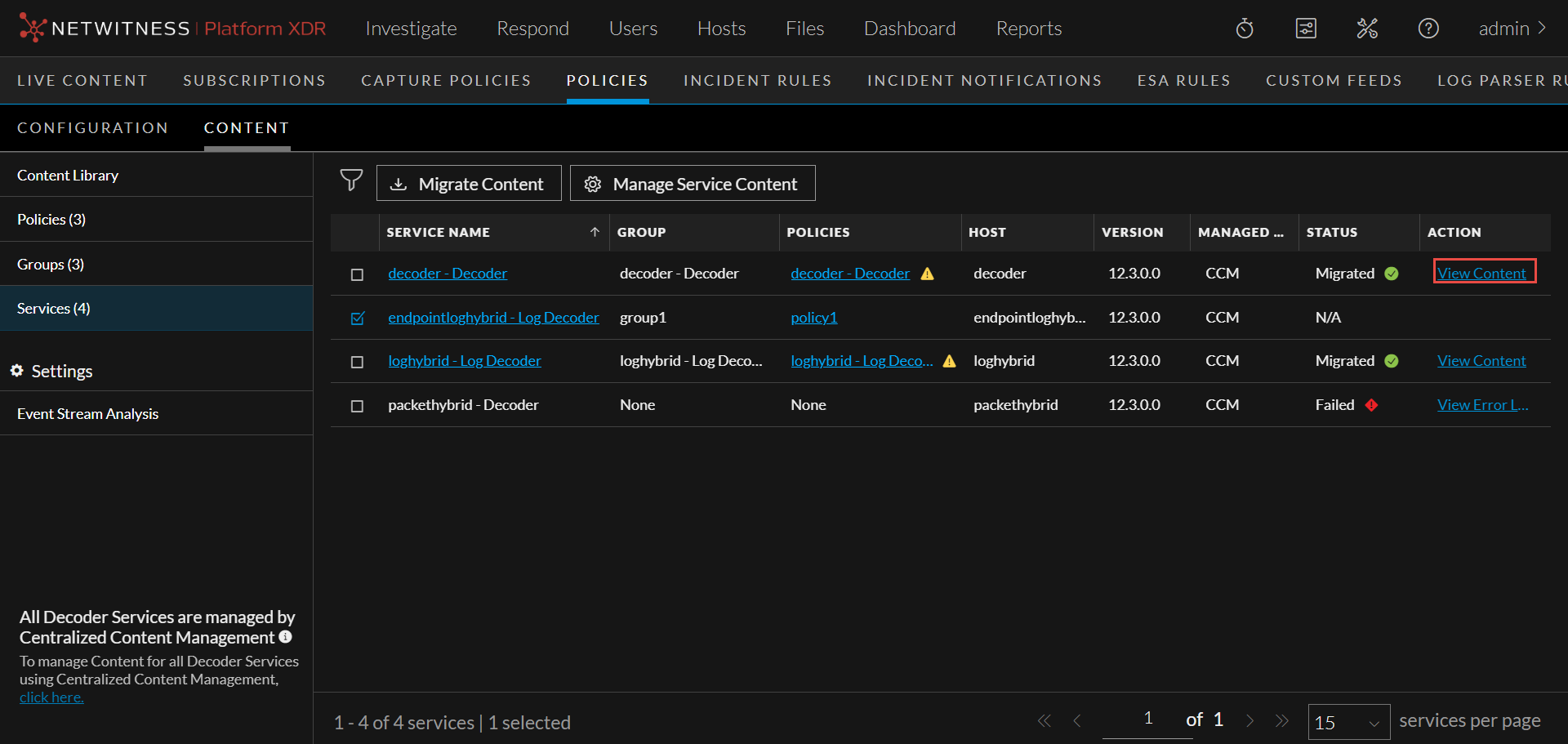
-
You can search the migrated content based on various parameters.
- For Application Rule and Network Rule, the search is based on Rule Name and Rule Value.
- For Feeds, Log Device and LUA Parser, the search is based on the Name.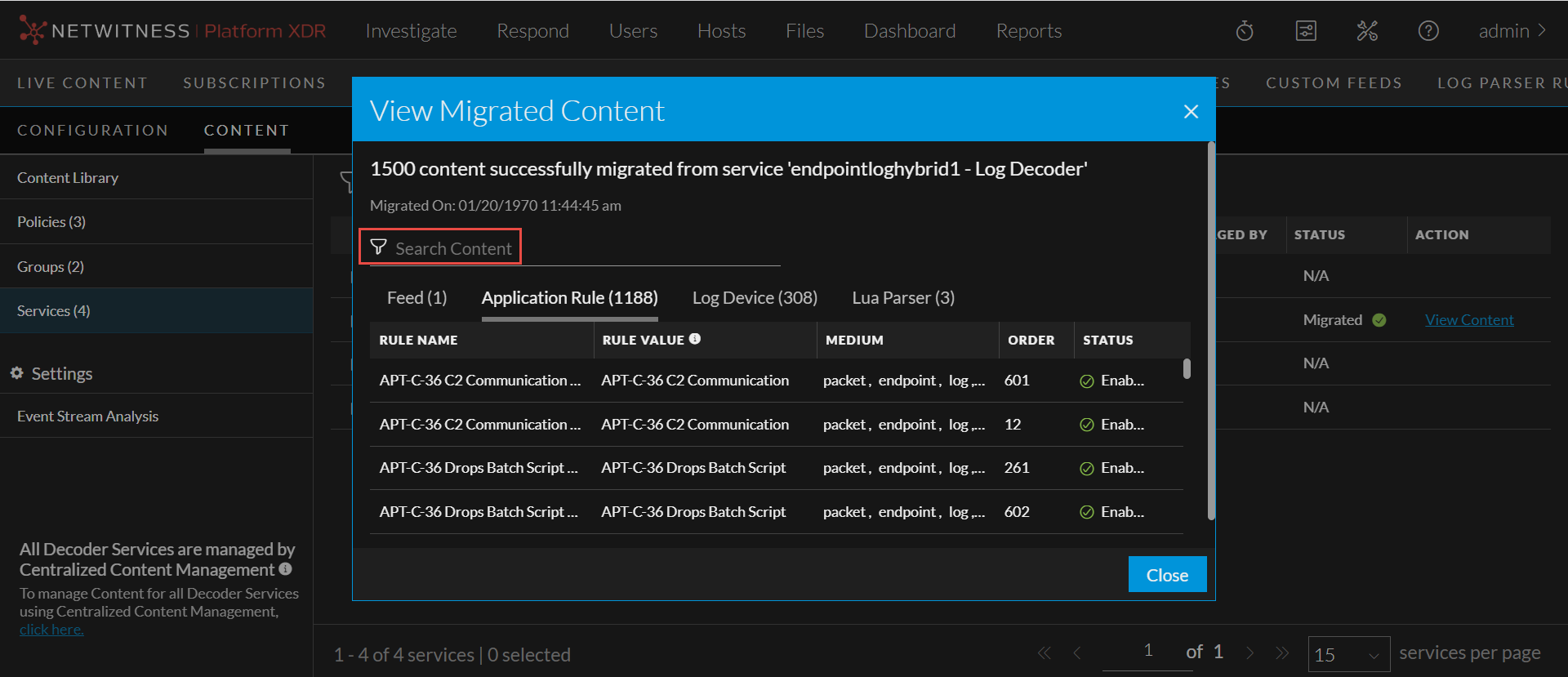
-
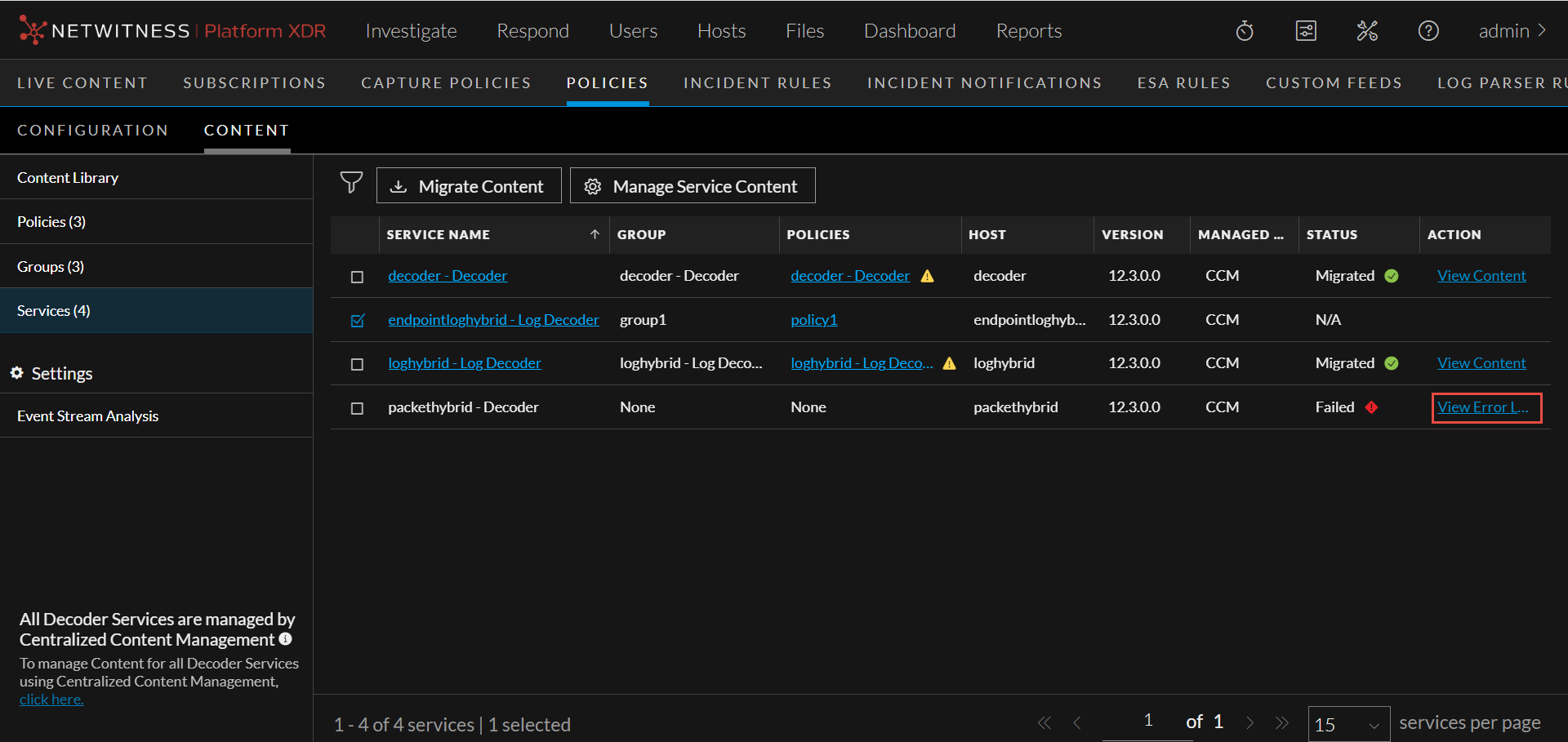
If the migration has failed due to some reason, then you can view the logs. To view the logs, click View Error Log hyperlink under the Action column in Services List page.
-
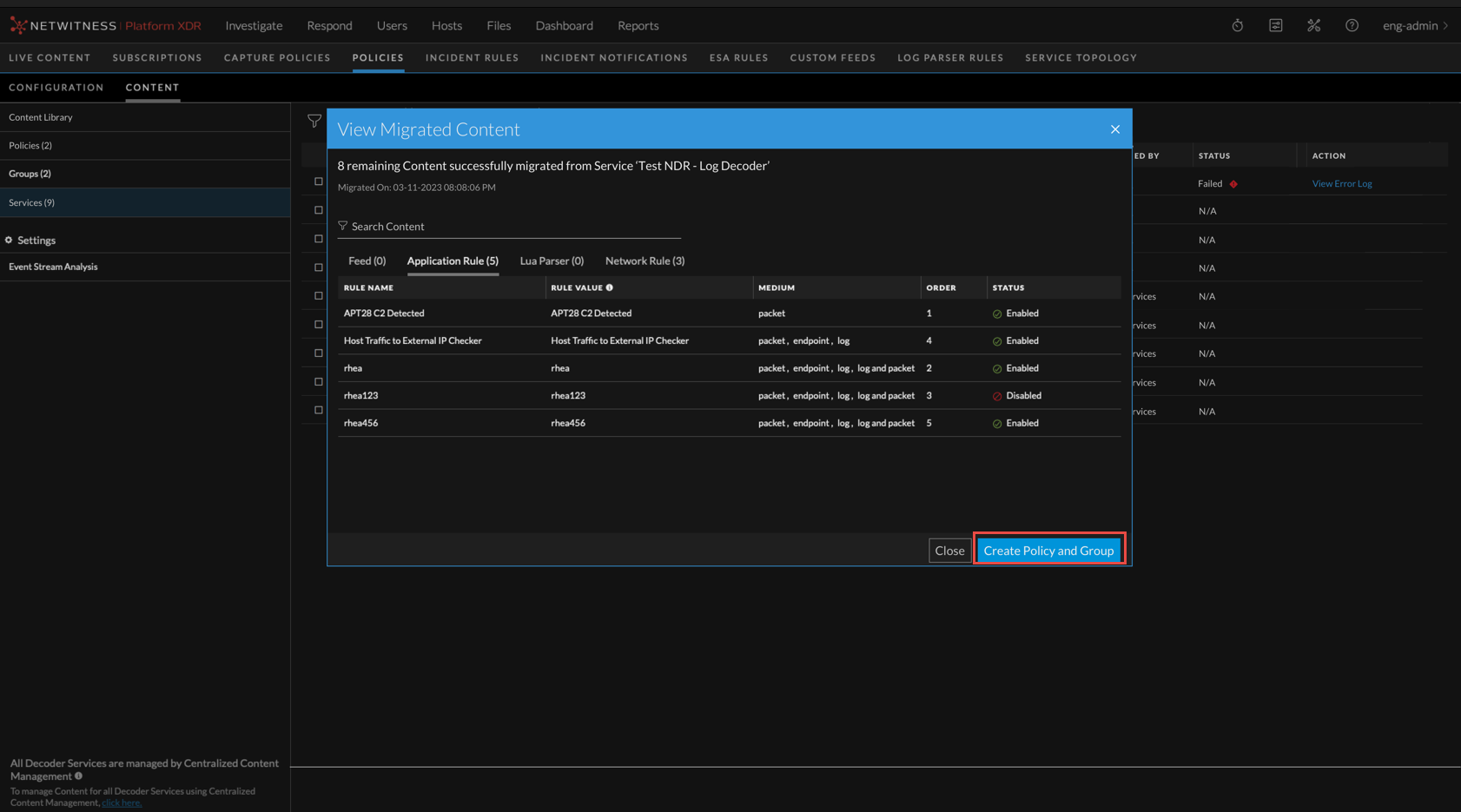
Even if only some content from a service is migrated to Content Library, NetWitness has also provided you an option to create policy and group for such a service. To create policy and group for such partially migrated service, click View Error Log -> View Migrated Content -> Create Policy and Group.
-
You can enable or disable CCM for individual Decoder Service. To enable or disable CCM, select the service and click Manage Service Content.
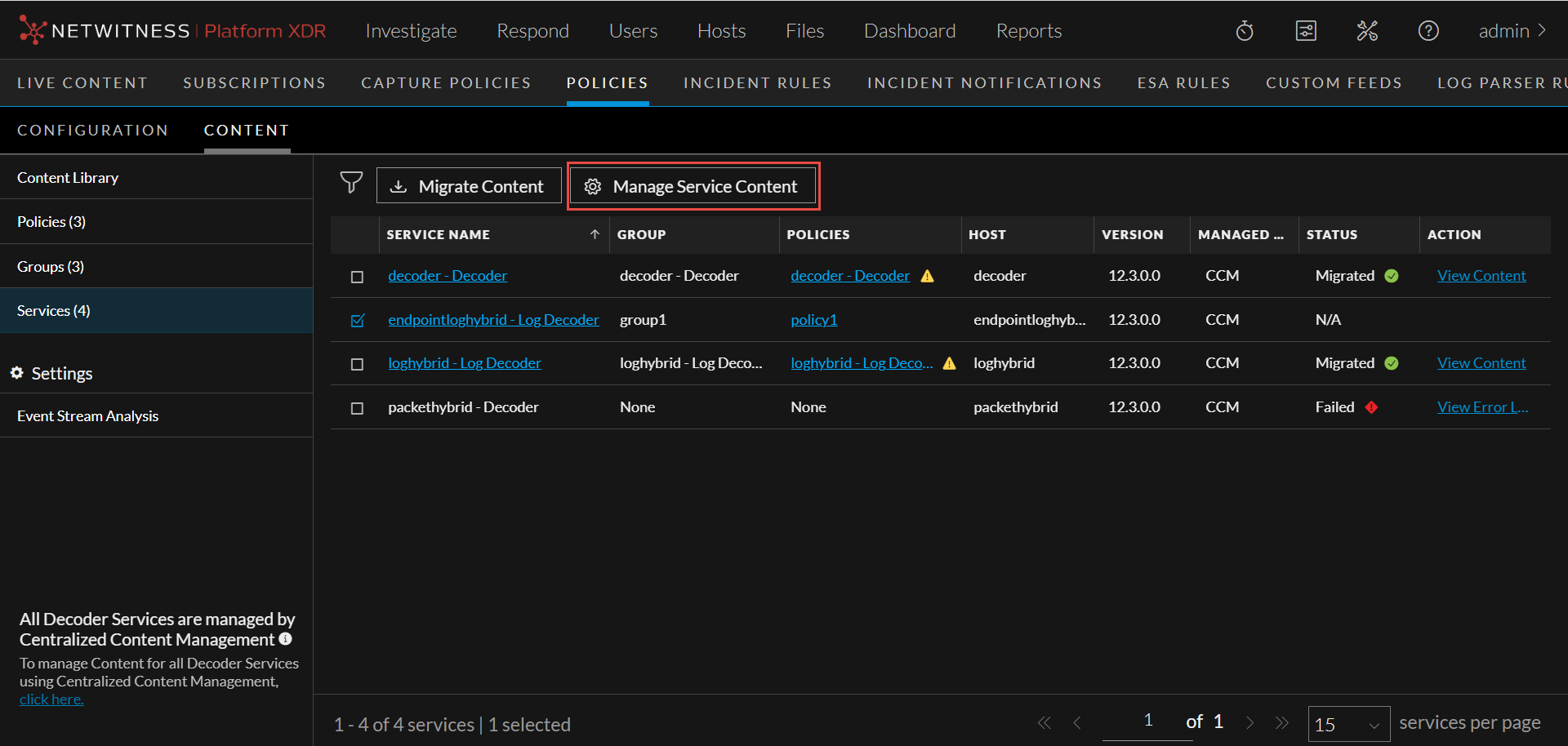
For more information, see the Manage Services in the see Policy-based Centralized Content Management Guide.
-
Application and Network Rule Enhancements
NetWitness has enhanced the Application and Network Rules to help administrators manage the rules efficiently by adding the following improvements:
-
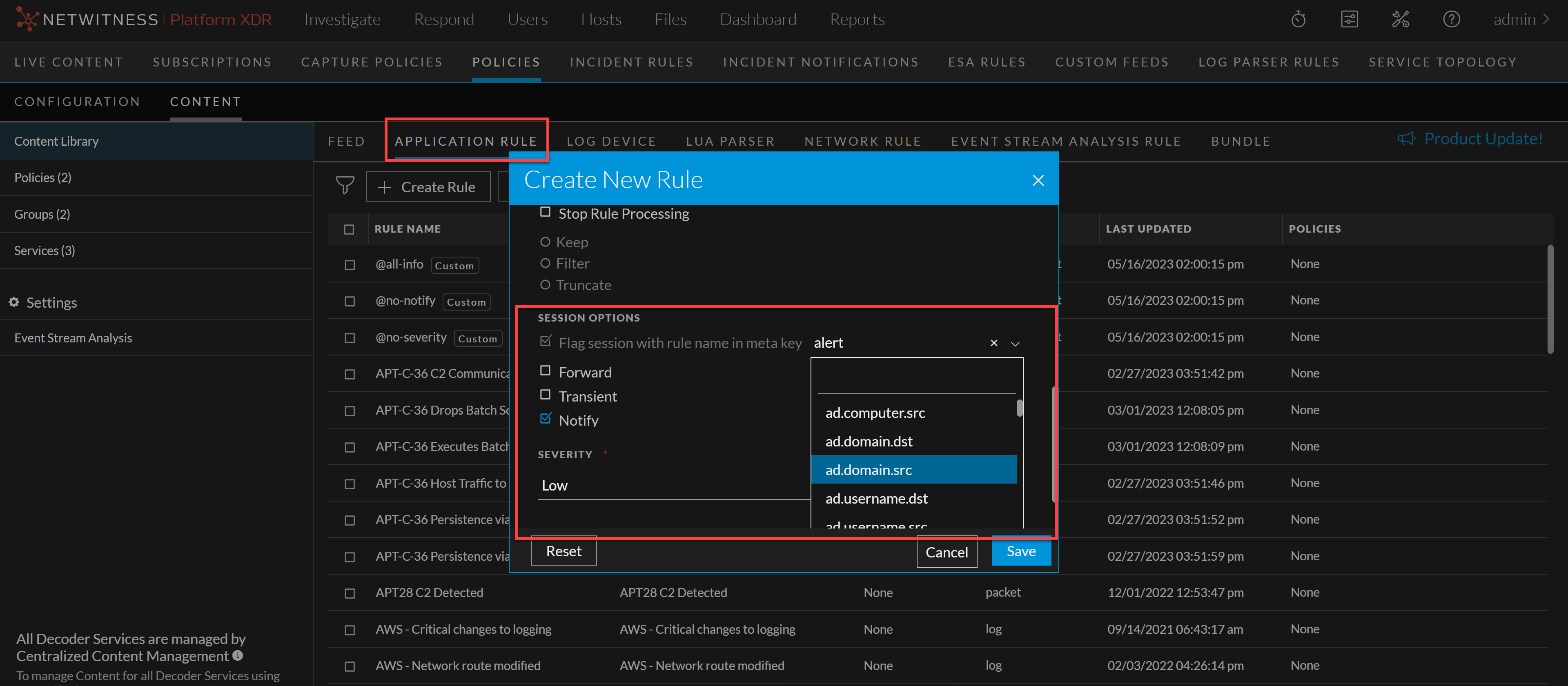
Under Session Options, the option Alert on is renamed to Flag session with rule name in meta key in the Application Rule tab. With this enhancement, administrators can now select a custom meta key from the drop-down, and a meta value corresponding to the rule name will be generated when the session metadata matches the rule.
-
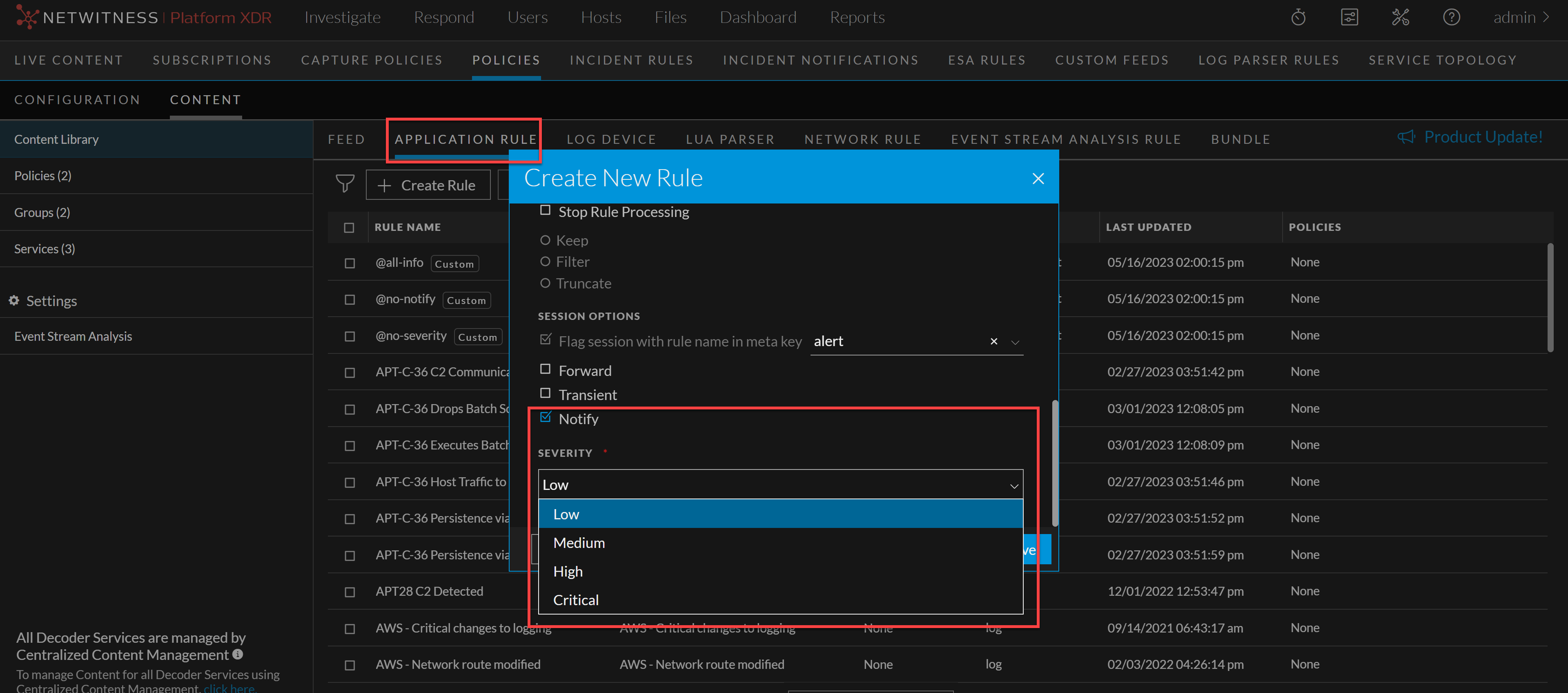
Administrators can now select the Notify option to trigger alert generation and choose the Severity level while creating or modifying the Application Rules. The severity levels are Critical, High, Medium, and Low.
-
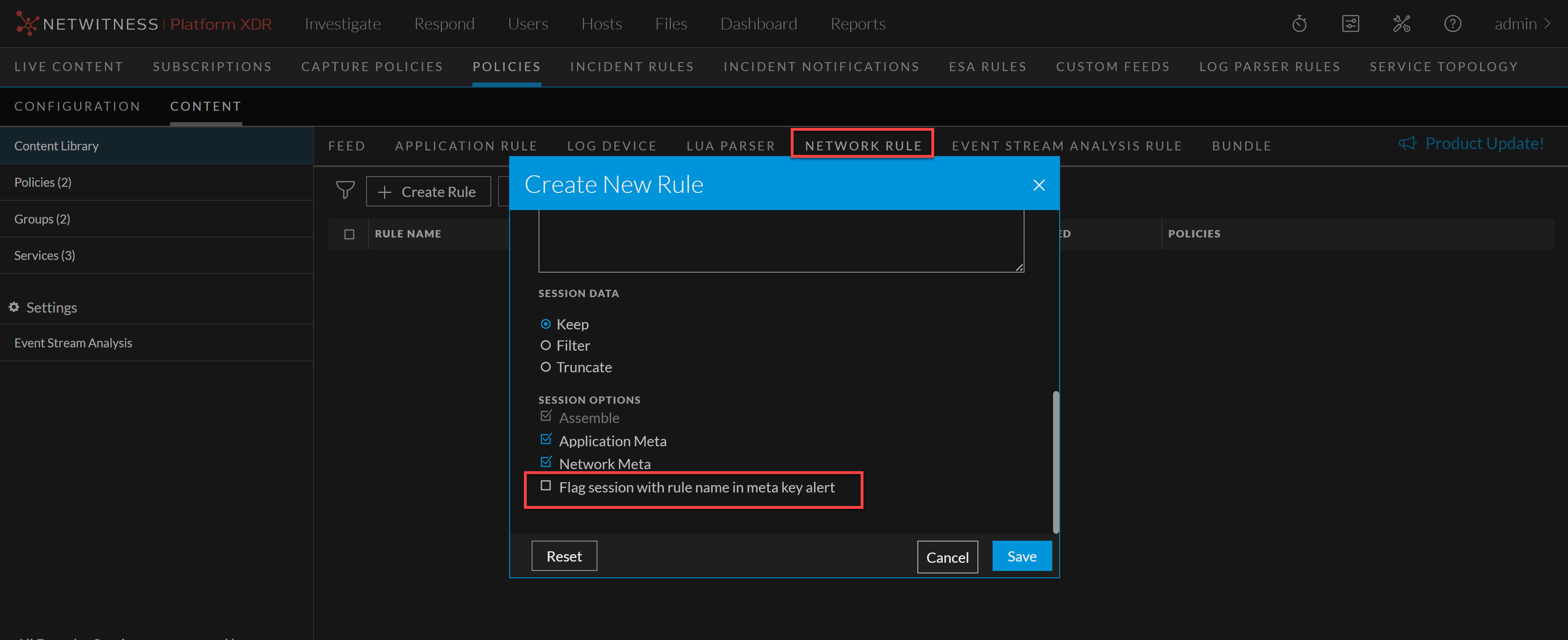
Under Session Options, the option Alert on is renamed to Flag session with rule name in meta key alert in the Network Rule tab.
For more information, see the Create an Application Rule and Create a Network Rule topics in the Policy-based Centralized Content Management Guide.
Deployment Statistics
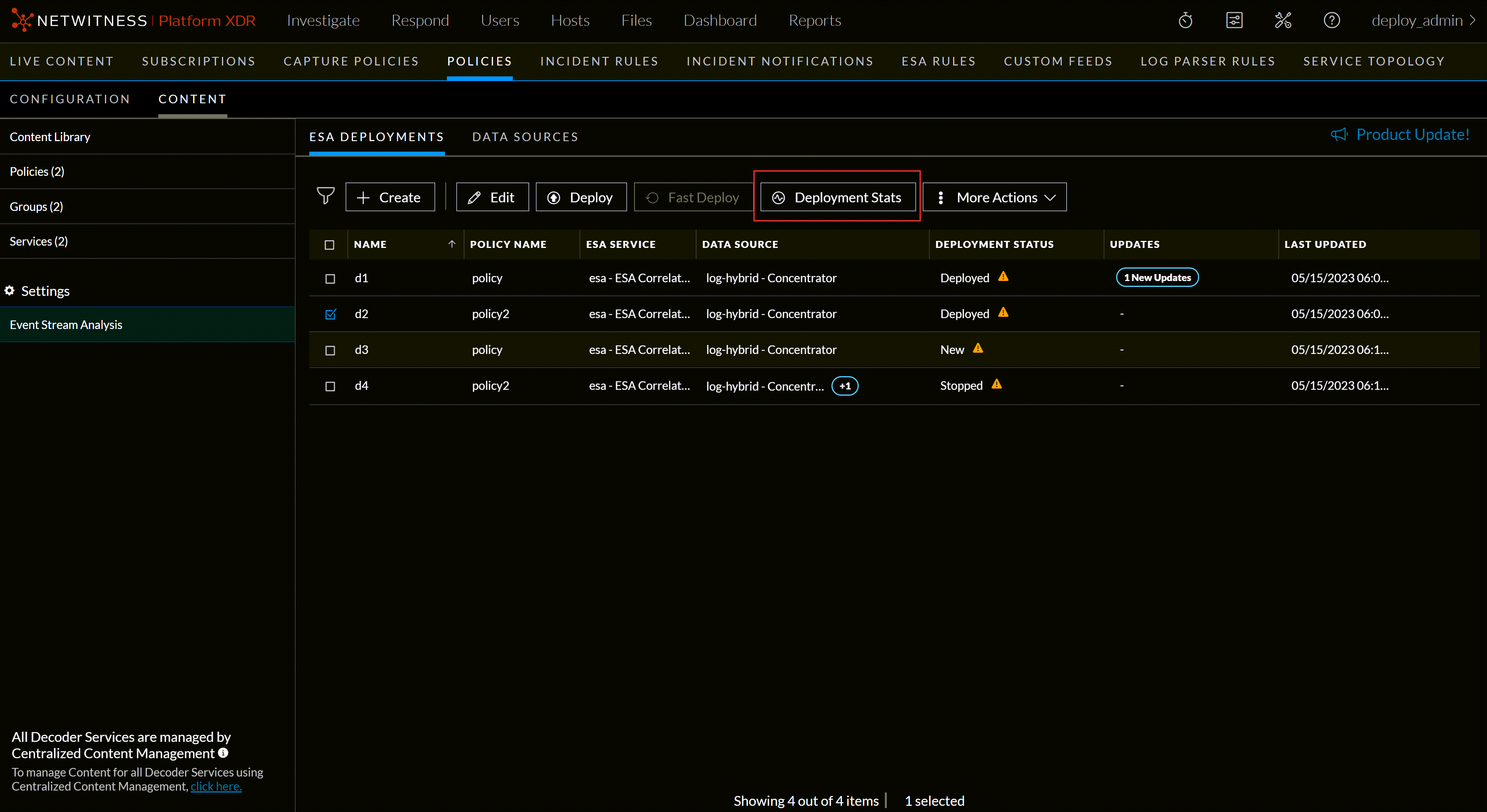
Introducing the new enhanced statistics feature Deployment Stats which provides users with comprehensive insights into the performance and status of their deployments.
The old legacy Services tab has been deprecated, making the CCM the primary location for accessing and managing statistics.
-
-
The statistics associated with engines, rules, and alerts have been moved to the new Centralized Content Management (CCM) pages as part of the ongoing migration.
-
-
Users can easily access and analyze deployment statistics, including engine, rule, and alert metrics, to monitor the effectiveness and efficiency of their configurations.
-
The ability to enable and disable rules at the runtime of the engine provides greater flexibility and control over rule execution.
-
Users can now view the timestamp indicating when the statistics were last fetched, ensuring the accuracy and relevance of the displayed information.
-
On-demand stats fetching allows users to retrieve the latest statistics anytime, keeping them updated with the system's performance.
-
In addition to the existing statistics, users can now view individual data source statistics for each engine, enabling a more granular analysis of data source performance.
Create and Edit ESA Rules from CCM (Redirection to ESA Rules Tab)
Introduced a new redirection feature, The ESA rule creation, and editing features have been seamlessly integrated into the existing CCM design, providing a consistent experience and optimizing usability.
Users can now create and edit ESA rules within the streamlined workflow making necessary modifications to rules minimizing the clicks redirecting to the ESA Rules Tab, ensuring a smoother experience.
Endpoint Rule Management
Users can now enable or disable endpoint rules per deployment, allowing them to tailor rule execution to specific deployment requirements.
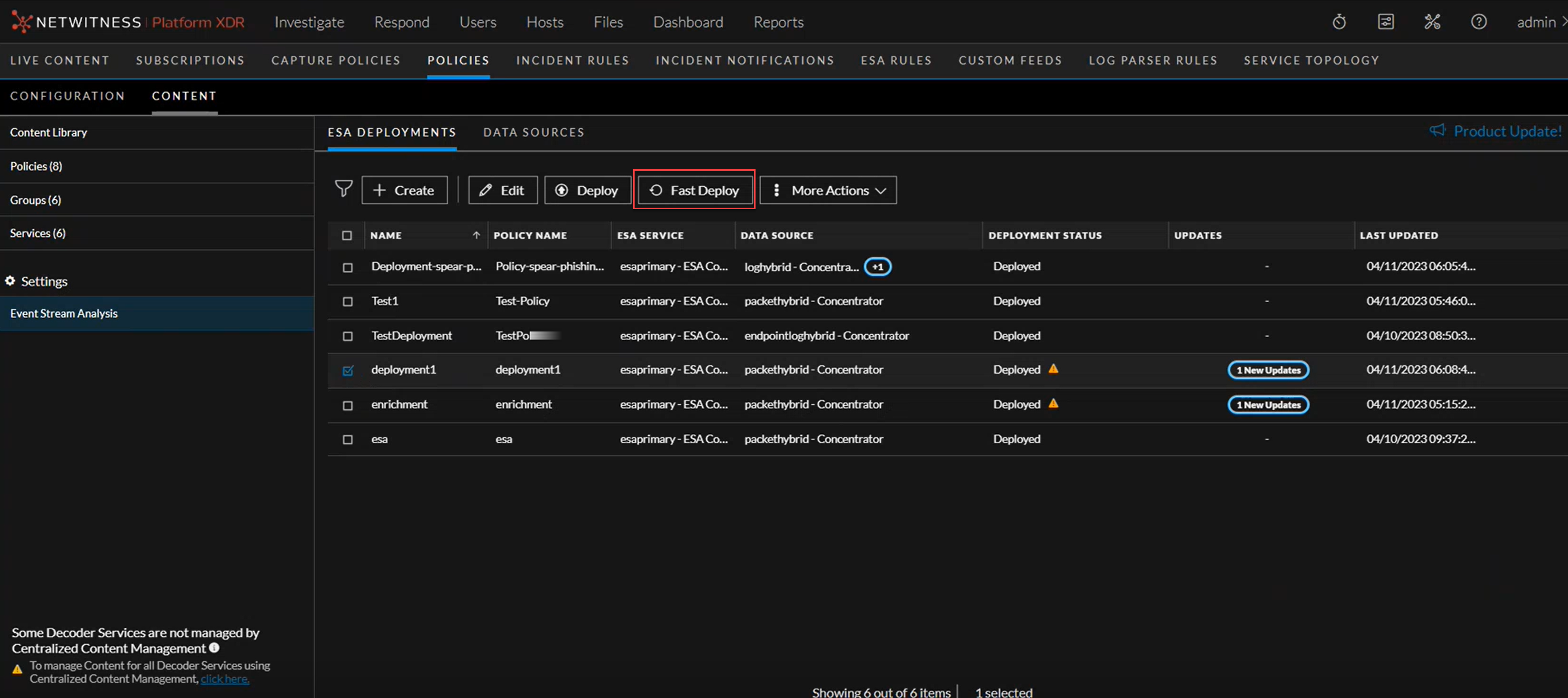
Fast Deployment Support
Fast Deploy is supported, which allows users to expedite the deployment process for compatible configurations, saving time and effort.
Deployment Updates, Indicators and Notifications
-
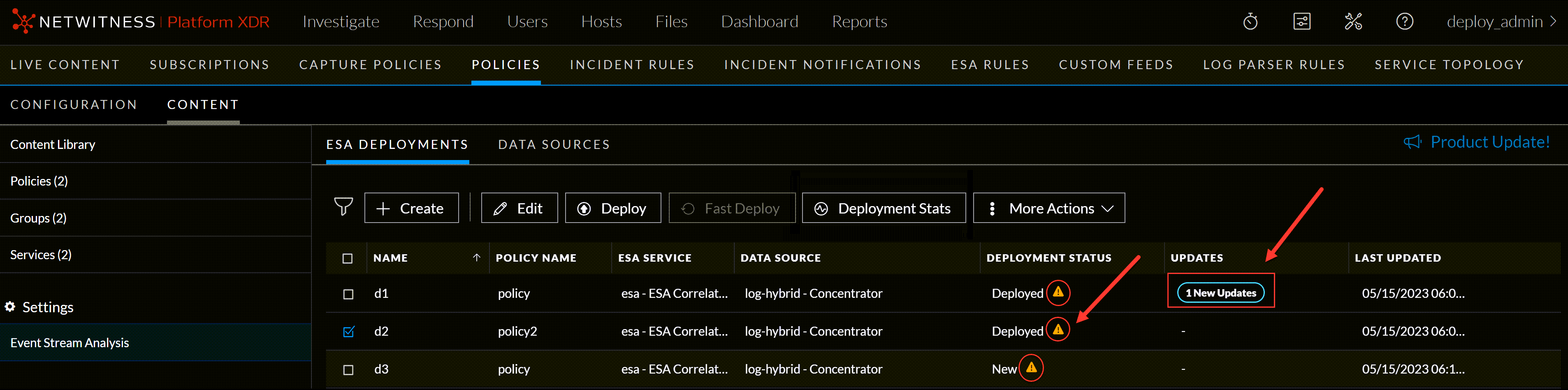
Users can easily track updates made to deployments, with a clear indicator signaling the presence of updates.
-
Stay informed and effortlessly monitor the status and progress of your deployments.
-
Users will be notified if another user is currently editing a deployment, preventing conflicts and ensuring smooth collaboration.
-
Notifications and severity configurations for rules in a deployment can be easily viewed, enabling users to stay informed about rule behavior and potential security threats.
For more information on the enhancements, see Policy-based Centralized Content Management Guide.
Investigate
The following section describes the new enhancements for the Investigate component:
NetWitness enhancements in the Investigate > Events view provide increased flexibility and improved investigative workflow. These enhancements empower analysts to complete investigations and increase efficiency of administrators.
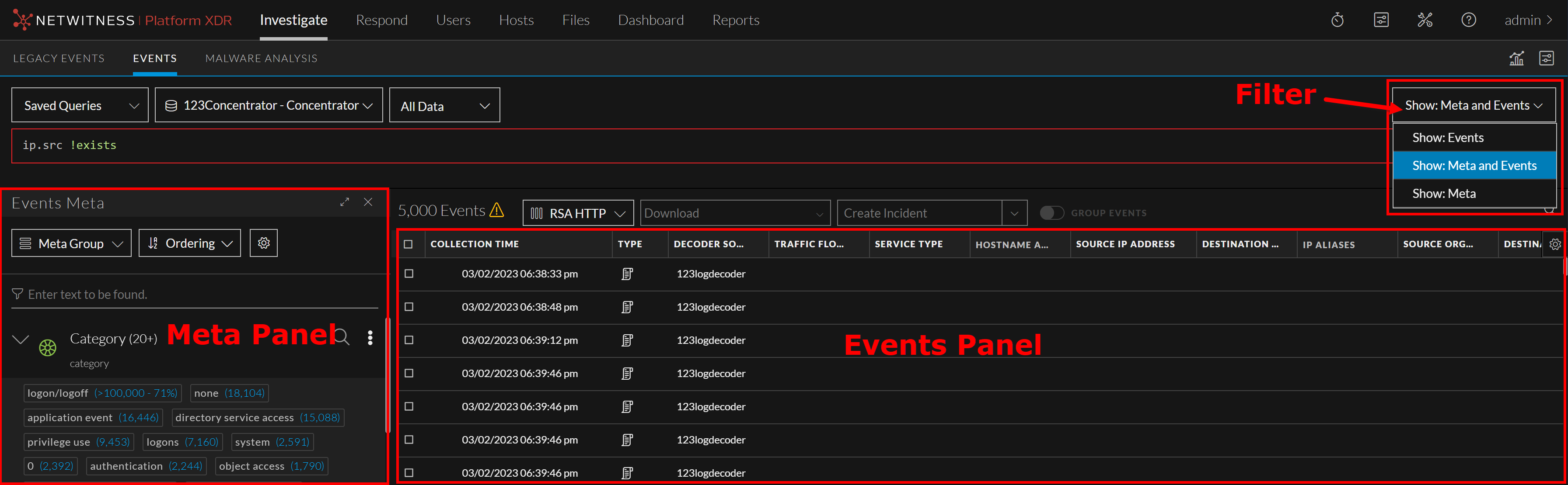
Select Query Results Panel Layout
The Query Builder allows you to select the Query Results panel layout before executing the query.
For example, if you select, Show: Meta and Events option from the dropdown menu, the query results are by default displayed in two separate panels, i.e., Meta and Events.
For more information, see Access the Events View topic in the NetWitness Investigate User Guide.
Timeline Enhancements
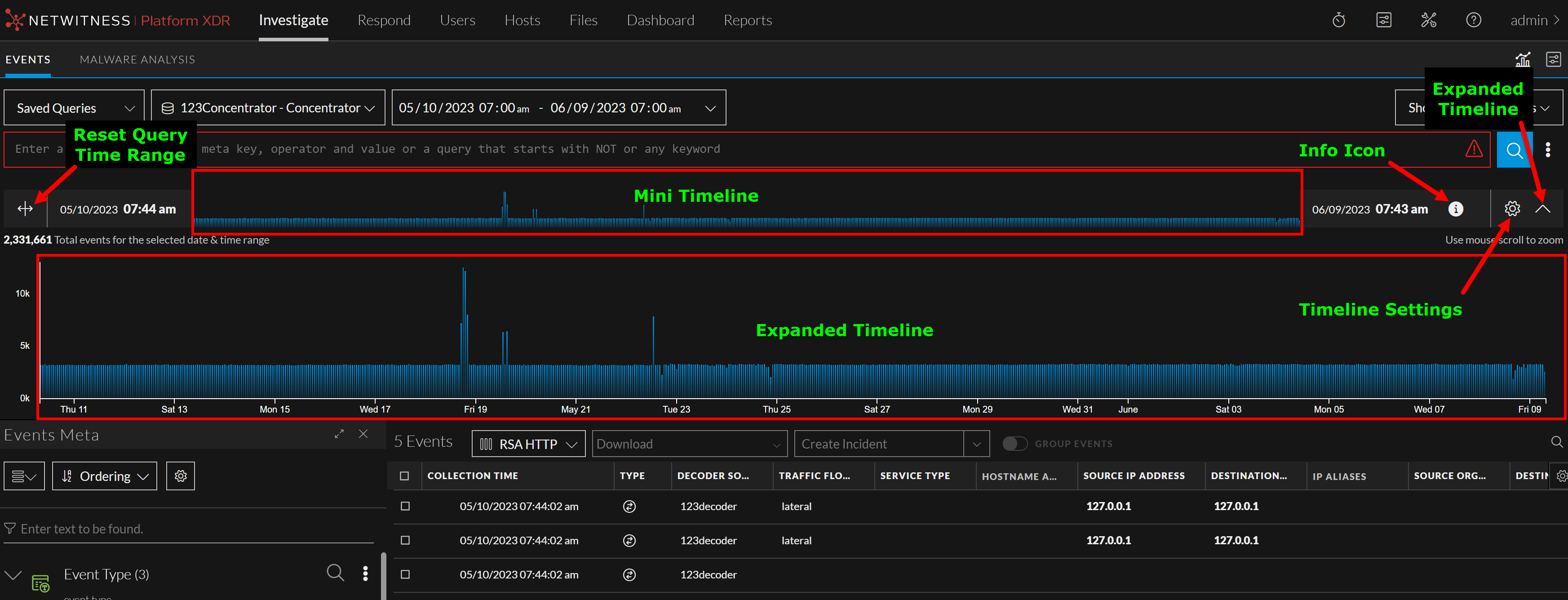
The enhanced Timeline displays activity for the specified service and time range as a bar chart. This allows analysts to detect significant spikes that could indicate anomalies. Using the visual representation, analysts can conduct a more detailed investigation of the events that occurred during that specific period.
With the enhanced timeline, analyst can now expand the timeline, zoom into the interested zone in the timeline, change the axis settings, or reset the query to the original requested form.
For more information, see Timeline topic in the NetWitness Investigate User Guide.
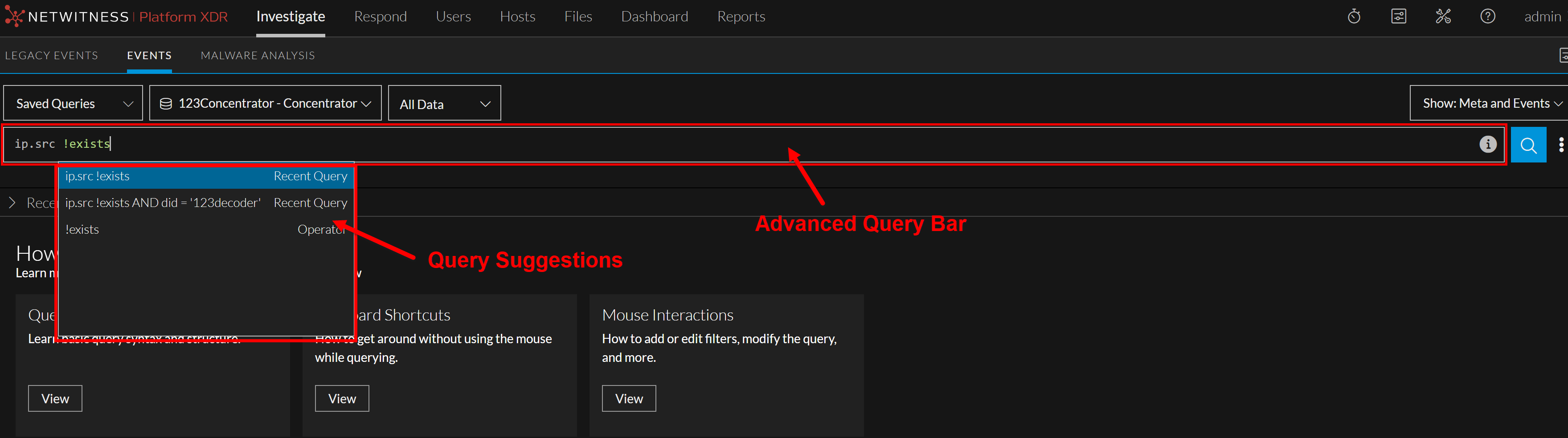
Introducing Advanced Query Bar
NetWitness introduces the new Advanced Query Bar under Investigate > Events panel to provide a seamless experience to the users while they write queries. Advanced Query Bar provides a search bar with the ability to accept a query construction in text form just like an Integrated Development Environment (IDE), instead of the pill-based entry of Guided Mode. Advanced Query Bar provides following benefits:
-
Syntax or error highlighting: The syntax of each query is validated and a red outline marks invalid filters.
-
Auto suggestions: Suggestions such as meta key, an alias for medium, an operator in a drop-down list to help in query construction.
-
Recent queries: Displays recent queries.
Create Future Alert using Events Query
During the investigation, administrators and analysts can now create an application rule for any suspicious activity from the Investigate > Events view. You can create application rules with a flexible query that covers a wide set of events and system information from your network, including suspected breach activities and misconfigured servers. Once the rule is applied to a matched policy with Decoder services, it generates alerts whenever a match occurs and helps analysts to triage, investigate, and respond to threats.
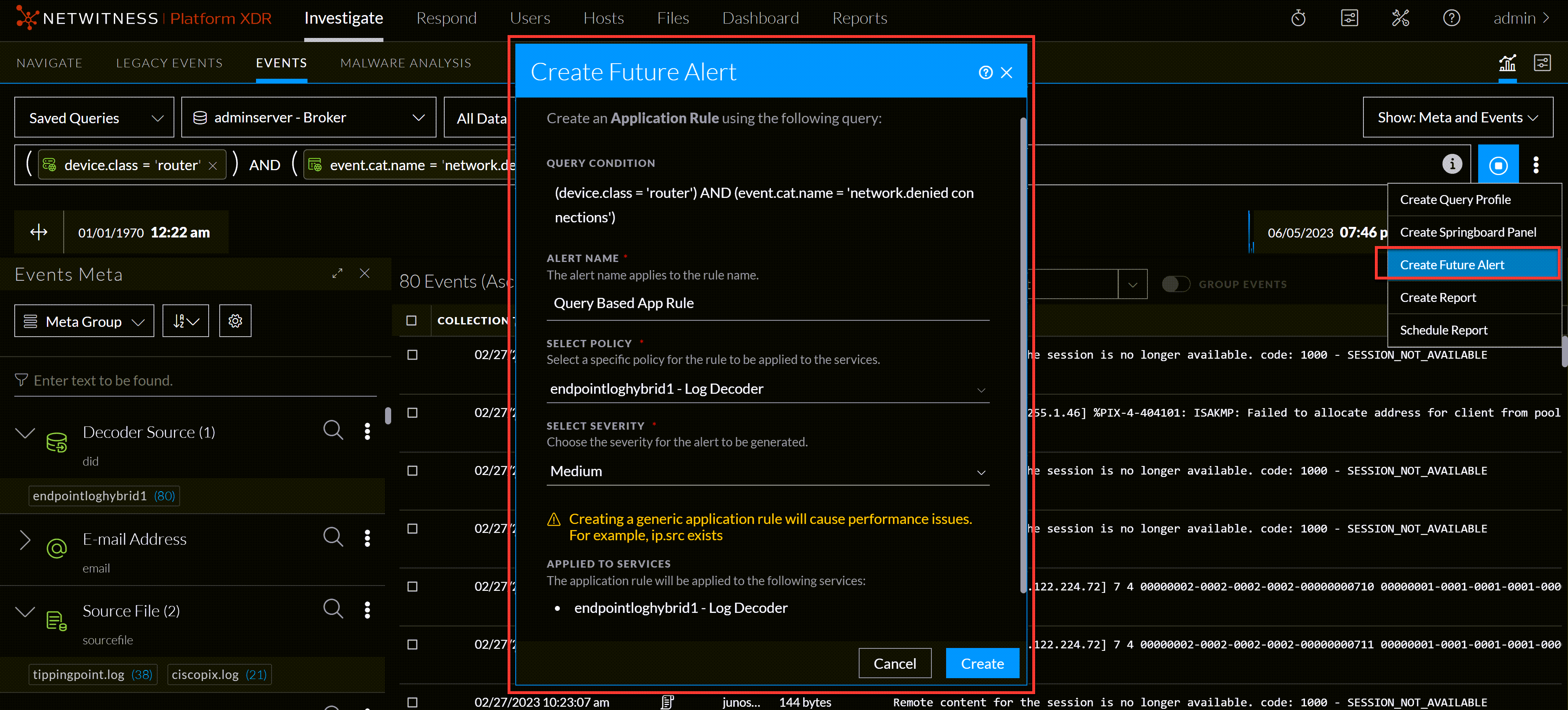
For more information, see the Create a Future Alert from Events View topic in the NetWitness Investigate User Guide.
Generate Custom Reports from Investigate Events View
NetWitness Investigate Events view has been enhanced with integrated reporting capabilities enabling increased flexibility and streamlined workflow. Administrators and analysts can now convert their investigation queries into adhoc and schedule reports seamlessly from the Investigate > Events view. This eliminates the need to switch back to the reporting pages and reconfigure queries, saving time and effort.
The following are the key benefits of generating reports from the Events view:
-
Quickly configure and generate the reports.
-
Share generated reports directly with administrators or other analysts by configuring email IDs, facilitating efficient communication and collaboration.
-
Report generation now adopts preconfigured settings by default, reducing the need for manual configuration and accelerating the reporting process.
-
Generated reports can be used to monitor security incidents and malware activity.
-
Set up scheduled reports to run at regular intervals and trigger an email with events each time they run.
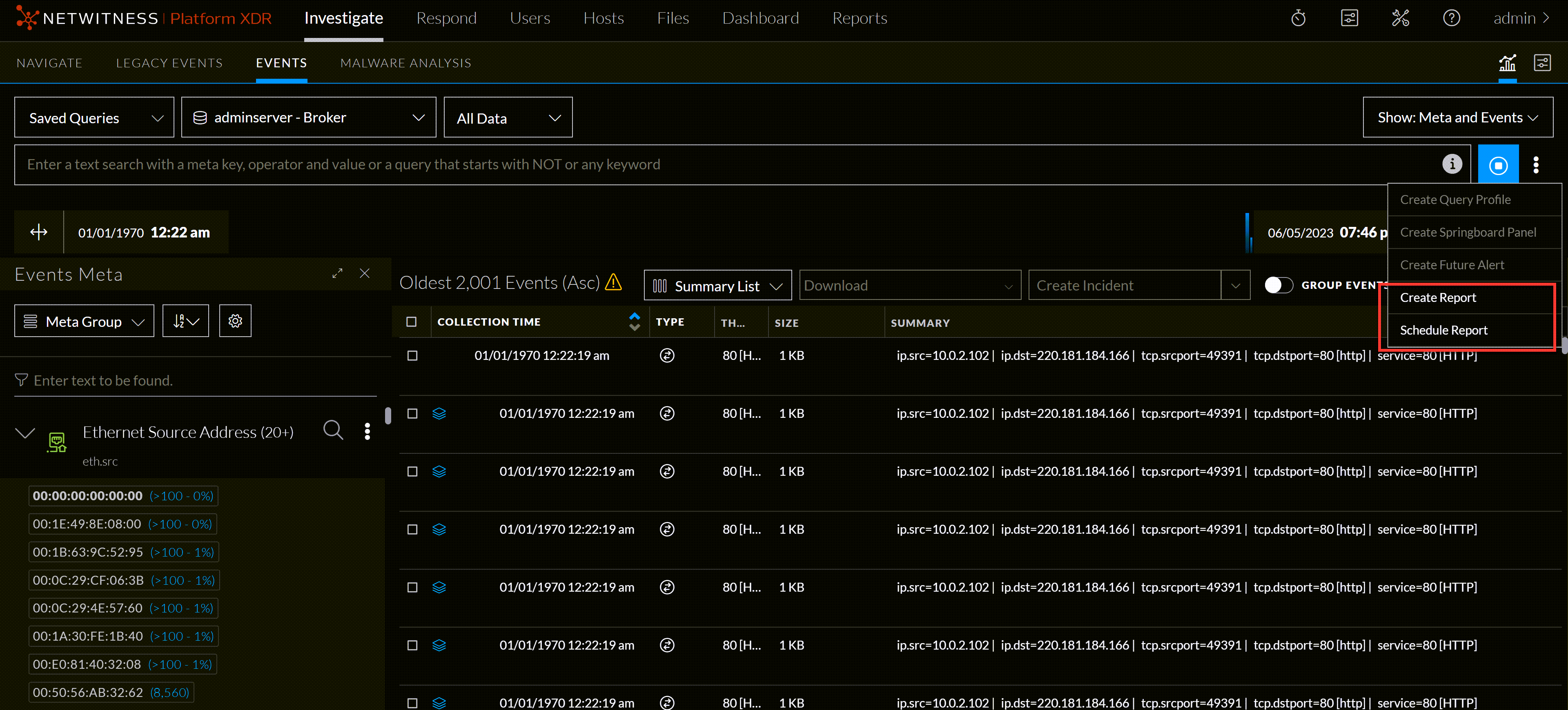
For more information, see the Generate Reports from Events View topic in the NetWitness Investigate User Guide.
Search Meta Information Quickly from Events Meta Panel
Analysts can now search for meta keys and meta values quickly from the Events Meta panel using the newly added Filter option. This enhancement allows analysts to refine their search results by entering specific meta values or keys and the results are highlighted with blue indicator and helps analysts to investigate seamlessly rather than scrolling through a long list of metadata.
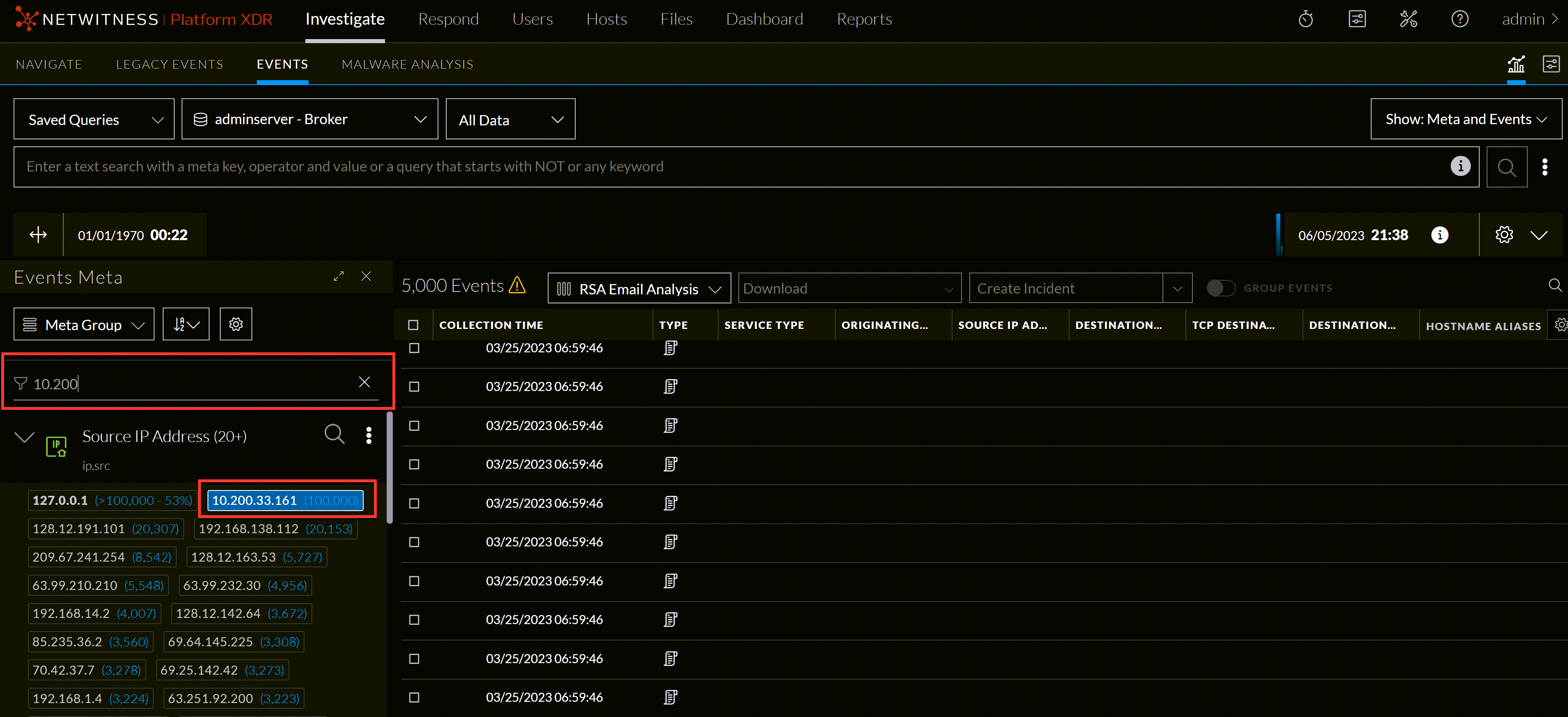
For more information, see the Filter Meta Information using Events Meta Panel topic in the NetWitness Investigate User Guide.
Support for VirusTotal Hashes Lookup from Events View
NetWitness now includes files and file hashes VirusTotal Lookup capabilities from the Investigate > Events view. With this enhancement, analysts can perform a VirusTotal Lookup on files with file hashes (MD5, SHA1, and SHA256) to get more information about the file, which automatically redirects them to VirusTotal's website. Once the hashes match VirusTotal's recognized types, they undergo a malware scan. The results are returned to determine if a file is malicious or not. This enhancement makes it easier for analysts to identify viruses, malware, and other malicious files with VirusTotal Lookup and helps them to perform investigation more effectively.
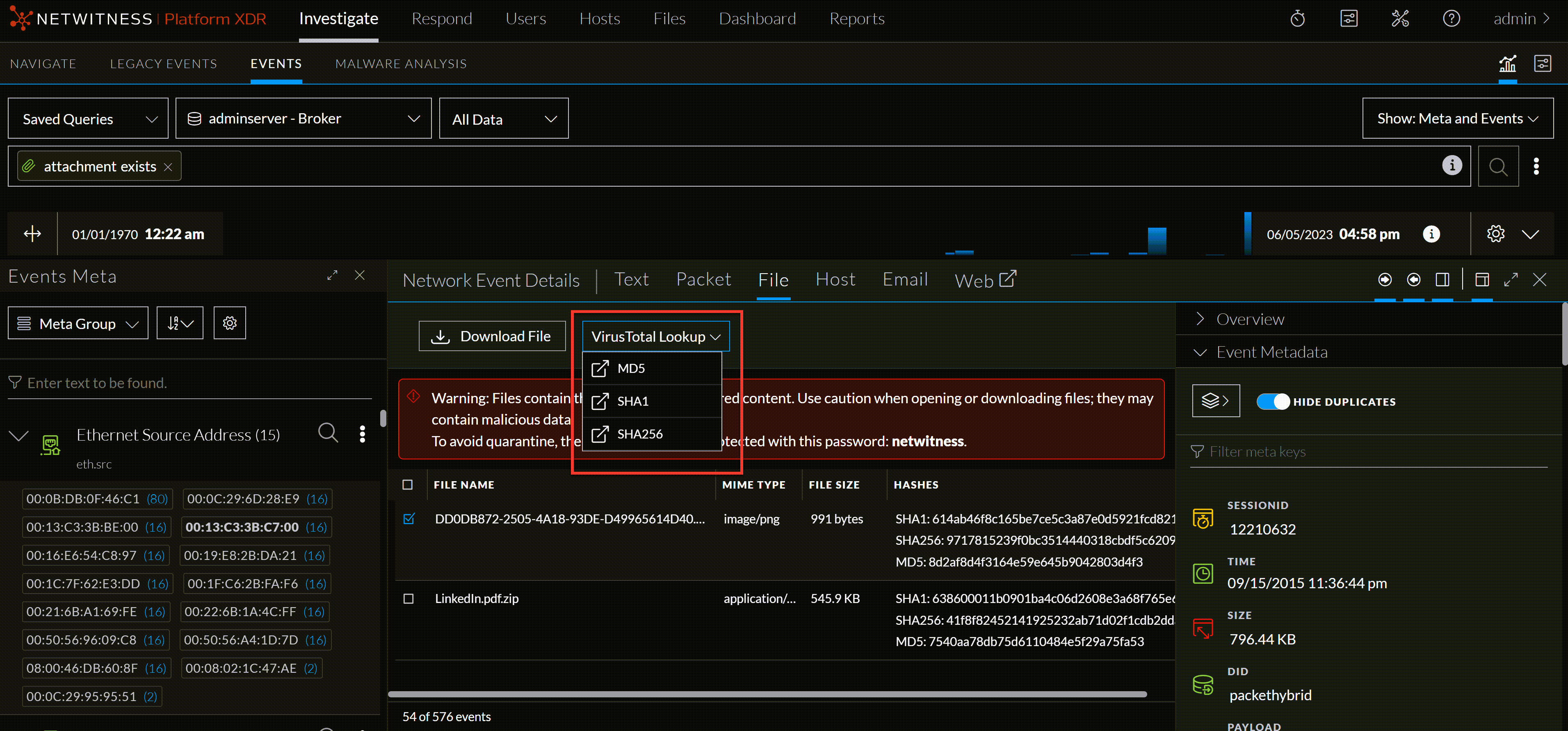
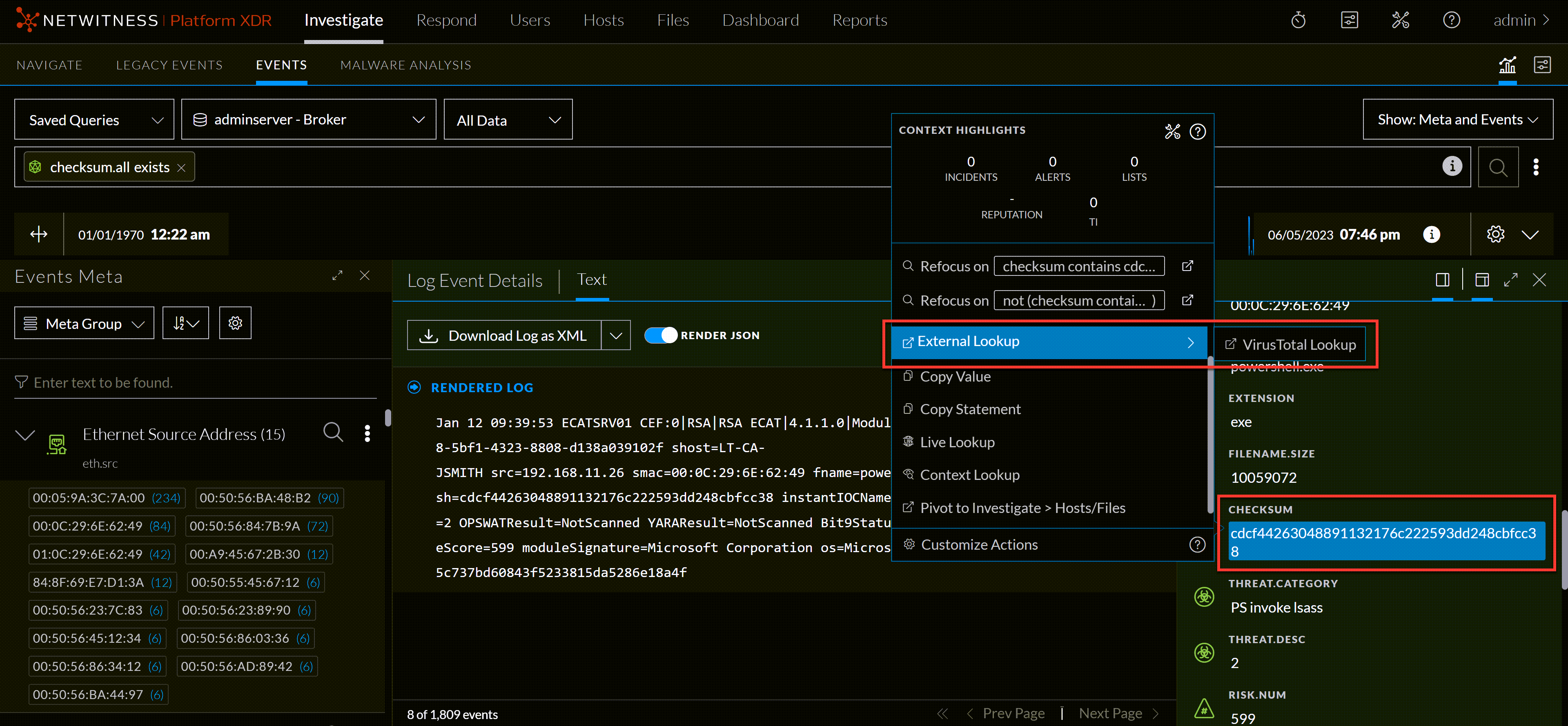
For more information, see Launch a VirusTotal Lookup for a File and Perform Lookups of Meta Values in Events topics in the NetWitness Investigate User Guide.
Introducing Meta Settings Panel
NetWitness introduces the new Meta Settings panel under the Investigate > Events > Events Meta view to allow analysts to configure the number of sessions required for the specific meta key value within the Events view. This enhancement provides analysts with the following configuration options:
-
Max Threshold Value: This option allows analysts to set the maximum number of sessions that are loaded for a meta key value in the Events panel. If you set a higher threshold, you will get more accurate counts, but it will take longer to load the data. The Max Threshold Value should be between 1 - 2147483647. The default value is 100,000.
-
Max Value Results: This option allows analysts to set the maximum number of values to load in the Events view when the Max Results option is selected in the Meta Key Menu for an open Meta Key. The Max Value Results should be between 100-100000. The default value is 1000.
-
Max Meta Value Characters: This option allows analysts to set the maximum number of characters in a meta value name displayed in the Events Meta panel. The Max Meta Value Characters should be between 60-512. The default value is 60.
These new configuration options give analysts more control over how metadata is displayed and loaded in the Events view. This helps analysts to perform the investigation more efficiently.
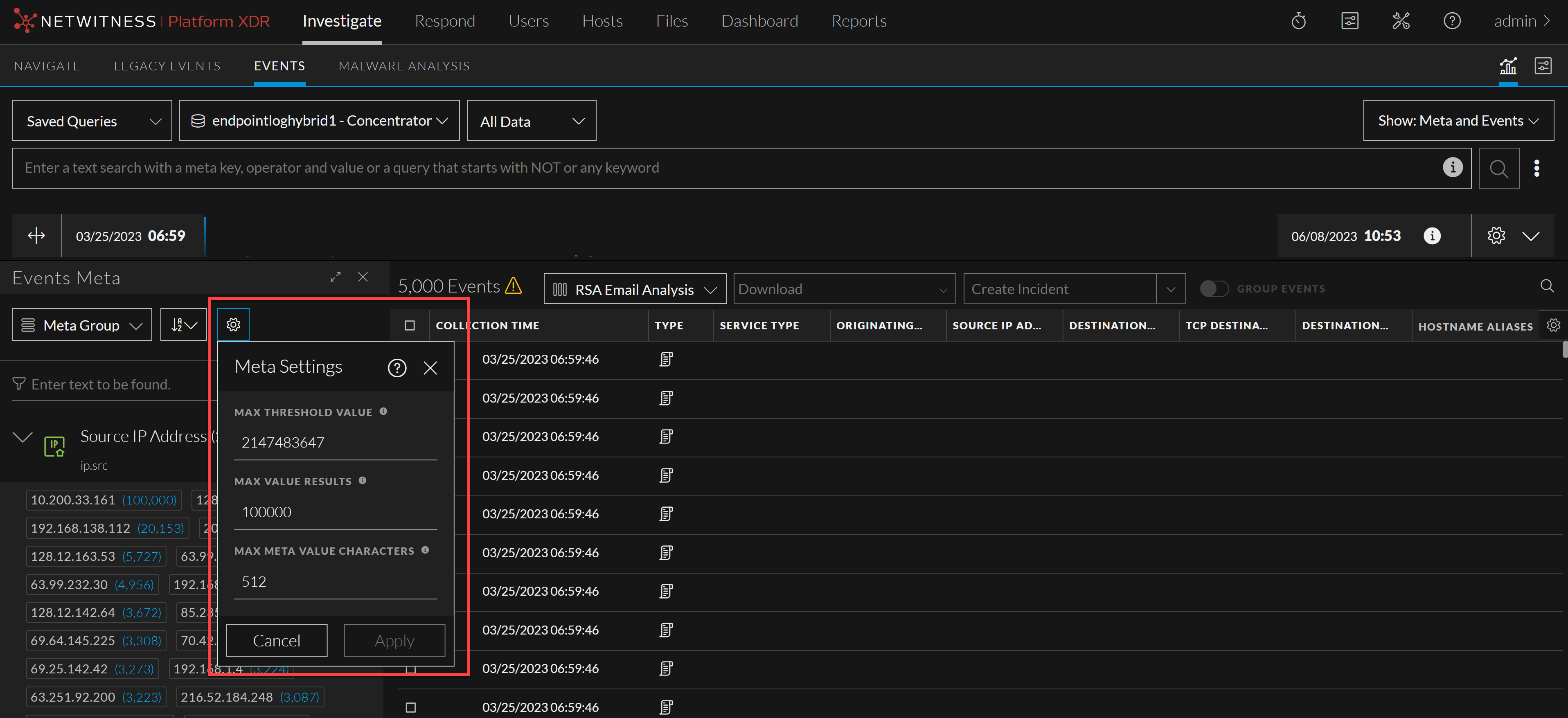
For more information, see Configure Events View Meta Value Loading Parameters topic in the NetWitness Investigate User Guide.
Render Threads Setting for Events Meta Value
NetWitness now allows analysts to set the Render Threads value under the System > Investigation > Events tab > Render Threads Setting. This setting controls the number of concurrent meta key values that are loaded by the user in the Events Meta panel. By increasing the number of render threads, the meta values within the Events Meta panel are loaded concurrently. The Render Threads value should be between 1-8. The default value is 2.
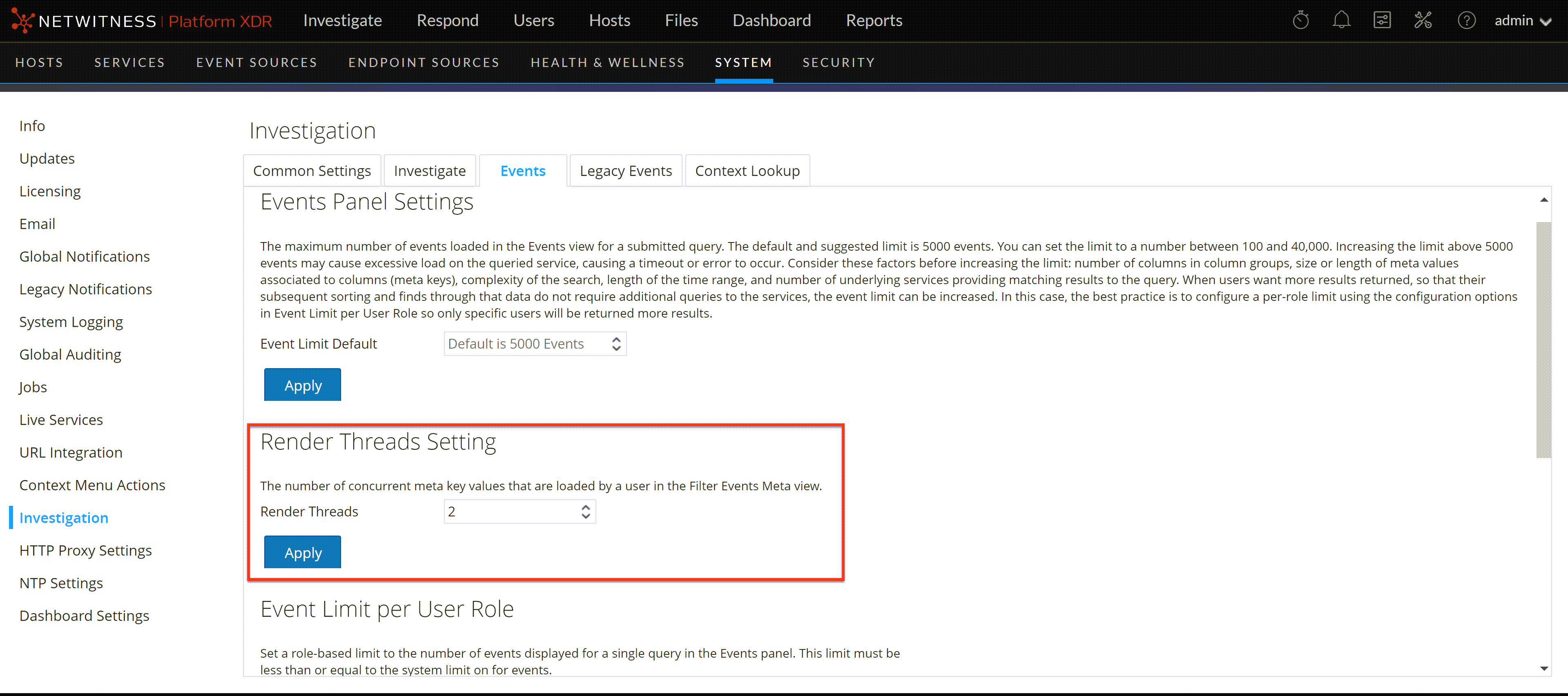
For more information, see the Configure Events View Settings topic in the System Configuration Guide.
Enhanced Query Console
The Query Console has been enhanced to help the analysts with query construction on the Investigate > Events view. Analysts can now quickly view the Query Examples, Current Query, or Recent Queries on the Query Console directly.
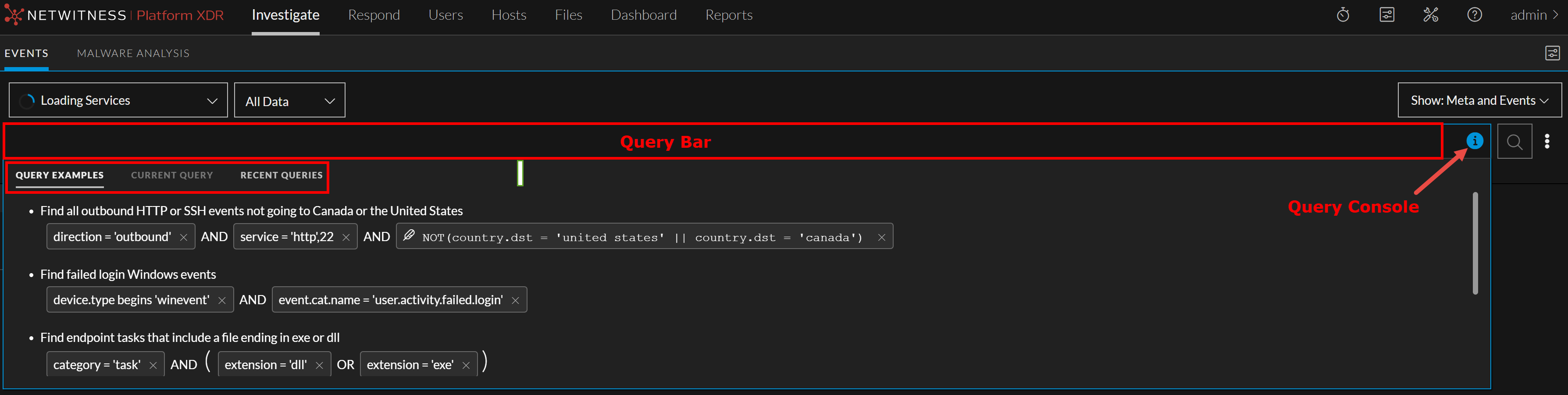
For more information, see Query Console topic in the NetWitness Investigate User Guide.
Context Hub
The following section describes the new enhancements for Context Hub component:
Additional Data for Context Lookup Lists Panel
Administrators can now configure additional data of interest from the lists on the Context Hub Lists page. These additional details from the lists are reflected in the Context Lookup Lists panel when you view the context for an event on the Events or Respond view. This helps analysts with better visibility for further analysis and investigation.
