
Over the past year several changes have been made to how storage is configured. For many users it is a confusing and frustrating task that may be difficult to deploy. To help the customers I work with, I have made simple high level, easy to understand process that you may employ for our standard PowerVault storage.
References:
Consider:
- Decoder vs Concentrator PowerVaults: The main difference beyond the size of the PowerVaults is that the Concentrator PowerVault has SSDs where Decoder PowerVaults do not. In Short, you will need to assign the PowerVaults to the corresponding appliance.
- The number of PowerVaults to be used with the corresponding appliance. This document only demonstrates the process of connecting one PowerVault. Please review the Storage Guide for additional details.
- API uses port 50106 for storage - example https://.x.x.x.x:50106
- The main API ports
- Decoder = TCP: 22, 5671, 50004 (Non-SSL), 50006 (Non-SSL), 50104 (REST), 50106 (REST), 56004 (SSL), 56006 (SSL) UDP: 123
- Concentrator =
TCP: 22, 5671, 50005 (Non-SSL), 50006 (Non-SSL), 50105 (REST), 50106 (REST), 56005 (SSL), 56006 (SSL) UDP: 123
- The main API ports
PowerVault Sizes:
- Concentrator: 76TB and 113TB
- Decoder: 96TB and 144TB
What has changed with saTools?
- /opt/rsa/saTools
- nwraidutil.py is now GONE in 11.2. All Configuration moving forward must be done via CLI, API, or the GUI (Explore)
- nwraidtool.py is now used in 11.3+. You can use this tool instead of nwraidutil.py
- nwarrayconfig.py is now GONE in 11.2. Automated/script driven allocation is no longer available from RSA in saTools.
Configuring the storage:
- There are many ways to configure storage and I think, that is the main contributing factor to the storage guide being so confusing.
- For Simplicity, I would recommend the configuration to be done via explore.
- The commands for execution are the same for both the Explore and API.
- CLI can be done using commands like vg, lv, pv, and perccli64 - I would recommend contacting RSA support for assistance.
The Process: This walkthrough uses the API, but as I have mentioned, you can also use explore on the corresponding appliance.
Decoder (API)
Log in as Admin --> https://x.x.x.x:50106
Click on the (*) next to appliance to access the REST command set
raidList --> Display current configuration
appliance raidNew controller=1 enclosure=xx scheme=decoder preferSecure=false
To enable it... add the commit
appliance raidNew controller=1 enclosure=xx scheme=decoder preferSecure=false commit=1
Update the fstab
devlist --> Display current list of devices
Must be in this order for a decoder (decoders have a decodersmall and decoder setting) critical step
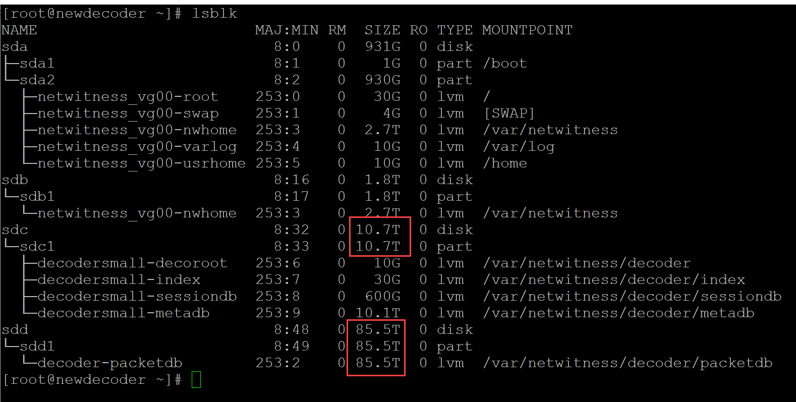
appliance partNew name=sdc service=decoder volume=decodersmall commit=true
appliance partNew name=sdd service=decoder volume=decoder commit=true
execute the vgs command for validation
Concentrator (API)
Log in as Admin --> https://x.x.x.x:50106
Click on the (*) next to appliance to access the REST command set
raidList --> Display current configuration
appliance raidNew controller=1 enclosure=xx scheme=concentrator preferSecure=false
To enable it... add the commit
appliance raidNew controller=1 enclosure=xx scheme=concentrator preferSecure=false commit=1
Modify the fstab
devlist --> Display current list of devices
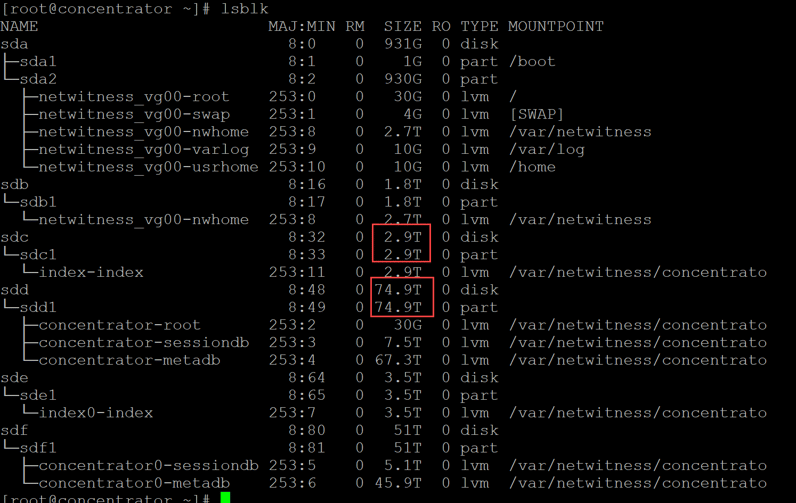
Must be in this order for a concentrator (critical step) Note: The metadb (sdd) is the largest volume. Note:sdd comes first
Metadb = 85 TB - sdd
Index = 2.1 TB -sdc
appliance partNew name=sdd service=concentrator volume=concentrator commit=true
appliance partNew name=sdc service=concentrator volume=index commit=true
execute the vgs command for validation
Configure 10g (decoder) (Explore)
View > Explore > decoder --> right click properties
reconfig update=1 op=10g
View > Explore > database --> right click properties
reconfig update=1 op=10g
Check your work:
Decoder
Concentrator
This concludes the walkthrough, please let me know if there are any questions.