Virtualization is now an industry standard and RSA NetWitness offers a 100% virtual deployment. The RSA NetWitness Archiver module offers the possibility of using multiple virtual hard disks to increase the retention of the platform. To be able to increase the available space you will need to do the following:
The first step is to add another VMDK to your Virtual RSA NetWitness Archiver :
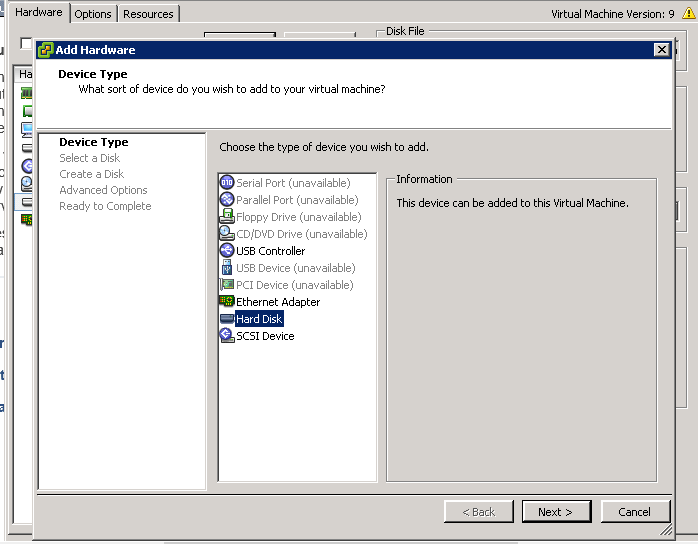
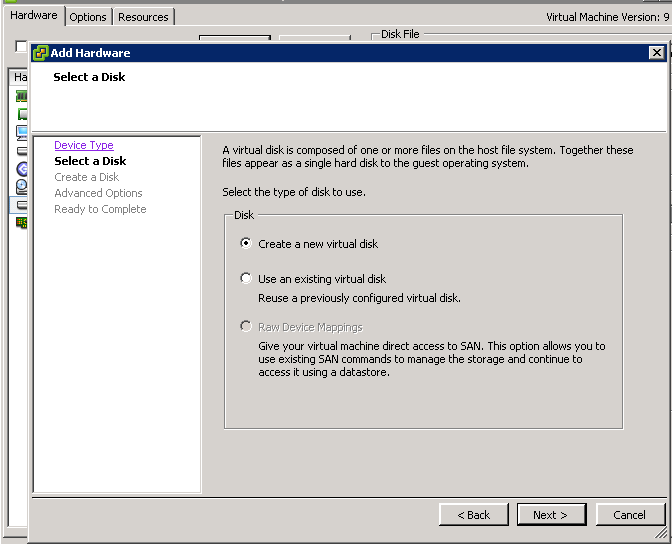
Change the size of the Virtual Hard Disk to meet your requirement:
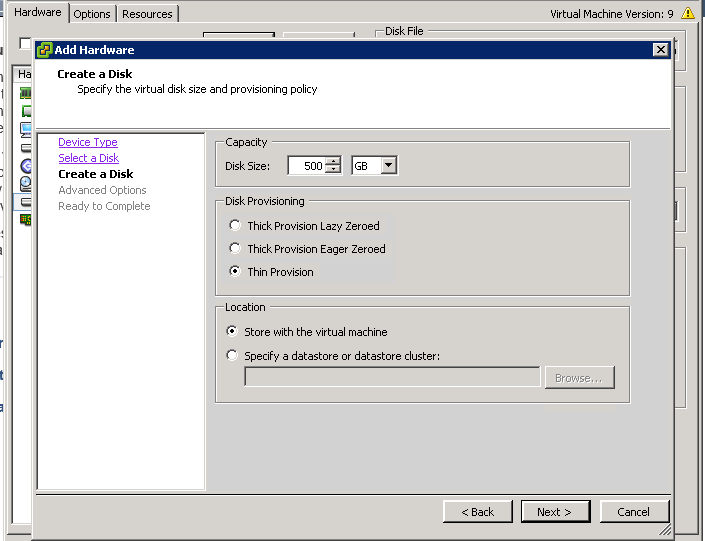
We do recommend to use different SCSI controller per VMDK. In this case, SCSI (0:1) is used by our operating system for the second VMDK, we will use SCSI (1:1):
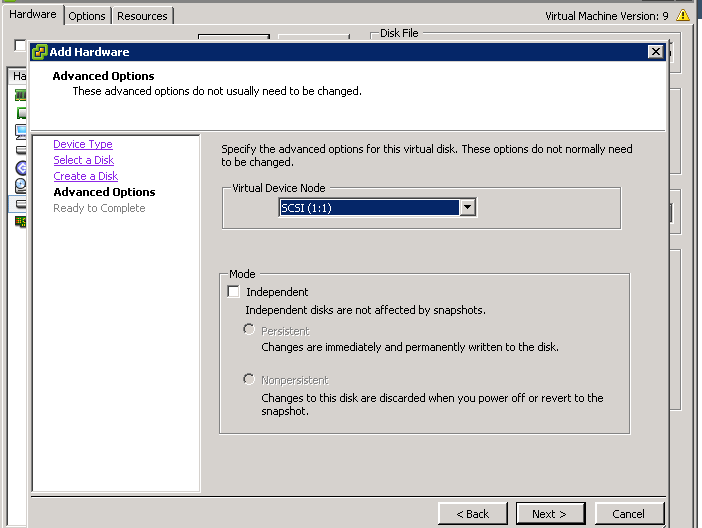
Press Finish to complete the process:
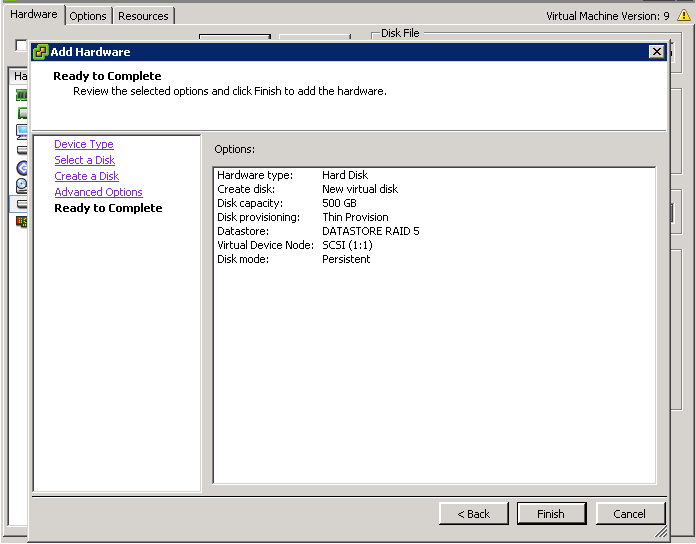
When the virtual hard disk has been added to our virtual Archiver, we need to add this hard disk to our LVM. We will need to identify our new hard disk using the fdisk -l command. In our case, in the virtual hard disk is /dev/sdb
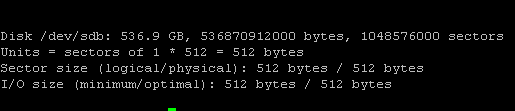
Create the new partition on the /dev/sdb disk with the following command fdisk /dev/sdb
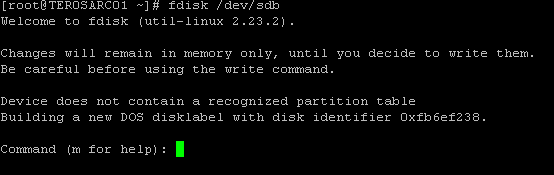
Press n to create a new partition and p for a primary partition
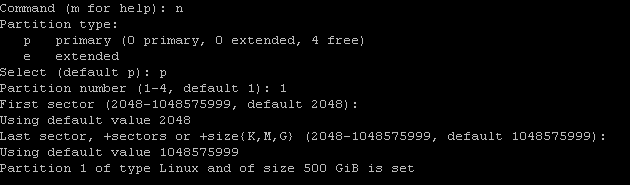
Type w to write the configuration to the partition table

We need to create a Physical Volume for our new partition using the following command pvcreate /dev/sdb1

We need to create a Volume Group for our new partition using the following command vgcreate vg_customer /dev/sdb1. The name of the Volume Group can be changed to meet your requirement

We need to create a Logical Volume for our new partition using the following command lvcreate --name customer1_lvm -l 100%FREE vg_customer. The name of the Logical Volume can be changed to meet your requirement

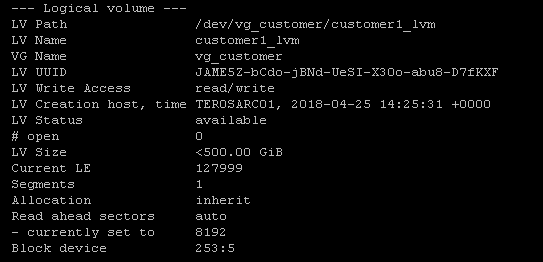
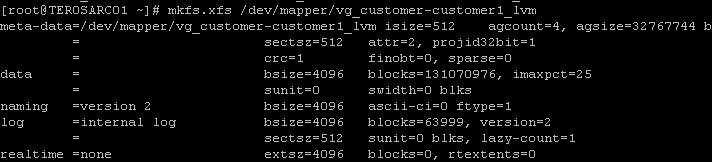
RSA Netwitness leverage XFS for best performance. Our new partition needs to be format to XFS using the following command : mkfs.xfs /dev/mapper/vg_customer-customer1_lvm . The LVM name can differ base on your use case.
Create your folder for the mount point

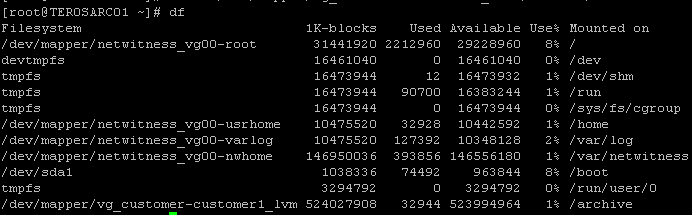
Mount your LVM in your folder created earlier

Validate your mount point with the df command
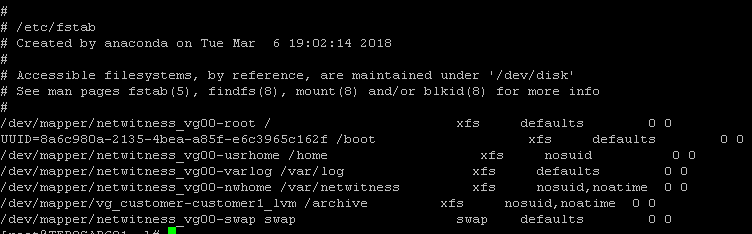
Edit your /etc/fstab file with your mount point information
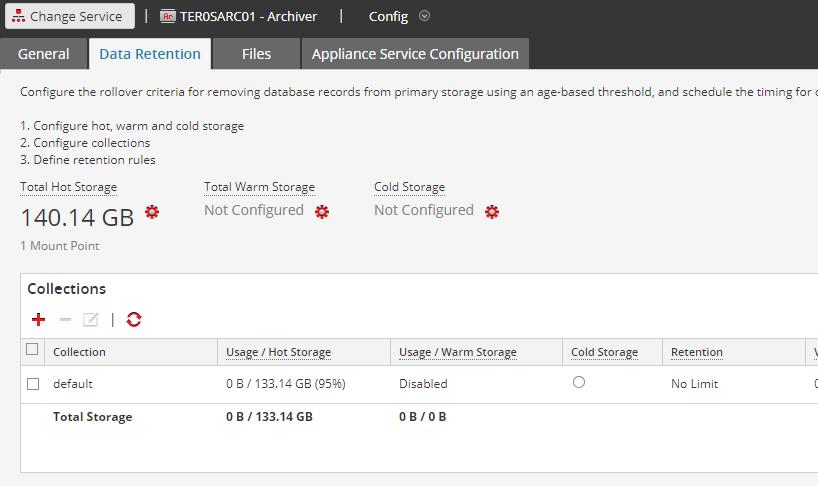
When your LVM is created and available to the operating system , we need to add this storage to your RSA NetWitness Archiver. In our case, we are adding 500 GB to the hot storage. Press the gear button  for the hot storage.
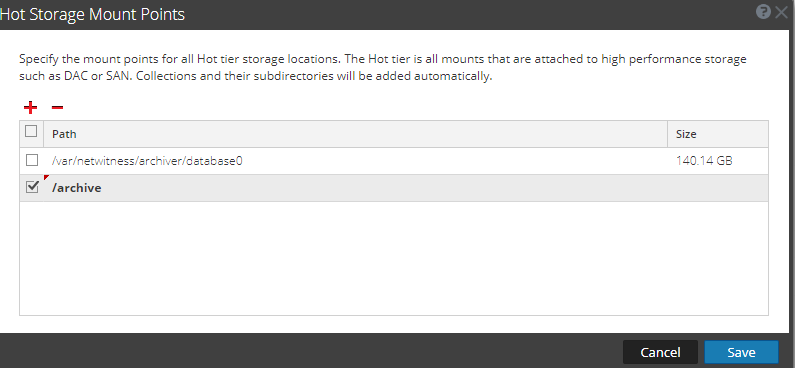
Add your mount point to the hot storage and press save
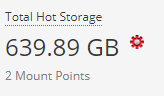
Our hot storage have now 639.89 GB
We will create a new Collection with 450 GB for our Customer1.
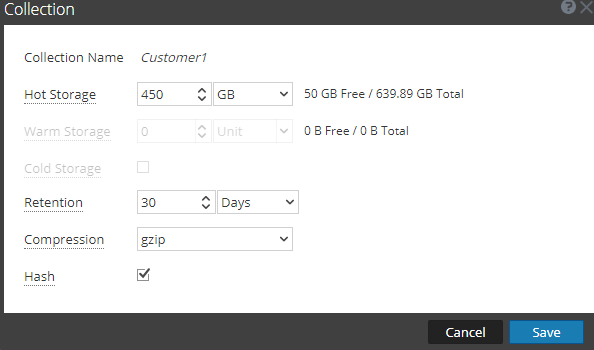
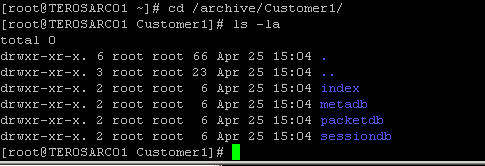
Once the Collection is created, RSA Netwitness will automatically create the following directories for each type of data.