
The Roaming Agents Relay client certificate (EcatRelayClient.pfx) and CA certificate (EcatRelayCA.cer) must be imported on the NetWitness Endpoint Console Server system in order to properly encrypt and verify communication with RAR.
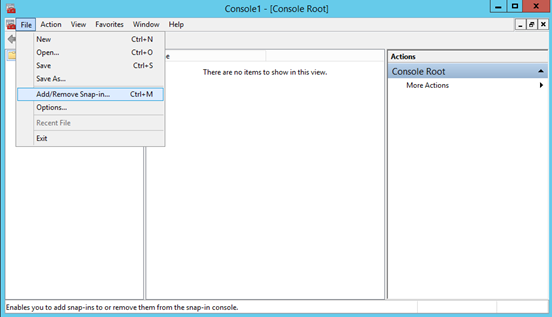
- Certificates must be added to the certificate store for the local machine, not the currently logged in user. To access the certificate store for the local machine, open the Run dialog and execute MMC to open the Management Console. Under the File menu select Add/Remove Snap-in.
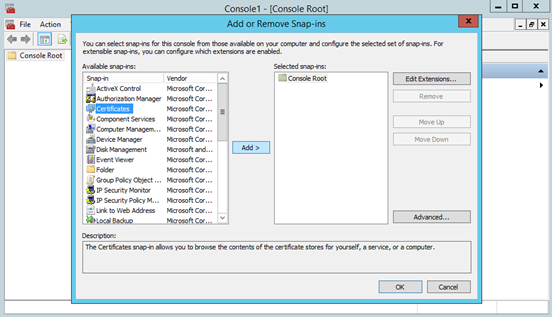
- Select Certificates from the left pane and click Add
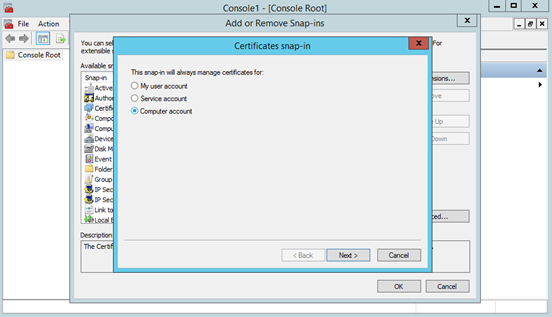
- Choose Computer account and click Next
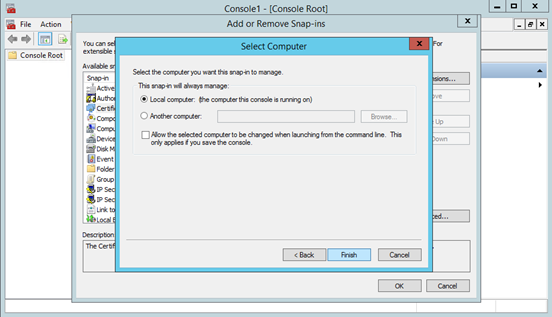
- Choose Local computer and click Finish
- Click OK to continue
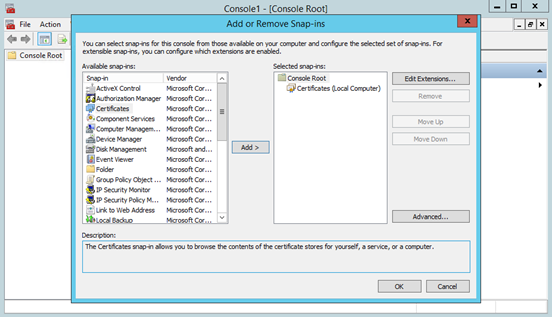
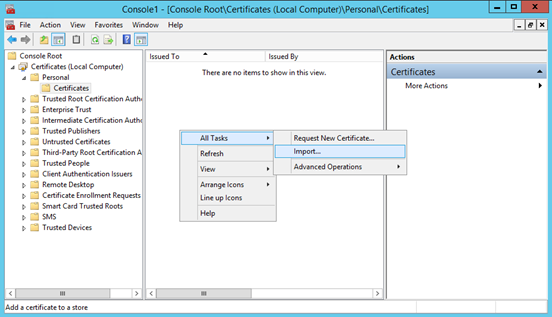
- You will now be back at the Management Console with the Certificate Management Snap-In added. First we will import the ECAT RAR client certificate. Expand the Certificates/Personal Folder. Right-click on Certificates, select All Tasks/Import
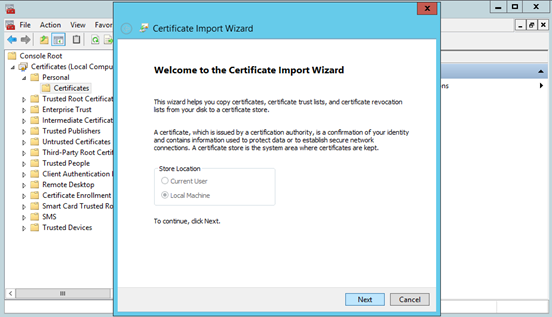
- This will launch the certificate import wizard. Click Next at the first window
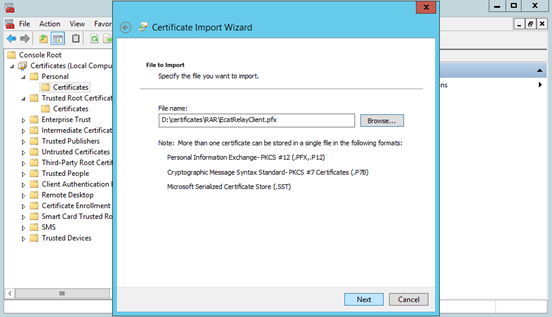
- Change the file type to Personal Information Exchange and browse to the directory containing the certificates copied from the RAR server
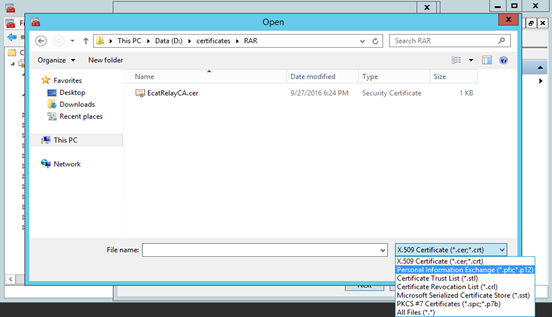
- Select the file EcatRelayClient.pfx and click Open
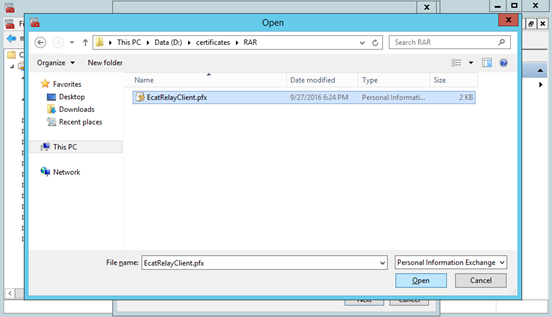
- Preview your settings and click Next
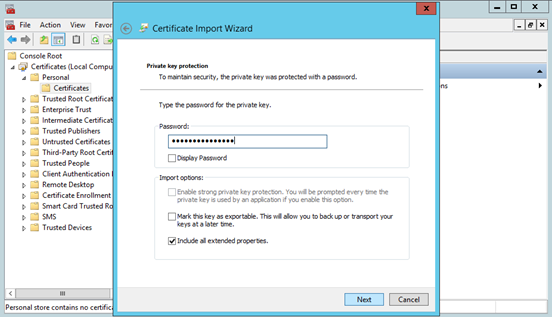
- Enter the password chosen when the certificates were initially created on the RAR server and click Next
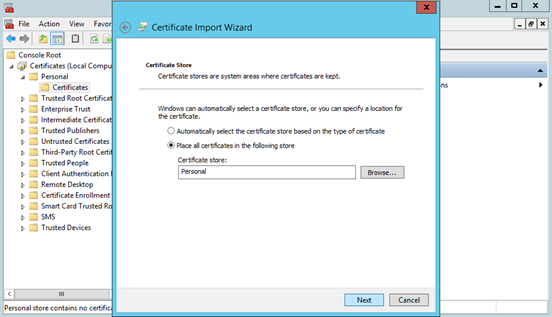
- Ensure the certificates are being placed in the Personal Certificate store and click Next
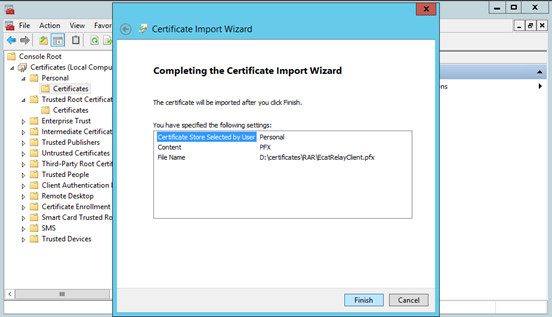
- Preview your configuration and click Finish
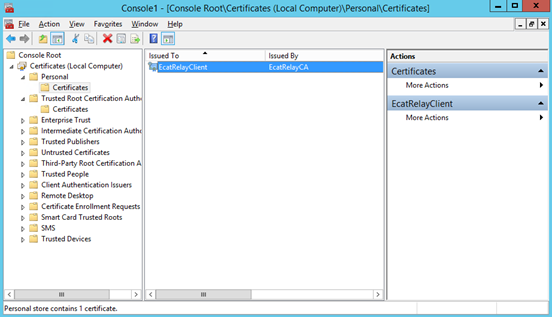
- You should now see the EcatRelayClient certificate in the Personal Certificate store
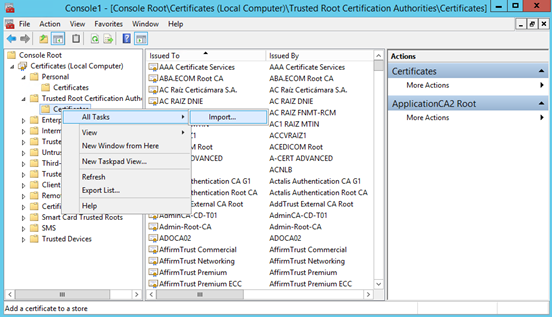
- Next the EcatRelayCA certificate must be added to the system. Expand the Trusted Root Certificate Authorities folder and right-click on Certificates. Select All Tasks/Import
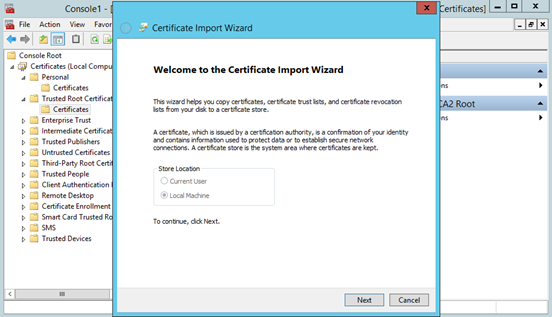
- This will launch the certificate import wizard. Click Next at the first window
- Browse to the directory containing the certificates copied from the RAR server. Select EcatRelayCA.cer and click Open
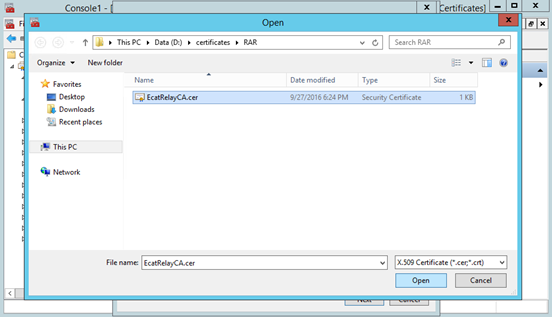
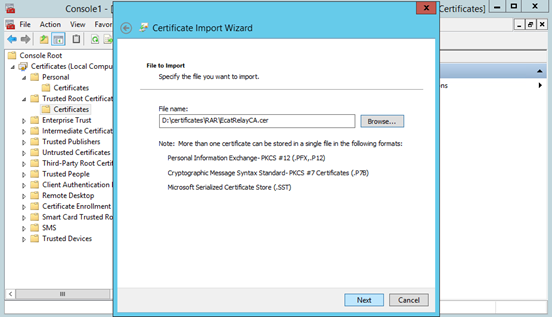
- Preview your settings and click Next
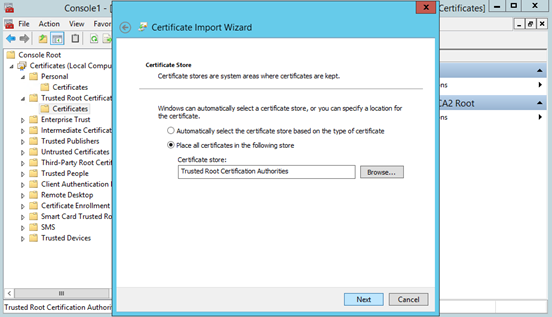
- Ensure the certificates are being placed in the Trusted Root Certificate Authorities Certificate store and click Next
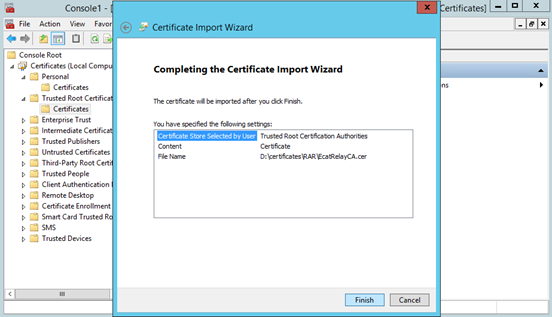
- Preview your configuration and click Finish
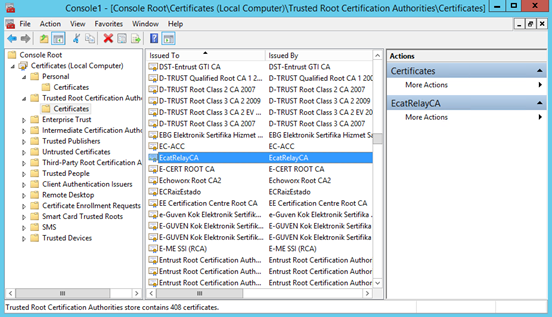
- Scroll through the list of Certificate Authority certificates and verify the EcatRelayCA certificate is present
Topic:
0 Comment