.png?width=180&height=32&name=NW%20Logo%20(2).png)
Monitoring View
NetWitness provides detailed statistics and other information about the host and the individual NetWitness services in Details views. You can view the current health of all the hosts and the services running on the hosts in the Monitoring view.
What do you want to do?
Quick Look
To access this view:
- Go to
 (Admin) > Health & Wellness.
 -
Click the Monitoring tab.
The Monitoring view is displayed.
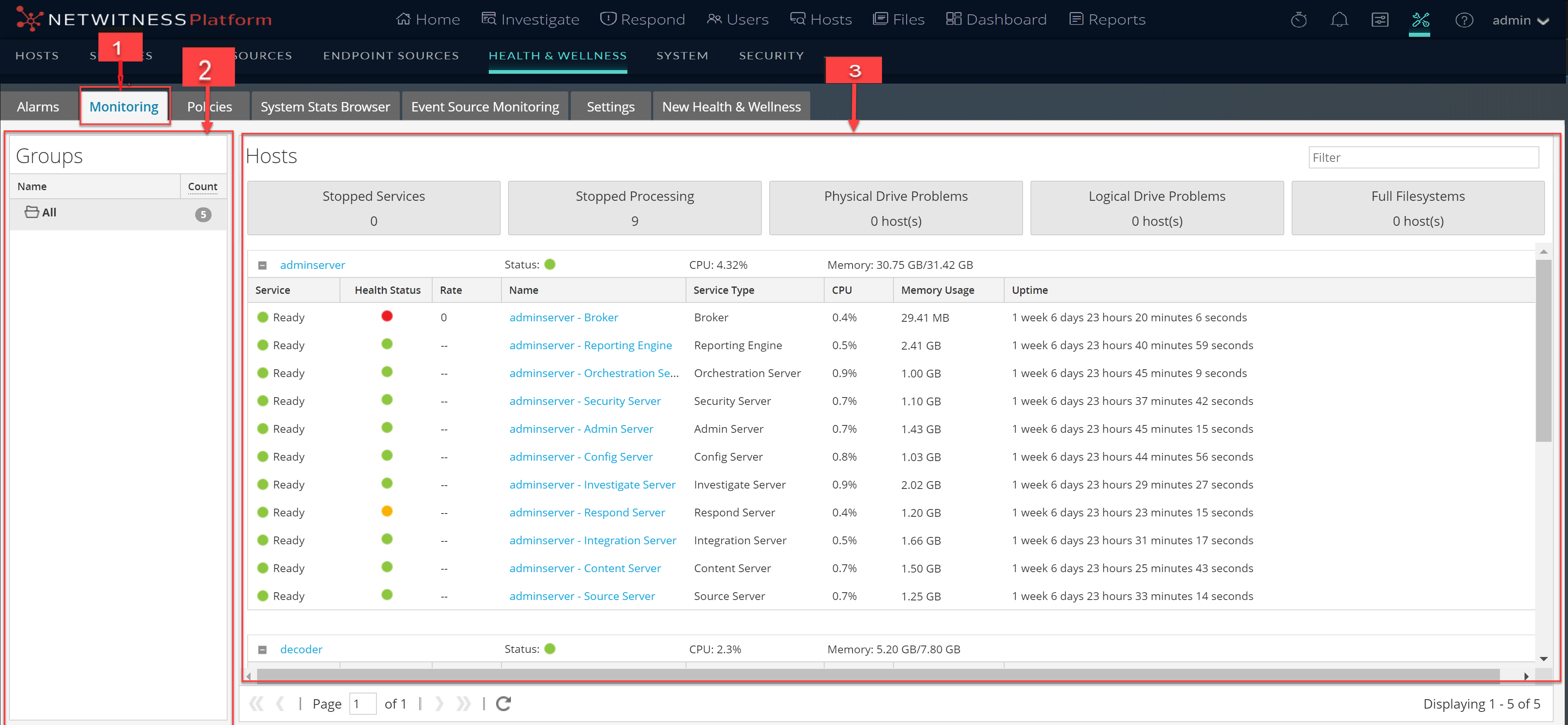
Groups PanelGroups Panel
The Groups panel lists all of the groups of hosts available. When you select a group, the associated content is displayed in the Hosts panel.
Note: If the total host count in the Groups panel is lower than the actual number of hosts displayed in the Hosts panel, refer to the Troubleshooting Health & Wellness topic for possible causes of this issue and recommended solutions.
Hosts Panel
The Hosts panel displays operational statistics for hosts and the services running on each host.
Note: The summary information in the boxes at the top displays the System Statistics for all of the hosts configured in NetWitness and does not change with the application of filters on the groups.
Below the boxes at the top of the Hosts panel is a list of hosts, the services installed on them, and information regarding the hosts and services.
When you click  prefixed to the host name, a list of all the services installed on the host is displayed. The table below describes parameters displayed for a service and their description.