.png?width=180&height=32&name=NW%20Logo%20(2).png)
Reviewing Alerts
NetWitness enables you to view a consolidated list of threat alerts generated from multiple sources in one location. You can find these alerts in the Respond > Alerts view. The source of the alerts can be ESA correlation rules, NetWitness Endpoint, Detect AI, Malware Analysis, Reporting Engine, Risk Scoring, as well as many others. You can see the source of the alerts, the alert severity, and additional alert details.
Note: ESA correlation rule alerts can ONLY be found in the Respond > Alerts view.
To better manage a large number of alerts, you have the ability to filter the alerts list based on criteria that you specify, such as severity, time range, and alert source. For example, you may want to filter the alerts to only show those alerts with a severity between 90 and 100 that are not already part of an incident. You can then select a group of alerts to create an incident or add to an existing incident.
You can perform the following procedures to review and manage alerts:
- View Alerts
- Filter the Alerts List
- Remove My Filters from the Alerts List
- Save the Current Alerts Filter
- Update a Saved Alerts Filter
- Delete a Saved Alerts Filter
- View Alert Summary Information
- View Event Details for an Alert
- Investigate Events
- Create an Incident Manually
- Add Alerts to an Incident
- Delete Alerts
View AlertsView Alerts
In the Alerts List view, you can browse through various alerts from multiple sources, filter them, and group them to create incidents. This procedure shows you how to access the alerts list.
- Go to Respond > Alerts.
The Alerts List view displays a list of all NetWitness alerts.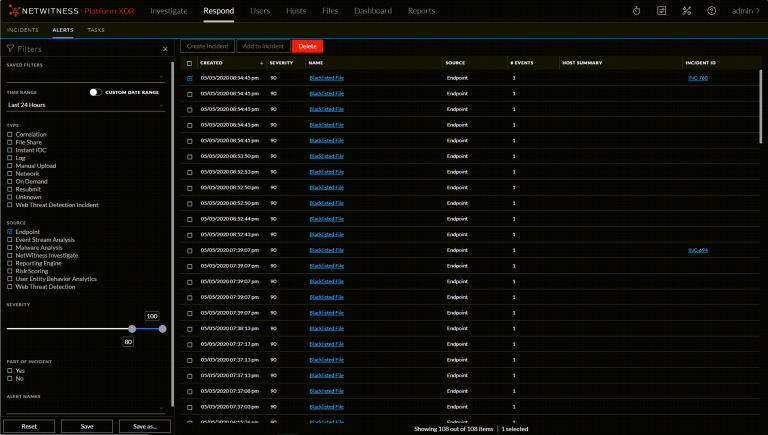
- Scroll through the alerts list, which shows basic information about each alert as described in the following table.
At the bottom of the list, you can see the number of alerts on the current page and the total number of alerts. For example: Showing 1000 out of 2069 items
Filter the Alerts ListFilter the Alerts List
The number of alerts in the Alerts List can be very large, making it difficult to locate particular alerts. The Filter enables you to view the alerts you want to see, for example, alerts from a particular source, alerts of a particular severity, alerts that are not part of an incident, and so on.
- Go to Respond > Alerts.
The Filters panel appears to the left of the Alerts list. If you do not see the Filters panel, in the Alerts List view toolbar, click , which opens the Filters panel.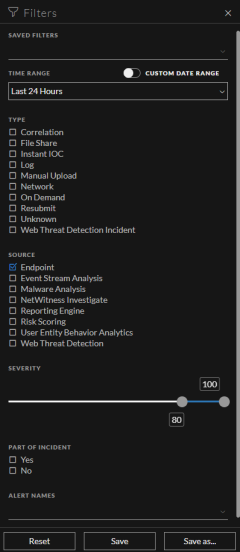
- In the Filters panel, select one or more options to filter the alerts list:
- Time Range: You can select a specific time period from the Time Range drop-down list. The time range is based on the date that the alerts were received. For example, if you select Last Hour, you can see alerts that were received within the last 60 minutes.
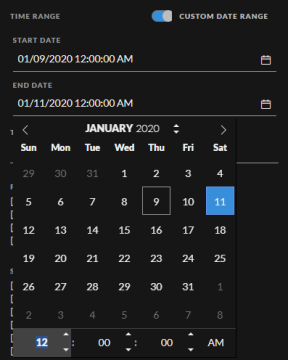
- Custom Date Range: You can specify a specific date range instead of selecting a Time Range option. To do this, click the white circle in front of Custom Date Range to view the Start Date and End Date fields. Select the dates and times from the calendar.
- Type: Select the type of events in the alert to view, for example, logs, network sessions, and so on. In NetWitness Platform 11.3 and later, if one of the events in an alert has a device_type of nwendpoint, Endpoint is included in the Type field.
- Source: Select one or more sources to view alerts triggered by the selected sources. For example, to view NetWitness Endpoint alerts only, select Endpoint as the source. In NetWitness Platform 11.3 and later, the Endpoint source includes Endpoint alerts from all NetWitness Endpoint versions. If one of the events in an alert has a device type of nwendpoint, the source changes to Endpoint. A Risk Scoring source is available in NetWitness Platform 11.3 and later. NetWitness Respond automatically creates incidents from alerts that are over the specified file and host alert thresholds for risk score. For more information, see the NetWitness Respond Configuration Guide.
- Severity: Select the the level of severity of the alerts to view. The values are from 1 through 100. For example, to concentrate on the highest severity alerts first, you may want to view only those alerts with a severity from 90 to 100.
- Part of Incident: To view only alerts that are not part of an incident, select No. To view only alerts that are part of an incident, select Yes. For example, when you are ready to create an incident from a group of alerts, you can select No to view only those alerts that are not currently part of an incident.
- Alert Names: Select the name of the alert to view. You can use this filter to search for all alerts generated by a specific rule, for example, Direct Login to an Administrative Account.
- MITRE ATT&CK Tactics: Select the tactic associated with the alert.
- MITRE ATT&CK Techniques: Select the technique associated with the alert.
The Alerts List shows a list of alerts that meet your selection criteria. You can see the number of items in your filtered list at the bottom of the alerts list.
For example: Showing 30 out of 30 items - If you want to close the Filters panel, click X. Your filters remain in place until you remove them.
Remove My Filters from the Alerts List Remove My Filters from the Alerts List
NetWitness remembers your filter selections in the Alerts List view. You can remove your filter selections when you no longer need them. For example, if you are not seeing the number of alerts that you expect to see or you want to view all of the alerts in your alerts list, you can reset your filters.
- Go to Respond > Alerts.
The Filters panel appears to the left of the alerts list. If you do not see the Filters panel, in the Alerts List view toolbar, click , which opens the Filters panel. - At the bottom of the Filters panel, click Reset Filters.
Save the Current Alerts FilterSave the Current Alerts Filter
Note: This option is available in NetWitness Platform Version 11.5 and later.
Saved filters provide a way for analysts to save and quickly apply specific filter conditions to the list of alerts. You can also use these filters to customize the Springboard landing page. For example, you may want to create a filter to show only alerts from a specific source and severity level over the last 24 hours. (This option is available in NetWitness Platform 11.5 and later.)
Saved filters are global. You can save a filter for other analysts to use and you can use any saved filter.
- In the Filters panel, select one or more options to filter the incidents list. For example, in the Time Range field select Last 24 Hours, in the Source field select Endpoint, and for Severity, select the 90 to 100 range.
- Click Save As and in the Save Filter dialog, enter a unique name for the filter and save it, for example Last24Hours-Endpt_Sev90-100.
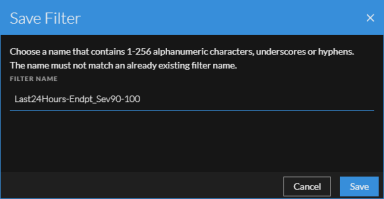
The filter is added to the Saved Filters list.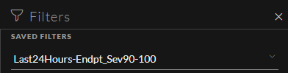
Update a Saved Alerts FilterUpdate a Saved Alerts Filter
Note: This option is available in NetWitness Platform Version 11.5 and later.
- In the Filters panel Saved Filters drop-down list, select a saved filter.
- Update your filter selections and click Save.
Delete a Saved Alerts FilterDelete a Saved Alerts Filter
Note: This option is available in NetWitness Platform Version 11.5 and later.
When a saved filter is no longer required, you can remove it from the saved filters list. Filters used in the Springboard cannot be deleted.
- In the Filters panel, open the Saved Filters drop-down list.
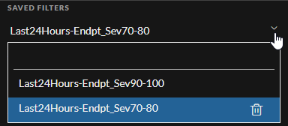
- Next to the filter name, click
 to delete it.
View Alert Summary InformationView Alert Summary Information
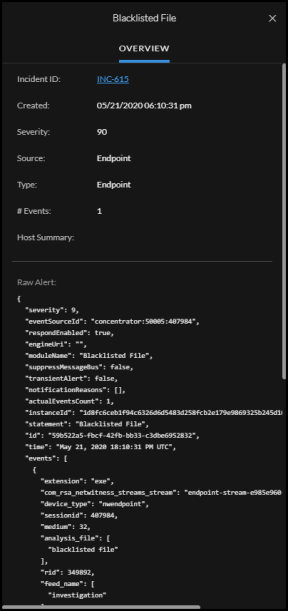
In addition to viewing basic information about an alert, you can also view raw alert metadata in the Overview panel.
- In the Alerts list, click the alert that you want to view.
The Alert Overview panel appears to the right of the Alerts list.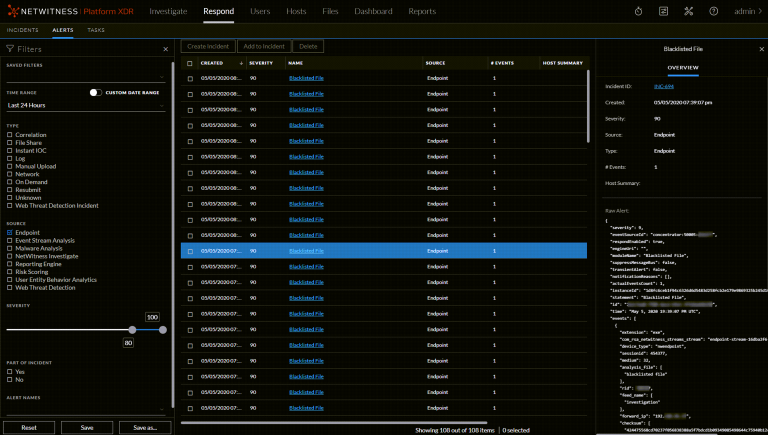
- In the Overview panel Raw Alert section, you can scroll to view the raw alert metadata.
View Event Details for an AlertView Event Details for an Alert
After you review the general information about the alert in the Alerts List view, you can go to the Alert Details view for more detailed information to determine the action required. An alert contains one or more events. In the Alert Details view, you can drill down into an alert to get additional event details and further investigate the alert. The following figure shows an example of the Alert Details view.
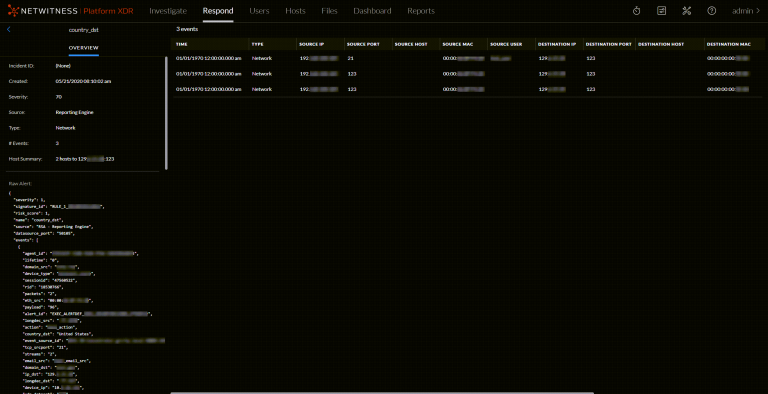
The Overview panel on the left has the same information for an alert as the Overview panel in the Alerts List view.
The Events panel on the right shows information about the events in the alert, such as event time, source IP, destination IP, detector IP, source user, destination user, and file information about the events. The amount of information listed depends on the event type.
There are two types of events:
- A transaction between two machines (a Source and a Destination)
- An anomaly detected on a single machine (a Detector)
Some events will only have a Detector. For example, NetWitness Endpoint finds malware on your machine. Other events will have a Source and Destination. For example, packet data shows communication between your machine and a Command and Control (C2) domain.
You can drill further into an event to get detailed data about the event.
To View the Event Details for an Alert:
- To view event details for an alert, in the Alerts List view, choose an alert to view and then click the link in the Name column for that alert.
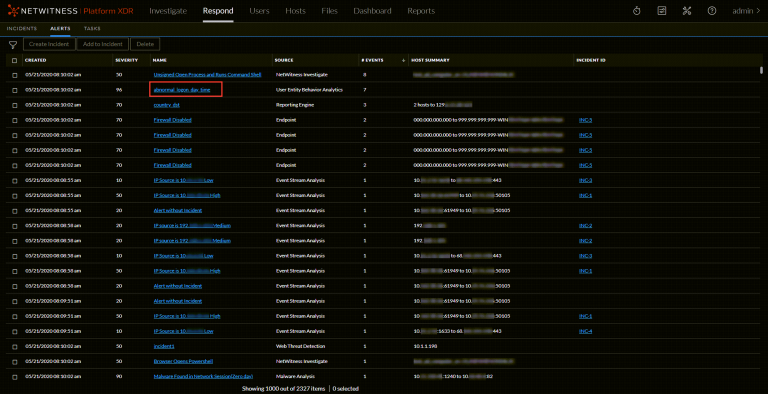
The Alerts Details view shows the Overview panel on the left and the Events panel on the right.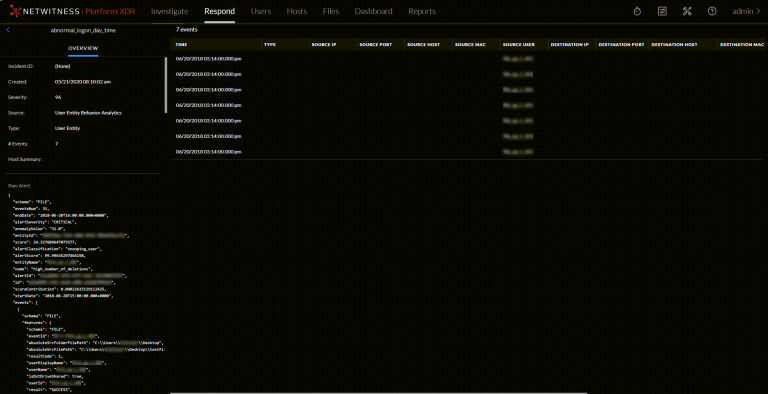
The Events panel shows a list of events with information about each event. The following table shows some of the columns that can appear in the Events List (Events Table).
If there is only one event in the list, you see only the event details for that event instead of a list.
- Click an event in the Events list to view the Event details.
This example shows the event details for the first event in the list.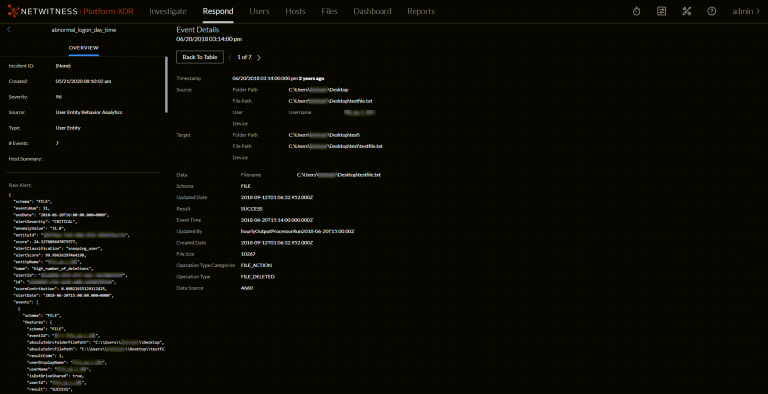
- Use the page navigation to the right of the Back To Table button to view other events. This example shows the event details for the last event in the list.
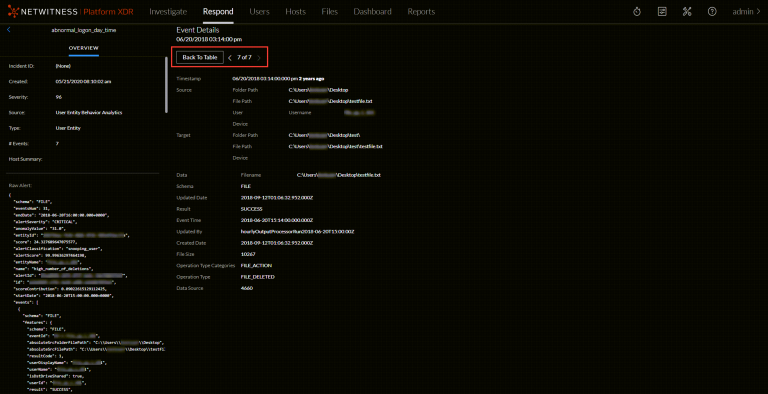
See Alert Details Panel for detailed information about the event data listed in the Alert Details panel.
Investigate EventsInvestigate Events
To further investigate the events, you can find links that take you to additional contextual information. From there, you have options available depending on your selection.
View Contextual InformationView Contextual Information
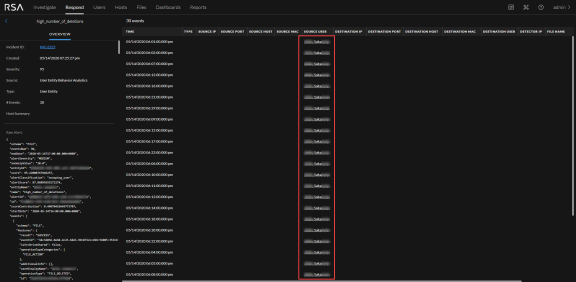
In the Alert Details view, you can see underlined entities in the Events panel. An underlined entity is considered an entity in the Context Hub and has additional contextual information available. The following figure shows underlined entities in the Events list.
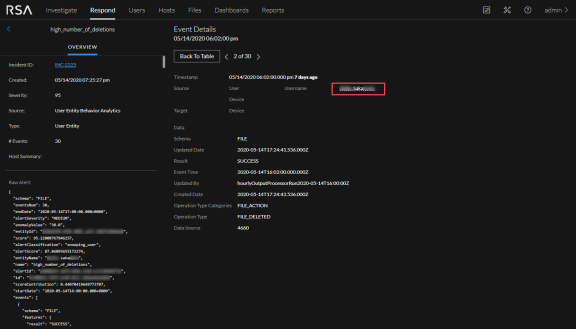
The following figure shows an underlined entity in the Event Details.
The Context Hub is preconfigured with meta fields mapped to the entities. NetWitness Respond and NetWitness Investigate use these default mappings for context lookup. For information about adding meta keys, see "Configure Settings for a Data Source" in the Context Hub Configuration Guide.
Caution: For the Context Lookup to work correctly in the Respond and Investigate views, NetWitness recommends that when mapping meta keys in the (missing or bad snippet) > System > Investigation > Context Lookup tab, you add only meta keys to the Meta Key Mappings, not fields in the MongoDB. For example, ip.address is a meta key and ip_address is not a meta key (it is a field in the MongoDB).
To View Contextual Information:
- In the Alert Details view Events List or Event Details, left or right click an underlined entity.
A context tooltip appears with a quick summary of the type of context data that is available for the selected entity.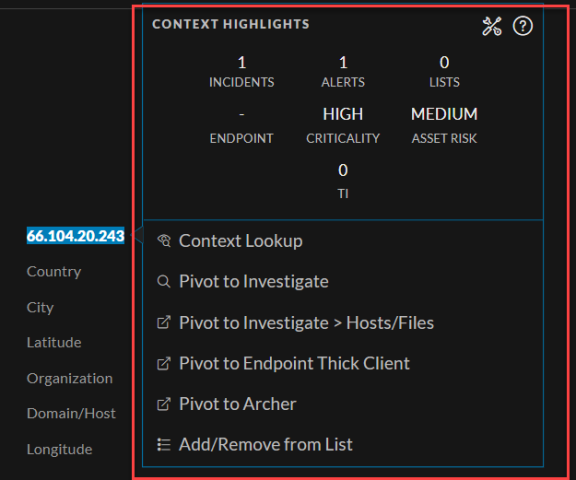 .
.
The information in the Context Highlights section helps you to determine the actions that you would like to take. It shows the number of related alerts and incidents. It can show related data for Incidents, Alerts, Lists, Endpoint, Criticality, Asset Risk, Reputation, and Threat Intelligence (TI). Depending on your data, you may be able to click these numbered items for more information. The above example shows 1 related incidents, 1 related alerts, and one list associated with the selected IP address. There is no information for Endpoint, , Criticality, or Asset Risk. TI information comes from the STIX data source configured in Context Hub. For more information, see the Context Hub Configuration Guide.
The other section lists the available actions. In the above example, the Add/Remove From List, Pivot to Investigate, Pivot to Investigate > Hosts/Files, Pivot to Endpoint Thick Client, and and Pivot to Archer options are available.
Note: The Pivot to Archer link is disabled when Archer data is not available or when the Archer Datasource is not responding. Check that the Archer configuration is enabled and configured properly.
For more information, see Pivot to the Investigate > Navigate View, Pivot to the Hosts or Files View, Pivot to Archer, Pivot to Endpoint Thick Client, and Add an Entity to a Whitelist.
- To see more details about the selected entity, click the View Context button.
The Context panel opens and shows all of the information related to the entity.
Context Lookup Panel - Respond View provides additional information.
Add an Entity to a WhitelistAdd an Entity to a Whitelist
You can add any underlined entity to a list, such as a Whitelist or Blacklist, from a context tooltip. For example, to reduce false positives, you may want to whitelist an underlined domain to exclude it from the related entities.
- In the Alert Details view Events List or Event Details, left or right click the underlined entity that you would like to add to a Context Hub list.
A context tooltip appears showing the available actions.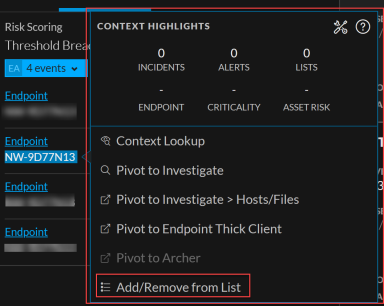
- In the Actions section of the tooltip, click Add/Remove from List.
The Add/Remove From List dialog shows the available lists.