.png?width=180&height=32&name=NW%20Logo%20(2).png)
Tasks List View
After investigating incidents, in the Tasks List view (Respond > Tasks), you can create and track incident tasks. For example, you can create remediation tasks when you require actions on incidents from teams outside of your security operations. You can reference external ticket numbers within the tasks and then track those tasks to completion. You can also modify and delete tasks as required, depending on your user permissions.
What do you want to do?What do you want to do?
Related TopicsRelated Topics
Quick Look Quick Look
To access the Tasks List view, go to Respond > Tasks. The Tasks List view displays a list of all incident tasks.
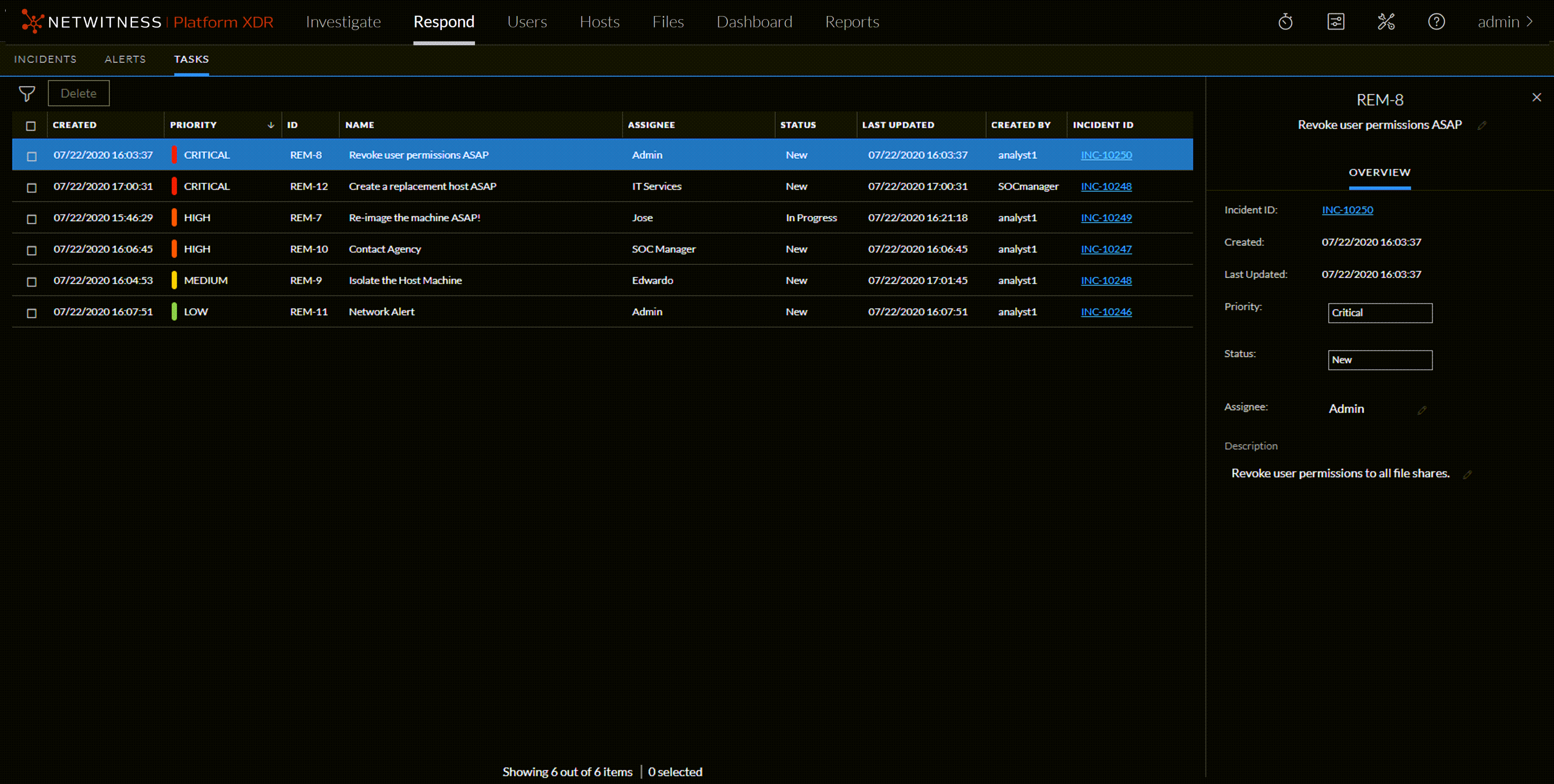
The Tasks List view consists of a Filters panel, a Tasks List, and a Task Overview panel. The following figure shows the Tasks List and the Overview panel.
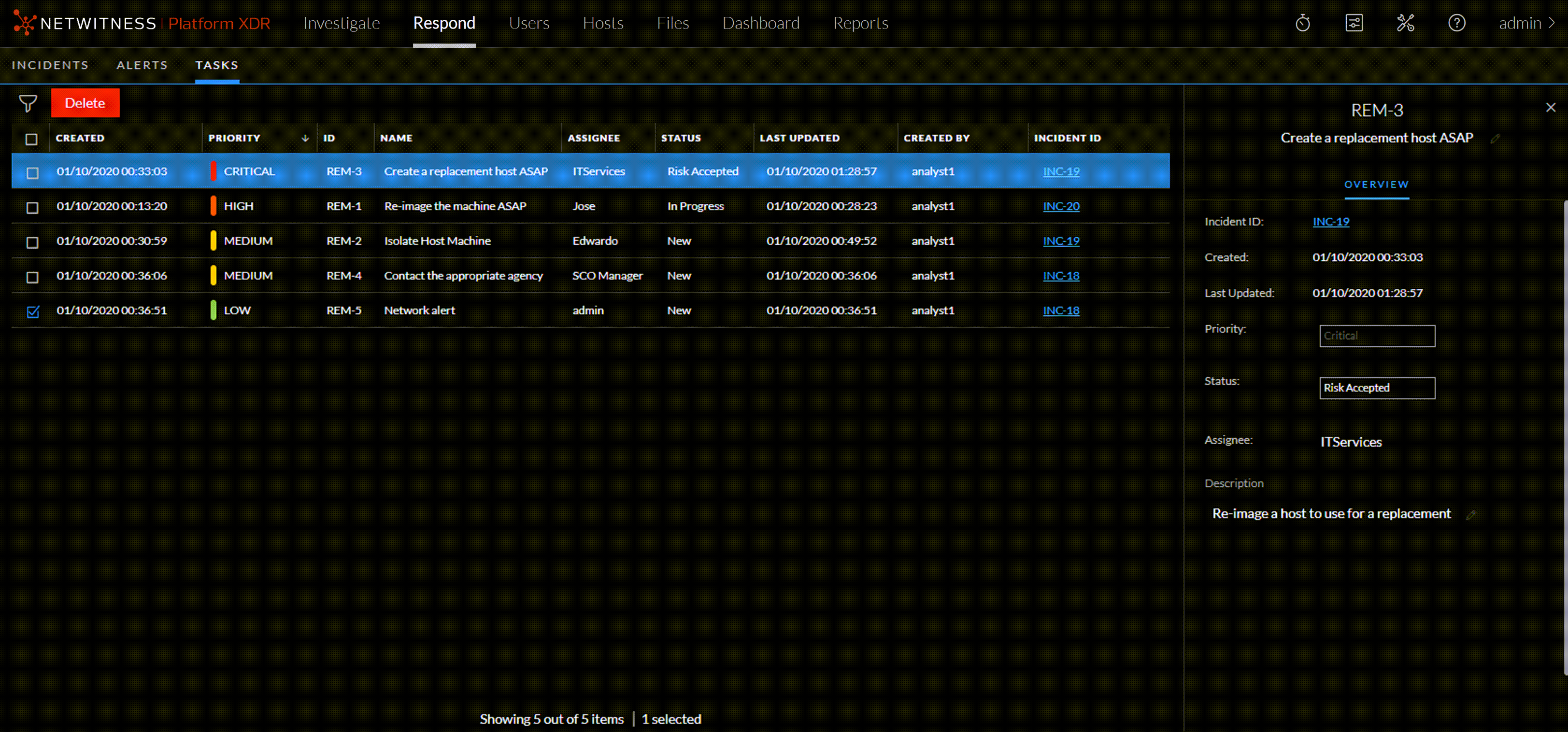
Tasks ListTasks List
The Tasks List shows all of the incident tasks. You can filter this list to show only tasks of interest.
At the bottom of the list, you can see the number of tasks on the current page and the total number of tasks. For example: Showing 23 out of 23 items
Task Filters PanelTask Filters Panel
The following figure shows the filters available in the Filters panel.
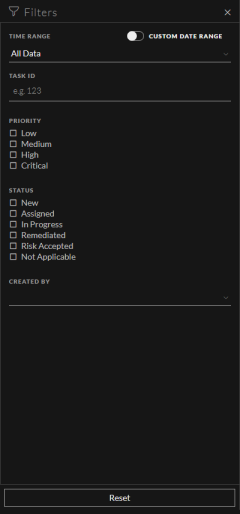
The Filters panel, on the left of the Tasks List view, has options that you can use to filter the incident tasks.
The Tasks List shows a list of tasks that meet your selection criteria. You can see the number of items in your filtered list at the bottom of the tasks list. For example: Showing 18 out of 18 items
Task Overview PanelTask Overview Panel
To access the Task Overview panel:
-
Go to Respond > Tasks.
- In the Task list, click the task that you want to view.
The Task Overview panel appears to the right of the Tasks list.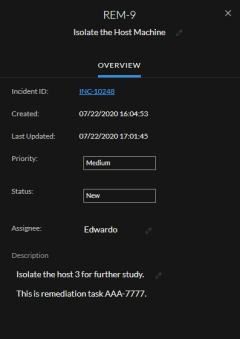
The following table lists the fields displayed in the Task Overview panel.
Toolbar ActionsToolbar Actions
This table lists the toolbar actions available in the Tasks List view.