.png?width=180&height=32&name=NW%20Logo%20(2).png)
User Preferences
To adjust NetWitness to best fit your environment and work practices, you can set your own global application preferences. You can:
- Change the application language
- Set the application time zone
- Set the date and time formats
- Select your default NetWitness starting location
- Select your default Investigate view
- Choose a dark or light theme for the application
- Change your password
- Enable notifications
- Enable context menus
- Change Investigate preferences - Described in the NetWitness Investigate User Guide.
Your global preference options vary depending on whether you access them, such as Springboard, Investigate, Respond, Users, Hosts, Files, Dashboard, Reports, Configure, and Admin. There are two global user preferences dialogs accessible from the main menu bar:
- User Preferences dialog - Accessible from these views: Springboard, Investigate > Events, Respond, Users, Hosts, Files, and
 (Configure) > (Capture Policies, Incident Rules, Incident Notifications, and Log Parser Rules).
 - Preferences dialog - Accessible from these views: Investigate, Dashboard, Reports, (Configure) > (Live Content, Subscriptions, ESA Rules, and Custom Feeds), and
 (Admin) .
What do you want to do?
Related Topics
User Preferences
To access your user preferences, click your username, for example,  .
.
The User Preferences dialog shows your current preferences and the NetWitness version.
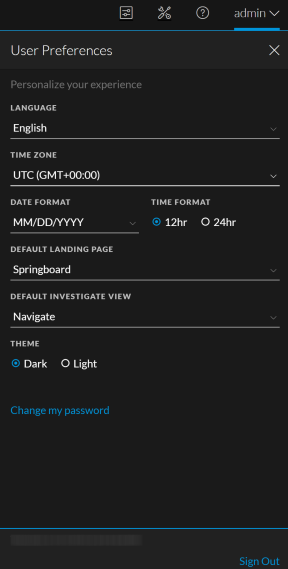
The following table describes the global application preference options that you can access from the User Preferences dialog.
Any selections that you make become effective immediately.
Preferences
To access additional global user preferences, do one of the following:
- For most views, such as Investigate, Dashboard, Reports, (Configure) , or (Admin) , select your username and then select Profile.
- In the Home, Springboard, Investigate view [Events (formerly Event Analysis)], Respond, Users, Hosts, Files, and some (Configure) views, select your username, for example
 , and in the User Preferences dialog click Change my password.
The Preferences dialog shows your current preferences.
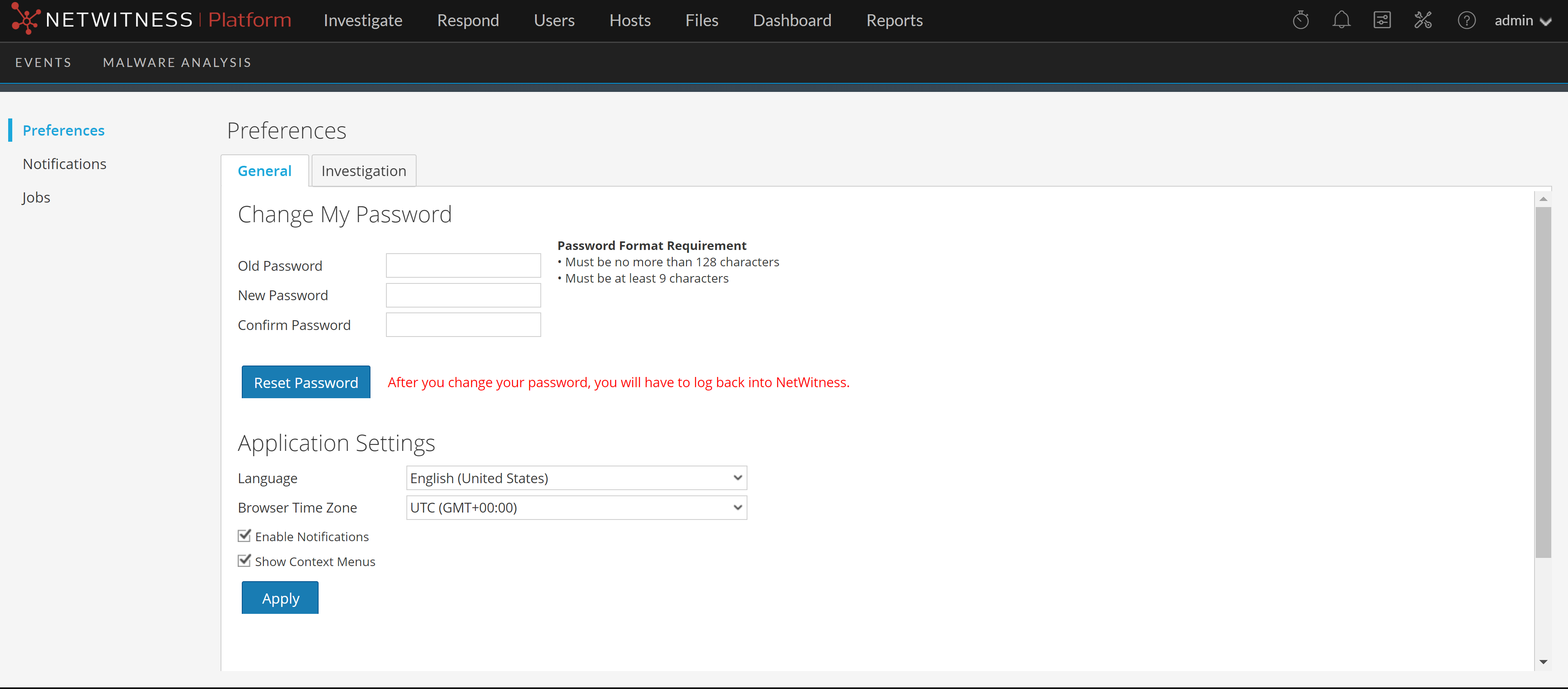
The following tables describe the global application preference options that you can access from the Preferences dialog.
This section enables you to change your password. Your administrator defines the appropriate password strength requirements for your NetWitness password, such as minimum password length and minimum number of uppercase, lowercase, decimal, non-Latin alphabetic, and special characters. These requirements are then displayed when changing your password.
The following tables describes the options in the Change My Password section.
If you changed your password, you will be logged out of NetWitness for the changes to take effect. The new password becomes effective the next time you log in to NetWitness.
Application Settings Section
The following tables describes the options in the Application Settings section.