.png?width=180&height=32&name=NW%20Logo%20(2).png)
Add/Remove from List Dialog
The Add/Remove from List dialog allows you to add or remove an entity or meta value to an existing list or create a new list. For example, when you look up an IP address and you find it suspicious or interesting, you can add it to a relevant list, which has been added a data source. This improves the visibility of the suspicious IP addresses. You can also add entities or meta values to different lists. For example, you can add them to one list for suspected domains related to command and control connections and to another list for Trojan connections IP addresses related to remote access. If a list is not available, you can create a list. You can also remove the entity or meta value from a list.
Note: From the Add/Remove from List dialog, you can only add or remove entities or meta values from single column lists added as a datasource, not multi-column lists. And when you edit a list or a value in a list from the nodal view or the context lookup view, ensure to refresh the web page to view the updated data.
What do you want to do?What do you want to do?
Related TopicsRelated Topics
- Investigate the Incident
- Reviewing Alerts
- View Contextual Information (Incident Details view)
- View Contextual Information (Alert Details view)
Note: You cannot delete a list, but you can delete values within a list.
Quick LookQuick Look
The following is an example of the Add/Remove from List dialog in the Respond view.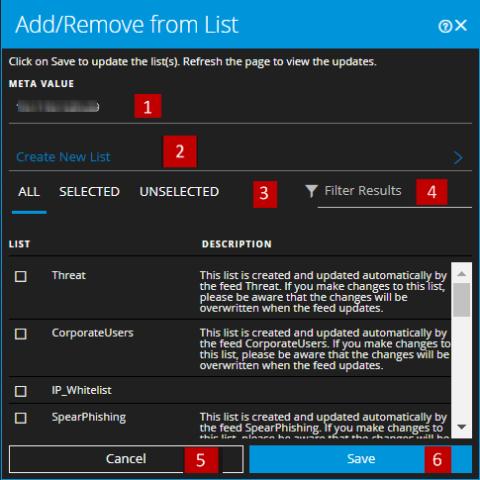
To access the Add/Remove from List dialog, in the Incident Details view or the Alert Details view, hover over the underlined entity that you would like to add or remove from a Context Hub list. A context tooltip appears showing the available actions.
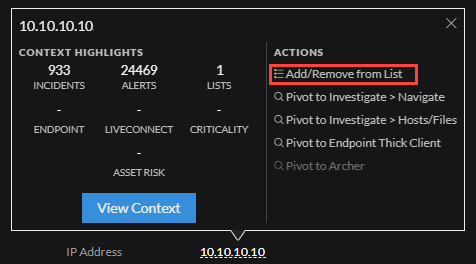
In the Actions section of the tooltip, click Add/Remove from List. The Add/Remove From List dialog shows the available lists.
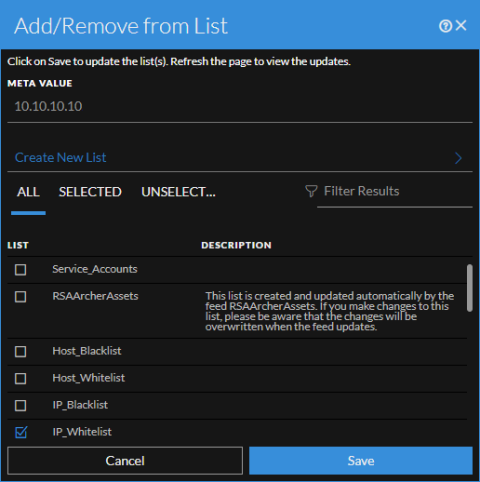
The following table shows the options in the Add/Remove from List dialog.