Skip to content
  • There are no suggestions because the search field is empty.

Build Report View

Build Report View

In the Build Report view, you can create a report, add text and rules, and schedule a report.

Workflow

This workflow shows the procedure to create and schedule a report.
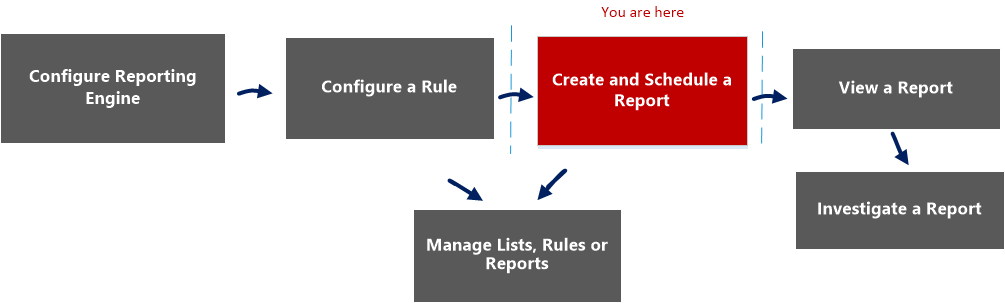
netwitness_createandschrep_workflow.png

What do you want to do?

  • Role: Administrator / Analyst
  • I want to ...:

    Configure Reporting Engine

  • Show me how:

    For more information, see "Step 3: Configure Reporting Engine Data Sources" topic in the Reporting Engine Configuration Guide


  • Role: Administrator / Analyst
  • I want to ...: Create a List or List Group/Create or Deploy a Rule/Test a Rule
  • Show me how: Configure a Rule


  • Role: Administrator / Analyst
  • I want to ...: View a report or list of all reports
  • Show me how: View a Report

  • Role: Administrator / Analyst
  • I want to ...: Investigate a Report
  • Show me how: Investigate a Report


*You can complete these tasks here.

Related Topics

Quick View

The following figure shows the Build Report View.
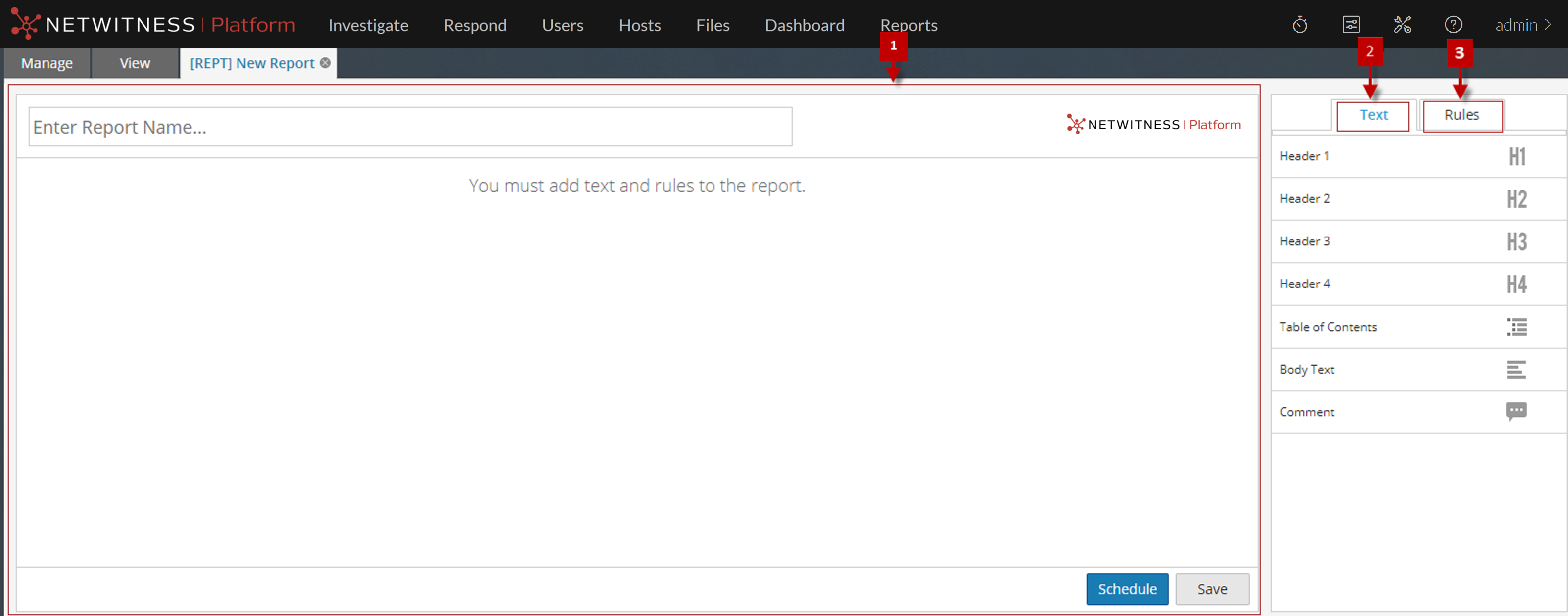
122_build_report_page_comp_1222.png

To access this view

  1. Go to Reports.

    The Manage tab is displayed.

  2. Click Reports.

    The Reports view is displayed.

  3. In the Reports toolbar, click netwitness_110_run_config_add.png.

    The Build Report tab is displayed.

The Build Report view consists of the following panels:

  • Column 1: 1
  • Column 2: Report Panel

  • Column 1: 2
  • Column 2: Text Panel

  • Column 1: 3
  • Column 2:

    Rules Panel


Report Panel

The Report panel allows you to create a report by assigning a name to the report. The content in a report depends on the items selected from the Text and Rules panels.
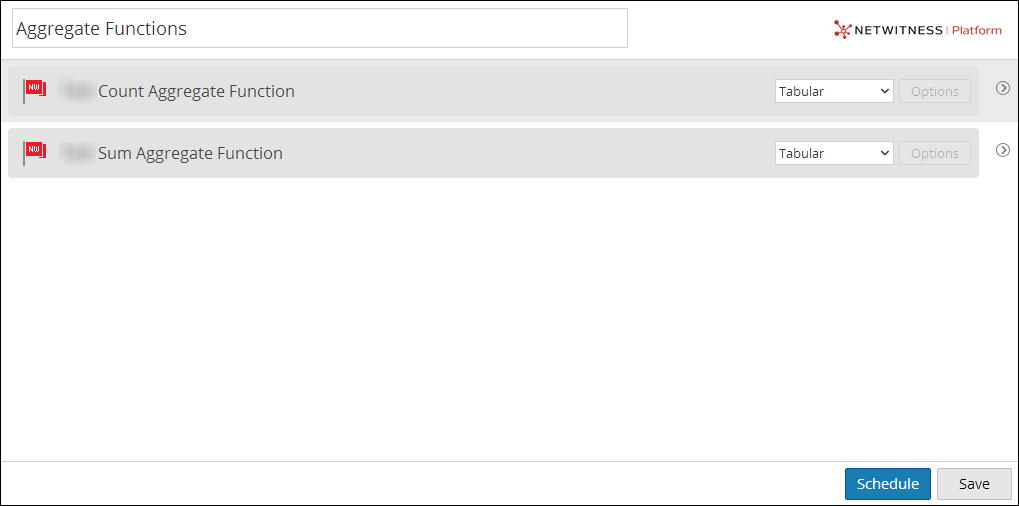
110_report_pane.png

When you add rules to a report, you can change the output format of these rules either to tabular, area, line or pie by clicking the netwitness_110_rule_options_button.png button.

The following table lists the features of the Report Panel and the description.

  • Feature: Name
  • Description: This field allows you enter the name of the report.

  • Feature: Options
  • Description: This field allows you to select the output format of the report such as Tabular, Area, Bar, Bubble, Column, Line, Pie, Step Line, Step Area, Spline Area and Spline.

  • Feature: Schedule
  • Description: Clicking this option generates the report.

  • Feature: Save
  • Description: Clicking this option saves the report.

Text Panel

The Text panel consists of a list of text elements that add to the look and feel of the report. You can use these text elements to format the report.

  • To add more structure to reports, you can use these headers defined in the Text panel to indent up to four levels. This allows you to identify specific sections in a report that can be included in the Table of Contents for easy navigation in the report result.
  • To add headers to the Report panel, drag and drop H1, H2, H3, or H4 onto the Report pane based on the desired level of indentation.
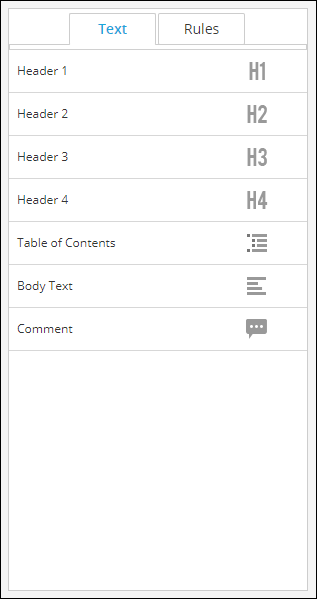
netwitness_110_report_text_panel.png
The following table lists the text elements used to format a report:

  • Text Elements: Header 1
    netwitness_110_h1.png
  • Description: The Header 1 element adds a first-level heading to the report definition.

  • Text Elements: Header 2
    netwitness_110_h2.png
  • Description: The Header 2 element adds a second-level heading to the report definition.

  • Text Elements: Header 3
    netwitness_110_h3.png
  • Description: The Header 3 element adds a third-level heading to the report definition.

  • Text Elements: Header 4
    netwitness_110_h4.png
  • Description: The Header 4 element adds a fourth-level heading to the report definition.

  • Text Elements: Table of Contents
    netwitness_110_toc.png
  • Description: The Table of Contents adds table of contents to the report definition.

  • Text Elements: Body Text
    netwitness_110_body-text.png
  • Description: The Body Text element adds body text to the report definition.

  • Text Elements: Comment
    netwitness_110_comment.png
  • Description:

    The Comment element adds comments to the report definition.

    Note: The Comment element is not displayed when you view all the reports.


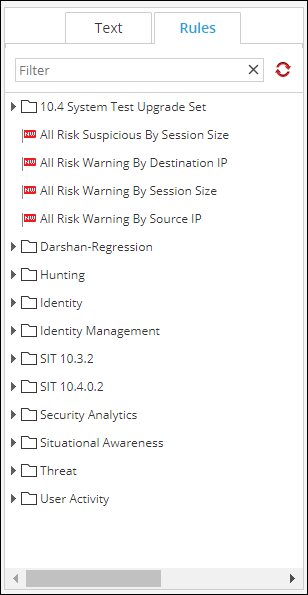
Rules Panel

The Rules panel consists of a list of rules that are defined in the Rules. From the rules list, you can drag and drop rules onto the Report panel to associate those rules with the report.

You can search for a specific rule using search text box provided in the Rules panel.
netwitness_110_report_rules_panel.png