Skip to content
  • There are no suggestions because the search field is empty.

Context Lookup Panel - Respond View

Context Lookup Panel - Respond View

The Context Hub service brings together contextual information from several data sources into the Respond view so that analysts can make better decisions during their analysis and take appropriate action. Seeing the entities, meta values, and contextual information in a single interface helps analysts to prioritize and identify areas of interest. For example, recently created incidents and alerts from the Respond view involving a given entity or meta value will be displayed when the analyst queries for additional information for that entity or meta value. The Context Lookup panel displays contextual information for the selected entities or meta values such as IP address, User, Host, Domain, File Name, or File Hash. The data available depends on the configured sources in the Context Hub.

The Context Lookup panel displays the contextual information based on the data available on the configured sources in the Context Hub.

What do you want to do?What do you want to do?


  • Role:

    Incident Responders, Analysts, Threat Hunters

  • I want to ...:

    Understand the information in the Context Lookup panel for a selected entity.

  • Show me how:

    See the information in this topic.


  • Role:

    Administrator

  • I want to ...:

    Configure Data Sources for Context Hub.

  • Show me how: See "Configure Data Sources for Context Hub" in the Context Hub Configuration Guide.

  • Role: Administrator
  • I want to ...:

    Configure Context Hub settings.

  • Show me how: See "Configure Context Hub Data Source Settings" in the Context Hub Configuration Guide.

Related TopicsRelated Topics

Contextual Information Displayed in the Context Lookup PanelContextual Information Displayed in the Context Lookup Panel

The contextual information or query results displayed in the Context Lookup panel depends on the selected entity and the associated data sources. The Context Lookup panel has separate tabs for each of the data sources. The tabs are: List data source, Archer, Active Directory, Endpoint, Incidents, Alerts, and REST API. The following figure shows the Context Lookup panel for a selected entity in the Incident Details view.
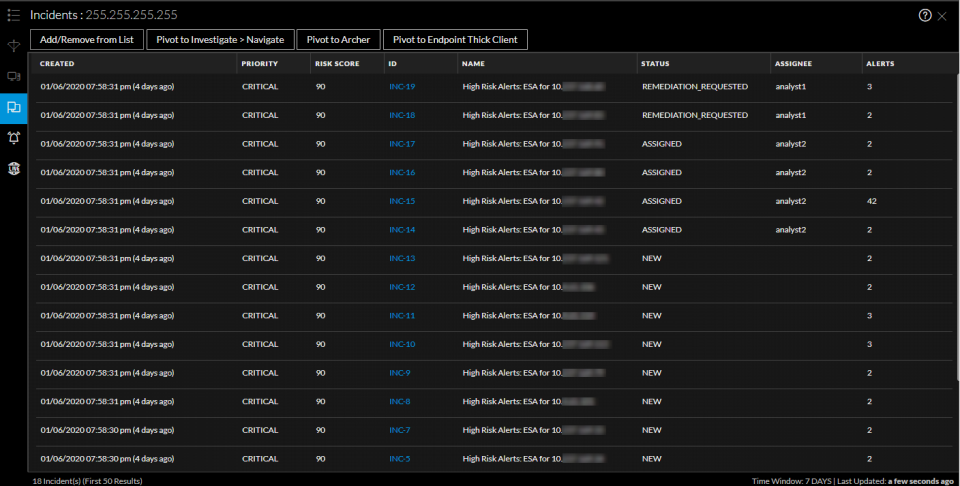
netwitness_contextpanel_2_114_960x486.png

The following table describes the data available on each tab and the supported entities.

  • Tab:

    netwitness_ch_list.png
    (Lists)

  • Description: Displays all of the list data associated with the selected entity or meta value. The result is sorted by the last updated list.
  • Supported Entities:

    All entities


  • Tab: netwitness_ch_archer.png
    (Archer)
  • Description: Displays asset information along with criticality ratings using the Archer data source.
  • Supported Entities: IP, Host, and Mac

  • Tab:

    netwitness_ch_ad.png
    (Active Directory)

  • Description: Displays all user information for the selected user.
  • Supported Entities:

    User


  • Tab:

    netwitness_ch_endpt.png
    (NetWitness Endpoint)

  • Description: Displays the NetWitness Endpoint data source information for the selected entity or meta value, which includes the Machines, Modules, and IIOC levels. Modules are by highest IOC score to lowest IIOC score and IIOC levels are sorted by highest IOC levels to lowest IOC levels.
  • Supported Entities: IP, MAC address, and Host

  • Tab: netwitness_ch_inc.png
    (Incidents)
  • Description: Displays the list of incidents associated with the selected entity or meta value. The result is sorted by newest incidents to oldest incidents.
  • Supported Entities:

    All entities


  • Tab: netwitness_ch_alert.png
    (Alerts)
  • Description: Displays the list of alerts associated with the selected entity or meta value. The result is sorted by newest alerts to oldest alerts.
  • Supported Entities: All entities

  • Tab: netwitness_ch_live.png
    (Live Connect)
  • Description: Displays information related to Live Connect.
  • Supported Entities:

    IP, Domain, and Filehash


  • Tab: netwitness_flrepds.png

    (File Reputation)

  • Description: Displays file reputation status for Filehash entities.
  • Supported Entities: Filehash entities

  • Tab:

    netwitness_stixicon_44x42.png

    TI

  • Description:

    Displays information for STIX data sources.

  • Supported Entities:

    IP address, email address, domain, filename, URL's, and file hash.

    Note: The context lookup for email address and URL will be displayed only if these metas are mapped. Navigate to netwitness_adminicon_25x22.png (Admin) > System > Investigation > Context Lookup.


  • Tab: netwitness_restapi.png

    REST API

  • Description: Displays the list of REST APIs (enabled in Context Hub) associated with selected the entity.
  • Supported Entities: All entities

Lists TabLists Tab

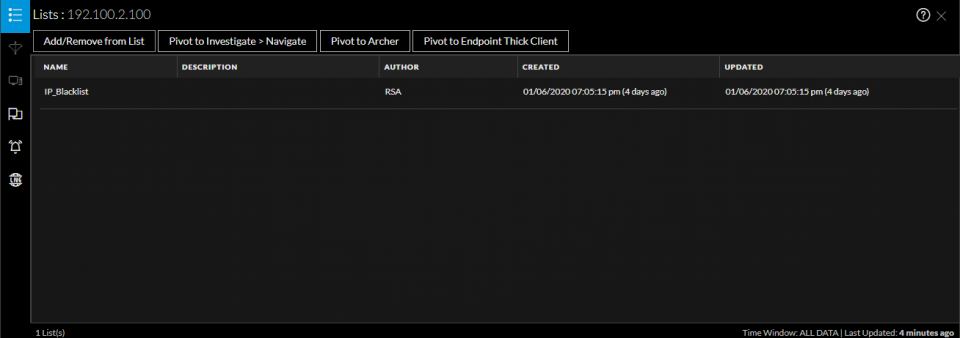
The Context Lookup panel for Lists shows one or more lists associated with the selected entity or meta value. The following figure is an example of the Context Panel for Lists, and the table describes the fields.
netwitness_ctxpnl_lists_114_960x338.png

  • Field: Name
  • Description: The name of the list (defined while creating the list).

  • Field: Description
  • Description: The description of the list (defined while creating the list).

  • Field: Author
  • Description: The owner who created the list.

  • Field: Created
  • Description: The date when the list was created.

  • Field: Updated
  • Description: The date when the list was last updated or modifed.

  • Field: Count
  • Description: The number of lists in which the selected entity or meta value is available.

  • Field: Time Window
  • Description: The time window based on the value set for the "Query Last" field in the Configure Responses dialog. By default, all Lists data is fetched.

  • Field: Last Updated
  • Description: The time when Context Hub fetched and stored the lookup data in cache.

Archer TabArcher Tab

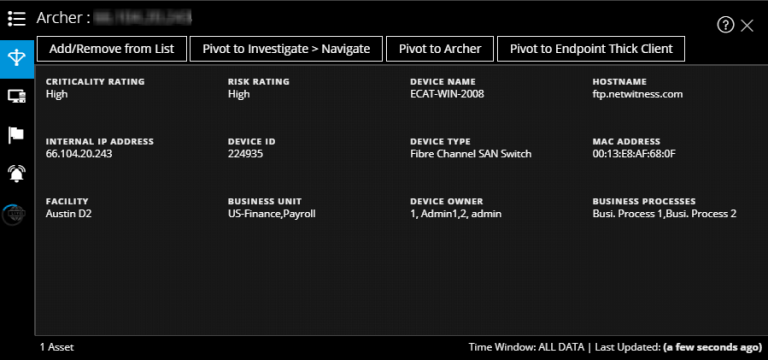
The Context Lookup panel for Archer displays asset information along with criticality ratings using the Archer data source for IP, Host, and Mac entities. The following figure is an example of the Context Lookup panel for Archer, and the table describes each field.
netwitness_archercontext_2_768x360.png

  • Field: Criticality Rating
  • Description: The device operational criticality based on the applications it supports. The criticality ratings can be set as Not Rated, Low, Medium-Low, Medium, Medium-High, or High.

  • Field: Risk Rating
  • Description: The calculated risk rating for the device based on the most recent assessment and the average risk rating of facilities using the device. The risk rating can be set as Severe, High, Medium, Low, or Minimal.

  • Field: Device Name
  • Description: The unique name of the device.

  • Field: Host Name
  • Description: The host name of the device.

  • Field: IP Address
  • Description: The primary internal IP address of the device.

  • Field: Device ID
  • Description: The automatically populated value that uniquely identifies the record across all applications within the system.

  • Field: Type
  • Description: The device type, for example, server, laptop, desktop, and others.

  • Field: Facilities
  • Description: Links to records in the Facilities application that are related to this device.

  • Field: Business Unit
  • Description: Links to records in the Business Unit application that are related to this device. For more than three business unit values, you can hover over the field to view the values.

  • Field: Device Owner
  • Description: The person who is responsible for the device and receives read and update rights of the record.

  • Field:

    Count

  • Description:

    The number of assets available.


  • Field:

    Time Window

  • Description: The time window based on the value that is set for the "Query Last" field in the Configure Responses dialog. By default, all data for Archer is fetched.

  • Field: Last Updated
  • Description: The time when Context Hub fetched and stored the lookup data in cache.

Note: In the localized versions, only these twelve fields are displayed: Criticality Rating, Risk Rating, Device Owner, Business Unit, Host Name, MAC Address, Facilities, IP Address, Type, Device ID, Device Name, and Business Processes.

Active Directory TabActive Directory Tab

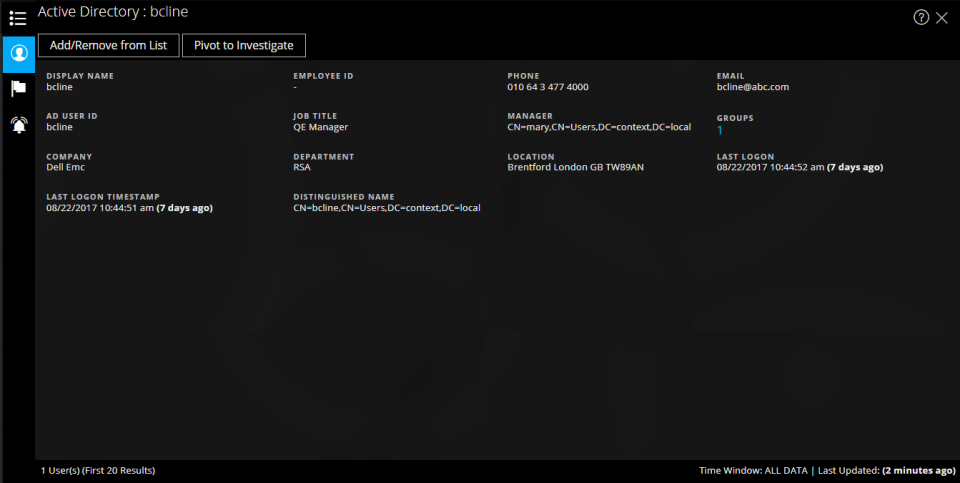
The following figure is an example of a Context Lookup panel for Active Directory.
netwitness_ctxpnl_ad_960x483.png

The Context Lookup panel for Active Directory displays all the related information, incidents, and alerts for a user. You can perform a look up using the following formats:

  • userPrincipalName
  • Domain\UserName
  • sAMAccountName

The following information is displayed for Active Directory.

  • Field:

    Display Name

  • Description:

    The name of the user.


  • Field:

    Employee ID

  • Description:

    The employee ID of the user.


  • Field:

    Phone

  • Description:

    The phone number of the user.


  • Field:

    Email

  • Description:

    The email ID of the user.


  • Field:

    AD User ID

  • Description:

    The unique identification of the user within an organization.


  • Field:

    Job Title

  • Description:

    The designation of the user.


  • Field:

    Manager

  • Description:

    The name of the user's manager.


  • Field:

    Groups

  • Description:

    The list of groups of which the user is a member.


  • Field:

    Company

  • Description:

    The name of the user's company.


  • Field:

    Department

  • Description: The department name to which the user belongs within the organization.

  • Field:

    Location

  • Description: The location of the user.

  • Field:

    Last Logon

  • Description:

    The time when the user logged into the system, only if the Global Catalogue is defined.


  • Field: Last Logon TimeStamp
  • Description: The time when the user logged into the system.

  • Field: Distinguished Name
  • Description: The unique name assigned to the user.

  • Field: Count
  • Description:

    The number of users.


  • Field:

    Time Window

  • Description:

    The time window based on the value that is set for the "Query Last" field in the Configure Data Source Settings dialog. By default, all data for Active Directory is fetched.


  • Field: Last Updated
  • Description:

    The time when Context Hub fetched and stored the lookup data in cache.


NetWitness Endpoint TabNetWitness Endpoint Tab

The following figure is an example of the Context Lookup panel for NetWitness Endpoint.
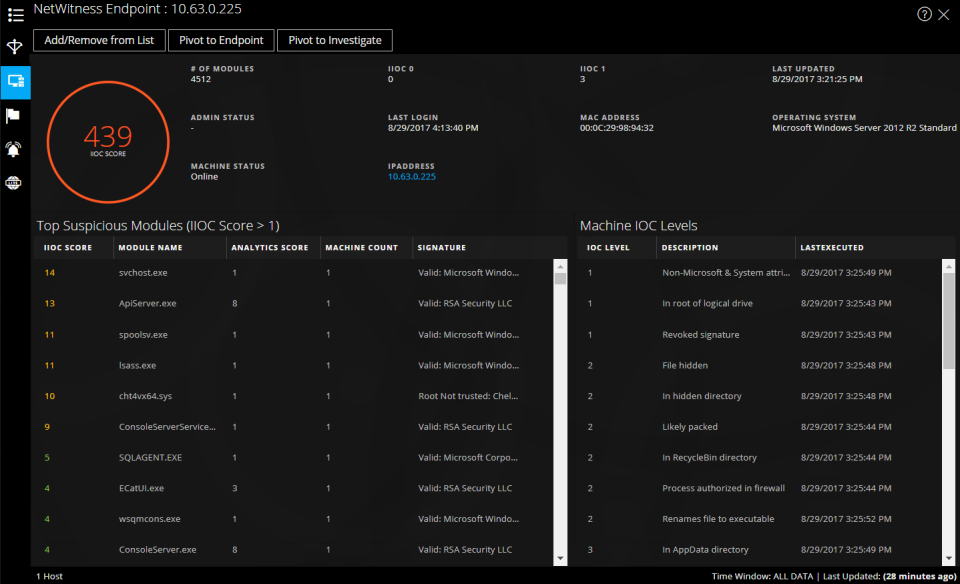
netwitness_context-panel_960x584.png

The following information displayed for IIOCs.

  • Field: # Of Modules
  • Description: The number modules that are looked up.

  • Field: Admin Status
  • Description: The admin status (if any).

  • Field: Last Updated
  • Description: The time when the data was last refreshed.

  • Field: Last Login
  • Description: The time when the user last logged in.

  • Field: MAC Address
  • Description: The Machine MAC Address.

  • Field: Operating System
  • Description:

  • Field: IP Address
  • Description: The IP address of the specific module.

,,,,, ,,,,,,, valid or invalid, and signatory information. For example, Google, Apple, and so on.,,, ,,,,,,, ,,,,,,, ,,,,,,, ,,,,,,, ,,,,,,, ,,,,,,, ,,,,,,, ,,,,,,, ,,,,,,, all data for NetWitness Endpoint is fetched.Last UpdatedThe time when scan results were last updated in NetWitness Endpoint database.,,,,,,, ,,,,,,, ,,,,,,, ,,,,,,, ,,,,,,, ,,,,,,, ,,,,,,, ,,,,,,, see "Configure Context Hub Data Source Settings" in the Context Hub Configuration Guide.,,,,,,, ,,,,,,, ,,,,,,, ,,,,,,, the alert data for last 7 days is fetched.,,,,,,, ,,,,,,, ,,,,,,, which is based on time first (Newest to Oldest) and then priority status.,,,,,,, ,,,,,,, ,,,,,,, ,,,,,,, ,,,,,,, ,,,,,,, see "Configure Context Hub Data Source Settings" in the Context Hub Configuration Guide.,,,,,,, ,,,,,,, ,,,,,,, ,,,,,,, the alert data for last 7 days is fetched.,,,,,,, ,,,,,,, ,,,,,,, ,,,,,,, see "View Reputation of files" in the UEBA User Guide.Scanner MatchNumber of scanners that detected malware or suspicious activity in the last scan.Classification PlatformClassification for the queried filehash based on the platform. For example, the platform can be Win 32.Classification TypeClassification for the queried filehash based on the type.Classification FamilyClassification for the queried filehash based on the malware family name.,,,,,, ,,,,,,, and the table describes the information displayed. netwitness_ctxpnl_stix_115_1046x676.png,,,,,,, ,,,,,,, ,,,,,,, ,,,,,,, ,,,,,,, ,,,,,,, ,,,,,,, ,,,,,,, ,,,,,,, ,,,,,,, systems, and networks using the STIX Cyber-observable Objects (SCOs).,,,,,, ,,,,,,, ,,,,,,, ,,,,,,, ,,,,,,, ,,,,,,, ,,,,,,, ,,,,,,, ,,,,,,, the fields that are mapped with friendly names (during REST API configuration) are only displayed for context Lookup. If you have not mapped any fields, all fields are displayed for context lookup.,,,,,, ,,,,,,, ,,,,,,, ,,,,,,, ,,,,,,, ,,,,,,, ,,,,,,, ,,,,,,, ,,,,,,, ,,,,,,, ,,,,,,, ,,,,,,,