.png?width=180&height=32&name=NW%20Logo%20(2).png)
Tags: Configuration, Version 12.1.1
Create an Application Rule
This topic describes the steps to create an application rule. When you create a custom application rule, NetWitness allows you to tag MITRE ATT&CK Tactics and Techniques and for each rule.
IMPORTANT: Both MITRE ATT&CK® and ATT&CK® are registered trademarks of the MITRE Corporation. © 2024 The MITRE Corporation. This work is reproduced and distributed with the permission of The MITRE Corporation.
To create a new Application Rule
- Go to
 (CONFIGURE) > Policies.
 - In the policies panel, click Content.
- In the left panel, click Content Library.
The available rules are displayed.
- In the application rule panel, click + Create Rule to add an application rule.
- In the CreateNew Rule panel, do the following:
- Enter a unique rule name. If the name of that application rule is the same as an existing rule, an error message is displayed.
-
Enter the rule value. This is the value written to the alert meta. While creating a new rule, the rule value is defaulted with the rule name. However, you can modify the same.
- Enter the condition for the rule. You can apply two types of conditions for the rule.
-
Normal mode:
-
It gives suggestions for supported metas (ip, host and so on) and operators (“=”, “Not Equal To”, “Contains”, “Exists” and so on).
-
The entered condition will be enclosed in a ‘Pill’. When you enter multiple conditions, the conditions are automatically joined by an ‘AND’ operator. On clicking the ‘AND’ operator, you can toggle between ‘AND’ and ‘OR’ operators.
-
-
Advanced: You can customize the conditions as a free form text.
-
- Select the medium to be applied for the rule.
-
Enter the description for the rule.
- Select the session data to be applied for the rule.
- Select the session options to be applied for the rule. The options are listed below:
-
Flag Session with rule name in meta key: Select the meta value for the alert from the drop-down menu. This is mandatory.
-
Forward: This option enables the performance of syslog forwarding when the log matches the rule.
-
Transient: This option prevents the created alert metadata from being written to the disk.
-
Notify: This option enables you to choose the Severity levels for the application rule and utilize the option to trigger alert generation.
-
Low
-
Medium
-
High
-
Critical
-
Note: Severity is selected by default as Low.
-
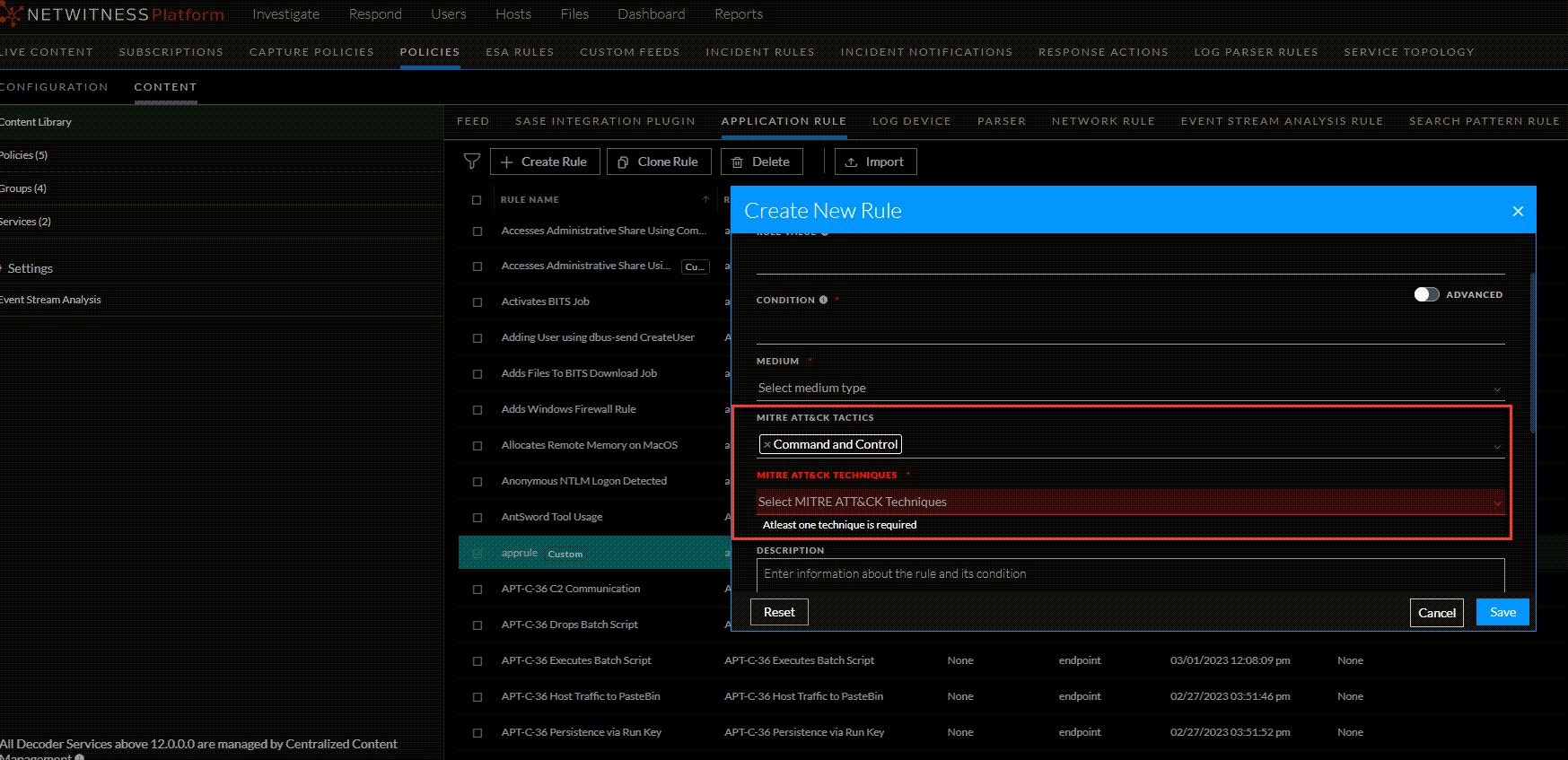
MITRE ATT&CK TACTICS: Lets you select MITRE ATT&CK TACTICS from the list.
Note: Ensure that you apply at least one MITRE ATT&CK TACTIC for the rule.
-
MITRE ATT&CK TECHNIQUES: Lets you select MITRE ATT&CK TECHNIQUES from the list.
-
DESCRIPTION: Provide a description for the rule.
-
- Click Save to save the new application rule.
-
Click Reset to reset the fields.
-
Click Cancel to cancel the operation.