Skip to content
  • There are no suggestions because the search field is empty.

Incidents List View

Incidents List View

The Incidents List view (Respond > Incidents) shows Incident Responders and other Analysts a prioritized results list of incidents created from various sources. For example, your results list could show incidents created from ESA rules or NetWitness Endpoint. From the Incidents List view, you have easy access to the information that you need to quickly triage and manage incidents through completion.

Workflow

This workflow shows the high-level process that Incident Responders use to respond to incidents in NetWitness.
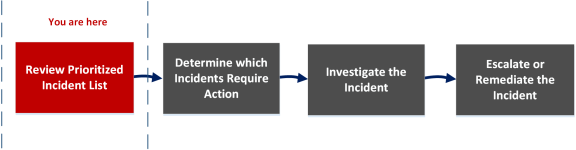
netwitness_inclist_ui_wf_576x150.png

In the Incidents List view, you can review the list of prioritized incidents, which shows basic information about each incident. You can also change the assignee, priority, and status of the incidents. Because the results can be large in the incidents list, you have the option to filter those incidents by time range, incident ID, custom date range, priority, status, assignee, and categories.

What do you want to do?


  • Role:

    Incident Responders, Analysts, and SOC Manager

  • I want to ...: Filter and sort the incident list*
  • Show me how: Filter the Incident List

  • Role: Incident Responders, Analysts
  • I want to ...: View my incidents*
  • Show me how: View My Incidents


  • Role:

    Incident Responders, Analysts, and SOC Manager

  • I want to ...: Find Incidents*
  • Show me how: Find an Incident

  • Role:

    Incident Responders, Analysts, and SOC Manager

  • I want to ...:

    Send an incident to Archer Cyber Incident & Breach Response or update an incident.*

  • Show me how:

    Escalate or Remediate the Incident


  • Role: Incident Responders, Analysts
  • I want to ...: Further Investigate an incident.
  • Show me how: Investigate the Incident


*You can complete these tasks here (that is, in the Incidents List view).

Related Topics

Quick Look

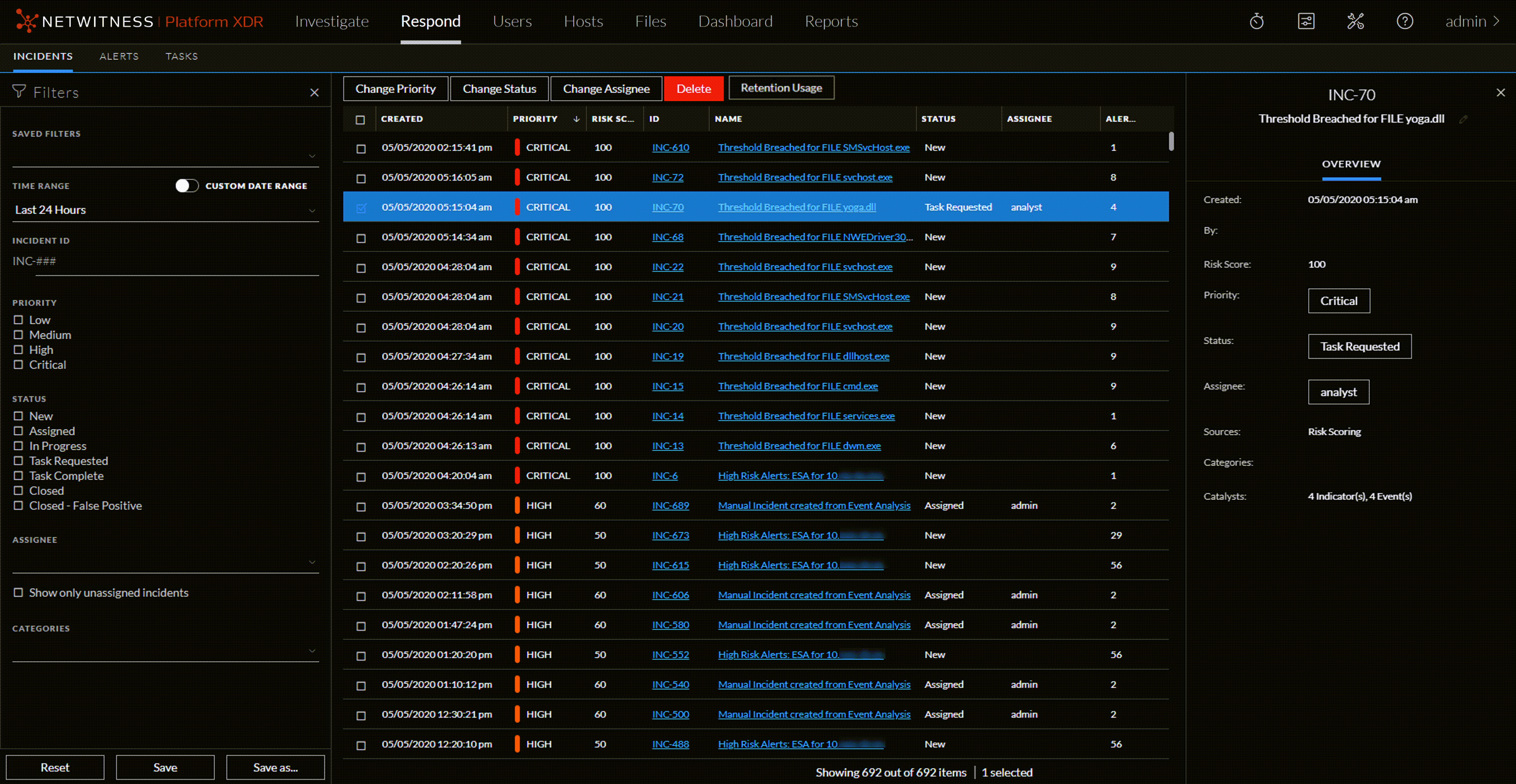
The following example shows the initial Incidents List view with the Filter panel. You can open the Overview panel for an incident by clicking an incident in the Incident List.

Incidents

  • Column 1: 1
  • Column 2: Filters Panel

  • Column 1: 2
  • Column 2: Incidents List

  • Column 1: 3
  • Column 2: Overview Panel

You can go directly to the Incident Details view from the Incidents List by clicking the hyperlinked ID or NAME. The Overview panel is also available in the Incident Details view. For more information about the Incidents Details view, see Incident Details View.

Incidents List View

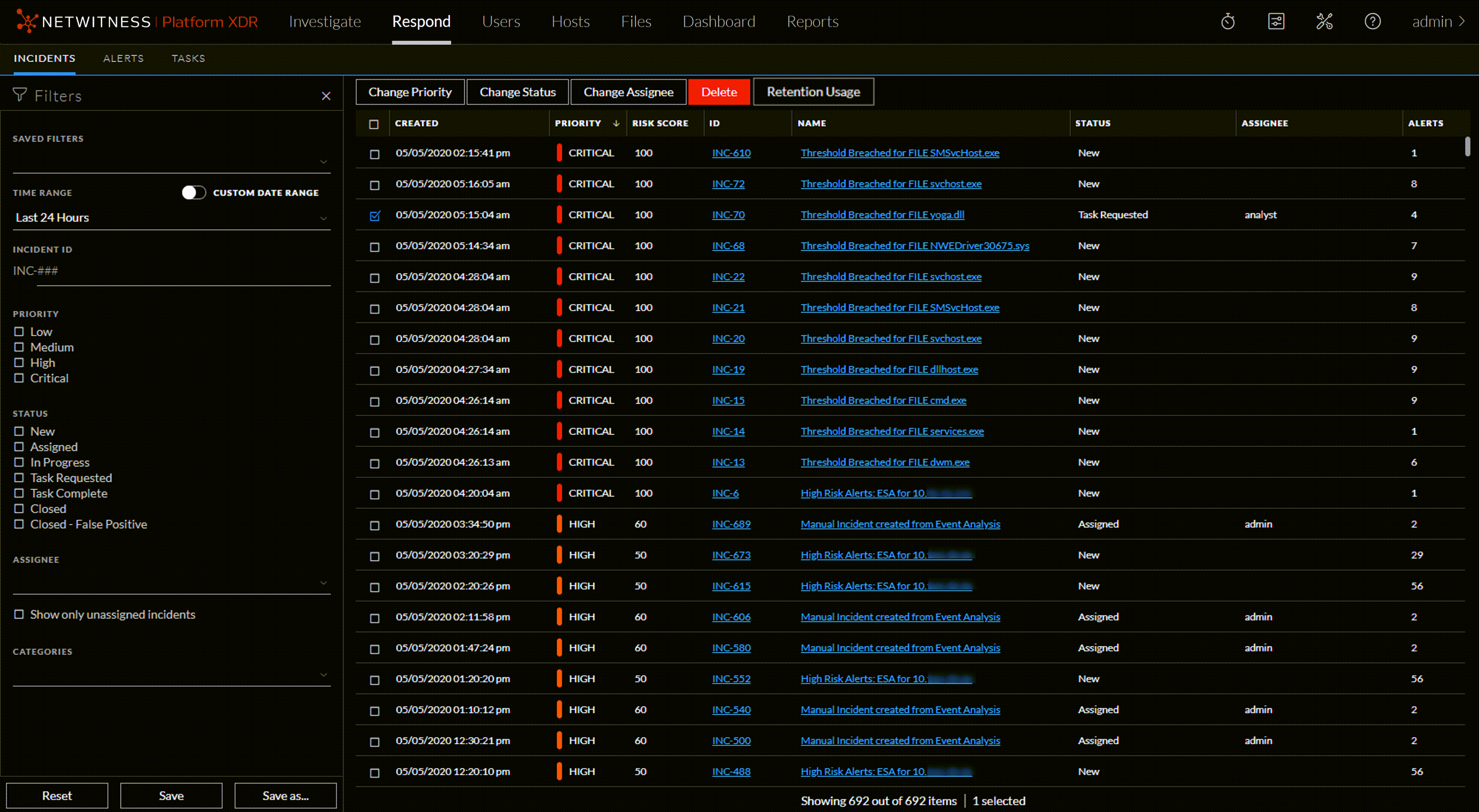
To access the Incidents List view, go to Respond > Incidents. The Incidents List view displays a list of all incidents. The Incidents List view consists of a Filters panel, an Incidents List, and an Incidents Overview panel.

The following figure shows the Filter Panel on the left and the Incidents List on the right.
netwitness_12.1_inclistview2_1122.png

The following figure shows the incident Overview panel on the right.
netwitness_12.1_inctaskrequest_1122.png

Incidents List

The Incidents List shows a list of all of the prioritized incidents. You can filter this list to show only incidents of interest.

  • Column: Created
  • Description: Shows the creation date of the incident.

  • Column: Priority
  • Description: Shows the incident priority. Priority can be Critical, High, Medium, or Low.

    The Priority is color coded, where red indicates a Critical incident, orange represents a High risk incident, yellow indicates a Medium risk incident, and green represents a Low risk incident. For example:

    netwitness_prioritylevels.png


  • Column: Risk Score
  • Description:

    Shows the incident risk score. The risk score indicates the risk of the incident as calculated by an algorithm and is between 0-100. 100 is the highest risk score.


  • Column: ID
  • Description: Shows the automatically created incident number. Each incident is assigned a unique number that you can use to track the incident.

  • Column: Name
  • Description: Shows the incident name. The incident name is derived from the rule used to trigger the incident. Click the link to go to the Incident Details view for the selected incident.

  • Column: Status
  • Description:

    Shows the incident status. The status can be: Reopen, New, Assigned, In Progress, Task Requested, Task Complete, Closed, and Closed-False Positive.


  • Column: Assignee
  • Description: Shows the team member currently assigned to the incident.

  • Column: Alerts
  • Description: Shows the number of alerts associated with the incident. An incident may include many alerts. A large number of alerts might mean that you are experiencing a large-scale attack.

  • Column: MITRE ATT&CK Tactics
  • Description:

    Shows the particular Tactic associated with each Incident.

    For example: Credential Access.

    For more information on MITRE ATT&CK Tactics, see Use MITRE ATT&CK® Framework topic.


At the bottom of the list, you can see the number of incidents on the current page, the total number of incidents, and the number of incidents selected. For example: Showing 1000 out of 2517 items | 2 selected. The maximum number of incidents that you can view at one time is 1,000.

Incident Filters Panel

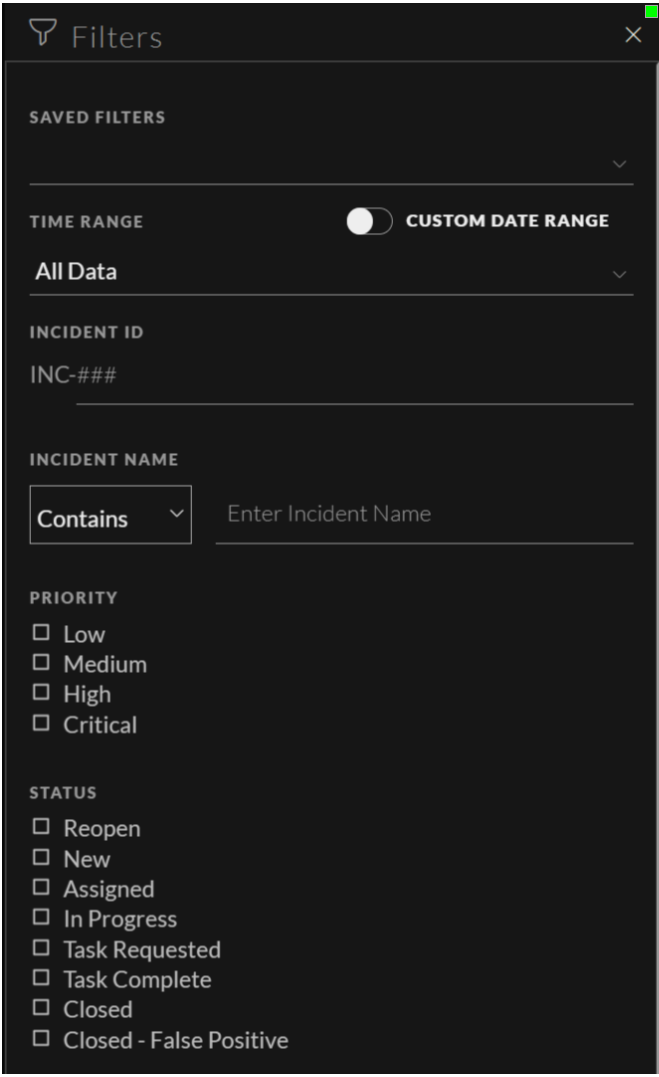
The following figure shows the filters available in the Filters panel.
incident_filters_panel.PNG

The Filters panel, on the left of the Incidents List view, has options that you can use to filter the incidents list. When you navigate away from the Filters panel, the Incidents List view retains your filter selections.

  • Option: Saved Filters
  • Description: You can select a saved filter to filter the incident list. Saved filters are global. You can save a filter for other analysts to use and you can use any saved filter. Saved filters are also available for use on the Springboard landing page. Filters used in the Springboard cannot be deleted. (This option is available in NetWitness Platform 12.2 and later.)

  • Option: Time Range
  • Description: You can select a specific time period from the Time Range drop-down list. The time range is based on the received date of the alerts. For example, if you select Last Hour, you can see alerts that were received within the last 60 minutes.

  • Option: Custom Date Range
  • Description: You can specify a specific date range instead of selecting a Time Range option. To do this, click the white circle in front of Custom Date Range to view the Start Date and End Date fields. Select the dates and times from the calendar.
    netwitness_custdaterange_240x300.png

  • Option: Incident ID
  • Description: Type the number of the incident that you would like to locate. For example, for INC-1050, type only the number "1050" to view the incident.

  • Option: Incident Name
  • Description:

    Enter the exact name of the Incident or a part of it to filter the list of required incidents. Select one of the following options to filter the list of required Incidents:

    • Contains: Select this option and enter the common term specified in the Incident names (of the required Incidents) to obtain a list of filtered Incidents in the Incidents List view.

    • Equals: Select this option and enter the exact name of the required Incident to obtain the filtered incident in the Incidents List view.

    incident_name.PNG


  • Option: Priority
  • Description: Select the priorities that you would like to view.

  • Option: Status
  • Description: Select one or more incident statuses. For example, select Closed - False Positive to view only false positive incidents, which were initially identified as suspicious, but then they were later found to be safe.

  • Option: Assignee
  • Description: Select the assignee or assignees of the incidents that you would like to view. For example, if you only want to view the incidents assigned to Cale or Stanley, select Cale and Stanley from the Assignee drop-down list. If you want to view incidents regardless of the assignee, do not make a selection under Assignee.
    (Available in the latest NetWitness Versions) To view only unassigned incidents, select Show only unassigned incidents.

  • Option: Categories
  • Description: Select one or more categories from the drop-down list. For example, if you only want to view incidents classified with the Backdoor or Privilege abuse categories, select Backdoor and Privilege abuse.

  • Option: MITRE ATT&CK Tactics
  • Description: Select the tactic associated with the incident.

  • Option: MITRE ATT&CK Techniques
  • Description: Select the technique associated with the incident.

  • Option: Sent to Archer
  • Description: (If Archer is configured as a data source in Context Hub, you can send incidents to Archer Cyber Incident & Breach Response and this option will be available in NetWitness Respond.) To view incidents that were sent to Archer, select Yes. For incidents that were not sent to Archer, select No.

  • Option: Reset
  • Description: Removes your filter selections. If you reset filters on a saved filter, it takes you to the default empty filter.

  • Option: Save
  • Description: Saves the currently applied incidents filter or updates a saved filter. For a new filter, choose a unique name that contains 1-256 alphanumeric characters, underscores, or hyphens. (This option is available in the latest NetWitness versions.)

  • Option: Save As
  • Description: Saves the currently applied incidents filter for future use. Choose a unique name that contains 1-256 alphanumeric characters, underscores, or hyphens. (This option is available in the latest NetWitness versions.)

Incident Overview PanelIncident Overview Panel

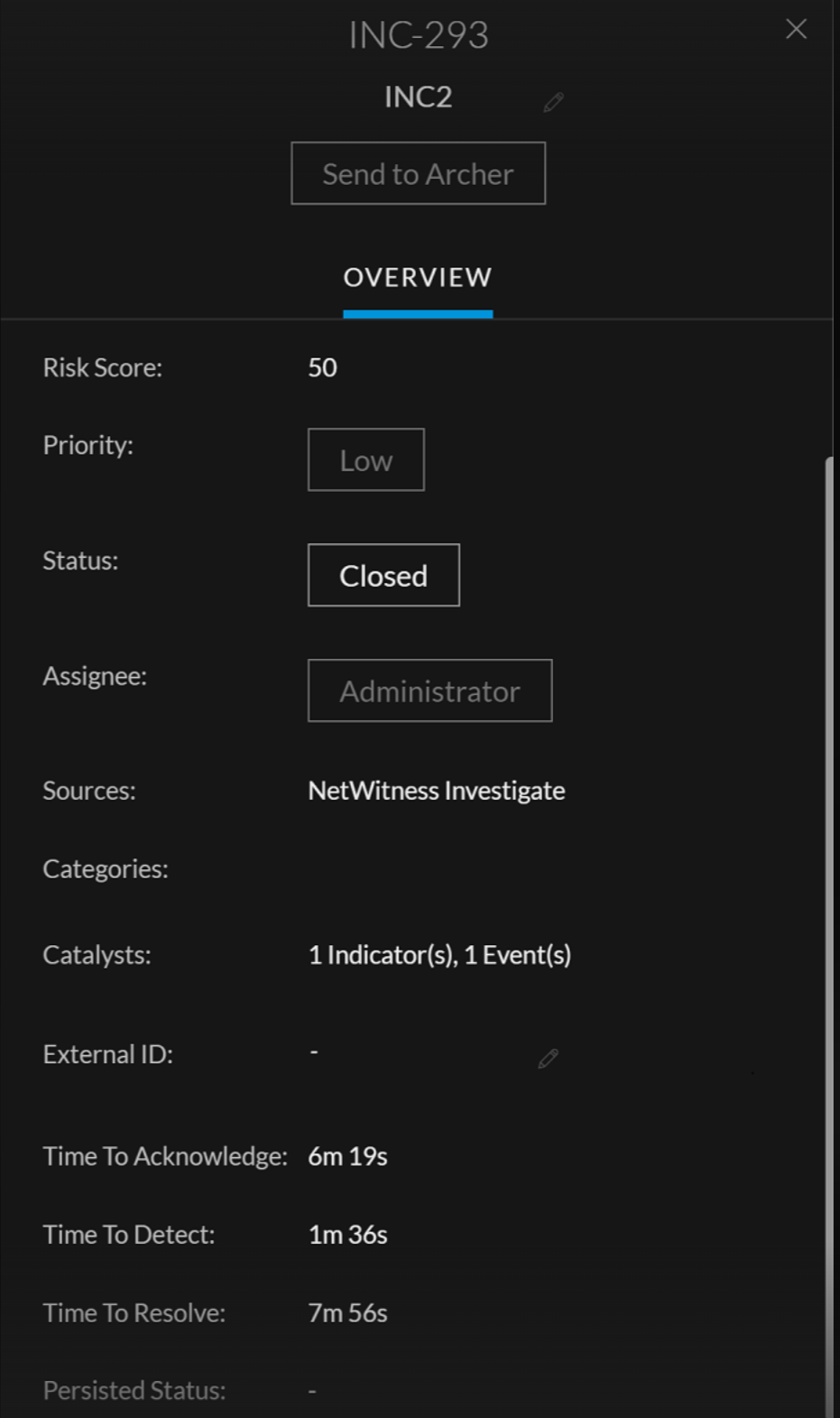
The Overview panel shows basic summary information about a selected incident. From the Incidents List, you can click an incident to access the Overview panel. The Overview panel in the Incident Details view contains the same information.
netwitness_time_to_resolve_incident_overview.png

The following table lists the fields displayed in the Incident Overview panel.

  • Field:
  • Description: Displays the Incident ID.

  • Field: Send to Archer / Sent to Archer
  • Description: (If Archer is configured as a data source in Context Hub, you can escalate incidents to Archer Cyber Incident & Breach Response and this option will be available in NetWitness Respond.)
    Shows whether the incident was sent to Archer Cyber Incident & Breach Response:
    • Send to Archer: The incident was not sent to Archer. You can click the Send to Archer button to send the incident to Archer Cyber Incident & Breach Response for additional processing. This action is not reversible.
      netwitness_sendtoarchbutton.png
    • Sent to Archer: The incident was sent to Archer Cyber Incident & Breach Response for additional analysis and action.
      netwitness_senttoarchnotif.png

  • Field:
  • Description: Displays the name of the incident. You can click the incident name to change it. For example, rules can create many incidents with the same name. You can change the incident names to be more specific.

  • Field: Created
  • Description: Shows the creation date and time of the incident.

  • Field: Rule / By
  • Description: Shows the name of the rule that created the incident or the name of the person who created the incident.

  • Field: RiskScore
  • Description: Shows a value between 0 and 100 that indicates the risk of the incident as calculated by an algorithm. 100 is the highest risk score.

  • Field: Priority
  • Description: Shows the incident priority. Priority can be Critical, High, Medium or Low. To change the priority, you can click the Priority button and select a new priority from the drop-down list.

  • Field: Status
  • Description: Shows the incident status. The status can be Reopen, New, Assigned, In Progress, Task Requested, Task Complete, Closed, and Closed - False Positive. To change the status, you can click the Status button and select a new status from the drop-down list.

  • Field: Assignee
  • Description: Shows the team member currently assigned to the incident. To change the assignee you ,,,,,,, ,,,,,,, ,,,,,,, ,,,,,,, ,,,,,,, ,,,,,,, ,,,,,,, ,,,,,,, ,,,,,,, ,,,,,,, ,,,,,,, ,,,,,,, ,,,,,,, ,,,,,,, Partial, or None (-).,,,,,, ,,,,,,, ,,,,,,, ,,,,,,, ,,,,,,, ,,,,,,, ,,,,,,, ,,,,,,, ,,,,,,, ,,,,,,, ,,,,,,, ,,,,,,, such as an Administrator or Data Privacy Officer.

  • Field: Retention Usage button
  • Description: Allows an analyst to fetch all the stats of all the configured services and the percentage used by the pinned cache directories.

,,,,,,, ,,,,,,, ,,,,,,, ,,,,,,, ,,,,,,, ,,,,,,, ,,,,,,, ,,,,,,, ,,,,,,, ,,,,,,,