Skip to content
  • There are no suggestions because the search field is empty.

Report View

Report View

In the Report view, you can create and manage the report or report groups.

Workflow

This workflow shows the procedure to create and schedule a report.
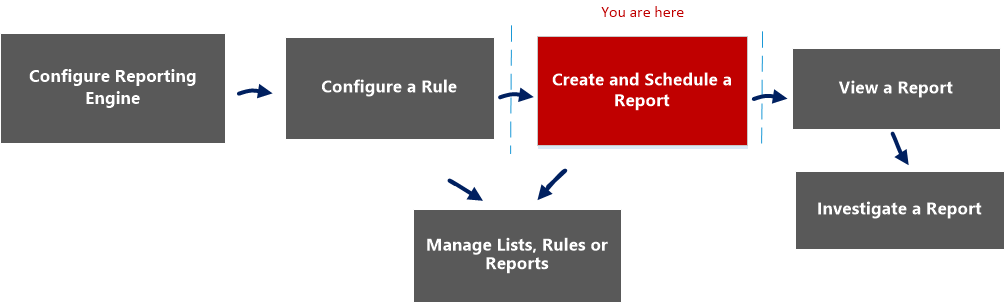
netwitness_createandschrep_workflow.png

What do you want to do?

  • Role: Administrator / Analyst
  • I want to ...:

    Configure Reporting Engine

  • Show me how:

    For more information, see "Step 3: Configure Reporting Engine Data Sources" topic in the Reporting Engine Configuration Guide


  • Role: Administrator / Analyst
  • I want to ...: Create a List or List Group/Create or Deploy a Rule/Test a Rule
  • Show me how: Configure a Rule


  • Role: Administrator / Analyst
  • I want to ...: View a report or list of all reports
  • Show me how: View a Report

  • Role: Administrator / Analyst
  • I want to ...: Investigate a Report
  • Show me how: Investigate a Report


*You can complete these tasks here.

Related Topics

Quick View
122_ReportsView_1222.png

To access this view:

  1. Go to Reports.
    The Manage tab is displayed.
  2. Click Reports.
    The Reports view is displayed.

Features

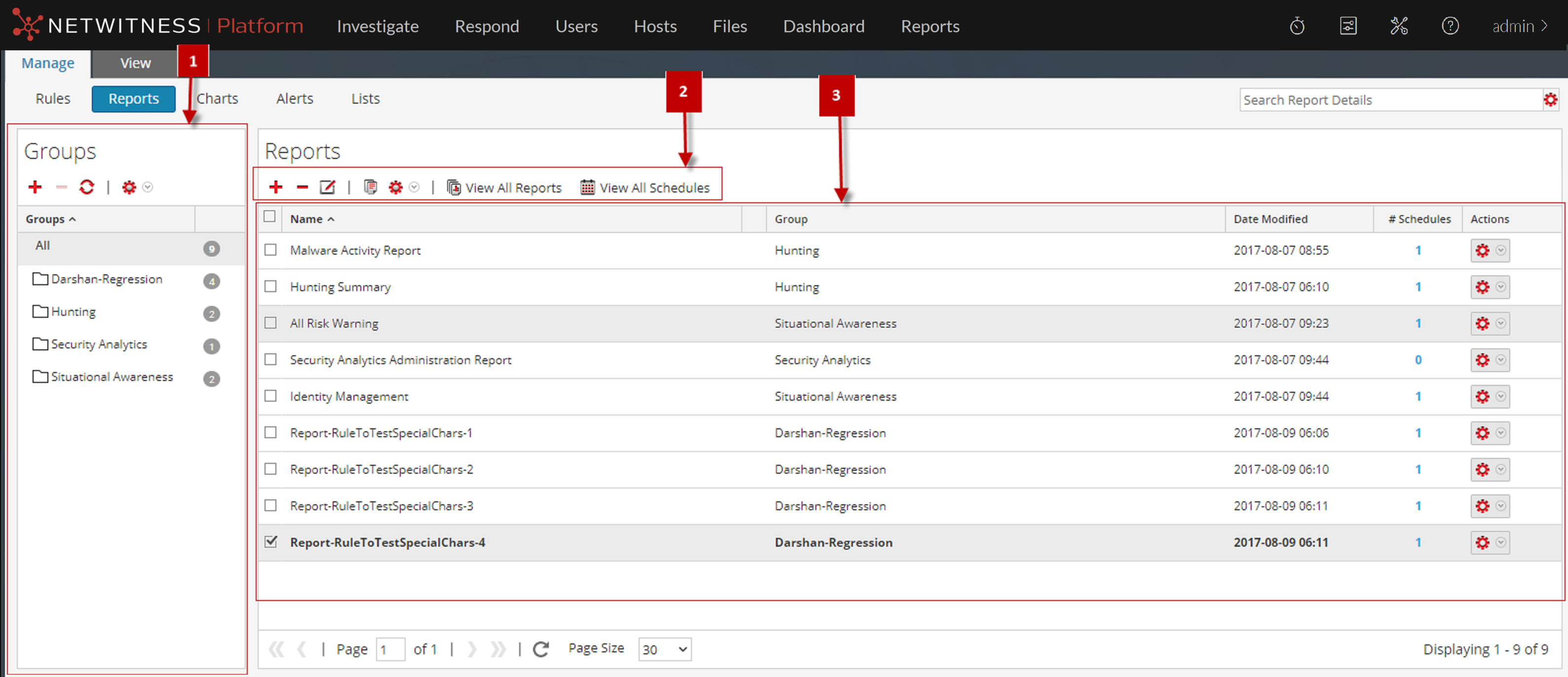
The Report view includes the following sections:

  • Column 1: 1
  • Column 2: Reports Groups panel

  • Column 1: 2
  • Column 2: Reports toolbar

  • Column 1: 3
  • Column 2:

    Reports panel


Report Groups Panel

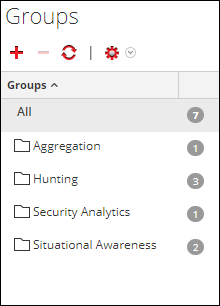
The Report Groups panel allows you to organize reports in a group. You can create a report group, add reports to the group, and move reports among groups. You can view all reports by selecting All option under the Groups column.
netwitness_110_repgrouppane.png

  • Feature: netwitness_110_run_config_add.png
  • Description: This option allows you to add a new report to the Reporting module.

  • Feature: netwitness_110_del_button.png
  • Description: This option allows you to delete one or more selected report.

  • Feature: netwitness_110_refresh_button.png
  • Description: This option refreshes the view.

  • Feature: netwitness_110_list_options_button.png
  • Description: The actions menu has the following options: Import, Export and Permissions.

Reports Toolbar

The Reports toolbar allows you to add, modify, delete, duplicate, import and export reports. You can also set access permissions for a report in a group.

netwitness_110_reports_toolbar.png

  • Feature: netwitness_110_run_config_add.png
  • Description: This option allows you to add a new report to the Reporting module.

  • Feature: netwitness_110_del_button.png
  • Description: This option allows you to delete one or more selected reports.

  • Feature: netwitness_110_edit_button.png
  • Description: This option allows you to edit a chart.

  • Feature: netwitness_duplicate_button.png
  • Description: This option creates a duplicate copy of the selected report.

  • Feature: netwitness_110_list_options_button.png
  • Description: The actions menu has the following options: Import, Export , Export as Text and Permissions.

  • Feature:

    netwitness_110_viewallrep-icon.png

  • Description:

    This option allows you to view a list of reports along with their schedule name and time.


  • Feature: netwitness_110_viewallsch-icon.png
  • Description: This option allows you to view all the scheduled reports.

Report List Panel

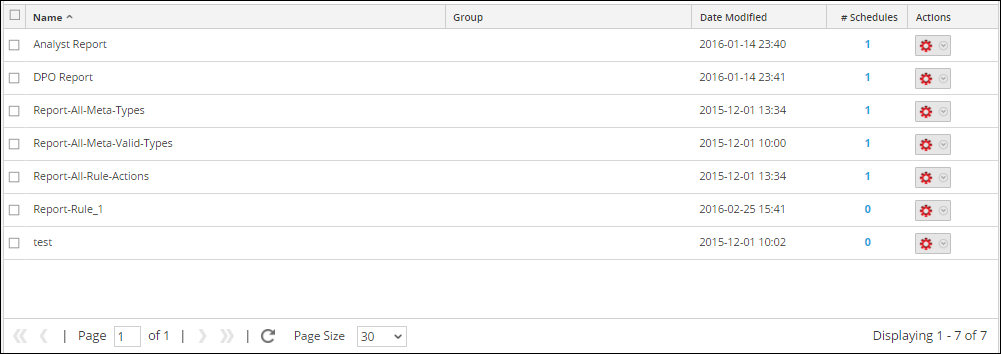
The Report List panel lists all the reports in a tabular format.
netwitness_110_reportlistpanel1.png

The following table describes the columns in the Report List panel.

  • Column: Name
  • Description: The name of the report.

  • Column: Group
  • Description: The Report Group to which the report belongs.

  • Column: Date Modified
  • Description: The date and time when the report was modified.

  • Column: Created By
  • Description: The creator of the report.

  • Column: #Schedules
  • Description: The count indicates the number of schedules created for a report.

  • Column: Actions
  • Description: The actions menu has the following options: Schedule Report, View Scheduled Reports, Delete, Edit, and Export.