Scheduled Reports View
The Scheduled Reports view allows you to create, view and manage scheduled reports.
Workflow
This workflow shows the procedure to create and schedule a report.
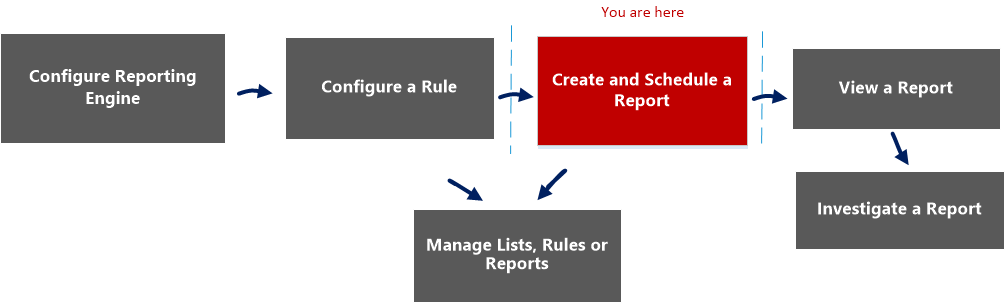
What do you want to do?
- Role: Administrator / Analyst
- I want to ...:
Configure Reporting Engine
- Show me how:
For more information, see "Configure the Data Sources" topic in the Reporting Engine Configuration Guide
- Role: Administrator / Analyst
- I want to ...: Create a List or List Group/Create or Deploy a Rule/Test a Rule
- Show me how: Configure a Rule
- Role:
Administrator / Analyst
- I want to ...:
Create and Schedule a Report*
- Show me how:
- Role: Administrator / Analyst
- I want to ...: View a report or list of all reports
- Show me how: View a Report
- Role: Administrator / Analyst
- I want to ...: Investigate a Report
- Show me how: Investigate a Report
- Role: Administrator / Analyst
- I want to ...: Manage/Access Control for lists, Rules or Reports*
- Show me how: Manage Lists, Rules or Reports
*You can complete these tasks here.
Related Topics
Quick View
To access this view:
-
Go to Reports.
The Manage tab is displayed.
-
Click Reports.
The Report view is displayed.
-
In the Reports panel, do one of the following:
- Click
> View Scheduled Reports. - Click the Schedules column.
- Click
Features
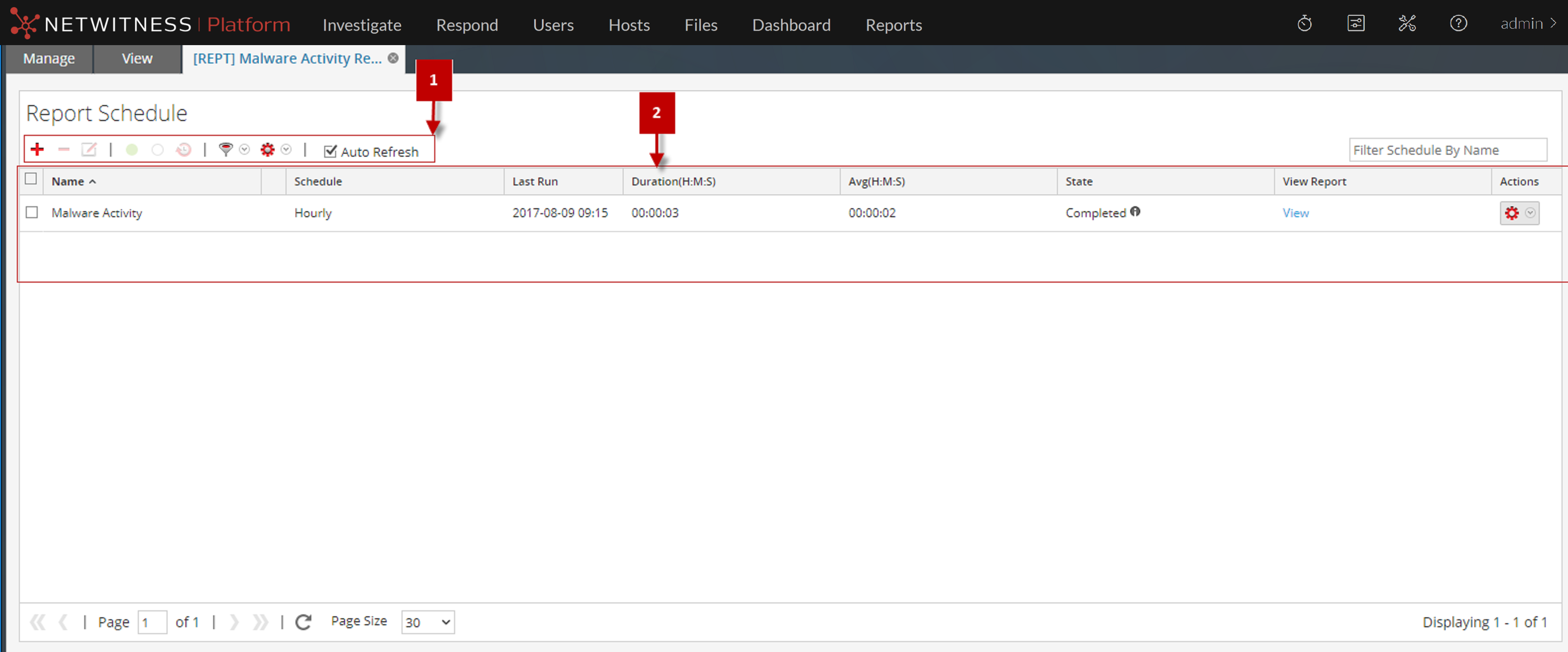
The View Scheduled Reports has the following features:
- Column 1: 1
- Column 2: Report Schedule Toolbar
- Column 1: 2
- Column 2: Report Schedule List panel
Report Schedule Toolbar
The Scheduled Reports has options to add, modify and delete the scheduled report as well as options to enable or disable the selected run configuration.

The following table lists the operations in the Scheduled Reports toolbar.
- Operation:

- Description: Create a new report schedule.
- Operation:

- Description: Delete the selected report schedule.
- Operation:

- Description:
Edit the selected report schedule.
Note: Double-click on a desired report schedule to edit it.
- Operation:

- Description: Enables the selected report schedule.
- Operation:

- Description: Disables the selected report schedule.
- Operation:

- Description: View the history of the scheduled report.
- Operation:

- Description: Filter schedules based on the type of schedule. (For example, AdHoc)
- Operation:

- Description: Allows you to set permissions for the selected scheduled report.
- Operation:

- Description: Automatically refreshes the scheduled reports list.
- Operation:

- Description: Searches schedules based on the schedule name.
Report Schedule List Panel
The Scheduled Reports List panel lists the scheduled reports in a tabular format.
The following table lists the columns in the Scheduled Reports List panel:
- Column: Name
- Description: The name of the scheduled report.
- Column: Schedule
- Description: The type of schedule for the run configuration:
- Ad-hoc execution
- Hourly execution
- Daily execution
- Weekly execution
- Monthly execution
- Column: Last Run
- Description: Displays the last time the report was run.
- Column: Duration(H:M:S)
- Description: Displays the time taken for last execution of the report.
- Column: Avg (H:M:S)
- Description: Displays the average time taken to run the report.
- Column: State
- Description:
Indicates the state of the scheduled report.
- Scheduled: If a report is scheduled to run on an hourly, daily, weekly, monthly, or later time, the state of the report is displayed as scheduled, for the first run.
- Queued: If a report is still waiting to get executed, the state of the report is displayed as queued.
- Running: If the report schedule is in progress, the state of the report is displayed as running.
- Partial: If in a report with several rules, a single rule execution failed or an output action failed or creation of PDF/CSV failed, the state of the report is displayed as partial. For example, consider a report with five rules and four rules are executed successfully and one fails, then the state is displayed as Partial.
- Failed: If in a report with several rules, all the rule schedule executions failed, the state of the report is displayed as failed.
- Completed: If a report schedule is successfully executed, the state of the report is displayed as completed.
- Canceled: When cancel request is completed, the state of the report is displayed as canceled.
Note: Cancel option may not work for Warehouse Analytic jobs. You must kill the job manually. Following are the steps to kill the job:
For MapR:
1. Get the Jobid from job logs.
2. Login to jobtracker UI and search for Jobid to kill under "Running Jobs".
Sample URL: http://:50030/jobtracker.jsp
3. Kill the Jobid:
• Select Jobid under "Running Jobs" and click Kill Selected Jobs.
(or)
• Click on Jobid link, scroll down and click Kill this job link.- Inactive: If a report schedule is disabled, the state of the report is displayed as Inactive.
- Not available: If the report schedule executed information is not available, the state of the report is displayed as not available.
- Column:

- Description:
Click to view the rule execution information and output action information.
This pop-up notifies the status of multiple rules in a report and the time taken for its execution.Note: You can view the rule execution and output action information for a scheduled report having the state Completed, Running, Partial or Failed. By default, the Output Actions for Completed Report on Reporting Engine Config page is set to enable, to receive an email when the report status is completed. To receive an email for Failed or Partial reports, you must disable this option.
- Column: View Report
- Description: Click to view the rule execution information on the View a Report Panel. You can view the rule execution information for a scheduled report having the state 'running' as well.