.png?width=180&height=32&name=NW%20Logo%20(2).png)
Alerts List View
The Alerts List view (Respond > Alerts) enables you to view all of the threat alerts and indicators received by NetWitness in one location. This can include alerts received from ESA Correlation Rules, Malware Analysis, Reporting Engine, NetWitness Endpoint, as well as many others. In the Alerts List view you can browse through various alerts, filter them, and group them to create incidents.
Workflow
This workflow shows the high-level process that Analysts use to review alerts and create incidents.
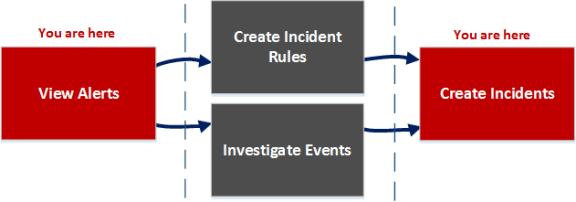
In the Alerts List view, you can review a list of alerts from all sources received by NetWitness. After that, you can investigate those alerts further and create incidents from the alerts or you can create incident rules to create incidents.
Note: You can use NetWitness Automated Threat Detection to create incidents without manually creating rules.
What do you want to do?
*You can complete these tasks here (that is, in the Alerts List view).
Related Topics
Quick Look
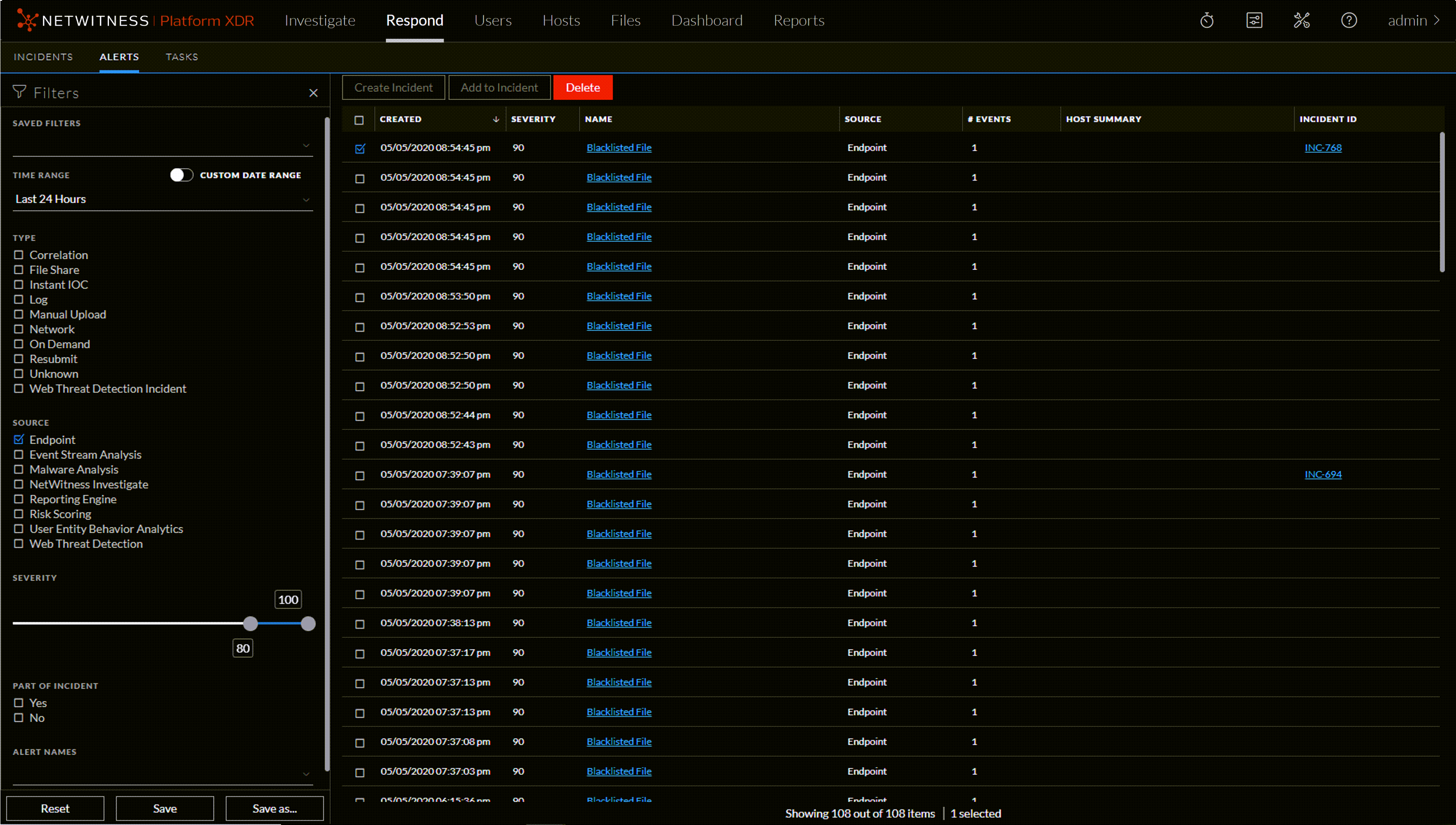
To access the Alerts List view, go to Respond > Alerts. The Alerts List view displays a list of all alerts and indicators received by the Respond Server database in NetWitness. The following figure shows the Filters panel on the left.
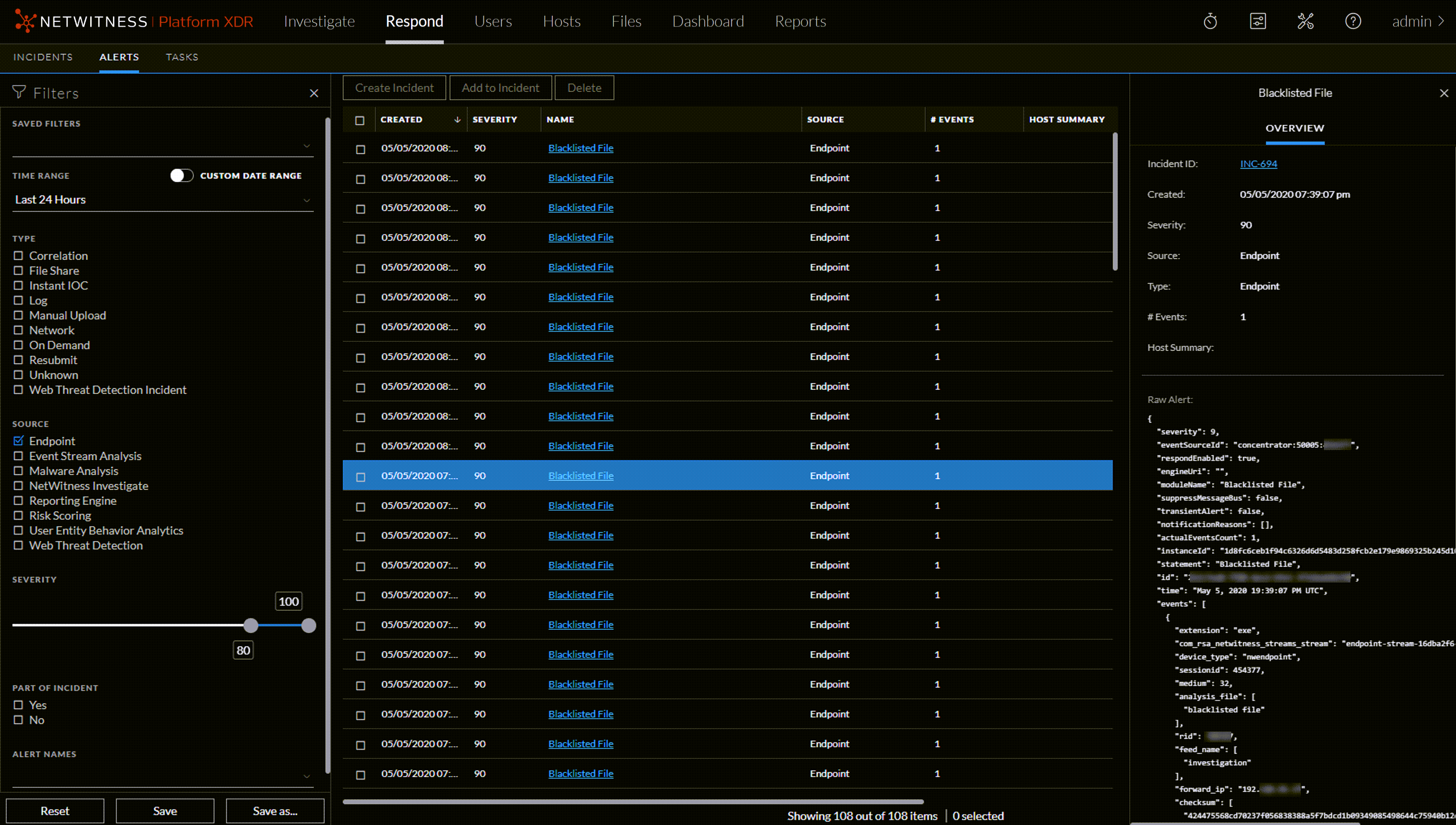
The Alerts List view consists of a Filters panel, an Alerts List, and an Alert Overview panel. You can click an alert in the Alerts list to view the Alert Overview panel on the right.
Alerts List
The Alerts List shows all of the alerts in NetWitness. You can filter this list to only show alerts of interest.
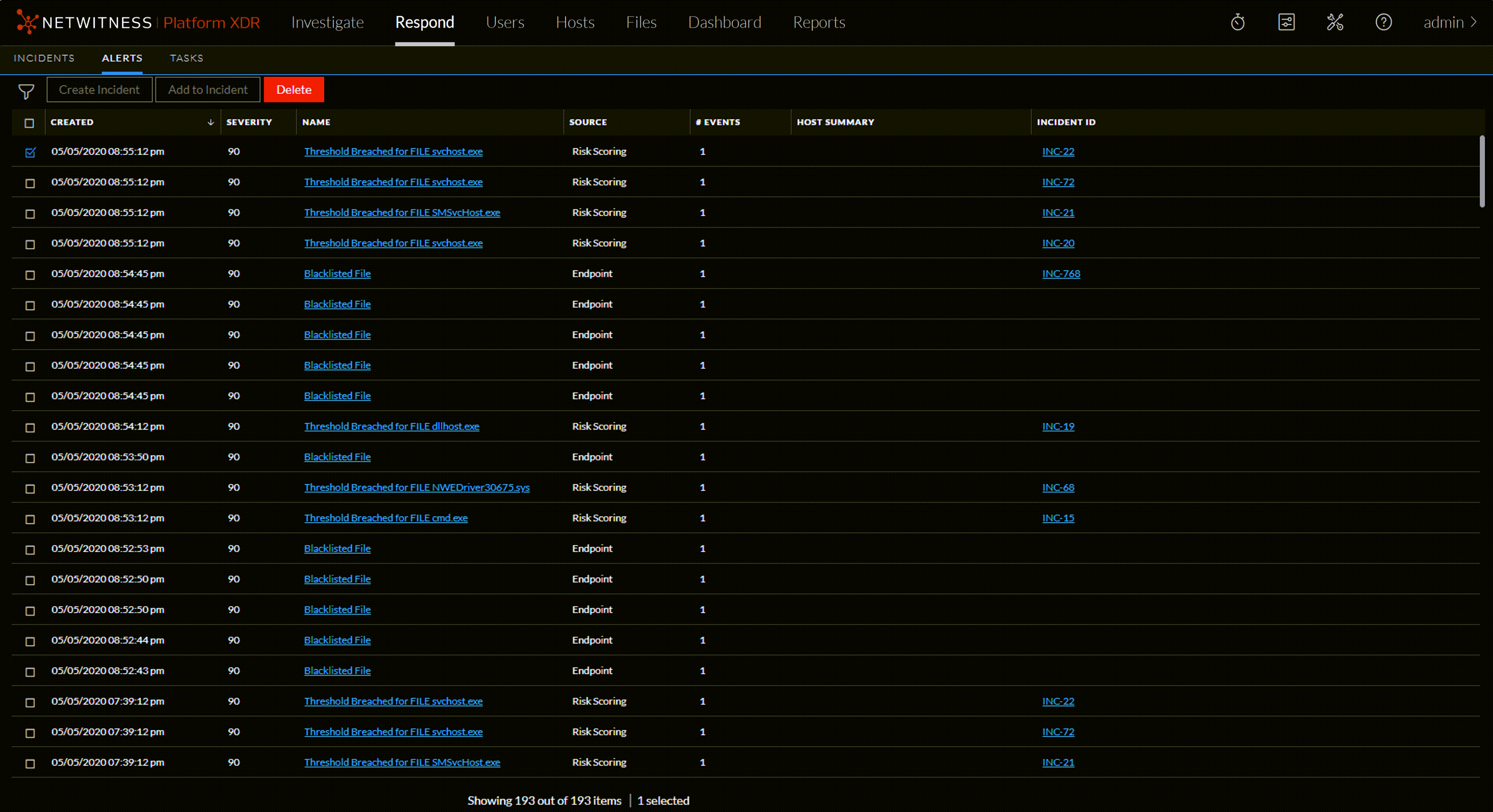
The following Alerts List view is filtered for Risk Scoring Alerts. 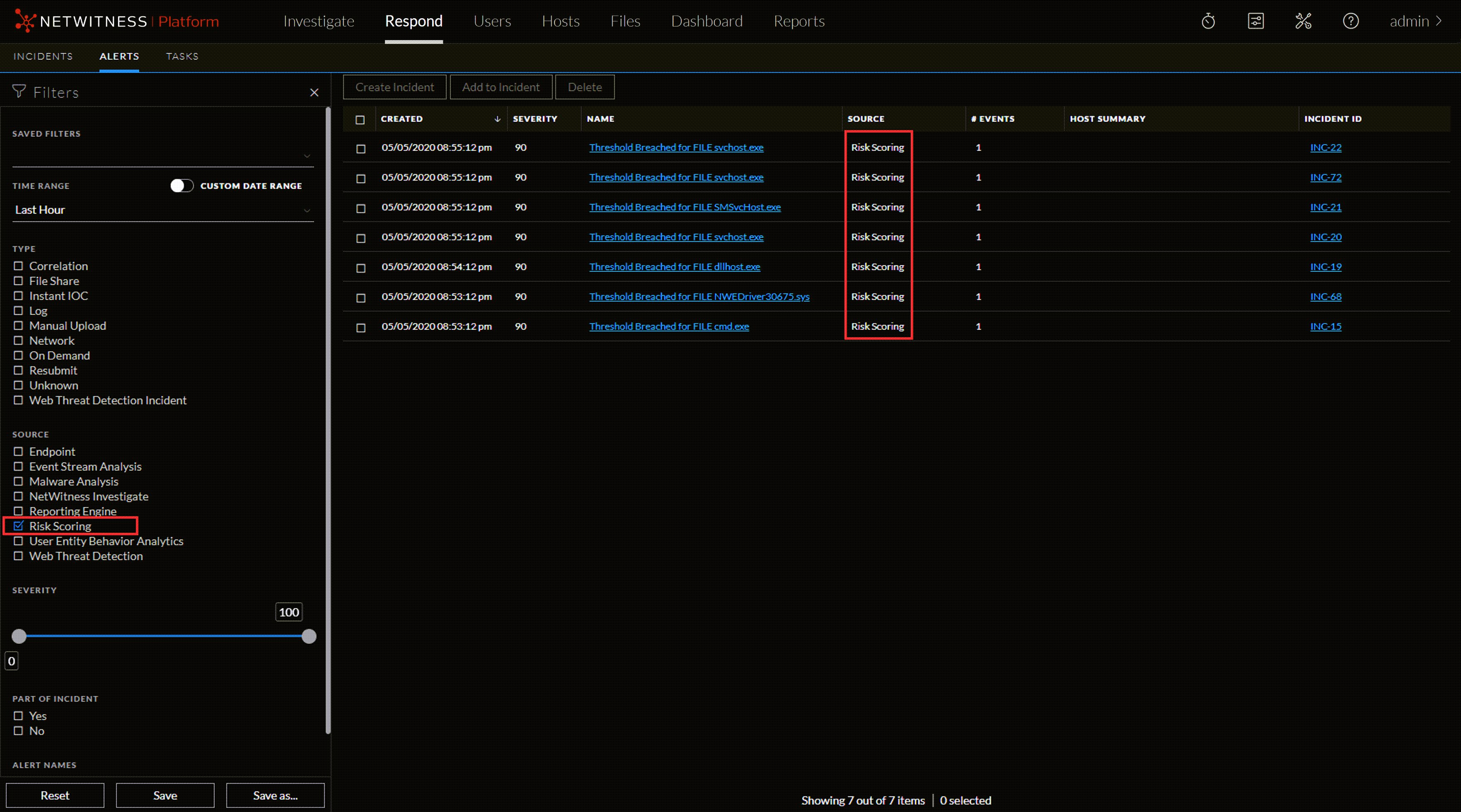
The following table describes the columns in the Alerts List.
At the bottom of the list, you can see the number of alerts on the current page, the total number of alerts, and the number of alerts selected. For example: Showing 4 out of 4 items | 1 selected
Alert Filters Panel
The following figure shows the filters available in the Filters panel.
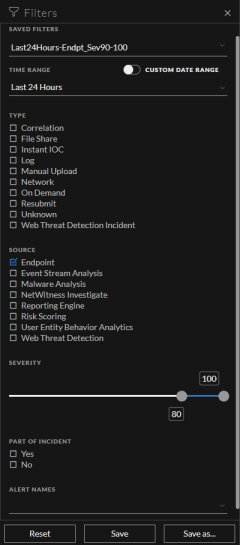
The Filters panel, on the left of the Alerts List view, has options that you can use to filter the alerts list. When you navigate away from the Filters panel, the Alerts List view retains your filter selections.
The Alerts List shows a list of alerts that meet your selection criteria. You can see the number of items in your filtered list at the bottom of the alerts list. For example: Showing 4 out of 4 items
Alert Overview PanelAlert Overview Panel
The Overview panel shows basic summary information about a selected alert and raw alert metadata. The Overview panel in the Alert Details view contains the same information, but in the Alerts Details view, you can expand the panel to view more information.
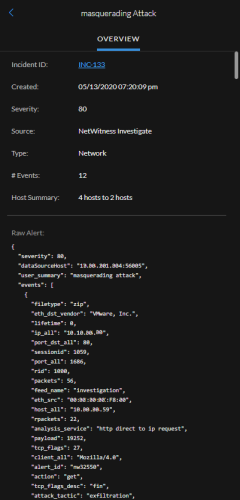
The following table lists the fields displayed in the Alert Overview panel.
Toolbar Actions
This table lists the toolbar actions available in the Alerts List view.