.png?width=180&height=32&name=NW%20Logo%20(2).png)
View a Report Panel
The View a Report panel is used to review the reports.
Workflow
This workflow shows the procedure view a report or list of all reports.
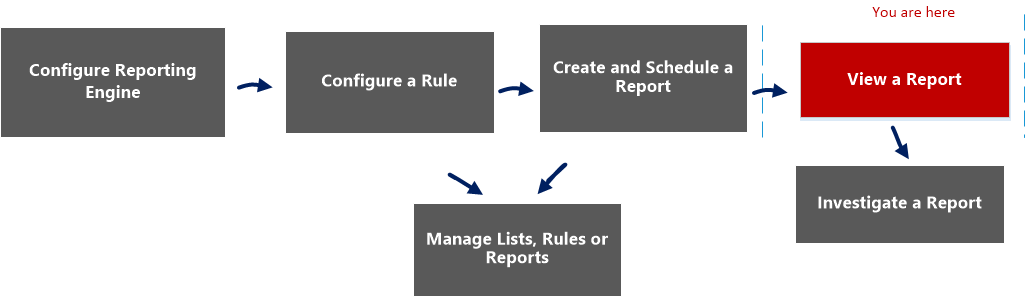
What do you want to do?
*You can complete these tasks here.
Related Topics
- Configure and Generate a Report
- Build Report View
- Import Report Dialog
- Scheduled Reports View
- Reports Permissions Dialog
- View All Reports View
- Report View
Quick View
To access this view:
-
Go to Reports.
The Manage tab is displayed.
-
Click Reports.
The Report view is displayed.
-
In the Reports panel, do one of the following:
-
Click
 >View Scheduled Reports.
 -
Click the #Schedules column.
The Report Schedule view is displayed.
-
- Click View.
Features
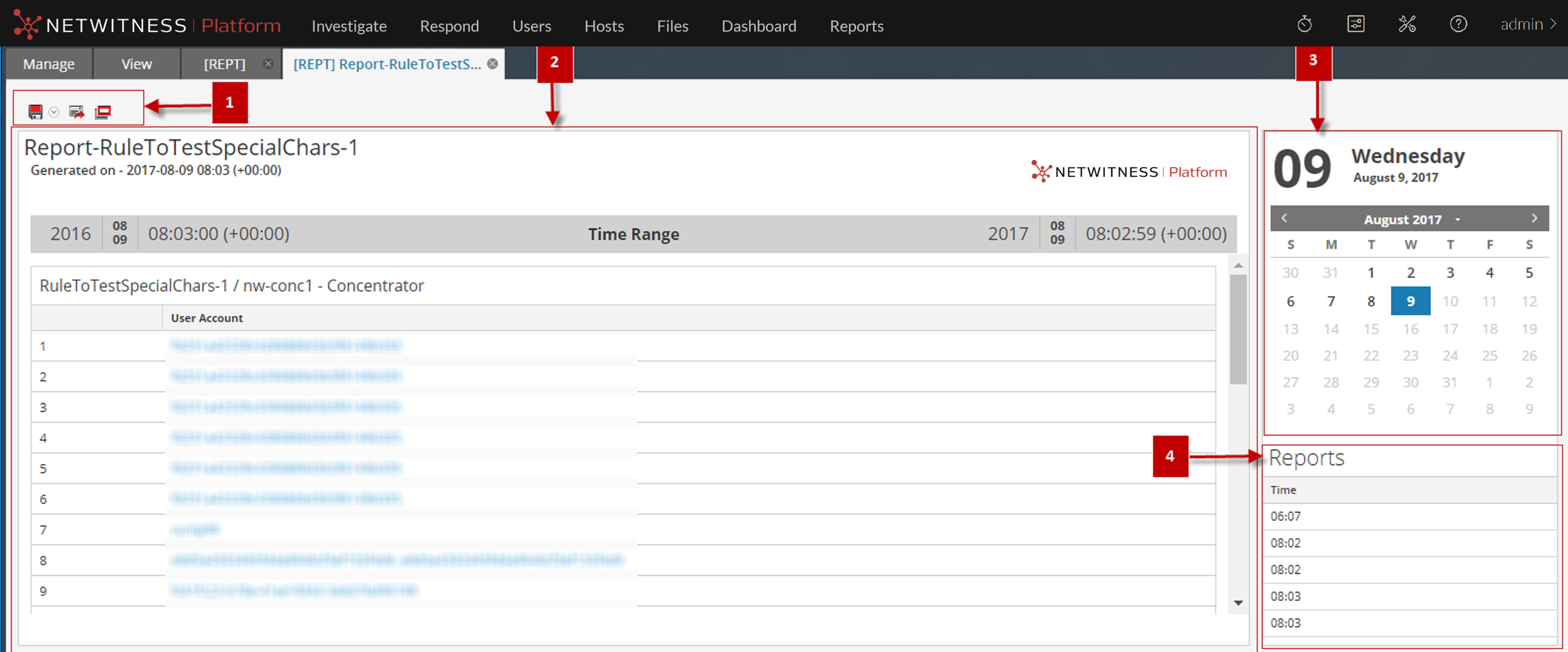
The View a Report panel has the following sections.
Reports Toolbar
The Reports toolbar allows you to print, save, email, and view reports on full screen.
Note: The Reporting Engine is responsible for generating PDF and CSV output of the reports based on the report definition. The size of the PDF files for a report must not exceed 50,000 cells.

The following table lists the options in the Reports toolbar.
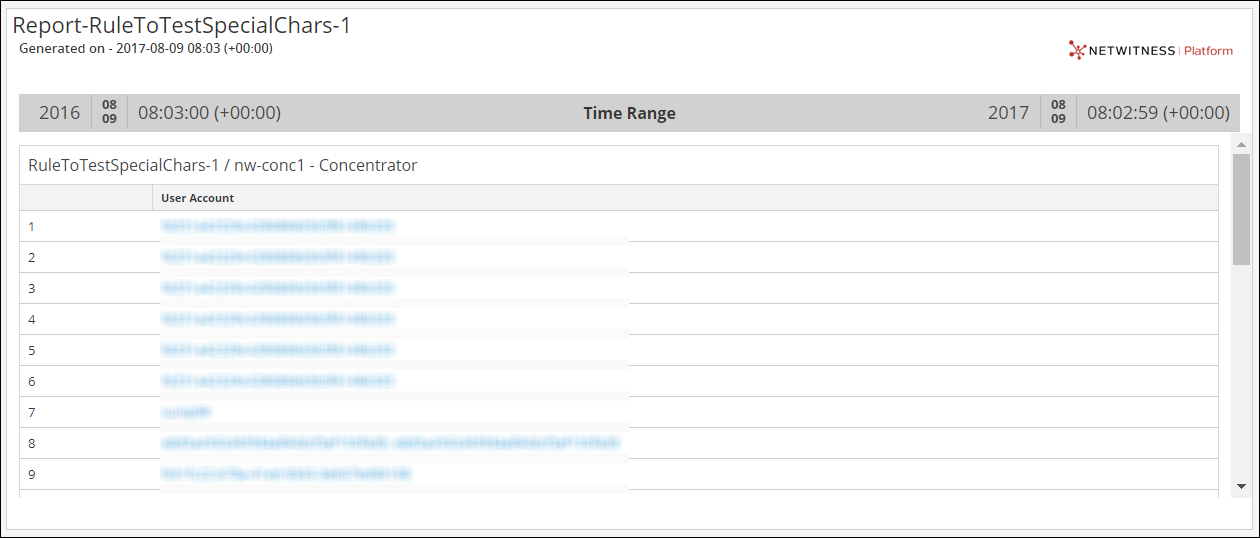
Reports Output View
The Reports Output panel view the report with the report schedule name, report generated time and the actual report with the selected rule variables.
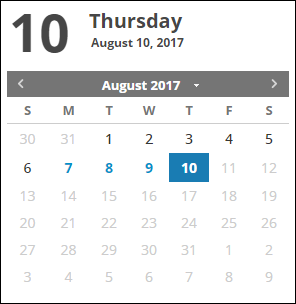
Reports Calendar View
The Reports Calendar view is used to select a date from the Calendar. Based on the date you select, the list of successfully run reports for the date is displayed.
Reports Time View
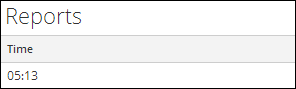
The Reports Time view displays the time when the report was actually run.
When you click View on the scheduled report having Iterative selected, the Sub Reports panel is displayed. For each value in the configured list a report is generated.
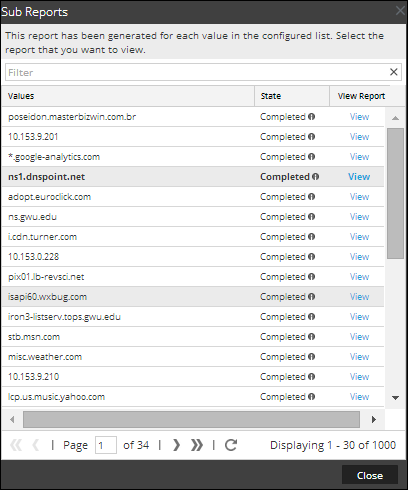
The following table lists the columns in the Sub Reports panel.