Skip to content
  • There are no suggestions because the search field is empty.

Reports Permissions Dialog

Reports Permissions DialogReports Permissions Dialog

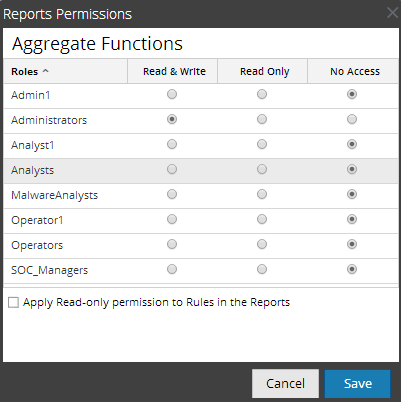
In the Reports Permissions dialog, the users with 'Read & Write' access permission can configure permissions.

Workflow

This workflow shows the procedure to manage reports or report groups.
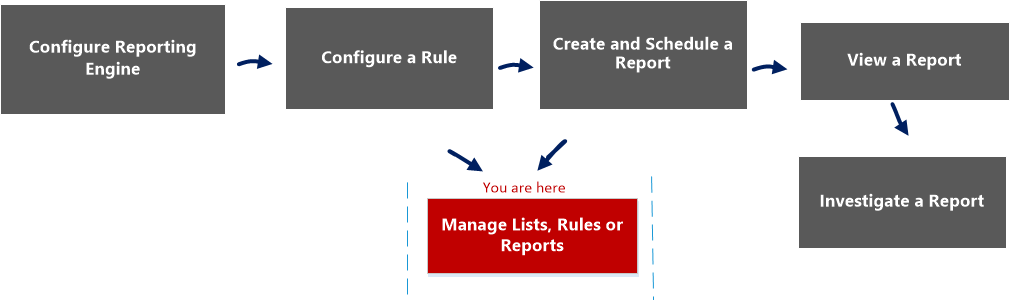
netwitness_manage_report_workflow.png

What do you want to do?

  • Role: Administrator / Analyst
  • I want to ...:

    Configure Reporting Engine

  • Show me how:

    For more information, see "Step 3: Configure Reporting Engine Data Sources" topic in the Reporting Engine Configuration Guide


  • Role: Administrator / Analyst
  • I want to ...: Create a List or List Group/Create or Deploy a Rule/Test a Rule
  • Show me how: Configure a Rule


  • Role: Administrator / Analyst
  • I want to ...: View a report or list of all reports
  • Show me how: View a Report

  • Role: Administrator / Analyst
  • I want to ...: Investigate a Report
  • Show me how: Investigate a Report


*You can complete these tasks here.

Related Topics

Quick View
netwitness_110_access_control_report.png

To display the Reports Permissions dialog:

  1. Go to Reports.
    The Manage tab is displayed.
  2. Click Reports.
    The Report view is displayed.
  3. In the Reports panel, select a report.
  4. Click netwitness_110_list_options_button.png > Permissions.
    The Reports Permissions dialog is displayed.

Note: When you select the check box, all dependent rules are given READ access permission, provided the permissions for the report is higher compared to the permissions of the rules.

The following table describes the features in the Reports Permissions dialog.

  • Feature: Roles
  • Description: Displays all the roles who can get access to the permissions.

  • Feature: Read&Write
  • Description: Allows you to get Read&Write access to the Rules in the Reports.

  • Feature: Read Only
  • Description: Allows you to get Read Only permissions to the Rules in the Reports.

  • Feature: No Access
  • Description: If you select this option, you will not get permission to the Rules in the Reports.

  • Feature: Apply Read-only permissions to Rules in the Reports
  • Description: Allows to set Read Only permissions to the Rules in the Reports for all the roles .

  • Feature: Cancel
  • Description: This option cancels all the changes made to the permissions.

  • Feature: Save
  • Description: This option saves the selections and provides access to the roles based on the selections.