.png?width=180&height=32&name=NW%20Logo%20(2).png)
Schedule Report Panel
The Schedule Report panel allows you to schedule a customized report. Prior to scheduling a report, you can create a dynamic list (with the overwrite option selected) with services added. For more information, see "Generate a List from the Scheduled Report" section in Create and Schedule a Report. Then use the list to generate a report with details in the report like services and host names.
Workflow
This workflow shows the procedure to create and schedule a report.
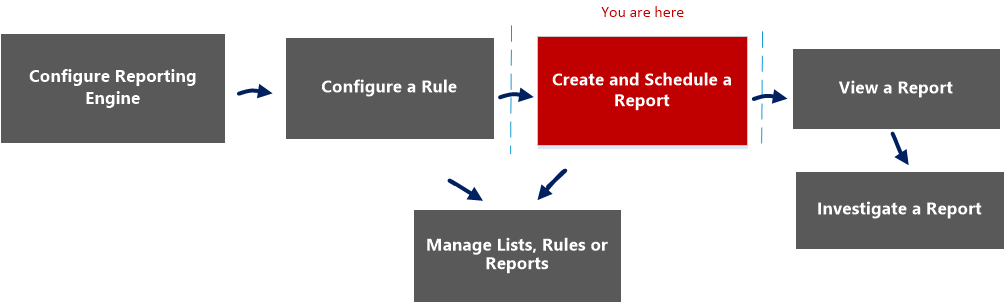
What do you want to do?
*You can complete these tasks here.
Related Topics
Quick View
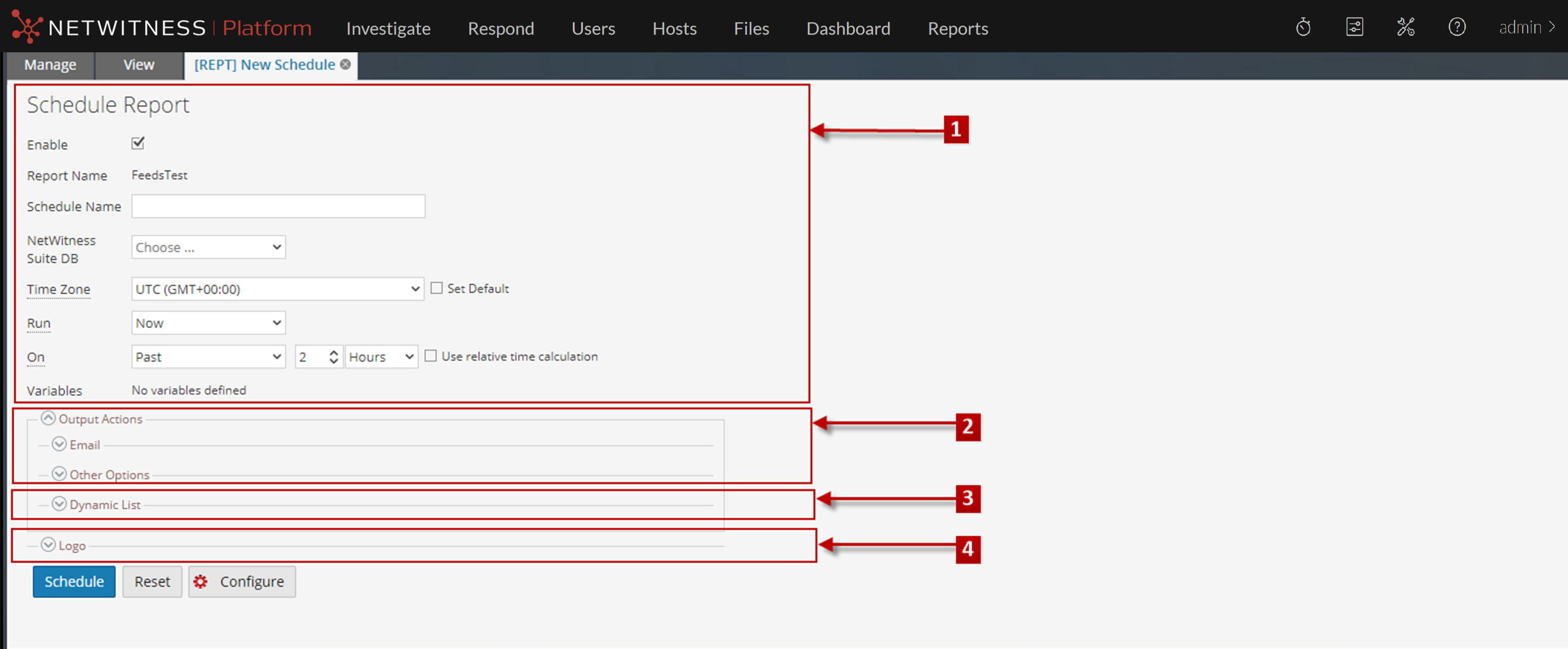
To access this view:
- Go to Reports.
The Manage tab is displayed. - Click Reports.
The Reports view is displayed. - In the Reports panel, click
 > Schedule Report.
Features
The Schedule Report view consists of the following panels:
Schedule Report View
The Schedule Report view allows you to schedule reports.
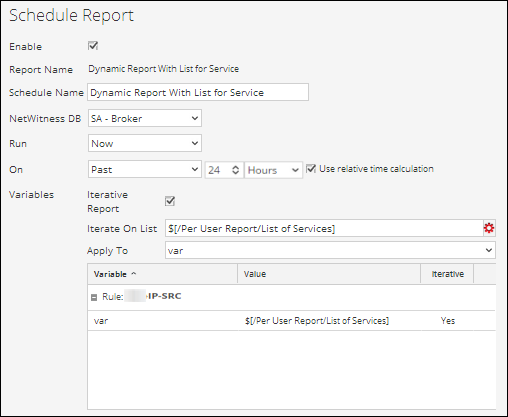
The following table lists the fields in the Schedule Report panel.
Output Actions Panel
The Output Actions panel specifies output actions to notify the email recipient when the report execution completes and also sends reports in PDF and CSV formats as attachments in the email, based on your selection.
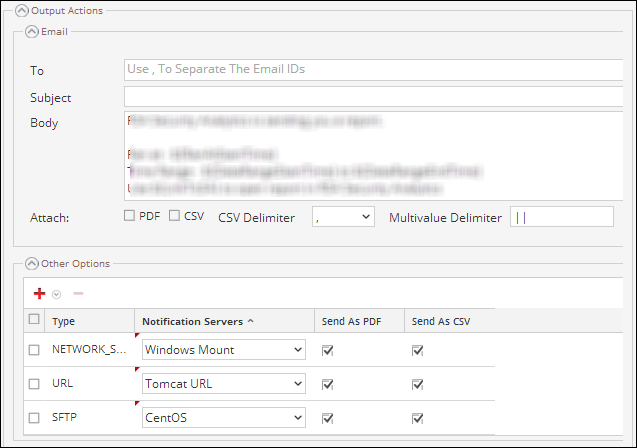
The following table lists the fields in the Output Actions panel.
Dynamic List Panel
The Dynamic List panel populates the lists created and you can add, edit or delete the list. The list is generated based on the scheduled report which can be viewed in the Lists view.
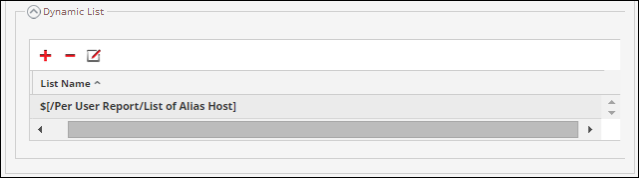
The following table lists the operations in the Generate List panel.
Logo Panel
The Logo panel populates the default logo from the Select a Logo panel. For more information on choosing a logo from this panel, see "Manage and Select a Report Logo" section in the Manage Lists, Rules or Reports.
You can set the default logo for a Reporting Engine. This is the logo that is used in the generated reports. For more information on choosing a logo, see Select a Logo Dialog.
Note: If you have not selected any logo then the default NetWitness logo is used on the report. The option Save as PDF for the previously executed reports does not support a new customer logo. It displays the default NetWitness Logo, if the customer logo must be displayed in the Schedule a Report view.
